Jewellery Store Setup
Set up your jewellery shop in BazaarPOS: enter today's gold and silver rate, turn the items you already have into priced jewellery pieces, take old gold in exchange, and sell at the counter. It works with any country, weight unit and purity system.
How pricing works
You keep your normal items. For a jewellery piece you add its weight, purity, wastage, making charge and stones. BazaarPOS works out the selling price from today's metal rate:
When the rate changes, you change it once and every jewellery item's price follows. Items without jewellery details are never touched. Tax is added the same way as for any other item, from your tax settings.
Step 1 — Check your shop details
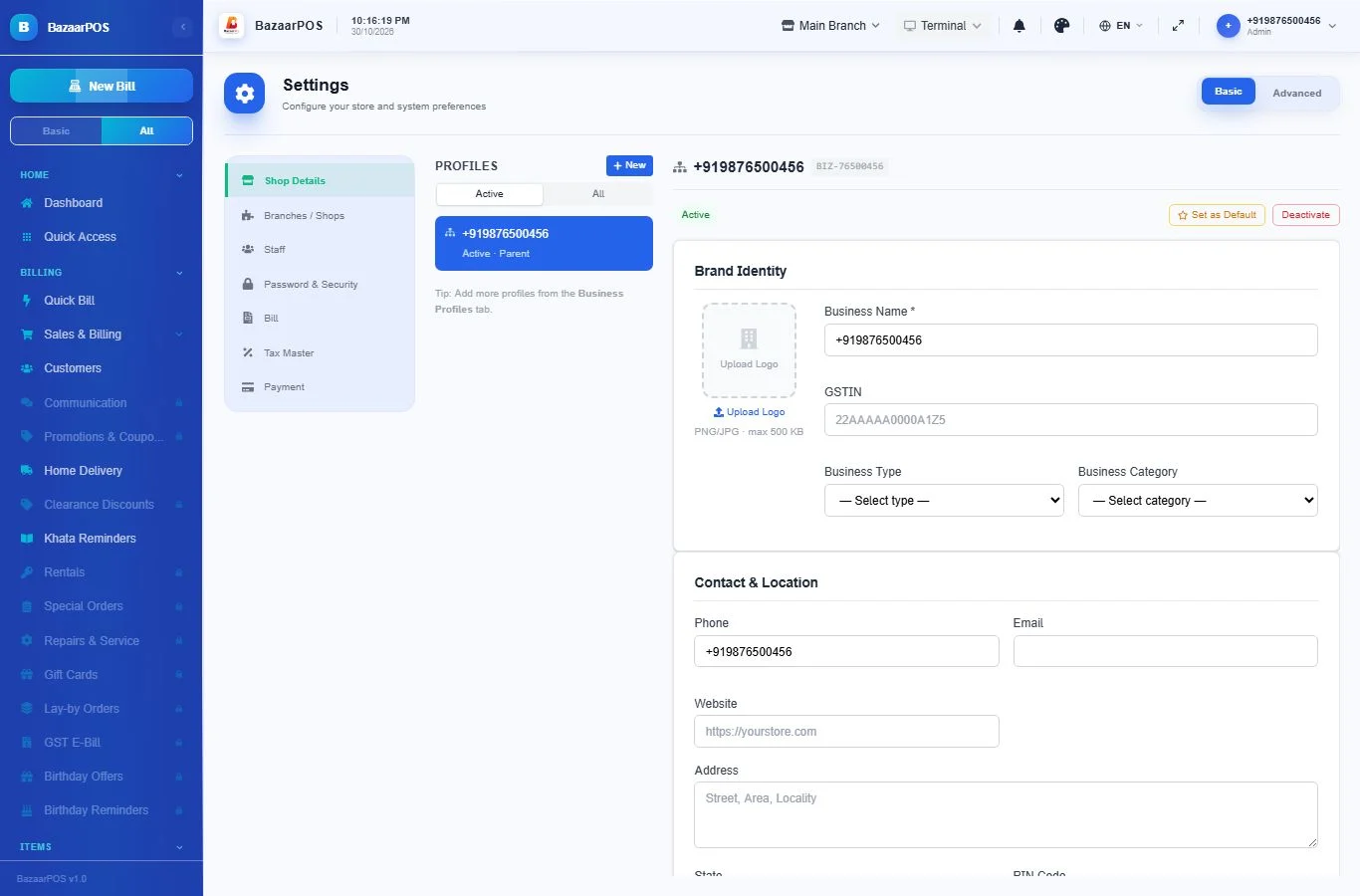
- Open Settings → Shop Details.
- Fill in the business name, address, phone and your tax number. These print on your bills.
- Under Business Category choose Jewellery and click Save.
In the BazaarPOS Jewellery app, the left menu has a Jewellery section with three screens: Today's Rates, Jewellery Items and Old Gold & Scrap.
Step 2 — Set today's rate
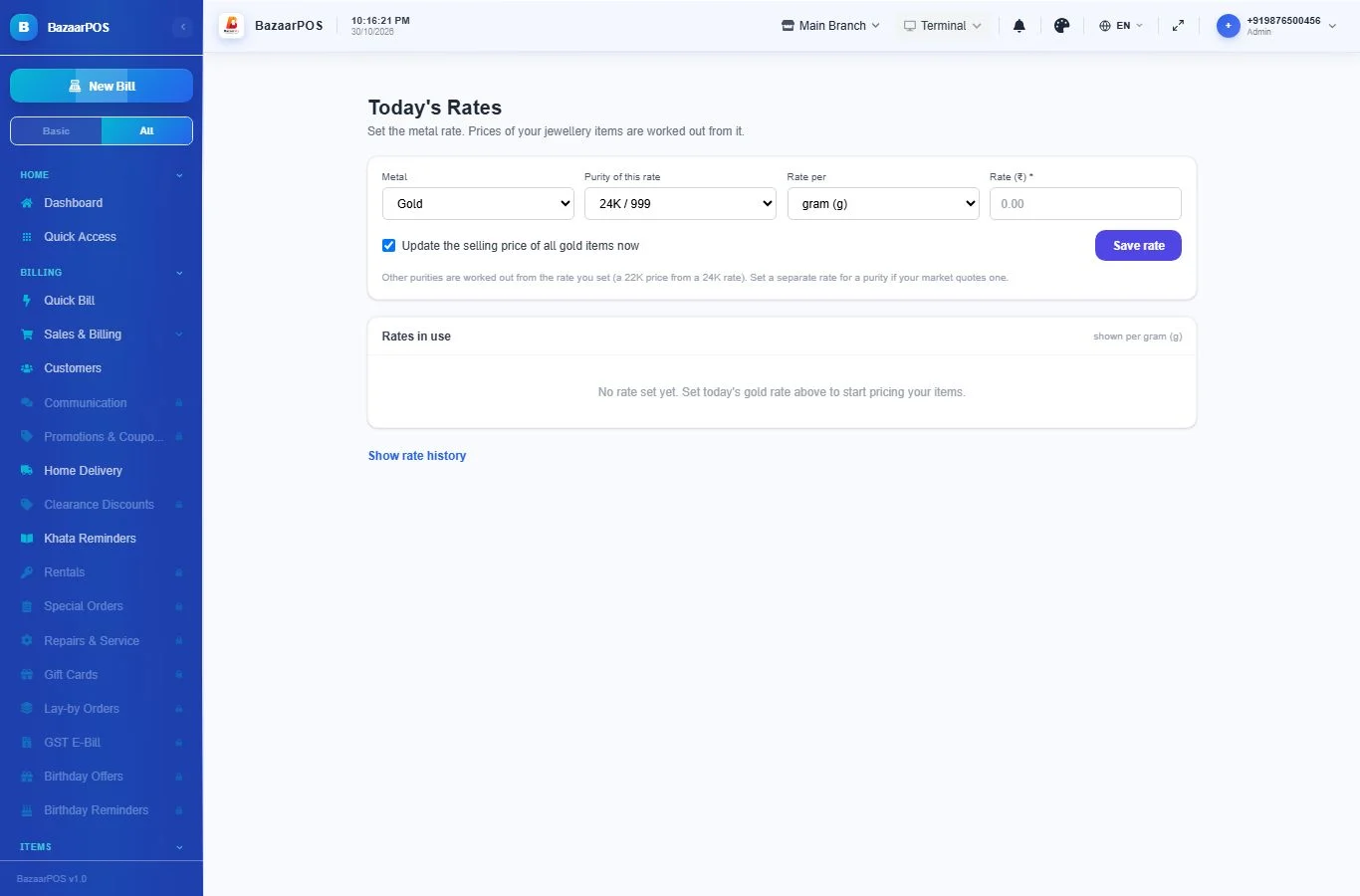
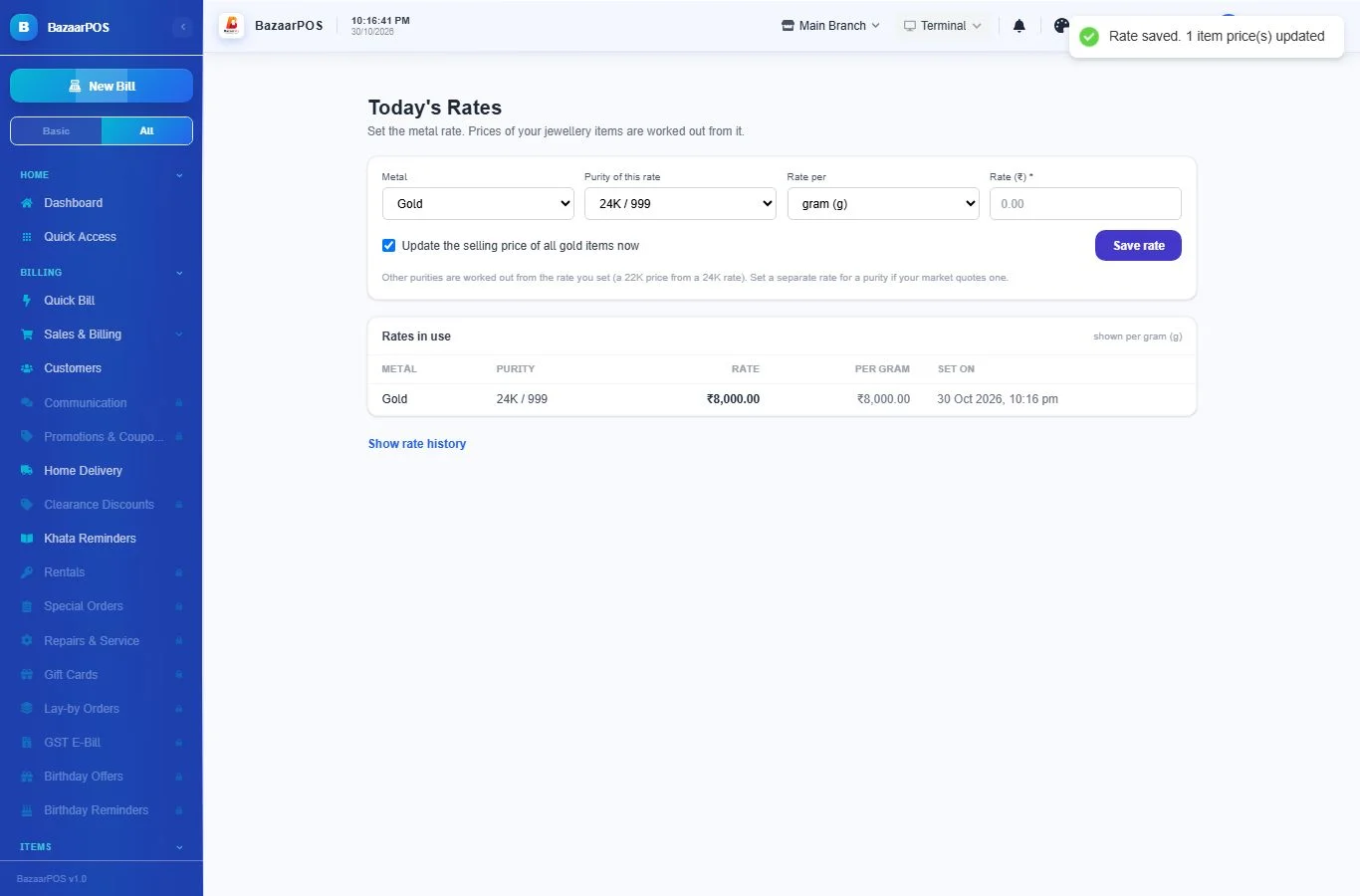
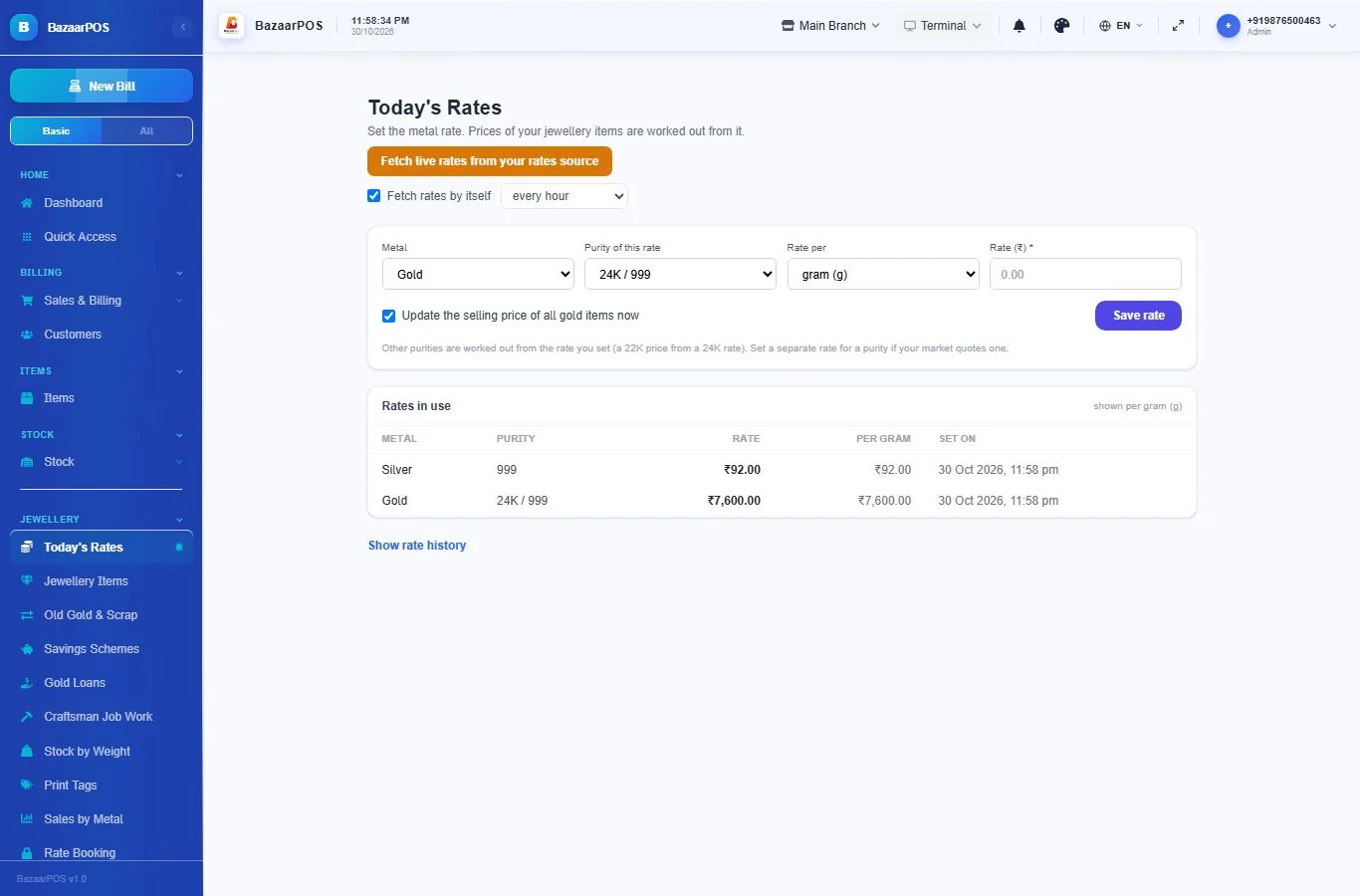
- Open Jewellery → Today's Rates.
- Choose the metal (gold, silver, platinum or palladium) and the purity your market quotes the rate for, for example 24K / 999.
- Choose how your market quotes it in Rate per: gram, ounce, tola, baht and so on. Type the rate in your own currency.
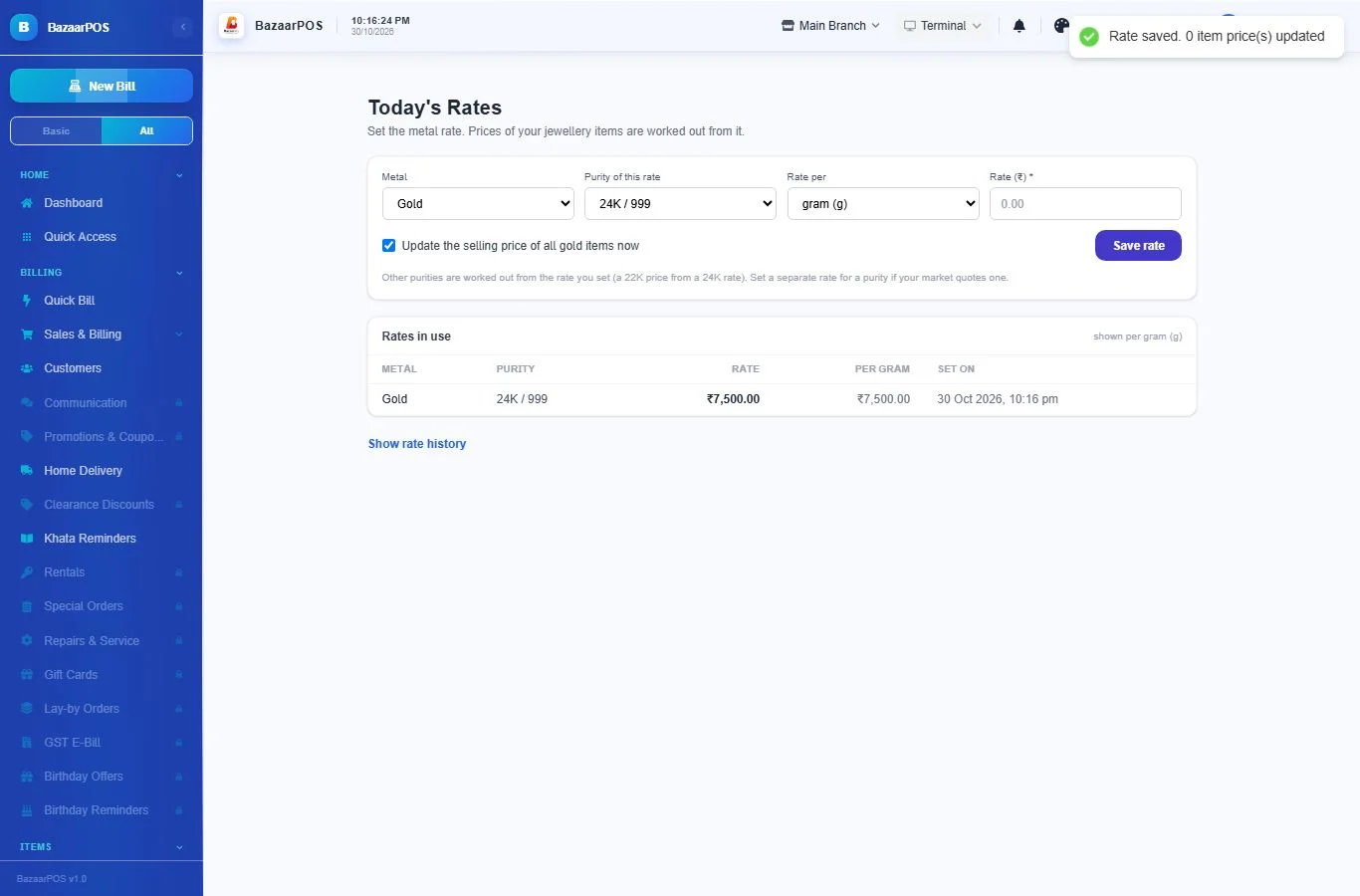
- Leave Update the selling price of all items now ticked, and click Save rate.
Step 3 — Your items
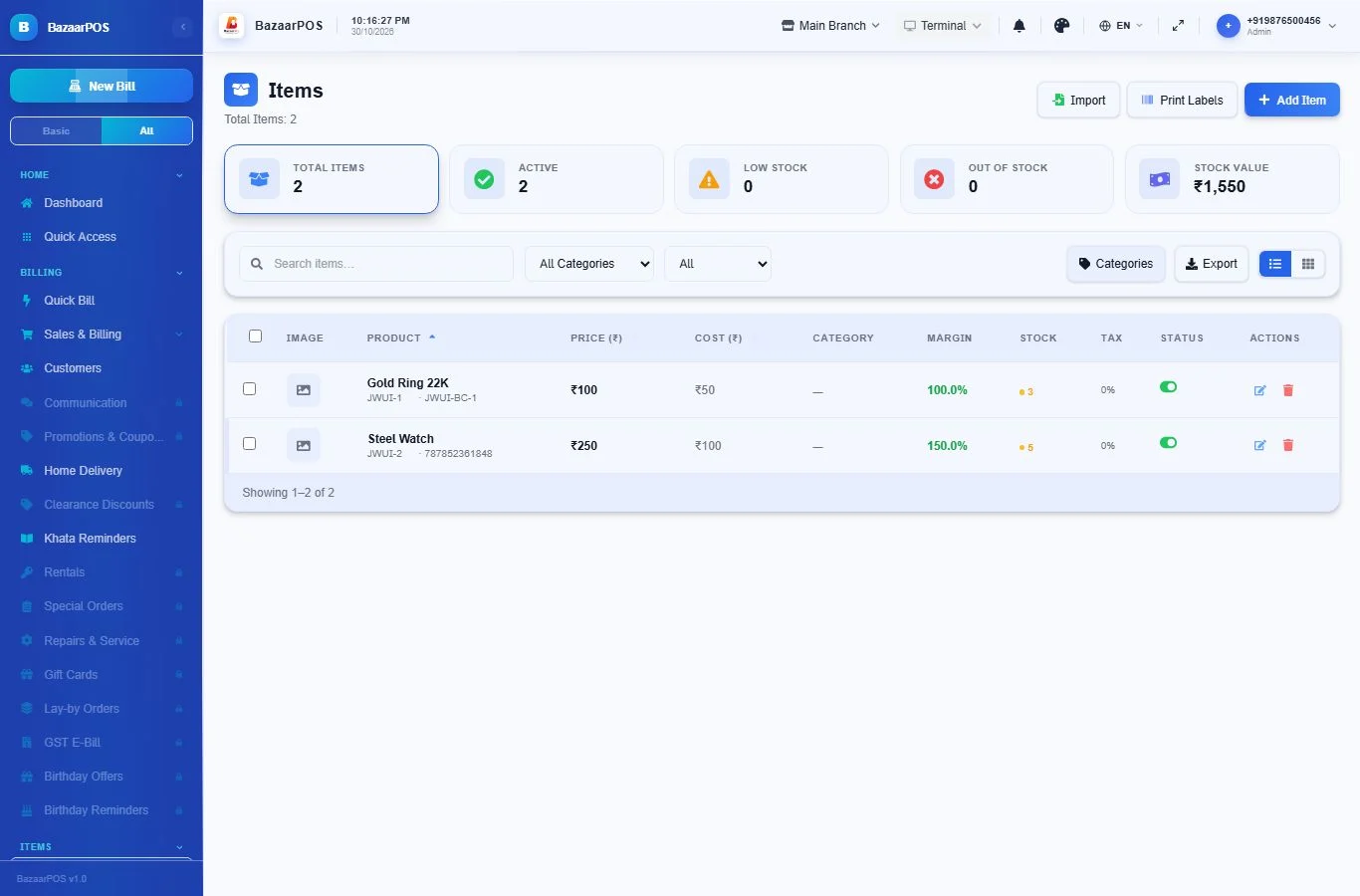
You do not need to add your jewellery again. Items you already have stay in Items exactly as they are, with their name, code, barcode and stock. New pieces are added there in the normal way.
Step 4 — Add jewellery details to an item
- Open Jewellery → Jewellery Items and click Add details to an item.
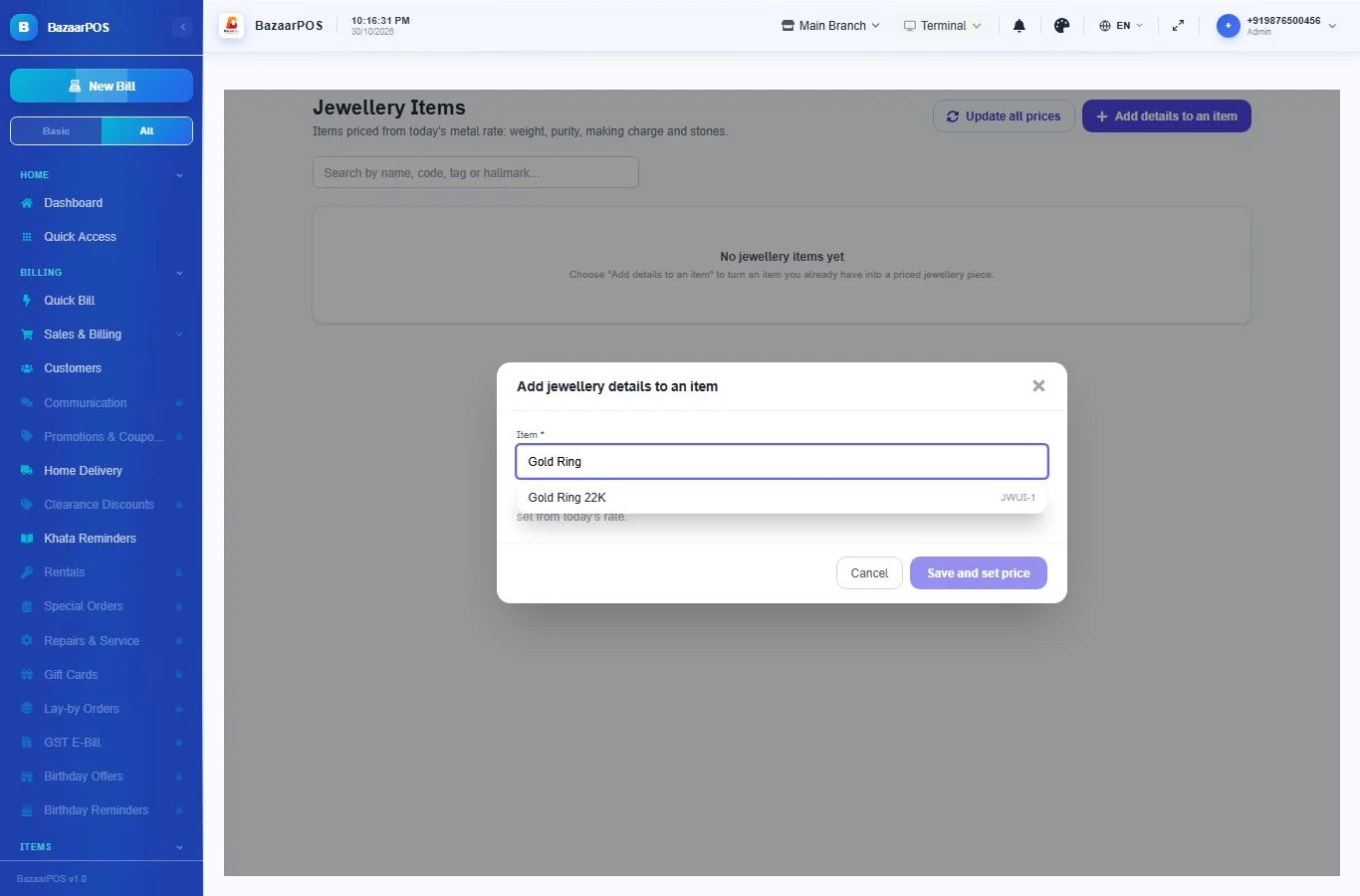
- Search for the item you already have (by name, code or barcode) and pick it.
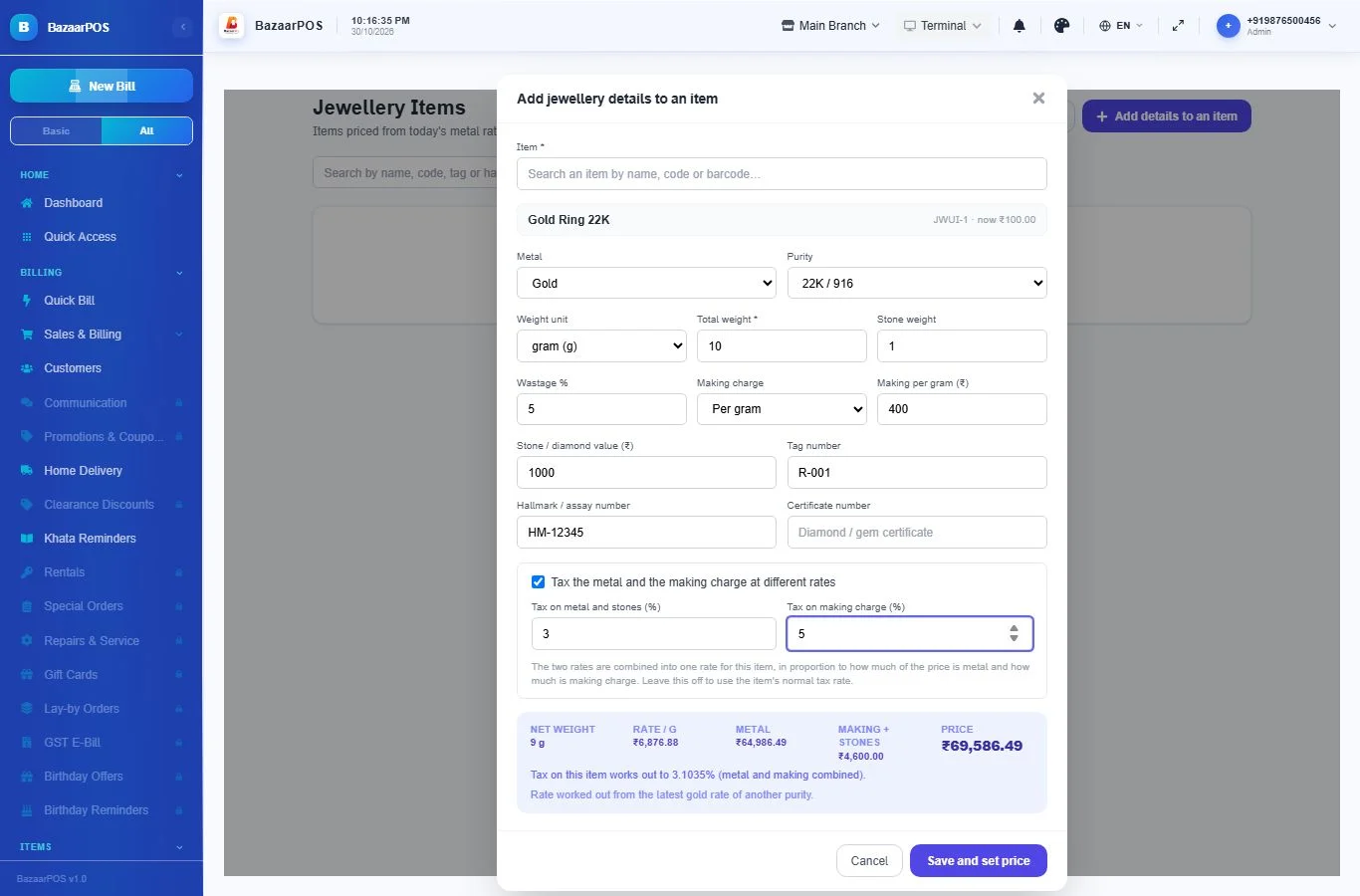
- Choose the metal and purity, and the weight unit you use. Enter the total weight and the stone weight if there are stones.
- Enter the wastage %, the making charge (per gram, a percent of the metal value, or a fixed amount) and the stone or diamond value.
- Add the tag number, hallmark or assay number and any certificate number if you keep them.
- The price shows at the bottom while you type. Click Save and set price.
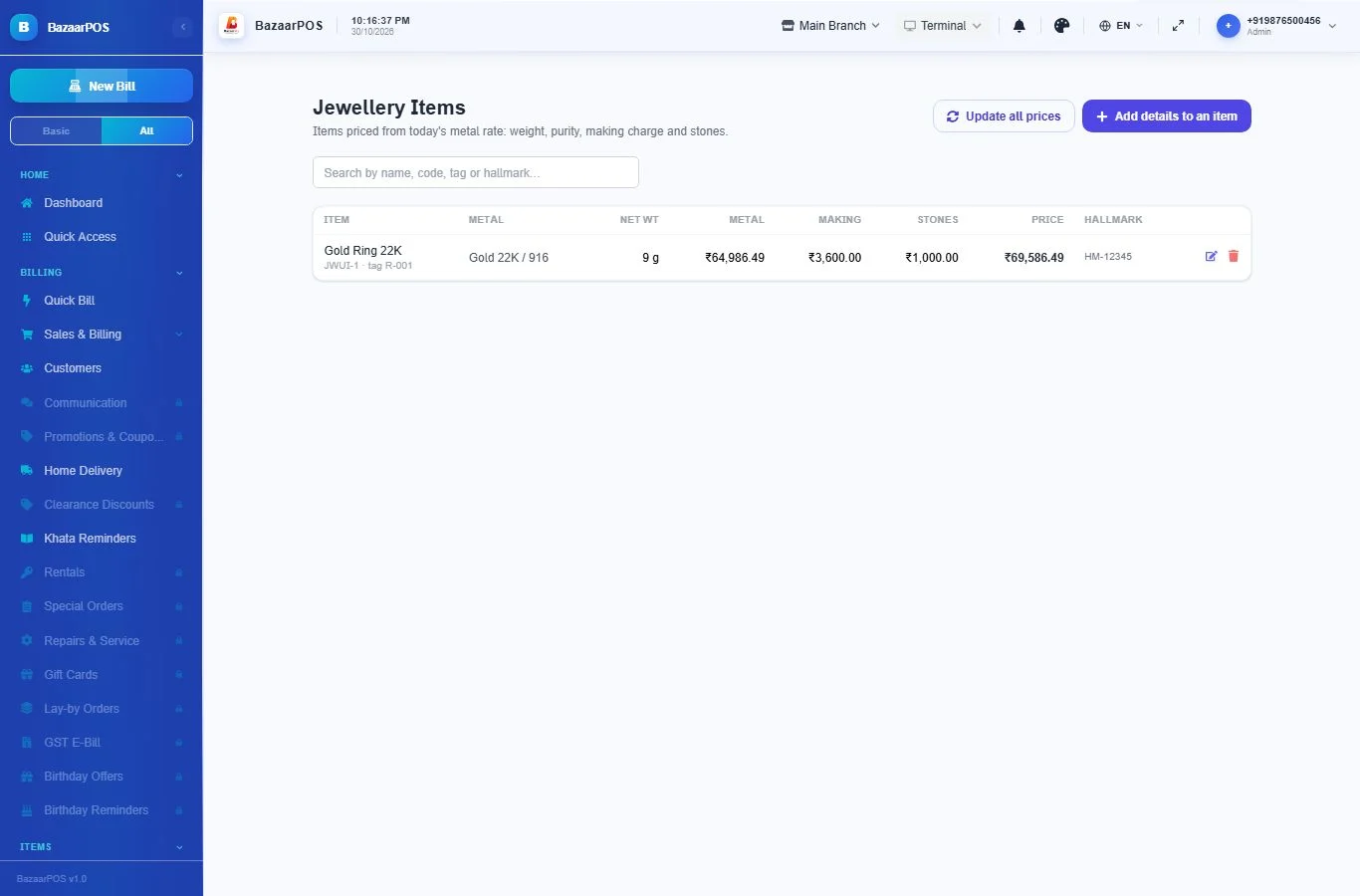
The piece now shows in your Jewellery Items list with the metal value, making charge, stones and price. Click the pencil to change it or the bin to take the jewellery details off (the item itself stays).
Step 5 — When the rate changes
- Open Jewellery → Today's Rates, type the new rate and click Save rate with Update the selling price of all items now ticked.
- Every jewellery item of that metal gets its new price. The message shows how many prices were updated.
- You can also click Update all prices on the Jewellery Items screen at any time.
Step 6 — Sell at the counter
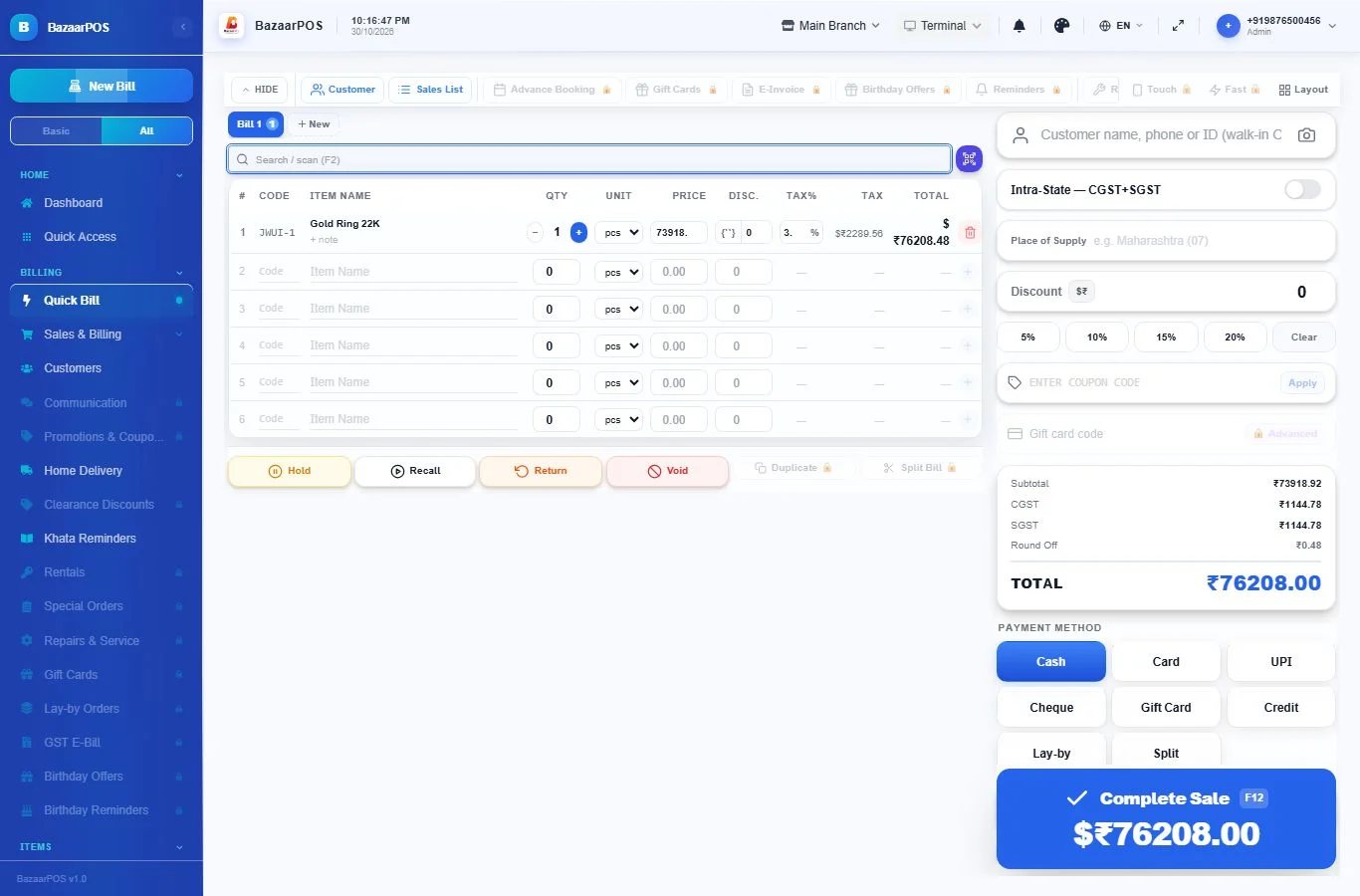
Sell the piece in Quick Bill like any other item: scan the barcode or search by name. It comes in at its current price, from today's rate.
Step 7 — Old gold and scrap
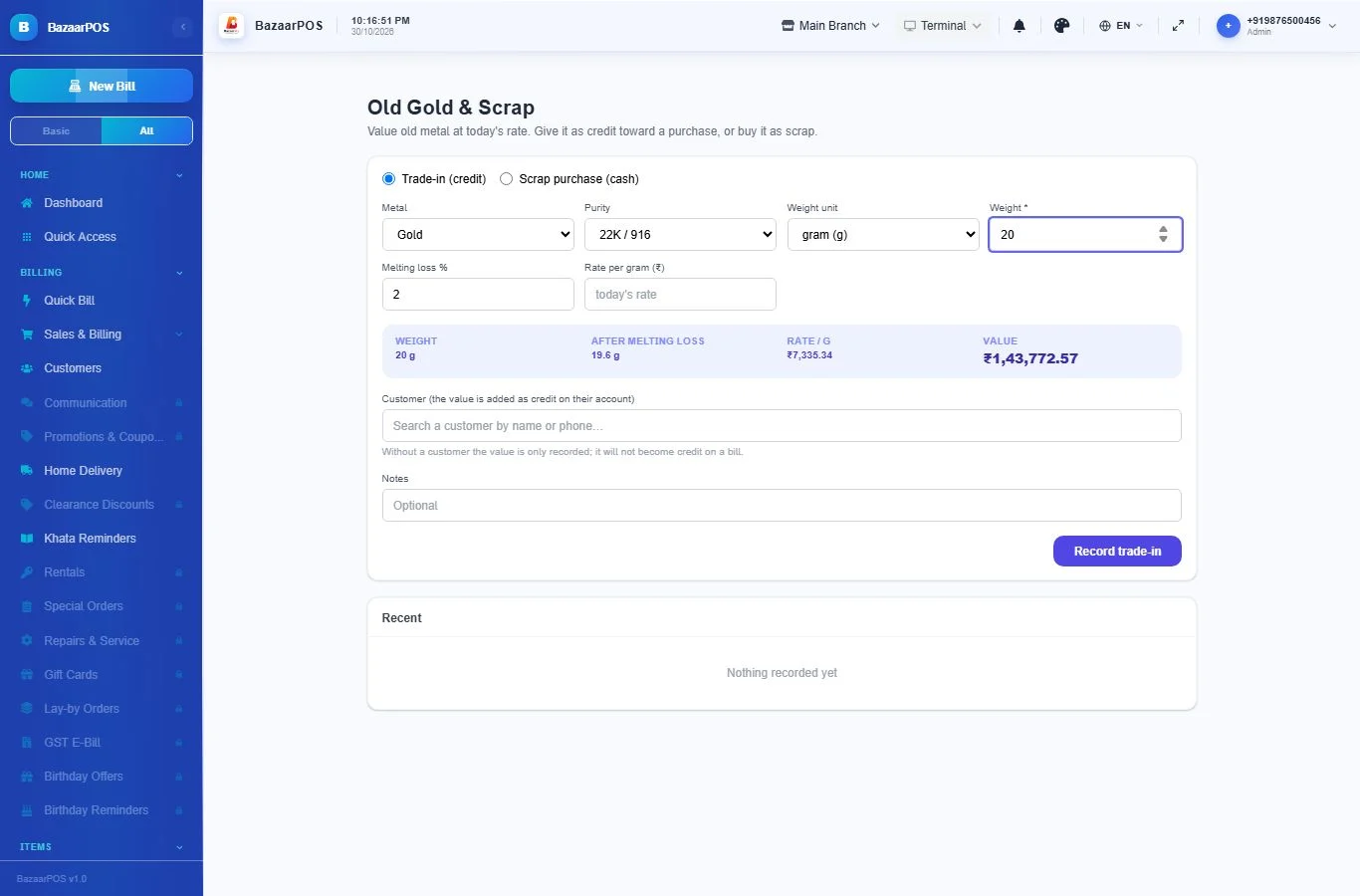
When a customer brings old jewellery, open Jewellery → Old Gold & Scrap.
- Choose Trade-in (credit) if the customer will use the value toward a purchase, or Scrap purchase (cash) if you are buying it.
- Choose the metal and purity, the weight unit and the weight. Set the melting loss % you deduct for refining.
- The value is worked out at today's rate. Type a rate instead if you agreed a different one.
- For a trade-in, pick the customer. The value is added as credit on their account. For scrap, note the seller's ID document and number if your country requires it.
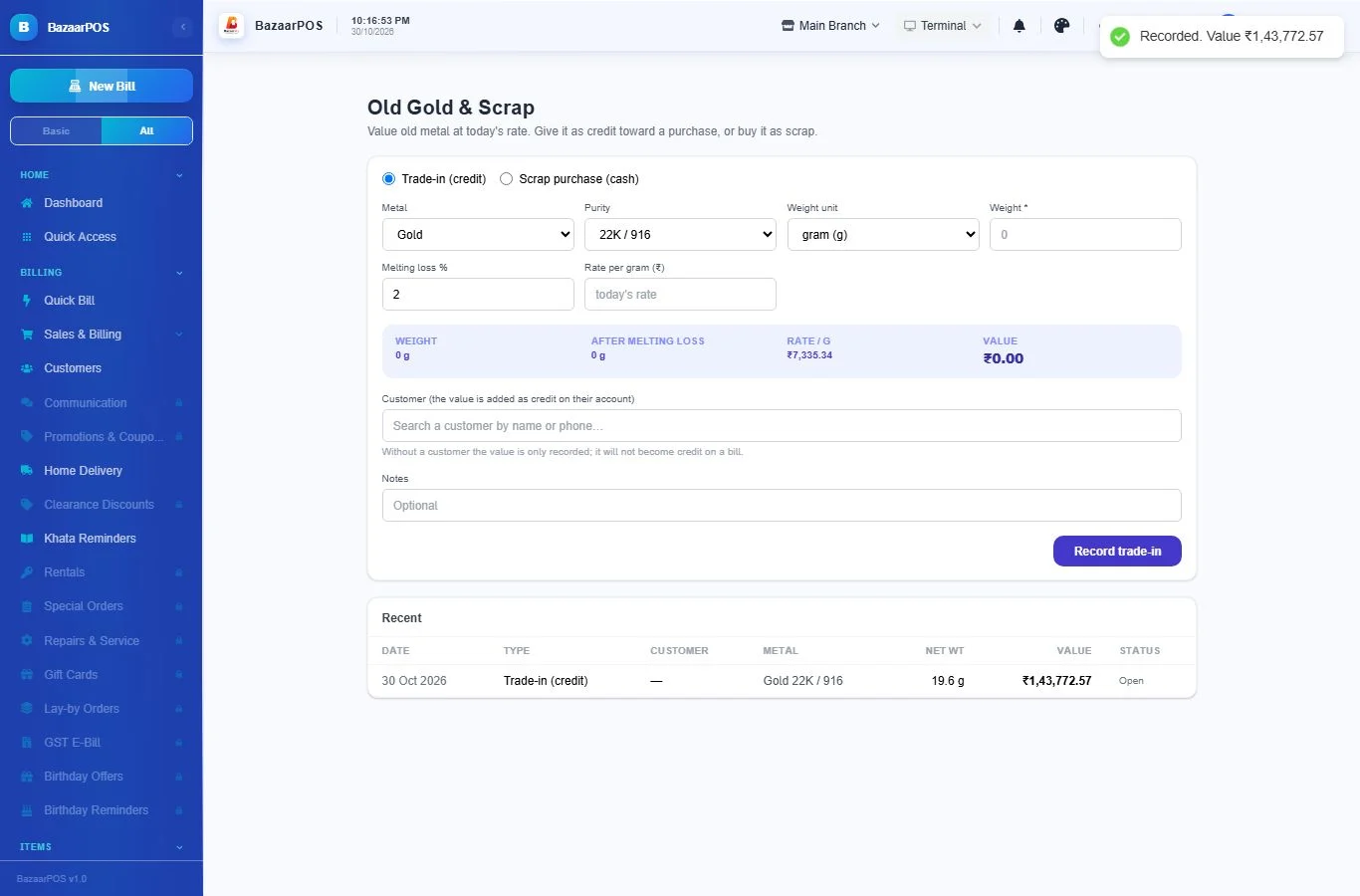
- Click Record trade-in (or Record purchase). It appears under Recent.
Step 8 — Savings schemes
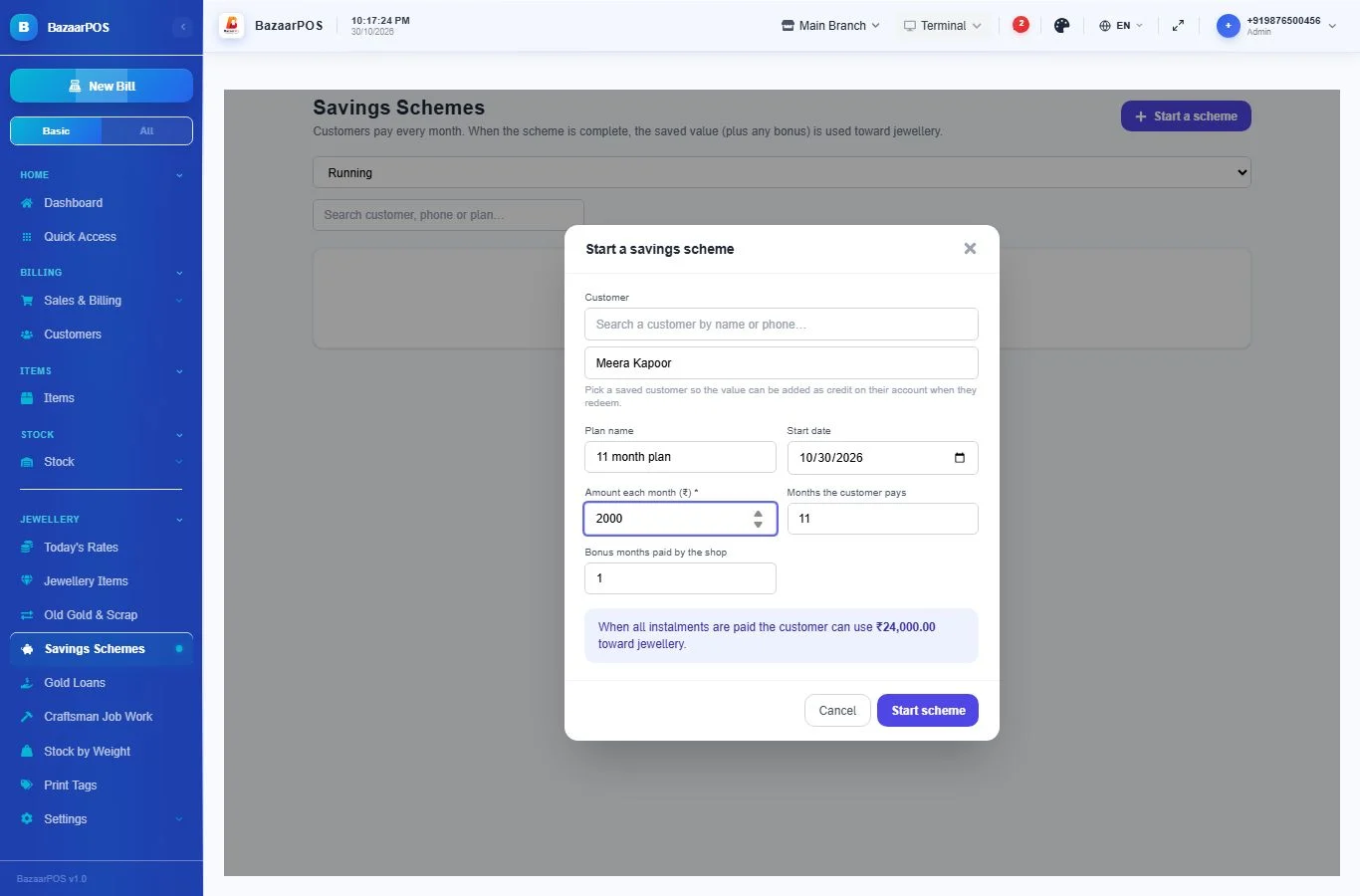
For customers who save a fixed amount every month toward jewellery. Open Jewellery → Savings Schemes.
- Click Start a scheme. Pick the customer (or type a name), the amount each month, how many months they pay, and any bonus months the shop adds.
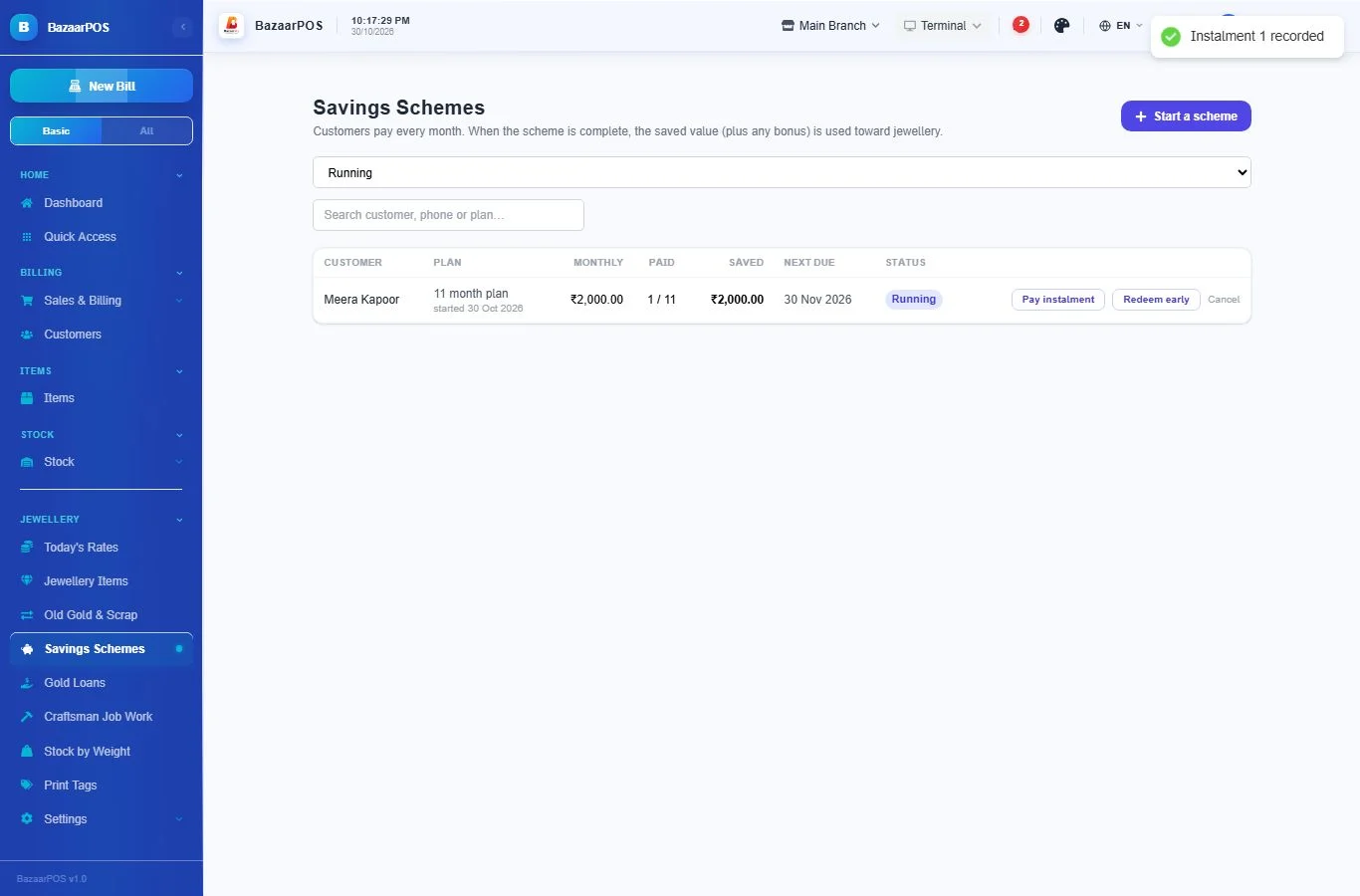
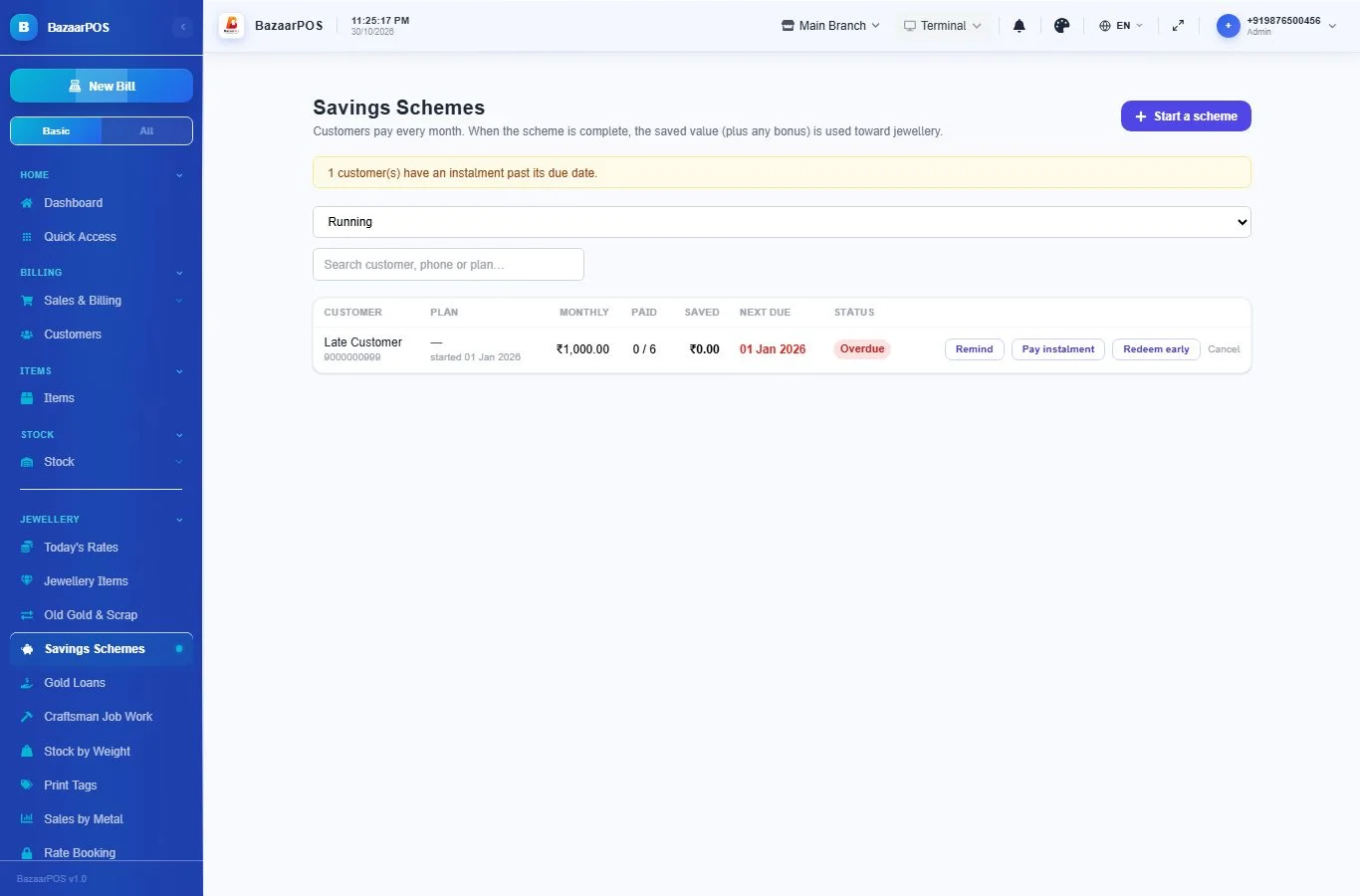
- Each month click Pay instalment and Record payment. The list shows how many instalments are paid, what is saved and when the next one is due. Late customers show as Overdue.
- When all instalments are paid, click Redeem. The saved value plus the bonus is added as credit on the customer's account, to use on their purchase. Redeem early uses what has been paid, without the bonus.
Step 9 — Loans against gold
For shops that lend against a piece left as security. Open Jewellery → Gold Loans.
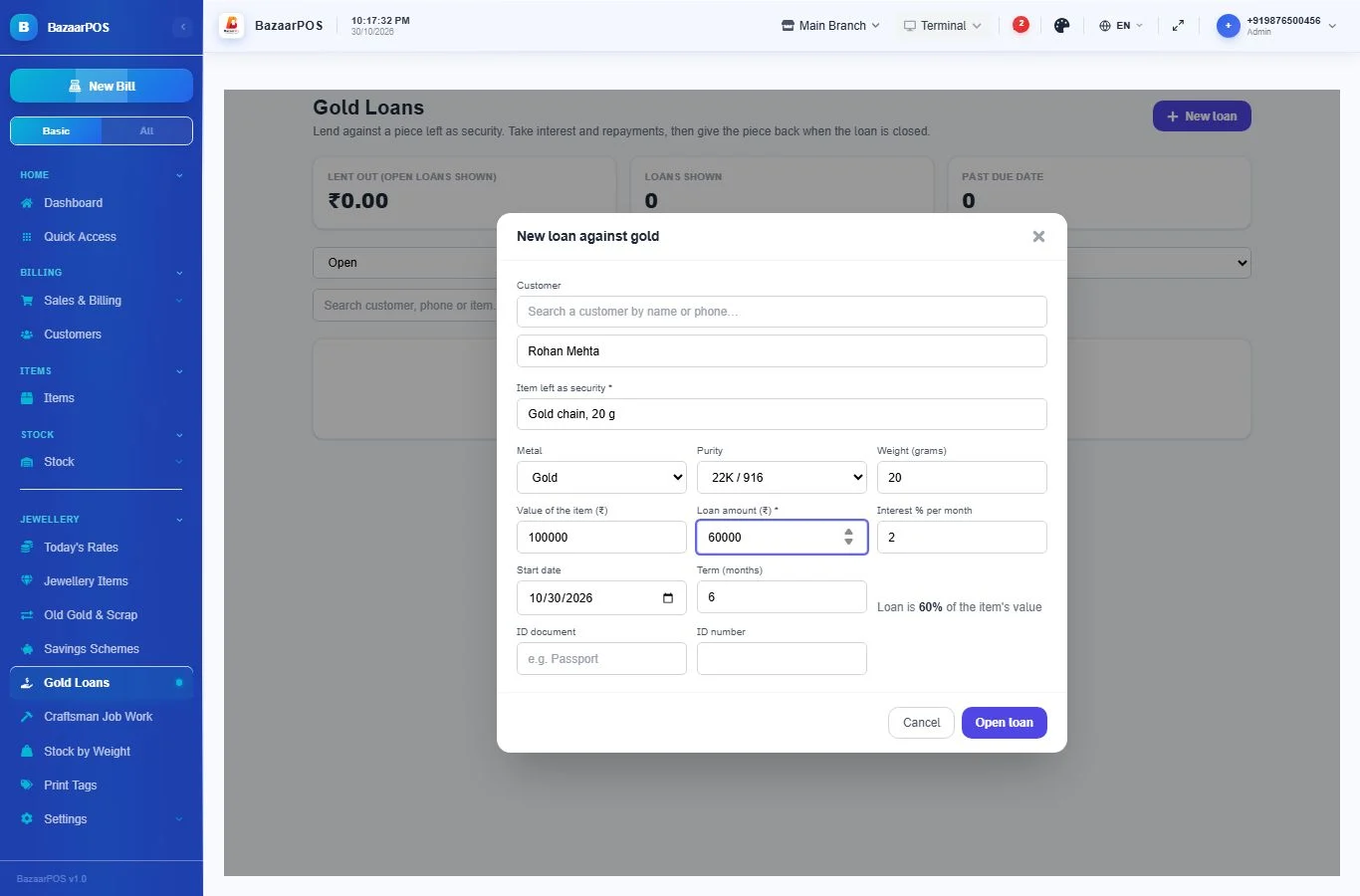
- Click New loan. Enter the customer, the item left as security, its metal, purity, weight and value, the loan amount and the interest % per month. The screen shows the loan as a percent of the item's value.
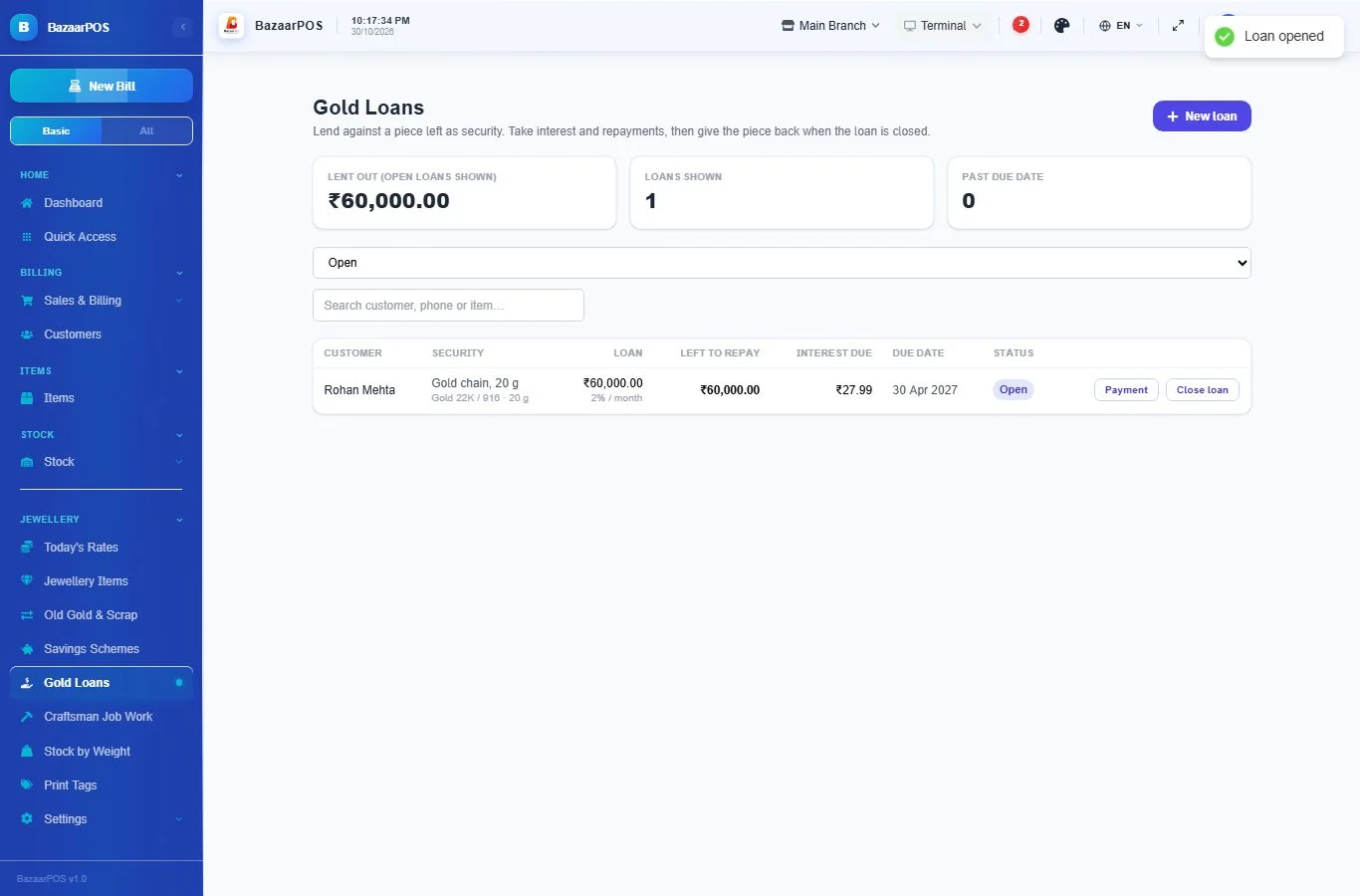
- Use Payment to record interest or a repayment of part of the loan. Interest is worked out on what is still owed, by the day (30 days = 1 month).
- Click Close loan when the customer pays everything. It settles the loan and the interest due, and the item is given back.
- Loans past their due date show as Past due.
Step 10 — Craftsman job work
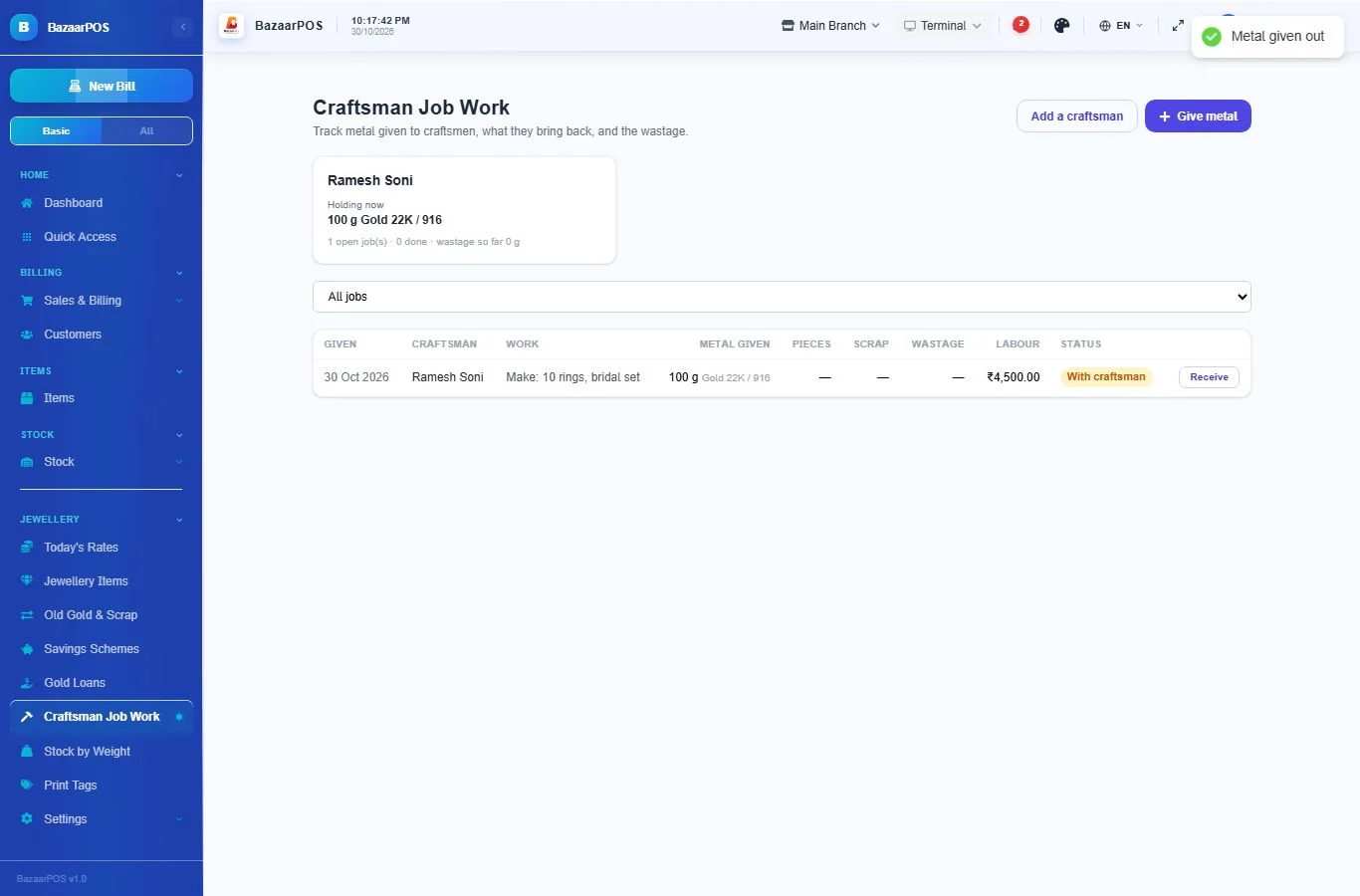
Track metal you give to a craftsman to make or repair pieces. Open Jewellery → Craftsman Job Work.
- Click Add a craftsman once for each craftsman.
- Click Give metal: choose the craftsman, what the work is, the metal, purity and weight given, and the labour charge agreed. Each craftsman's card shows the metal they hold now.
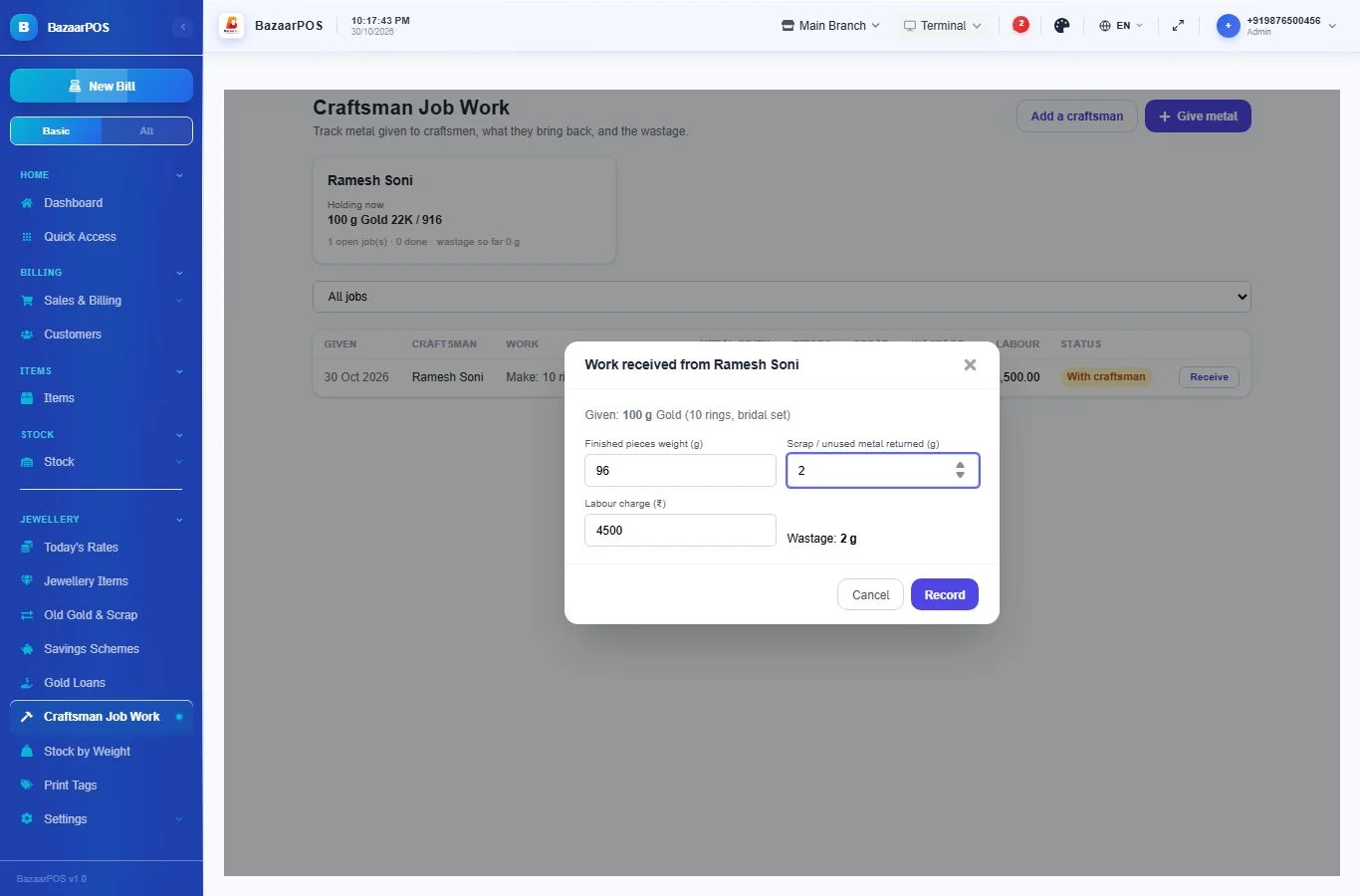
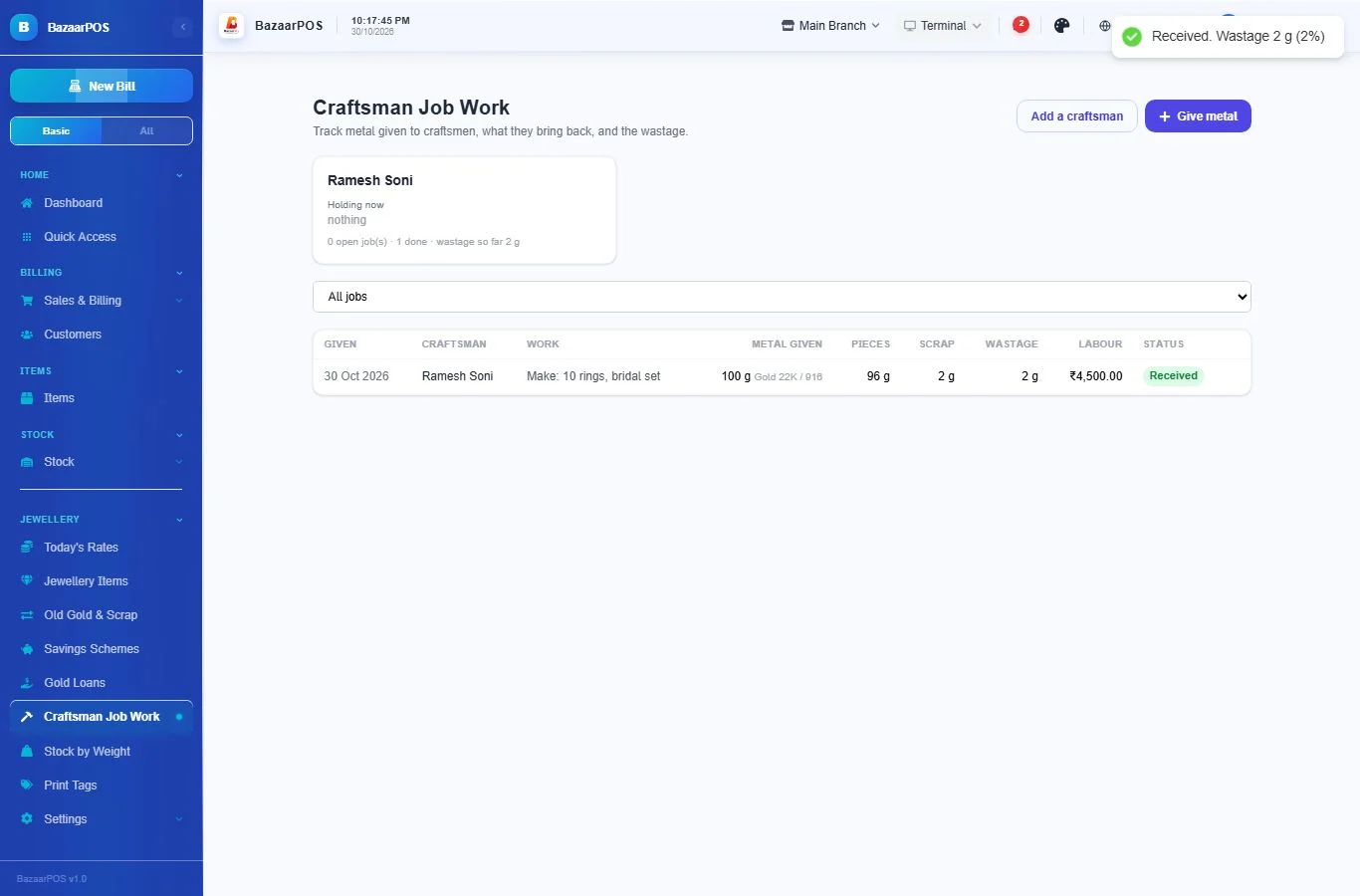
- When the work comes back, click Receive. Enter the weight of the finished pieces and any scrap returned. Whatever is not accounted for is the wastage, kept for each job and each craftsman.
Stock by weight
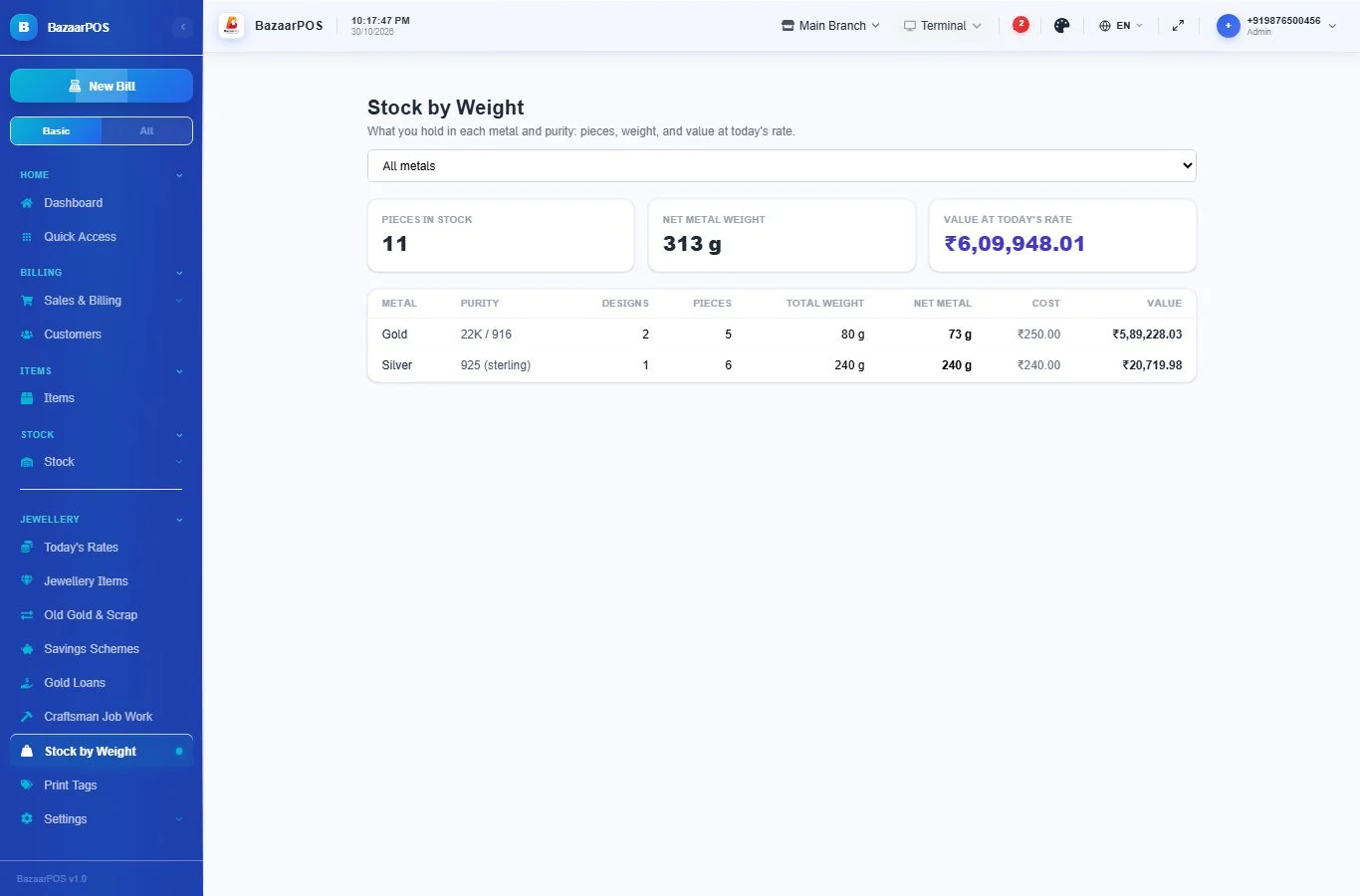
Jewellery → Stock by Weight shows, for each metal and purity, the pieces in stock, their weight and their value at today's rate. Pieces whose metal has no rate yet are left out of the value, with a note.
Print tags
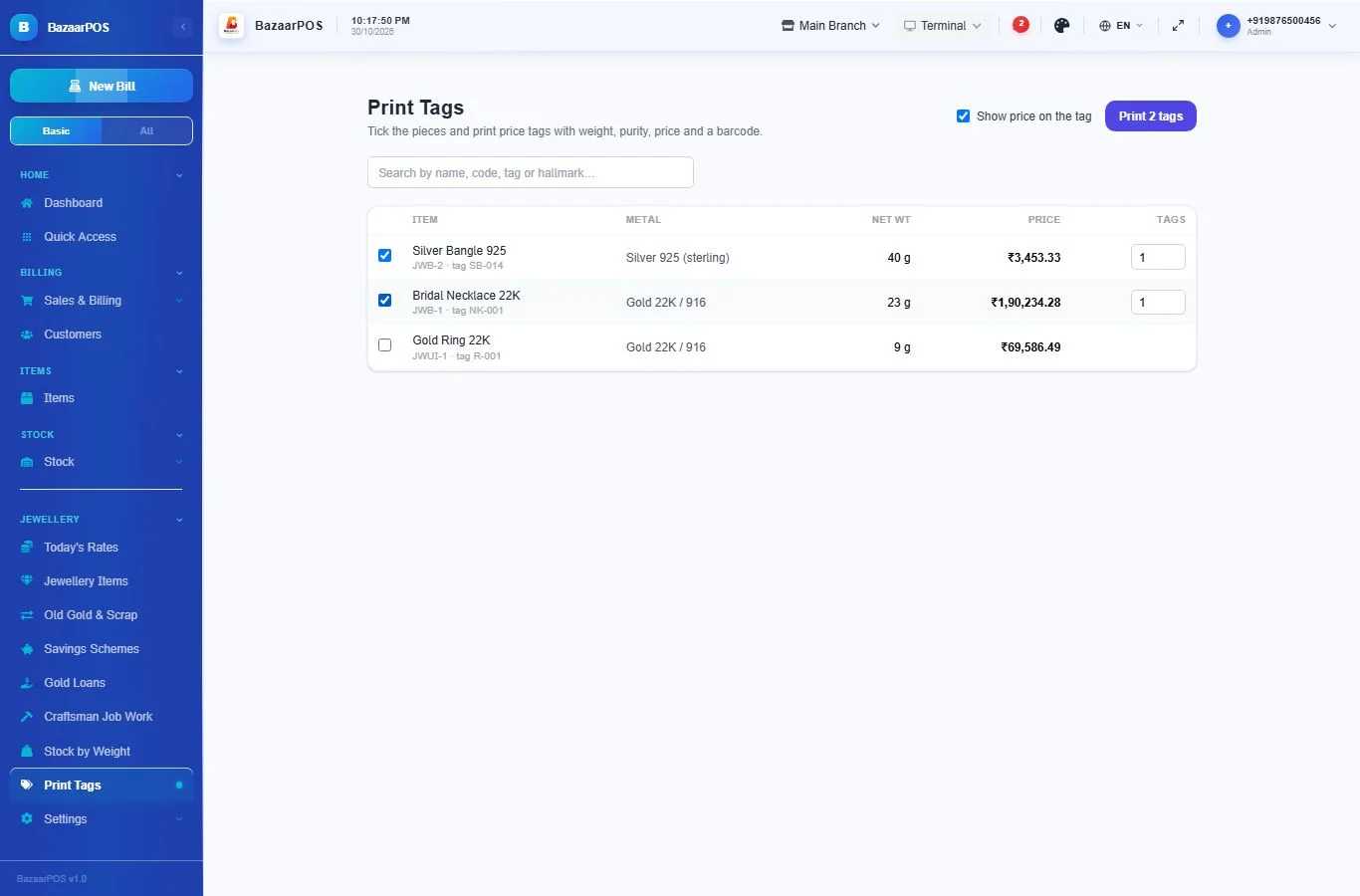
Jewellery → Print Tags: tick the pieces and print price tags with the name, metal and purity, weights, hallmark number, price (you can hide it) and a barcode. Choose how many tags for each piece.
Different tax for metal and making charge
Some countries tax the metal and the making charge at different rates. In the item's jewellery details, tick Tax the metal and the making charge at different rates and enter both rates. BazaarPOS combines them into one rate for the item, in proportion to how much of the price is metal and how much is making charge, so a bill still adds tax in the normal way. The price panel shows the combined rate. Leave it unticked to use the item's normal tax rate.
This does not cover special schemes such as a margin scheme for second-hand jewellery. Ask your accountant how those apply to your shop.
Selling: the billing screen
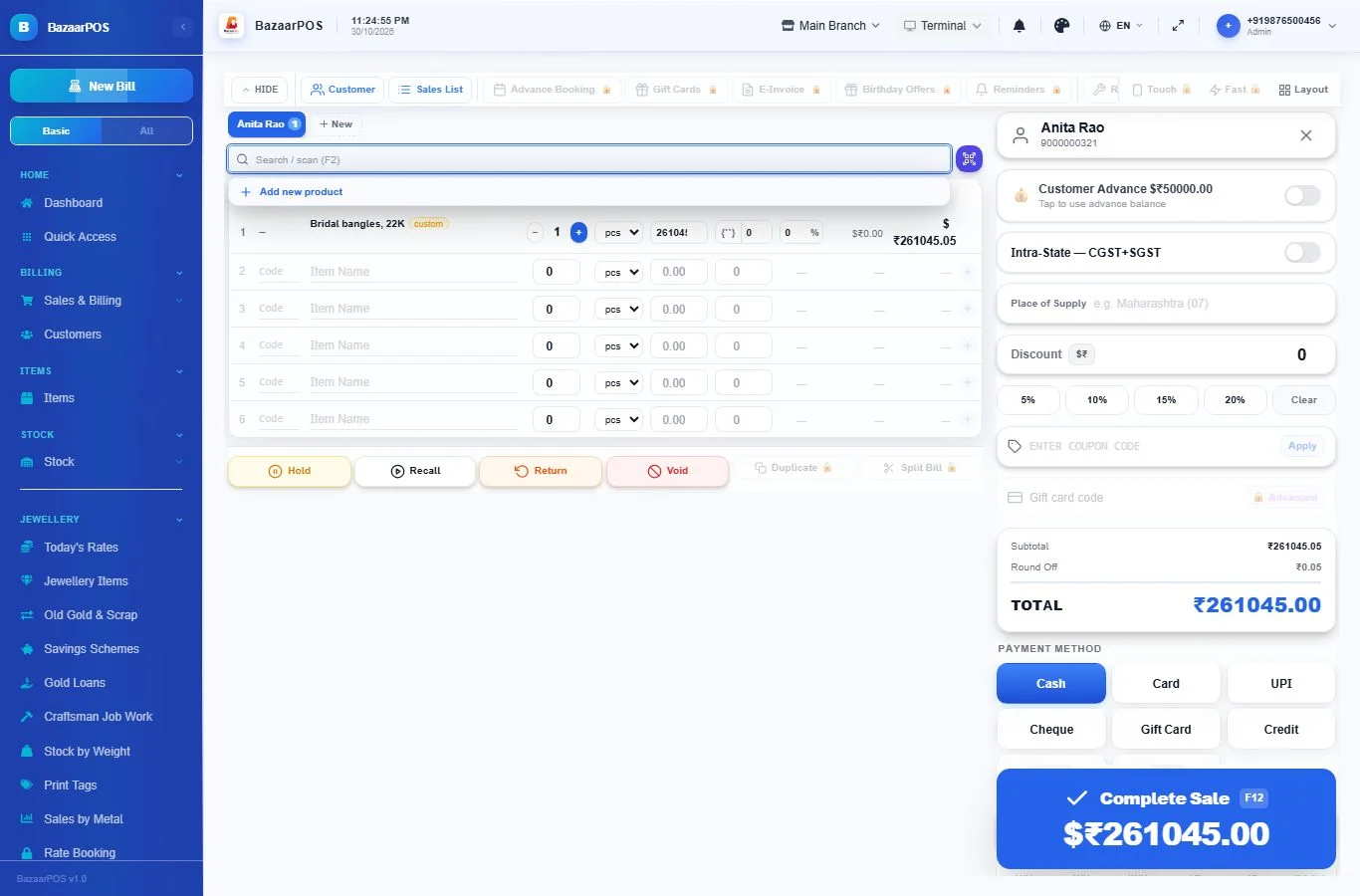
Jewellery is sold in the normal billing screen. There is no separate selling screen. The price already comes from today's rate. Whatever a customer has in advance (a trade-in, a redeemed savings scheme, or a booking advance) appears in billing as Customer Advance once you pick the customer. Tap it to use it on the bill.
Live rates (optional)
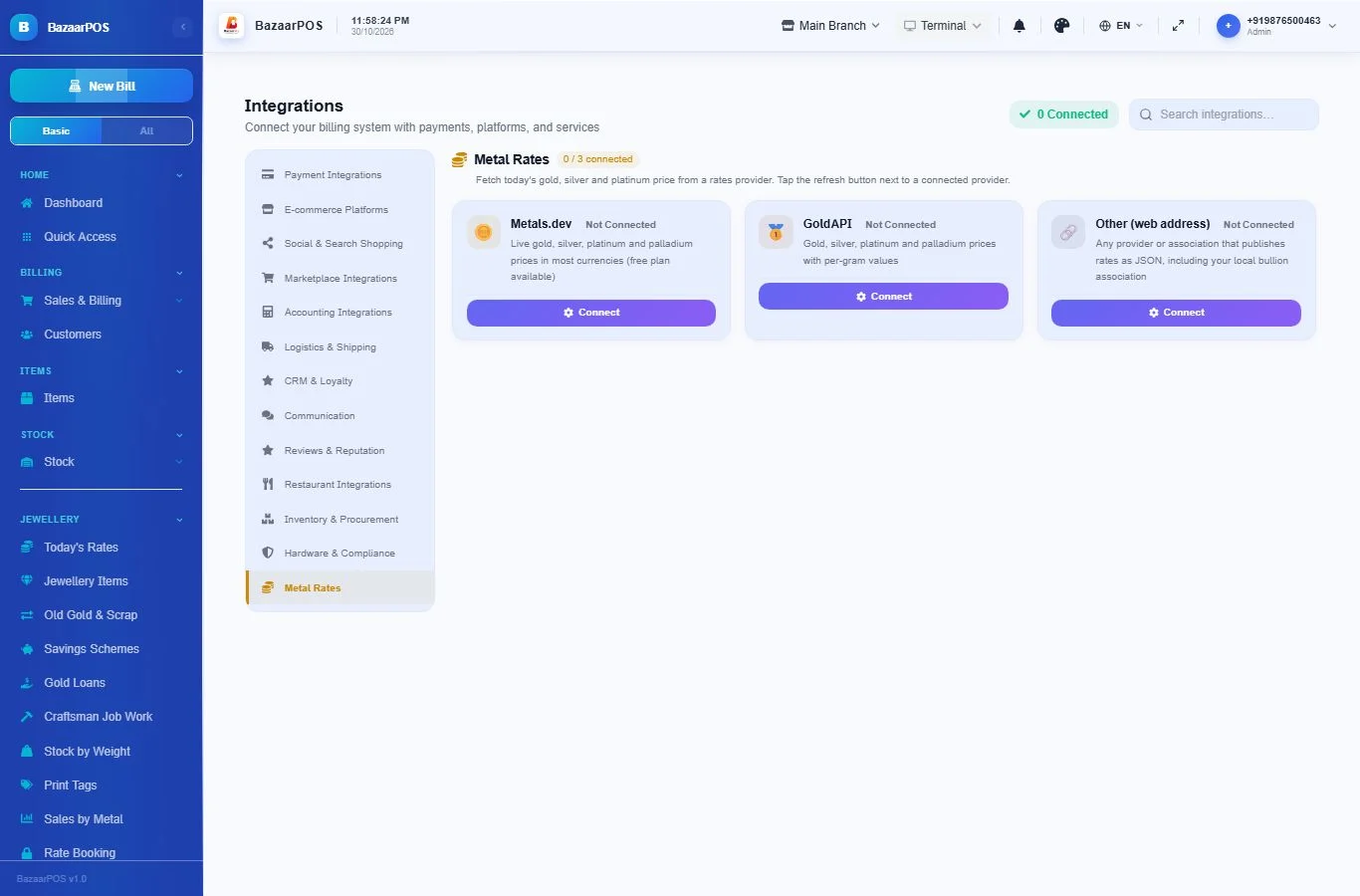
Instead of typing the rate every morning, let the app fetch it. Go to Integrations → Metal Rates and connect one provider:
- Metals.dev or GoldAPI: create an account on their website and paste the API key or token. Both have a free plan with a monthly limit.
- Other (web address): any source that publishes rates as JSON, such as your local bullion association. Enter the address and where the gold and silver prices are in the response (for example
data.gold), and the purity that price is for.
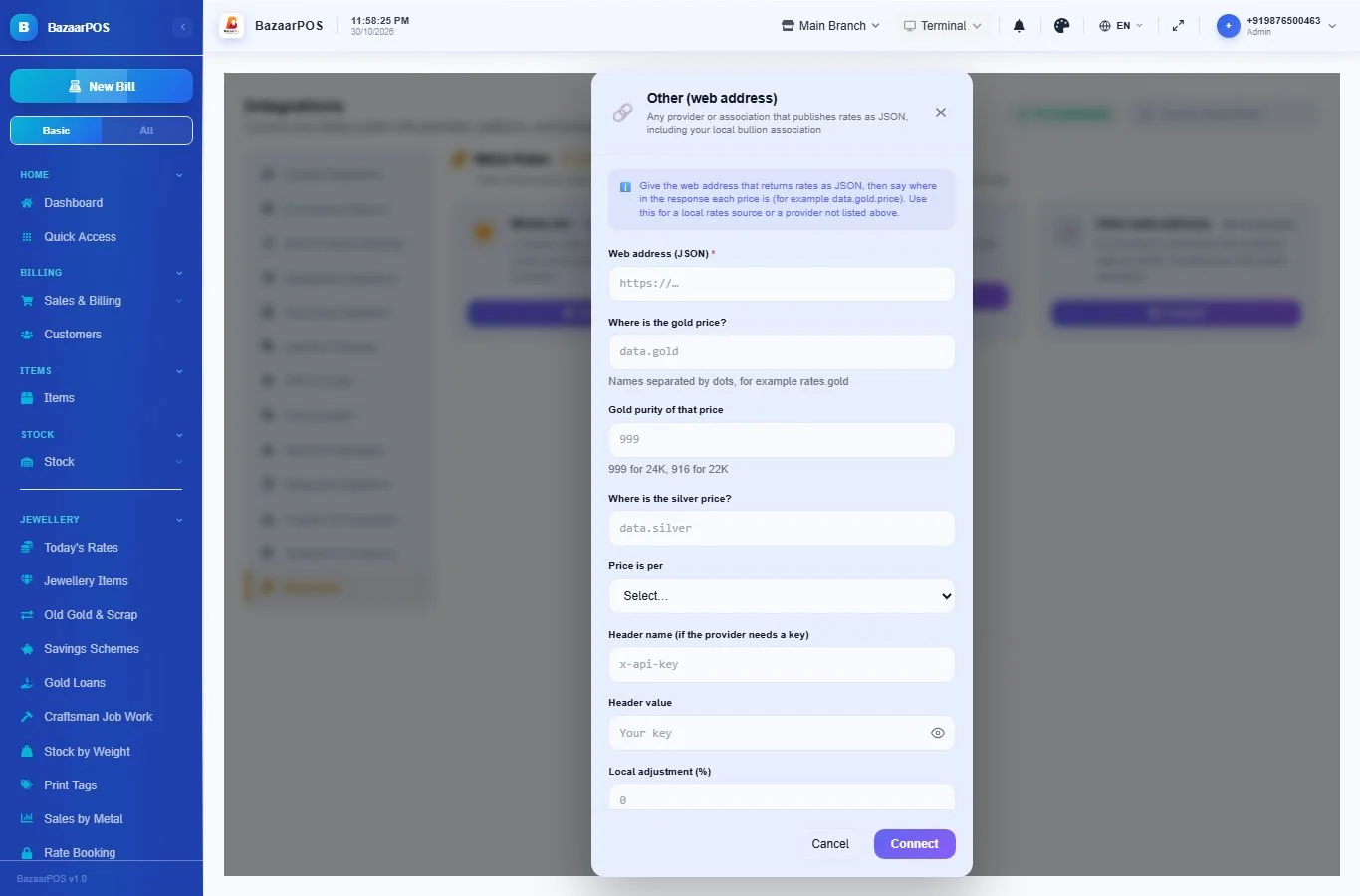
Leave Currency empty and the app uses the currency of your country from Settings. Local adjustment adds import duty or your own premium to the international price. Update item prices after fetching reprices your jewellery items at once.
On Today's Rates, tap Fetch live rates any time.
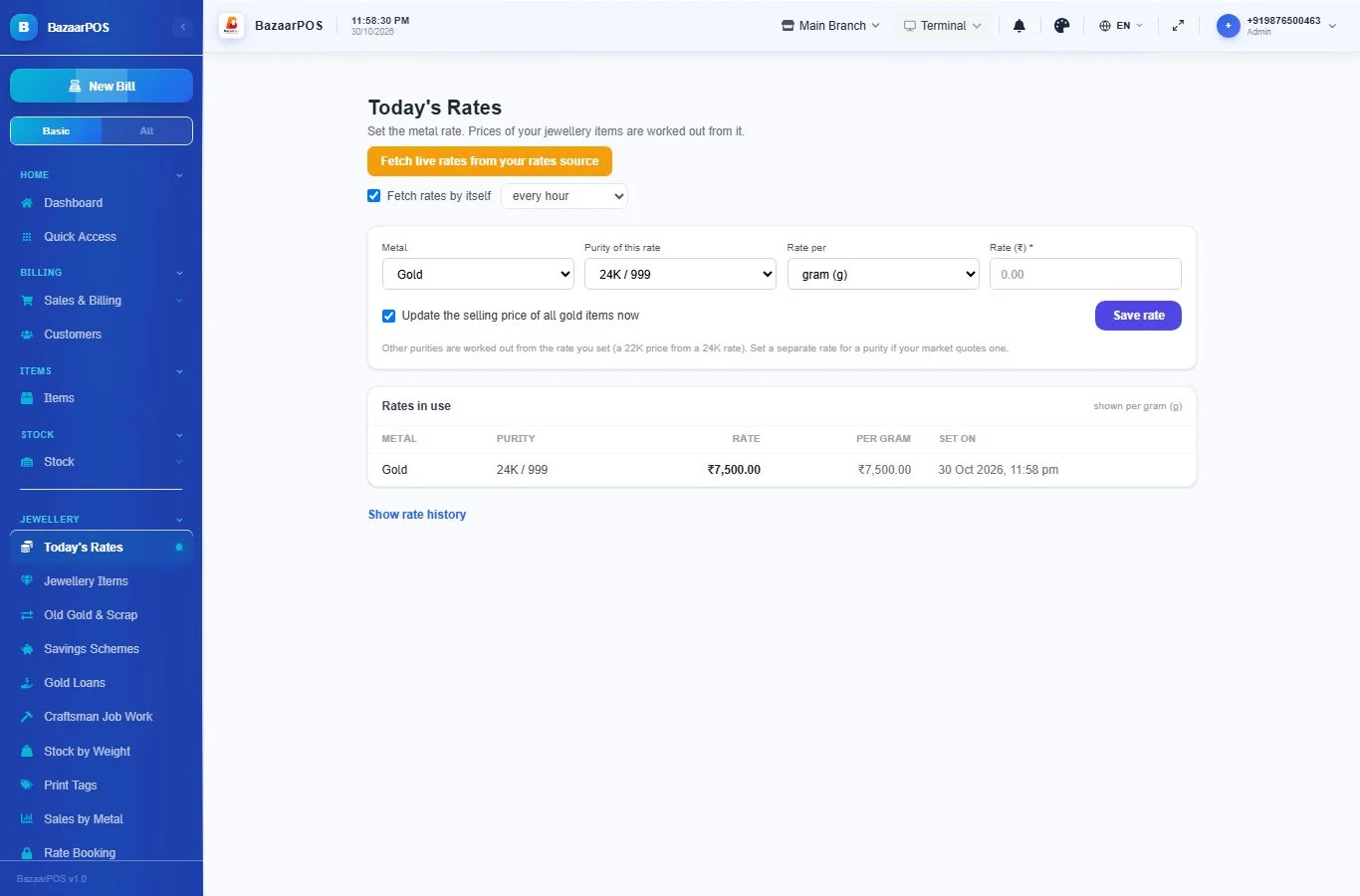
To fetch by itself, tick Fetch rates by itself and choose how often (every 15 minutes up to once a day). Untick it to stop. The screen shows when the last automatic fetch happened and whether it worked. Free plans have a monthly limit, so an hourly refresh is plenty.
Safety: if a fetched rate is more than 25% different from the current one, it is not saved and you are told. Check it and type it in by hand if it is right.
Rate booking
For a piece the customer wants made or collected later. Jewellery → Rate Booking.
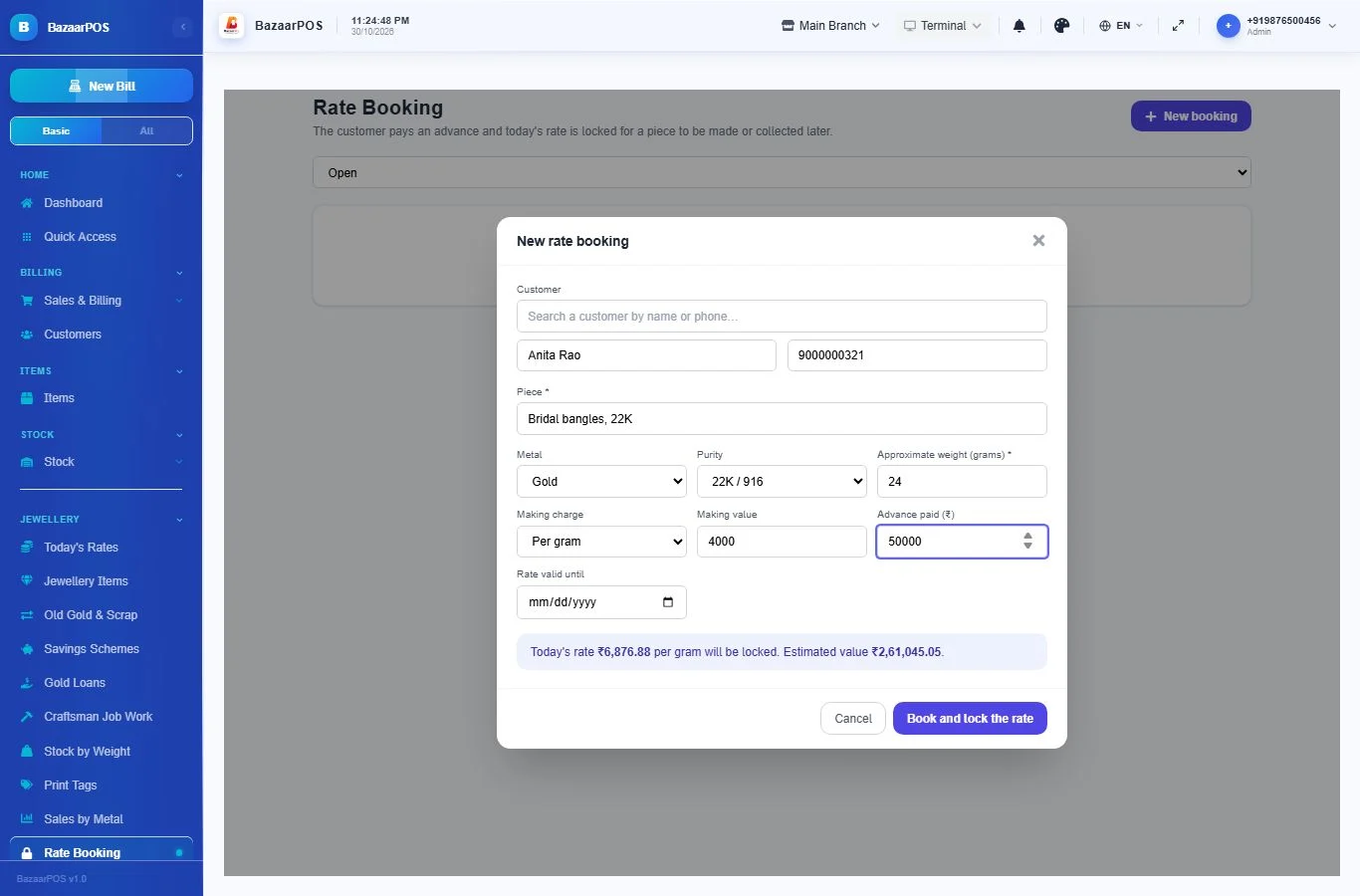
- Click New booking. Pick the customer (or type a name and phone), describe the piece, choose the metal and purity, and enter the approximate weight and making charge.
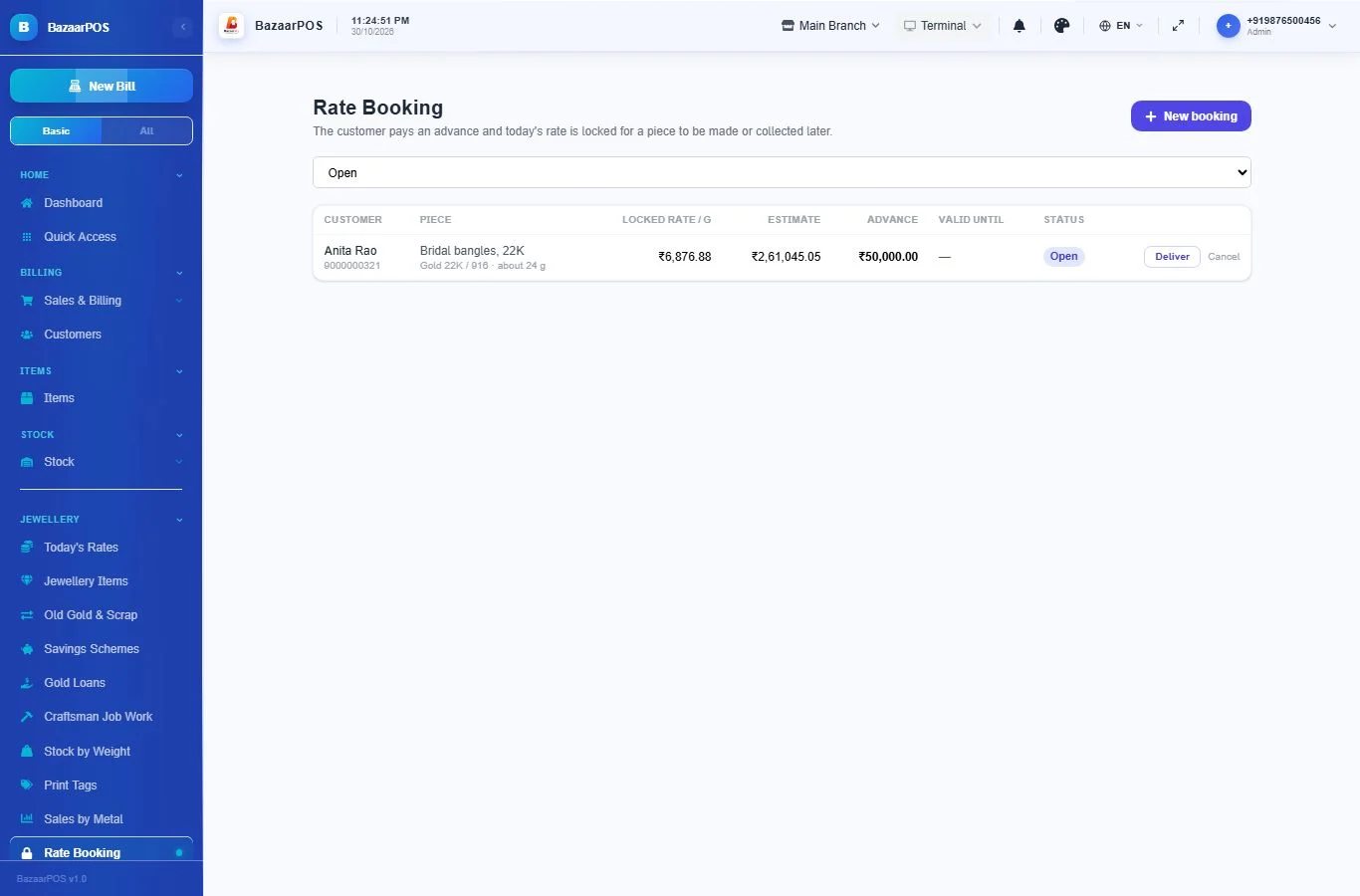
- The screen shows today's rate, which will be locked, and the estimated value. Enter the advance the customer pays, and until when the rate is valid. Click Book and lock the rate. The advance is kept as credit on the customer's account.
- When the piece is ready, click Deliver, enter the final weight, and choose the finished piece from your items (optional). Click Deliver and bill. The billing screen opens with the customer selected and the piece at the locked rate, even if the market has moved. Tap Customer Advance to use the advance.
Valuation certificates
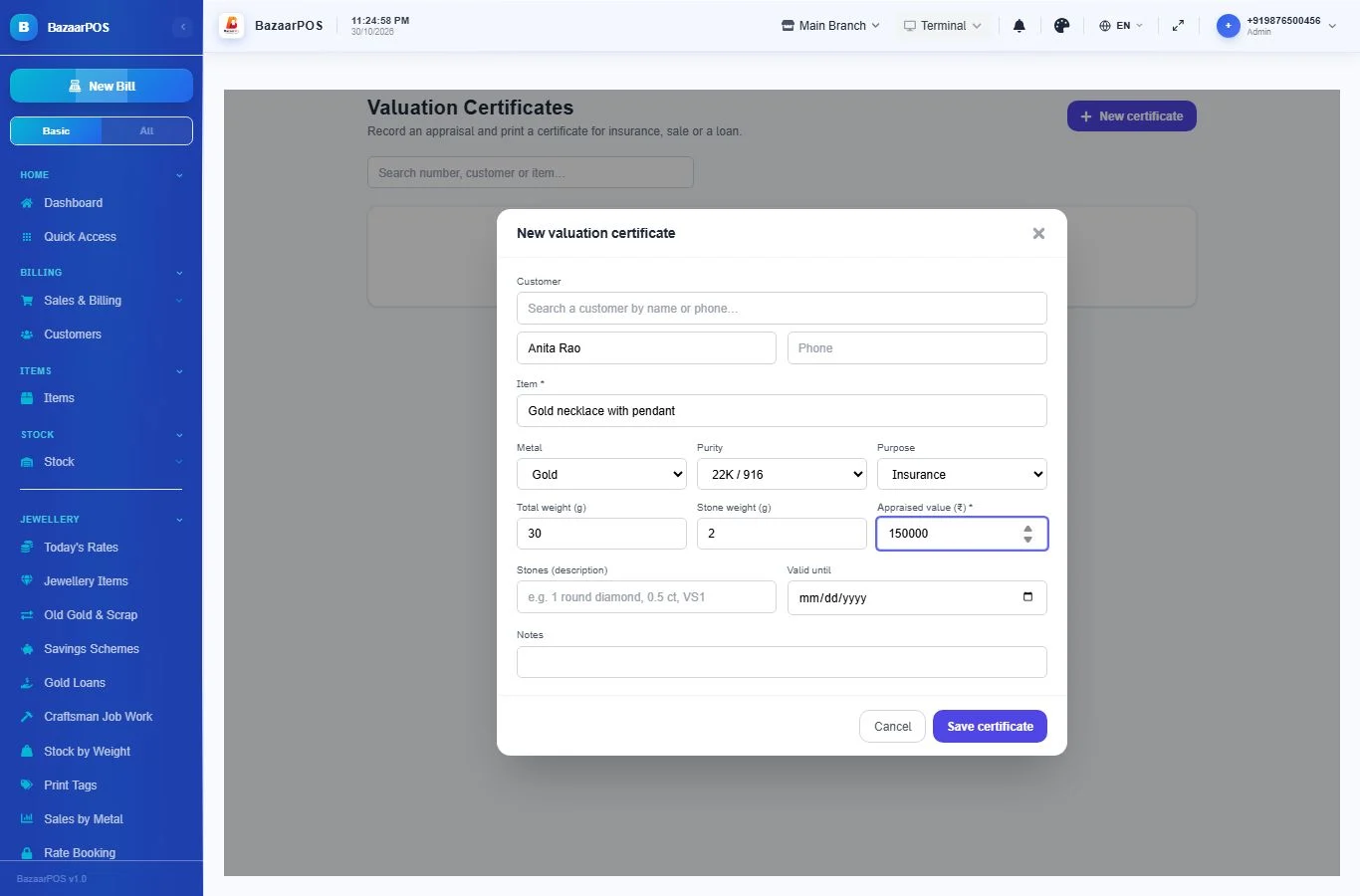
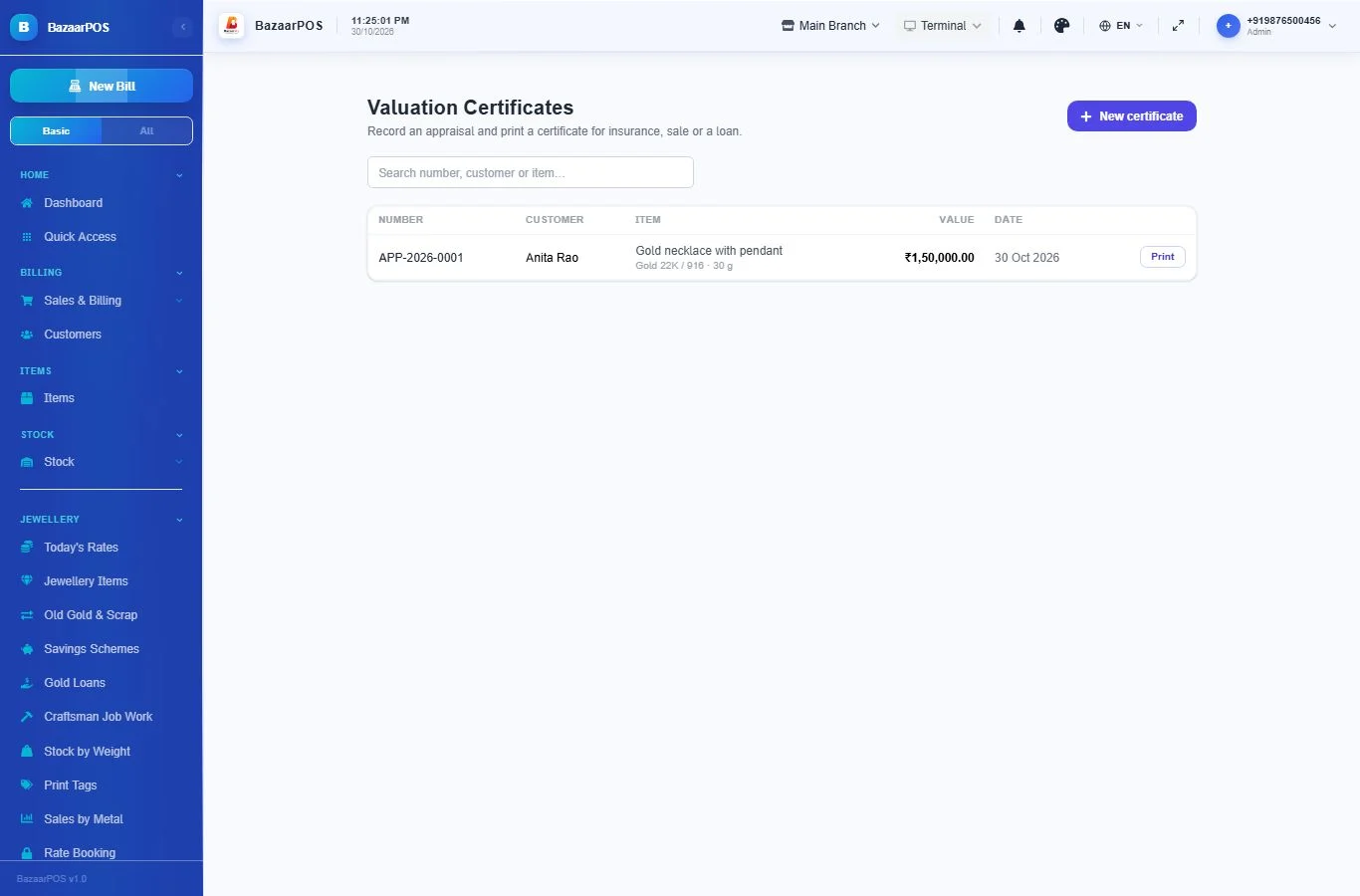
Jewellery → Valuation Certificates. Click New certificate, enter the customer, the item, metal, weights, the appraised value and the purpose (insurance, sale, loan or estate), then Save certificate. It gets a number such as APP-2026-0001 and opens ready to print, with a line to sign. Use Print on the list to print it again.
Loose stones
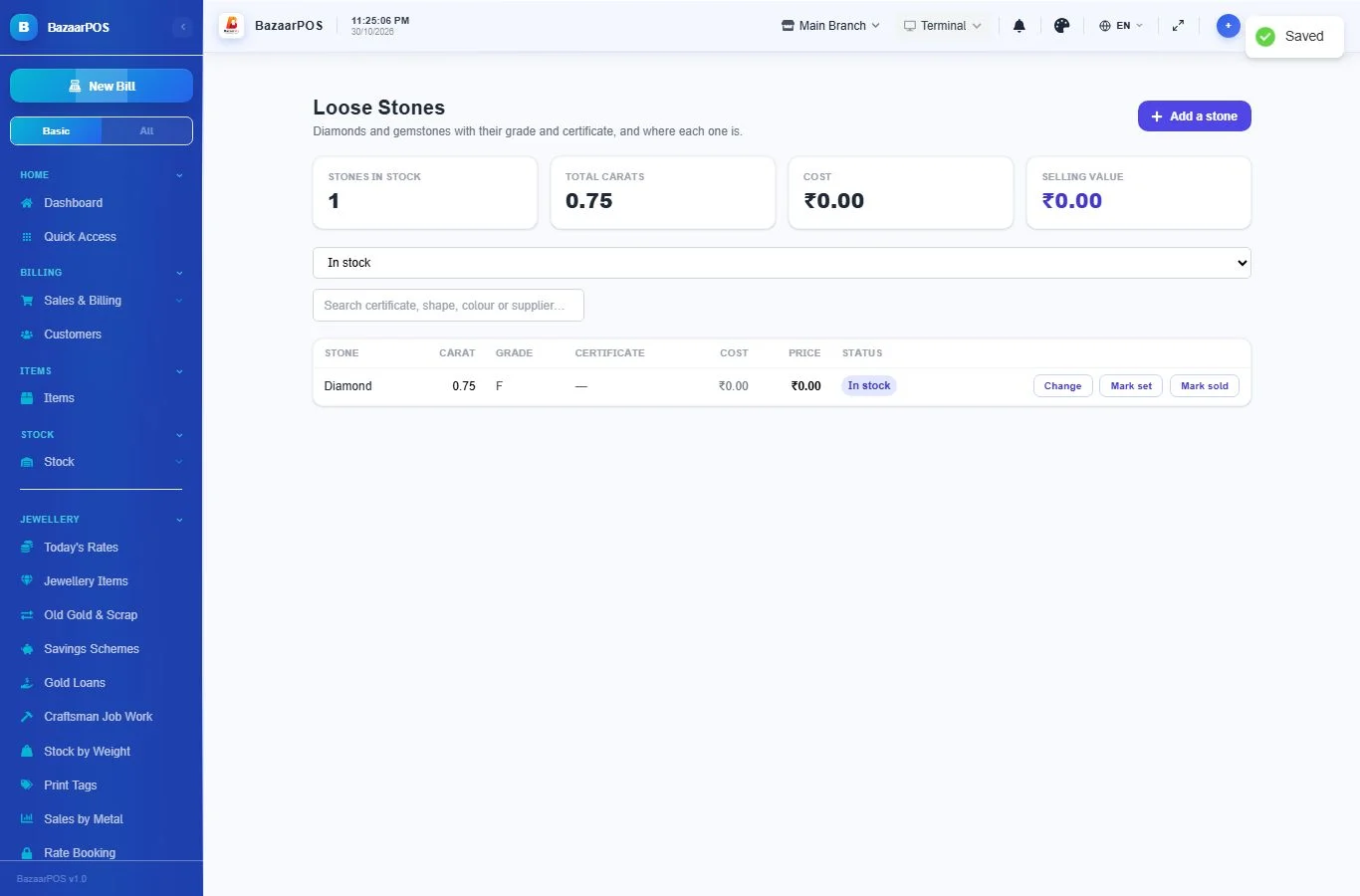
Jewellery → Loose Stones keeps diamonds and gemstones with their carat weight, colour, clarity, cut, certificate number and lab, cost and selling price. A stone is in stock, set in a piece or sold; use Mark set and Mark sold to move it. The same certificate number cannot be added twice.
Goods on approval
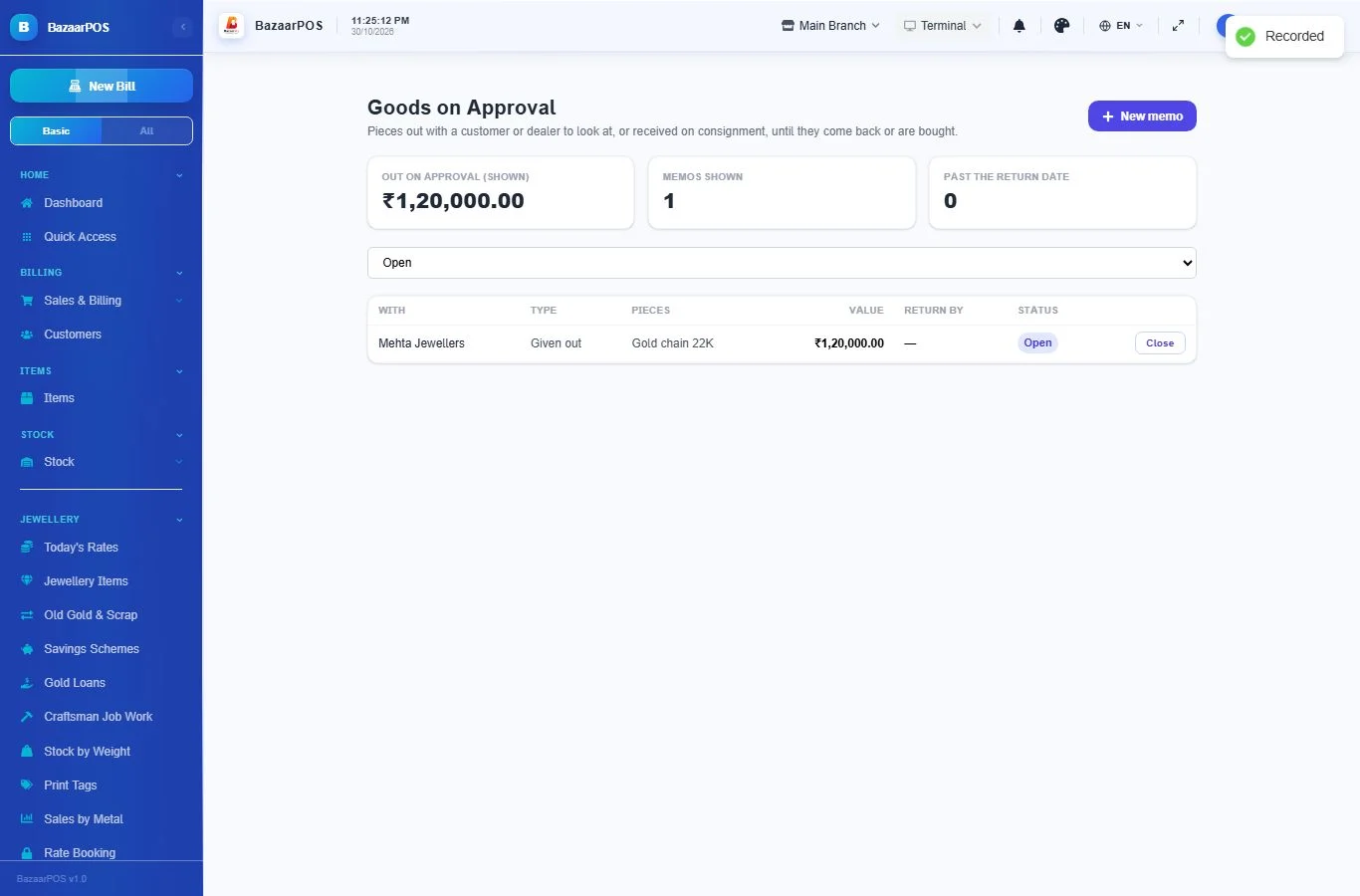
Jewellery → Goods on Approval records pieces you give a customer or dealer to look at, or pieces you receive on consignment. Click New memo, choose the direction, name who it is with, and list the pieces with their value. The list shows what is still out and flags memos past their return date. When the goods come back or are bought, click Close. If they keep a piece, make the bill in the billing screen.
Metal accounts
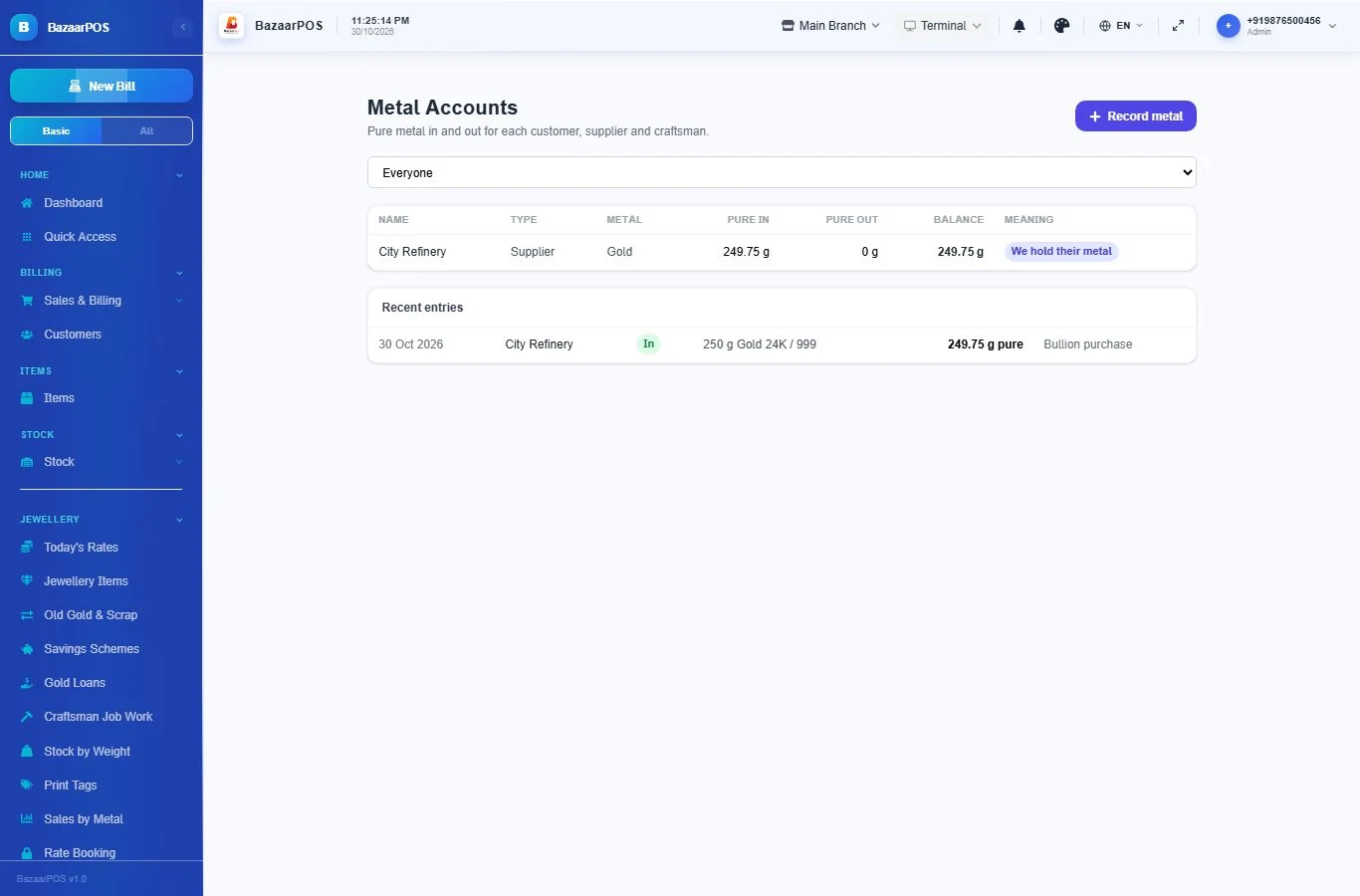
Jewellery → Metal Accounts counts metal, not just money: the pure metal in and out for each customer, supplier and craftsman (10 g of 22K is about 9.16 g of pure gold). Metal given to a craftsman, what comes back, and old gold taken in are added by themselves. Use Record metal for anything else, such as buying bullion from a supplier. A negative balance means the other party holds your metal (a craftsman still owes the wastage); a positive balance means you hold theirs.
Sales by metal
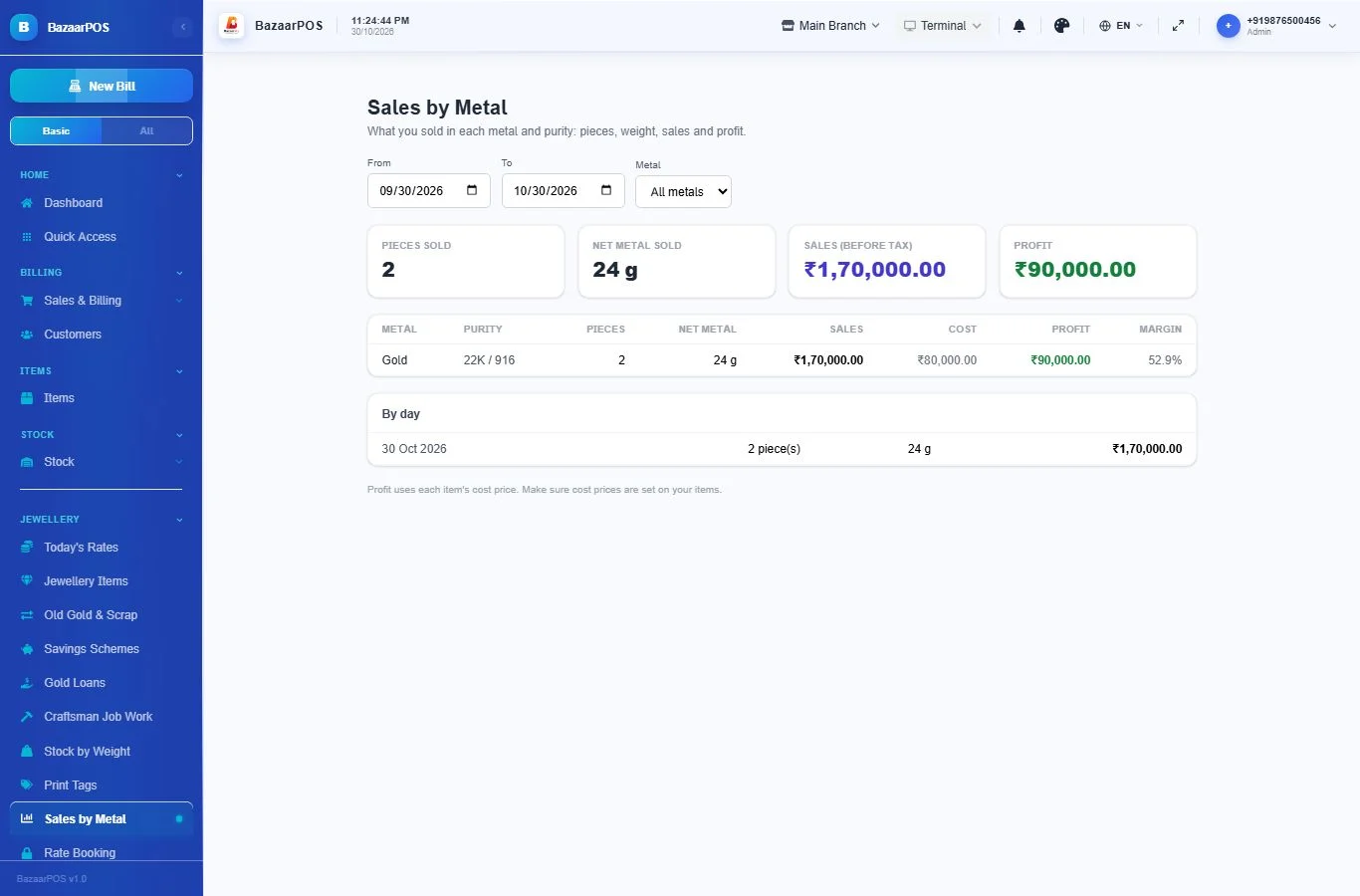
Jewellery → Sales by Metal shows, for any dates, what you sold in each metal and purity: pieces, net metal weight, sales before tax, cost and profit. Profit uses each item's cost price, so keep cost prices filled in. It is read from the details saved on each bill, so a past bill is reported at the rate it was sold at.
Reminders
On Savings Schemes, a customer with an overdue instalment has a Remind button. On Gold Loans, so does a loan with interest due or past its due date. It opens WhatsApp with a ready message to the customer's phone number, the same way the Khata reminders work.
What the bill shows
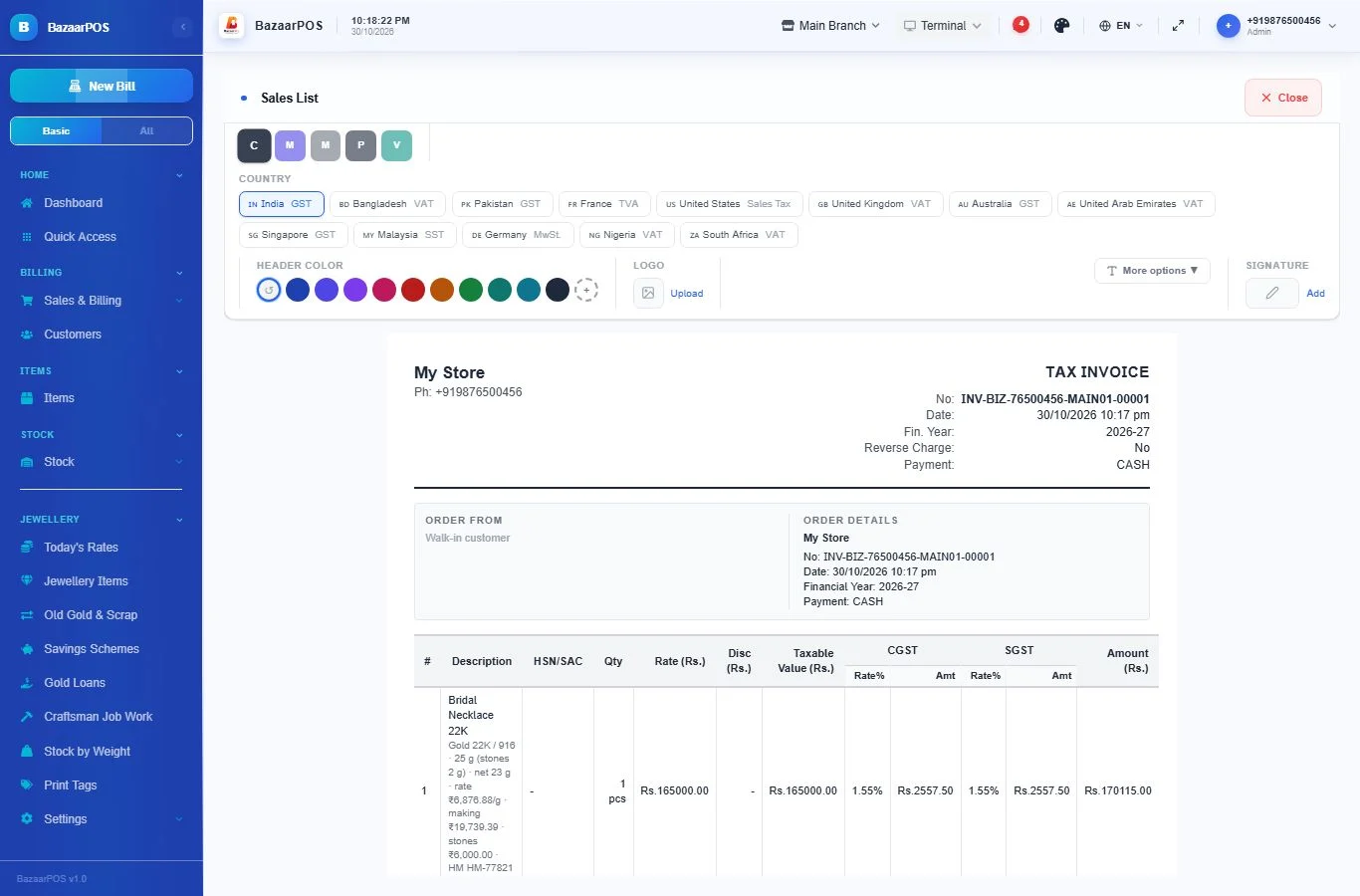
When a jewellery piece is sold, its details are saved on that bill line: metal and purity, weights, the rate used, making charge, stones, hallmark and certificate number. They print under the item name on the invoice, so a bill never changes later when the rate changes. HTML invoice and receipt designs can use these item fields: {{jewellery}} (the whole line), {{weight}}, {{purity}}, {{rate}}, {{making}} and {{hallmark}}.
On the phone
The phone app has the daily work for the shop floor, shown to Jewellery customers in the Apps list:
- Today's Rates: see the rates in any unit, and set a new rate (it can update every item's price).
- Rate Booking: book a piece at a locked rate with an advance, and deliver it.
- Gold Loans: open a loan, take interest or a repayment, send a reminder, close the loan.
- Craftsman Job Work: give metal to a craftsman and record what comes back and the wastage.
- Stock by Weight: pieces, weight and value for each metal and purity.
- Scanner: scan a barcode or type a tag or hallmark number to see the piece's weight, purity, today's rate and how the price is made up.
- Old Gold & Scrap: a quick value check, and recording a trade-in or scrap purchase. Type the customer's phone number to put the credit on their account.
- Savings Schemes: collect the monthly instalment, see who is overdue, and redeem a finished scheme.
Printing tags and certificates, loose stones, goods on approval, metal accounts and sales by metal are on the desktop app.
Every field, explained
| Field | What it means |
|---|---|
| Metal | Gold, silver, platinum or palladium. |
| Purity | How pure the metal is. Choose a standard (22K / 916, 18K / 750, 925 and so on) or "Other" to type any fineness in parts per 1000. |
| Weight unit | The unit you weigh in. Weights are kept in grams behind the scenes, so changing the unit never changes the piece. |
| Total weight | Weight of the whole piece, stones included. |
| Stone weight | Weight of stones that are not metal. Net metal weight = total weight − stone weight. |
| Wastage % | Extra metal you charge for, as a percent of the net weight. |
| Making charge | Per gram of net weight, a percent of the metal value, or a fixed amount for the piece. |
| Stone / diamond value | The price of the stones, added as it is. |
| Tag number | The tag on the piece. You can search for a piece by tag. |
| Hallmark / assay number | The hallmark number of the piece. You can search by it. |
| Certificate number | Diamond or gem certificate number. |
| Tax on metal / making | Optional. Two rates that are combined into one tax rate for the item. |
| Melting loss % | For old metal: the share you deduct for refining. The value is worked out on the weight left. |