Furniture Showroom Setup
Run a furniture showroom in BazaarPOS: sell from the floor, take orders made to a customer's size, schedule delivery and installation, pay the designer who brought the customer, and keep protection plans and reminders in one place.
How it fits together
You keep your normal Items, Customers, billing, deposits, lay-by, special orders and repairs. Nothing is entered twice. A piece of furniture is an ordinary item: its fabrics, colours and sizes are the item's variants. The Furniture section adds what a showroom needs on top:
- Made-to-order: pieces made to a customer's size and finish, with the workshop, a deposit, the bill and a tracking link.
- Delivery & Installation: a board by slot with the crew, the floor and lift notes, and who received the delivery.
- Furniture Finder, Protection Plans, Reminders and Designer Commission.
Amounts, dates and tax follow your shop's country and tax settings. The same screens work in any country.
Step 1: Add your furniture as items
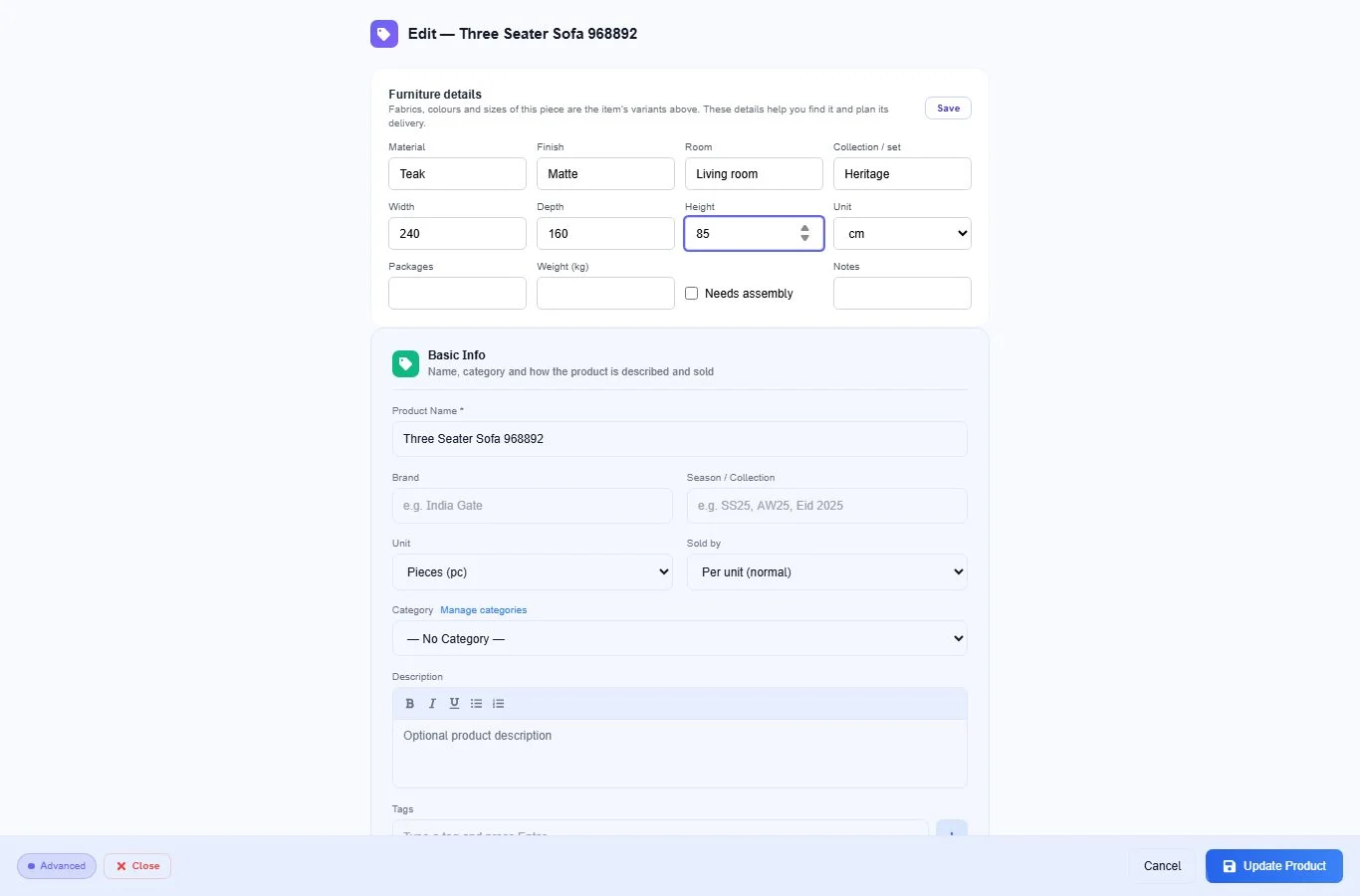
Open Items and add each piece as an item. Use the item's variants for fabrics, colours and sizes, and its barcode and stock like any other item. When you open a saved item, a Furniture details card appears at the top with the material, finish, room, collection, size (width, depth, height), number of packages, weight and whether it needs assembly. Press Save on the card. The finder and the delivery crew use these details.
Step 2: Take an order made to size
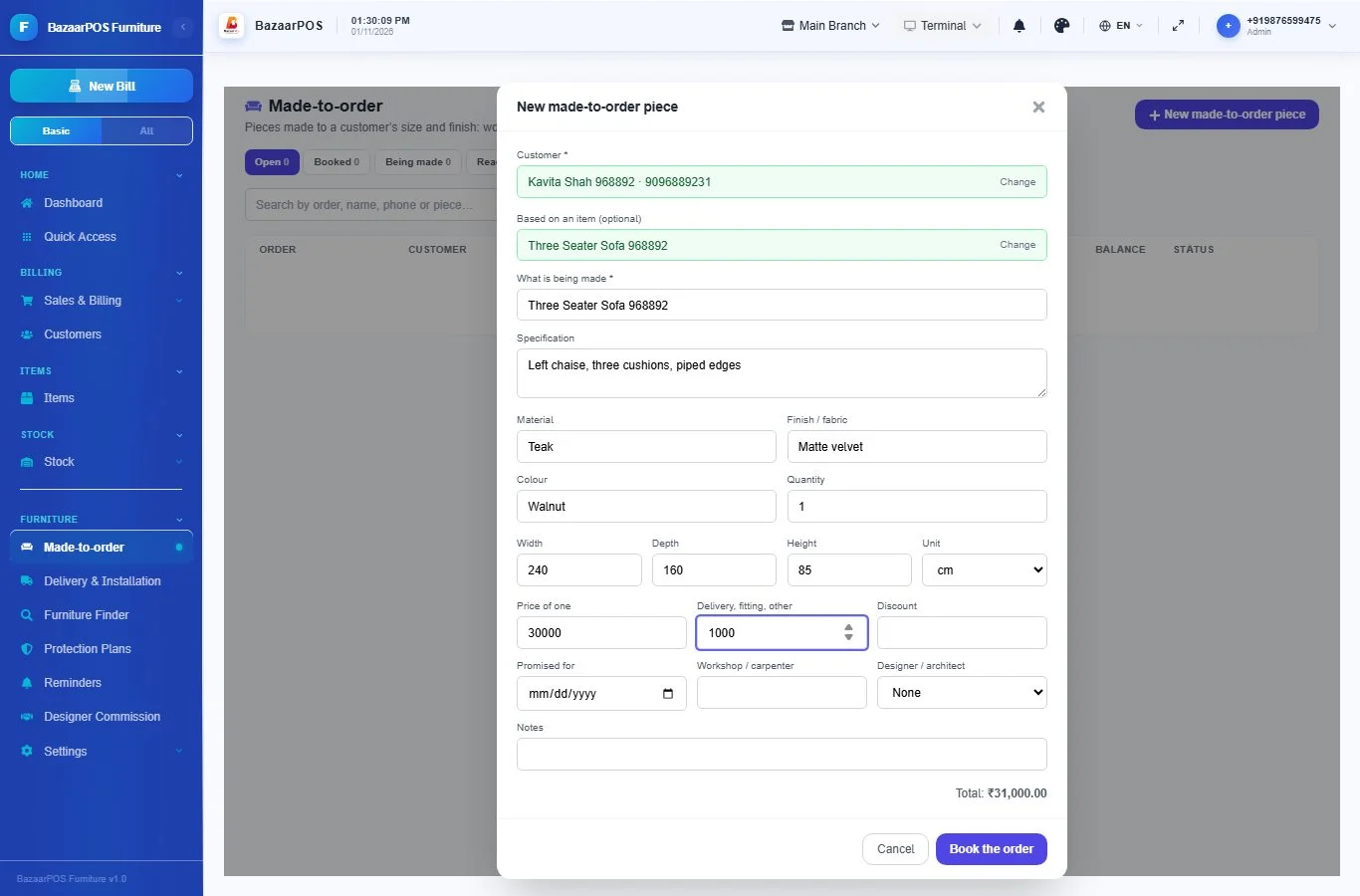
Open Furniture → Made-to-order and press New made-to-order piece. Choose the customer, and search an item if the piece is based on one of yours (its price and tax come with it). Write what is being made, the specification, material, finish or fabric, colour and the size. Write the quantity, the price of one, delivery or fitting charges, any discount, the promised date and the workshop or carpenter. If you use designers or architects, choose who brought the customer.
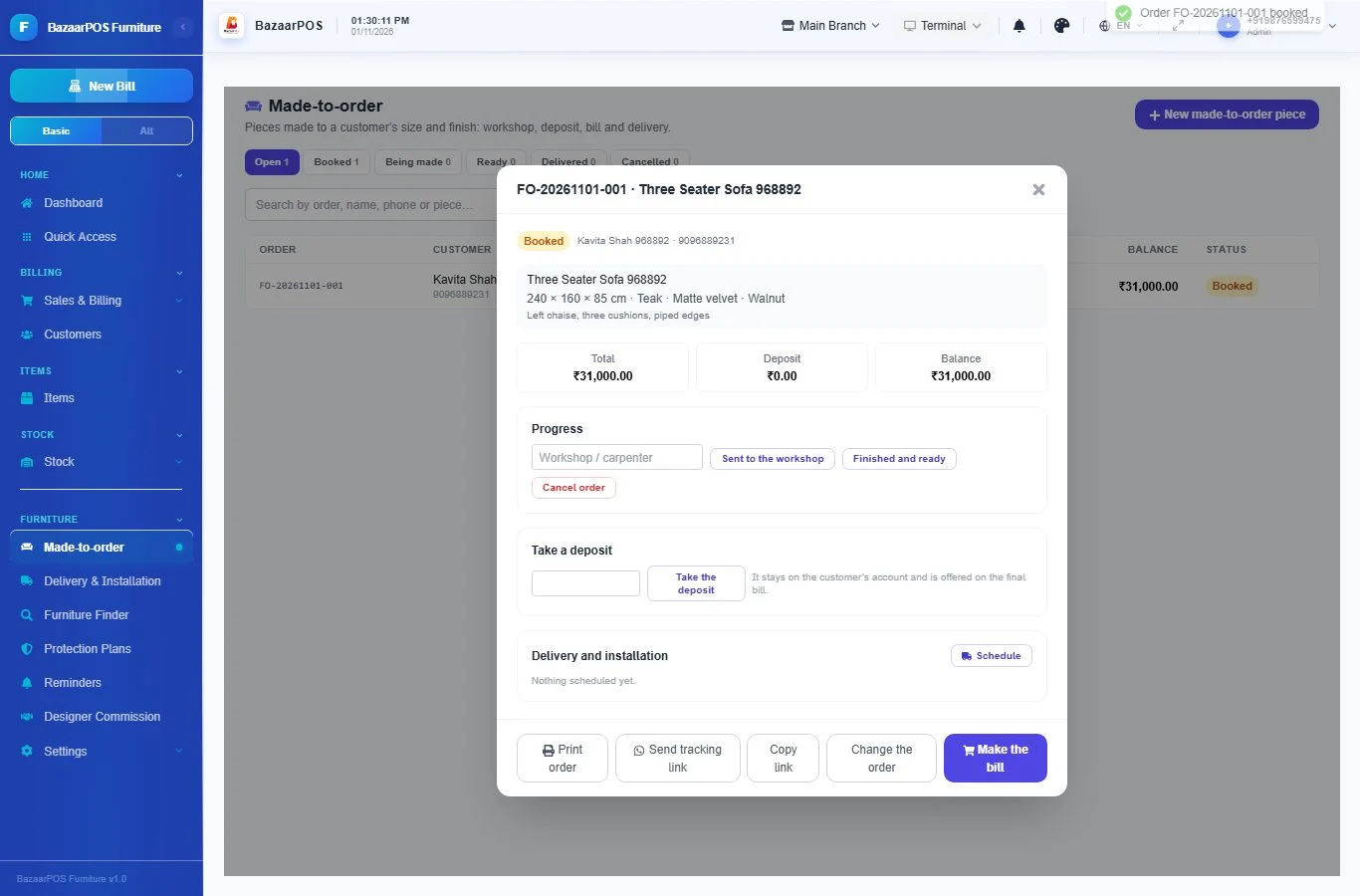
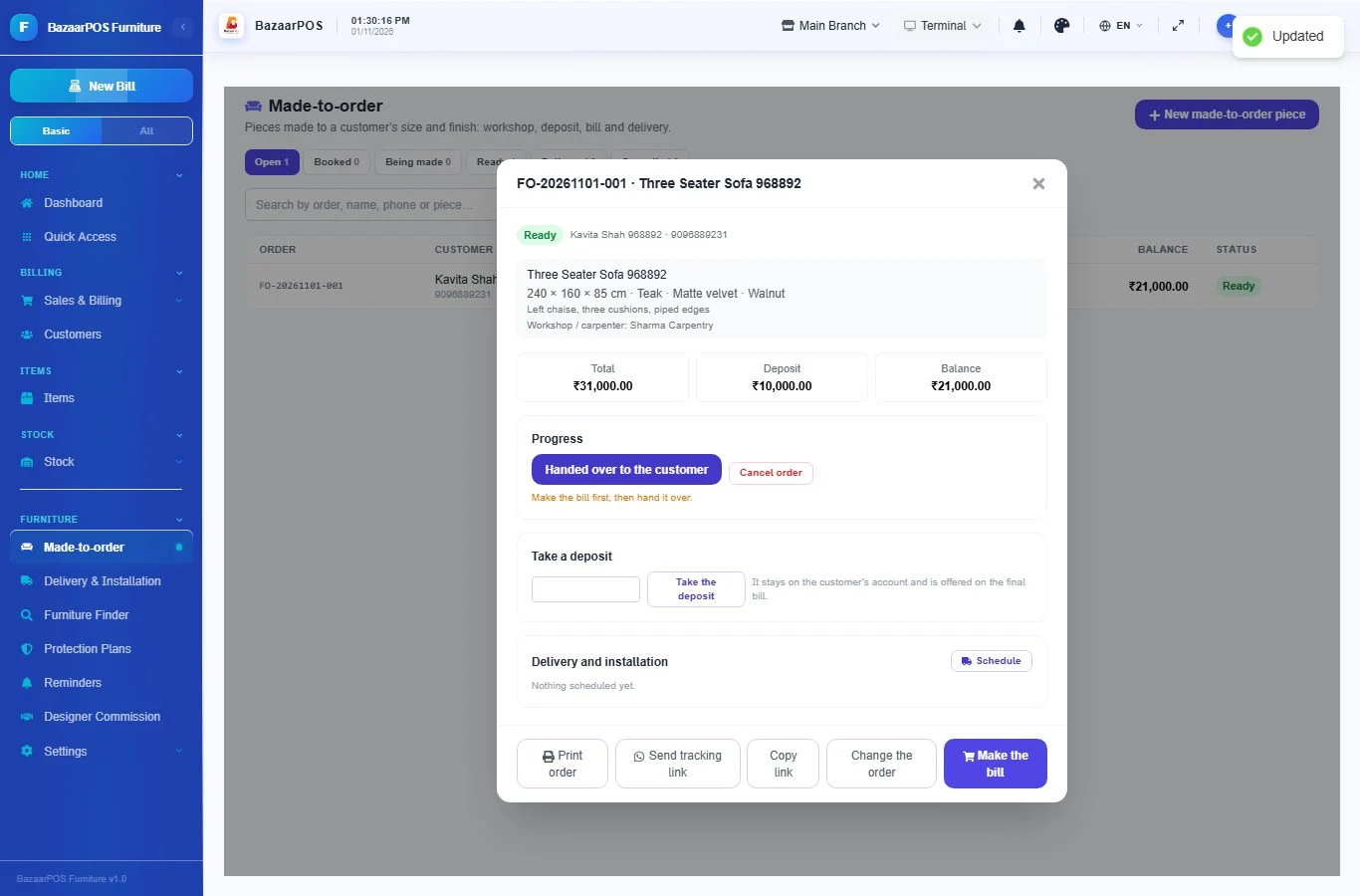
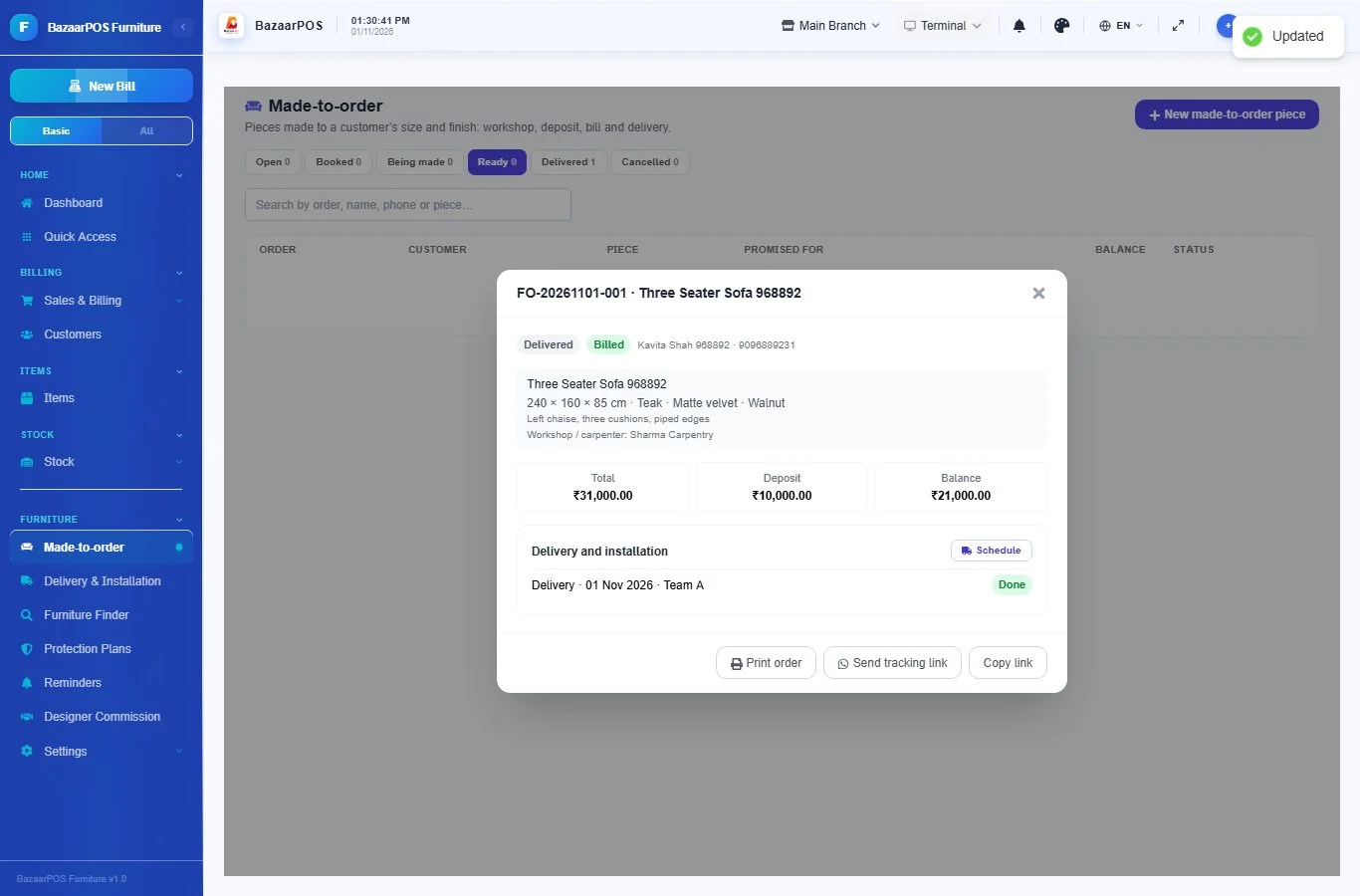
Each order gets a number such as FO-20261101-001. Open an order to see the specification, the size, the money and the progress.
Step 3: Take a deposit
In the order, write the amount under Take a deposit. It is kept on the customer's account like any other advance and is offered again on the final bill, so it is never counted twice. A deposit cannot be more than the order total, and the order total cannot be lowered below the deposit.
Step 4: Follow the workshop
Write the workshop or carpenter and press Sent to the workshop. When the piece is finished press Finished and ready. You can change the order (size, finish, charges, promised date) until it is billed. Orders past their promised date show Late.
Step 5: Bill the order
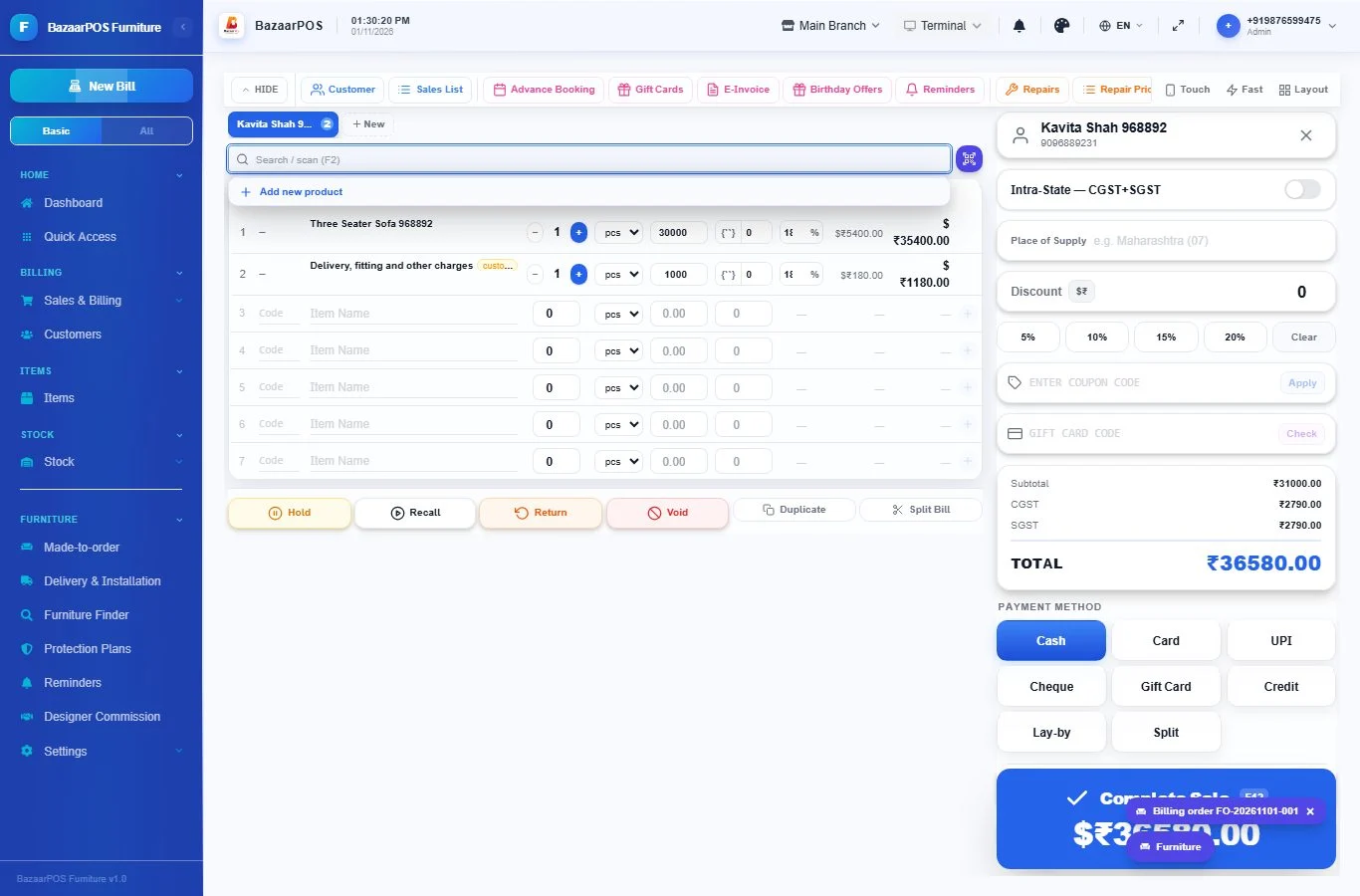
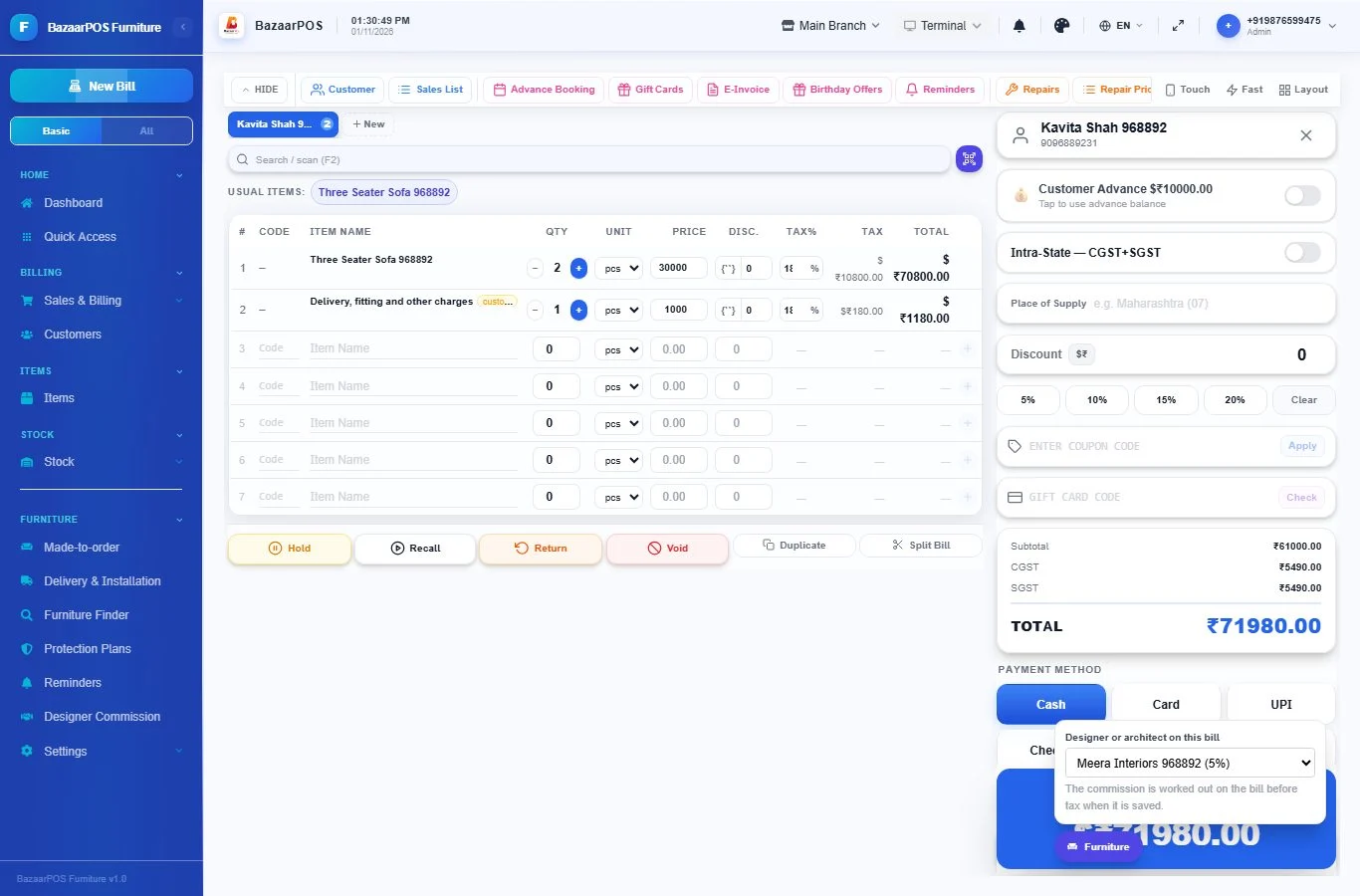
Press Make the bill on the order, or choose the customer in New Bill and press the Furniture button at the bottom right to add the order. The piece comes on the bill with its own tax (the item's rate, or your shop's default tax for a one-off piece), and so do the delivery and fitting charges. The deposit is offered as a payment. When the bill is saved the order is marked billed.
Step 6: Schedule delivery and installation
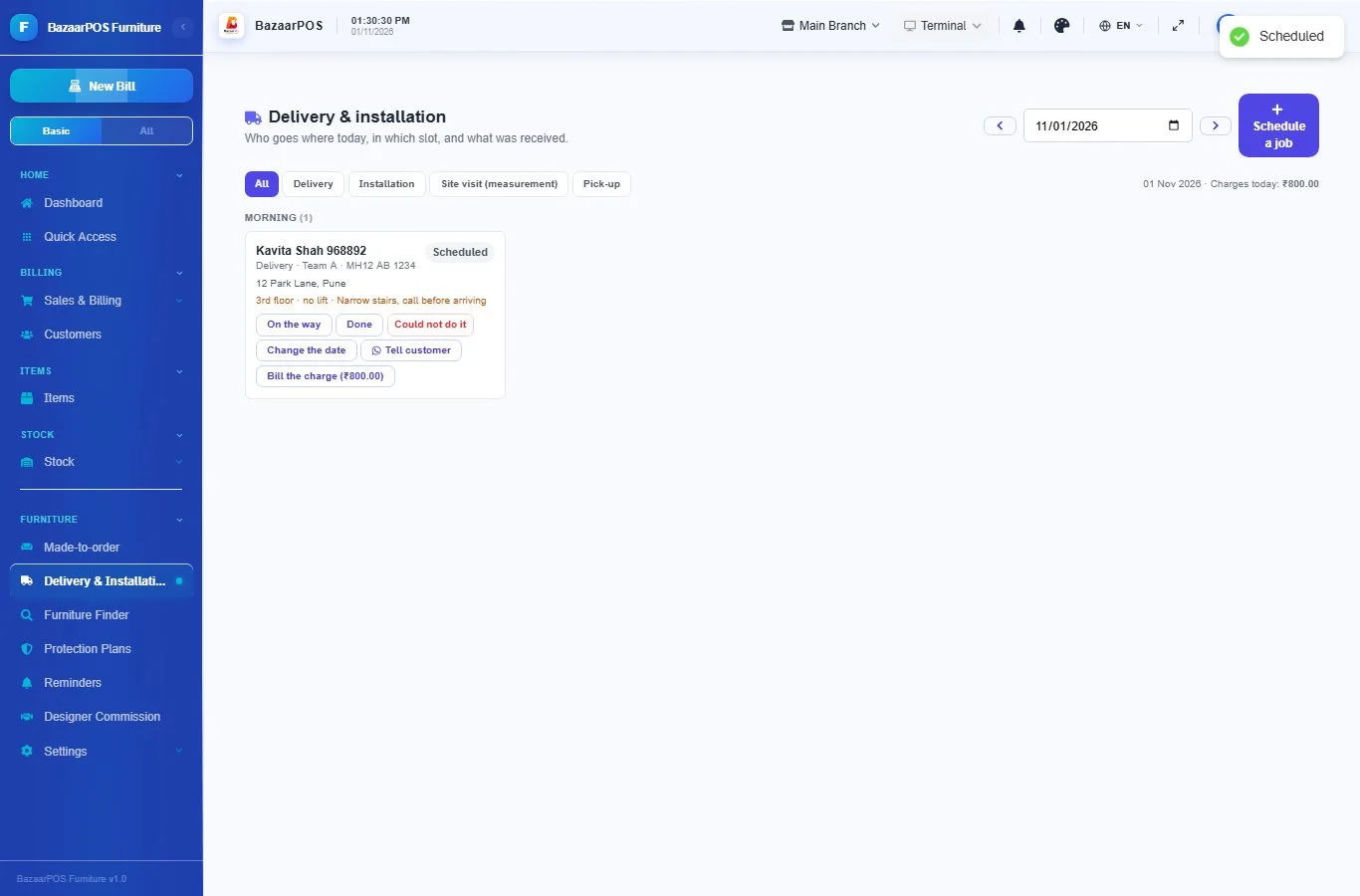
From the order press Schedule, or open Furniture → Delivery & Installation and press Schedule a job. Choose what it is (delivery, installation, site visit for measurement, or pick-up), the date and the slot (morning, afternoon or evening), the address, the floor, whether there is a lift and any access notes (narrow stairs, gate code). Write the crew and the vehicle, and a charge if you bill for it. A crew cannot be booked twice in the same slot.
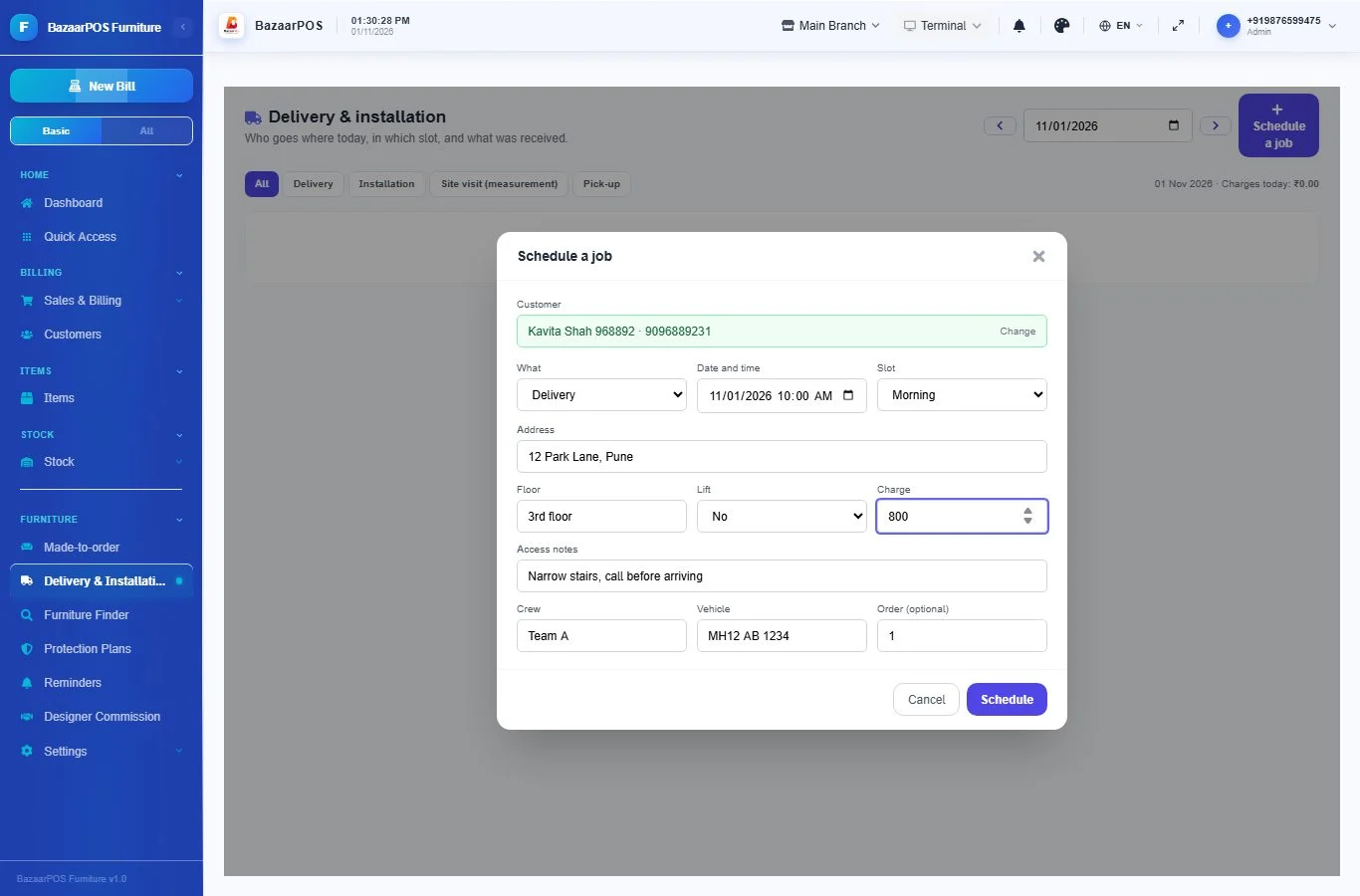
The board shows the day by slot. Press On the way when the truck leaves, Tell customer to send the date on WhatsApp, Change the date to reschedule, and Bill the charge to put the delivery charge on a bill.
Step 7: Record the delivery
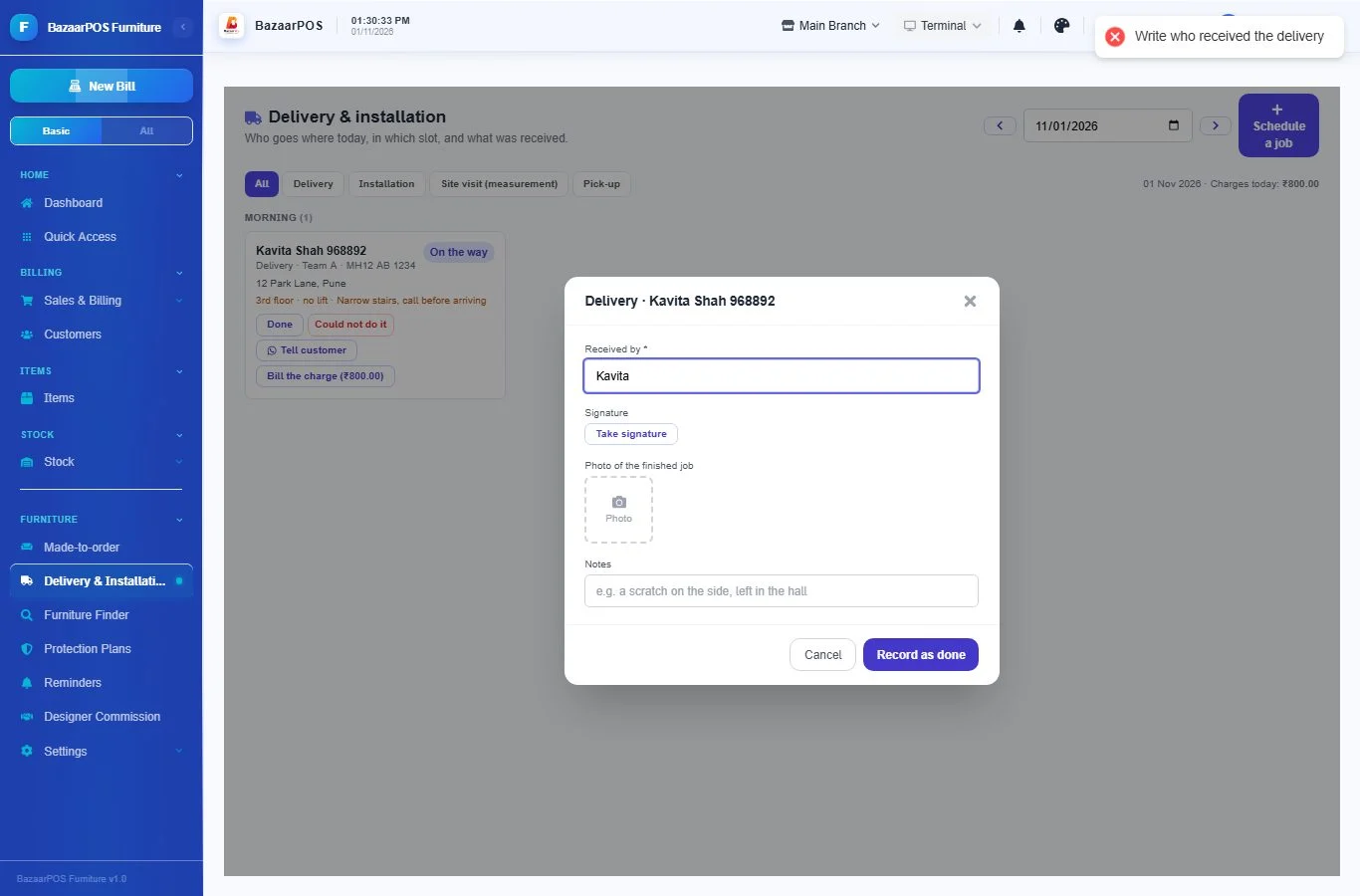
Press Done on the job. For a delivery write who received it, take a signature and a photo, and add notes (a scratch on the side, left in the hall). Installations can be finished without a receiver. If the crew could not complete the job, press Could not do it, then schedule it again.
When the piece has been billed and delivered, press Handed over to the customer in the order. You cannot hand over an order that has not been billed.
Step 8: Send the customer a tracking link
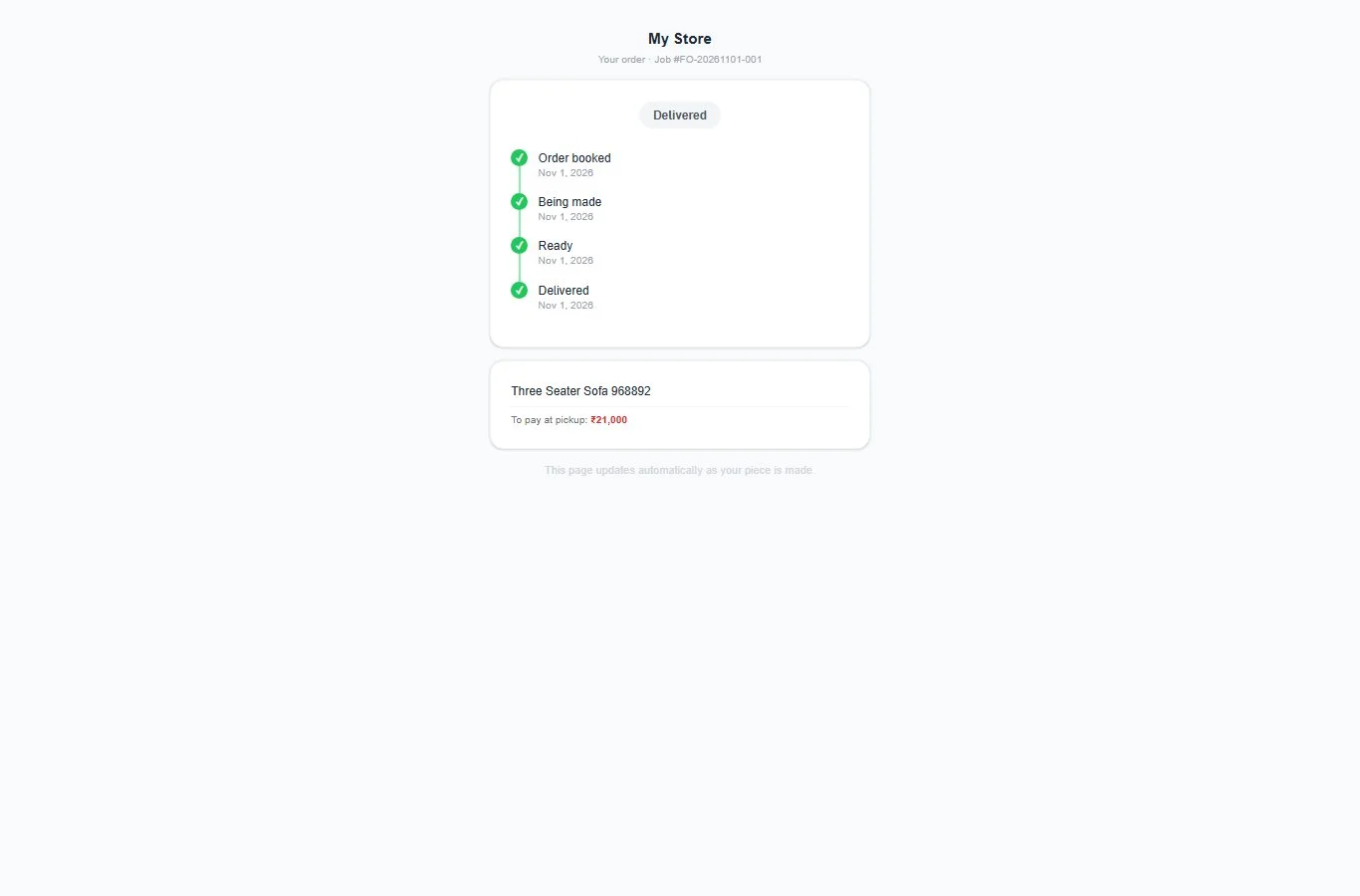
In the order press Send tracking link to send it on WhatsApp, or Copy link. The customer opens a page, with no login, showing the steps: order booked, being made, ready and delivered. It shows the balance to pay but not the prices of the items.
Step 9: Designer and architect commission
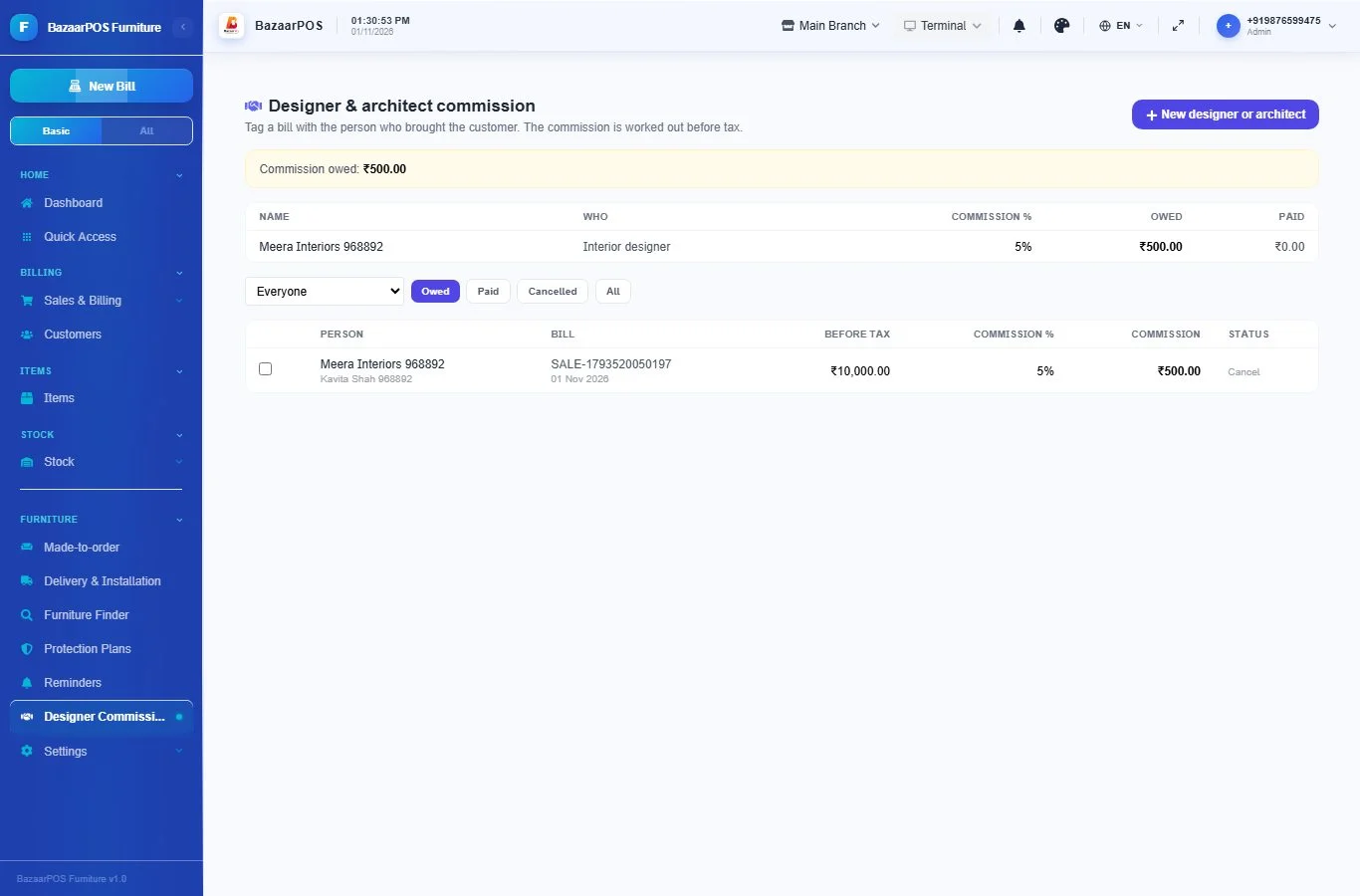
Open Furniture → Designer Commission and press New designer or architect: write the name, phone, who they are and their commission percent. Then name them on an order, or choose them in the Furniture panel while billing. When the bill is saved the commission is worked out on the bill before tax and added to what you owe them. Press Mark as paid when you pay. A bill is never counted twice for the same person.
Step 10: Protection plans
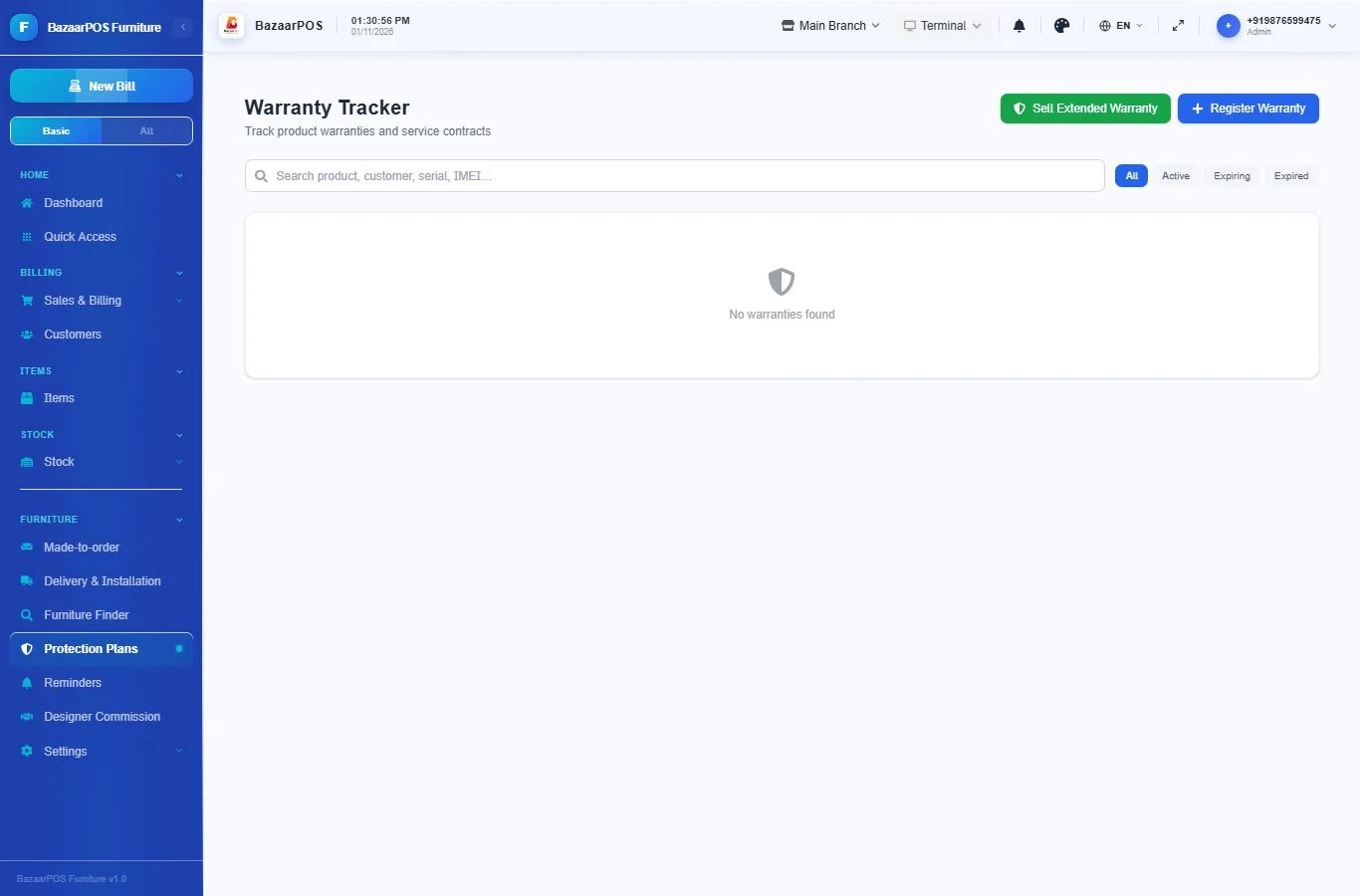
Open Furniture → Protection Plans. This is the same warranty register other shops use: register a plan for a piece with the customer, the months covered and the type (maker warranty or extended protection), print the certificate, note claims and renew it when it ends.
Step 11: Reminders
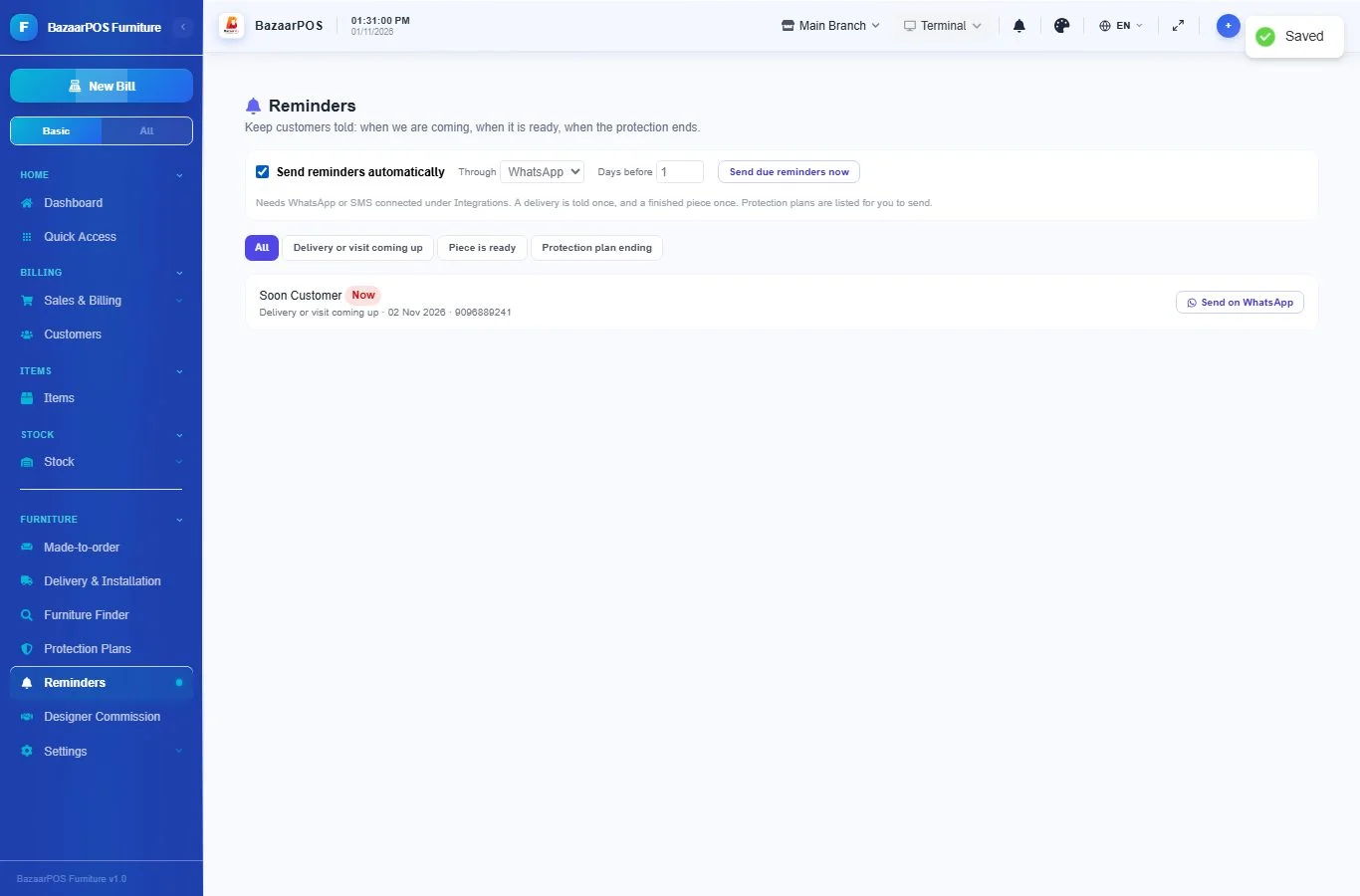
Open Furniture → Reminders. It lists deliveries and installations coming up in the next few days, finished pieces waiting for delivery, and protection plans ending within a month. Send on WhatsApp opens the chat with the message ready.
To have them sent for you, tick Send reminders automatically at the top, choose WhatsApp or SMS (it uses the connection under Settings → Integrations) and how many days before. A delivery is told once and a finished piece is told once. Protection plans ending are listed for you to send. Send due reminders now sends what is due straight away.
Step 12: Furniture finder
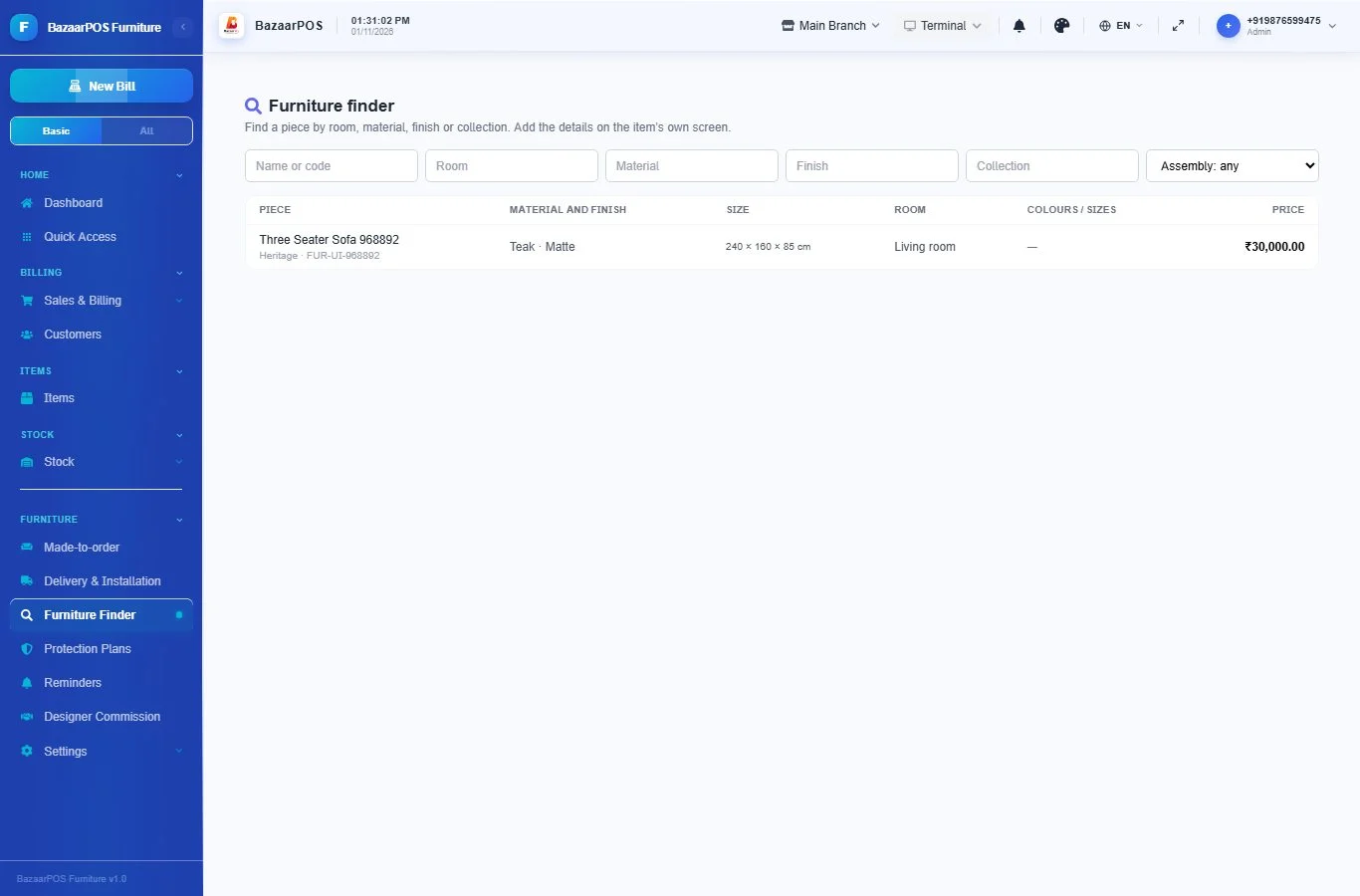
Open Furniture → Furniture Finder. Filter by room, material, finish or collection, or whether it needs assembly. Each item shows its size, its fabrics and colours and its price.
Also useful for a showroom
- Paying in instalments before delivery: see Lay-by.
- Items you order in from a supplier for a customer: see Special orders.
- Repairs and polishing, with a tracking link: see Repairs.
- Credit and reminders: see Customers and Khata reminders.
- Counting stock: see Stock count.
On the phone
The BazaarPOS phone app has a Furniture group in the Apps screen with Made-to-order, Delivery & Installation, Furniture Finder, Protection Plans, Reminders and Designer Commission. On the billing screen the customer's made-to-order pieces can be added to the bill and a designer can be named, and the order is marked billed when the bill is saved. They work without internet and sync with the desktop. The tracking link and automatic reminders are set from the desktop app.
Which plan includes what
The Furniture Showroom comes in Basic, Advanced and Enterprise plans. A screen your plan does not include shows a message with how to upgrade.
- Basic: billing, items, customers, reports, Made-to-order, the Delivery & Installation board and the Furniture Finder with item details.
- Advanced: everything in Basic, plus Protection Plans and Reminders.
- Enterprise: everything in Advanced, plus Designer Commission, more than one branch and AI sales forecasting.