Sweets & Mithai Setup
Run a sweet shop in BazaarPOS: bill by weight with the box taken off the scale, quote the rate per kg or per 100 g, build a mixed gift box, print the tray label, close the day with what is left over, and take festival and corporate hamper orders.
How it fits together
You keep your normal Items, Customers, billing, pre-orders and festival orders. Nothing is entered twice. A sweet is an ordinary item sold by weight in kilograms. A container and a gift box are ordinary stock items too, so they are billed, counted and returned like anything else.
- Sweets & Labels: type, shelf life, how the rate is quoted, vegetarian mark and default container for each sweet, and the tray label.
- Containers & Gift Boxes: the empty weight of each container, and the box types with their capacity.
- Day-end Leftovers and Hampers & Repeat Customers.
- Kitchen & Festivals: recipes, production, packaging stock, wastage log, expiry monitor and festival orders, the same screens the bakery uses.
Amounts, dates and tax follow your shop's country and tax settings. How many decimal places a weight may have is a setting too (Settings → Inventory → Quantity decimal places).
Step 1: Add your containers and gift boxes
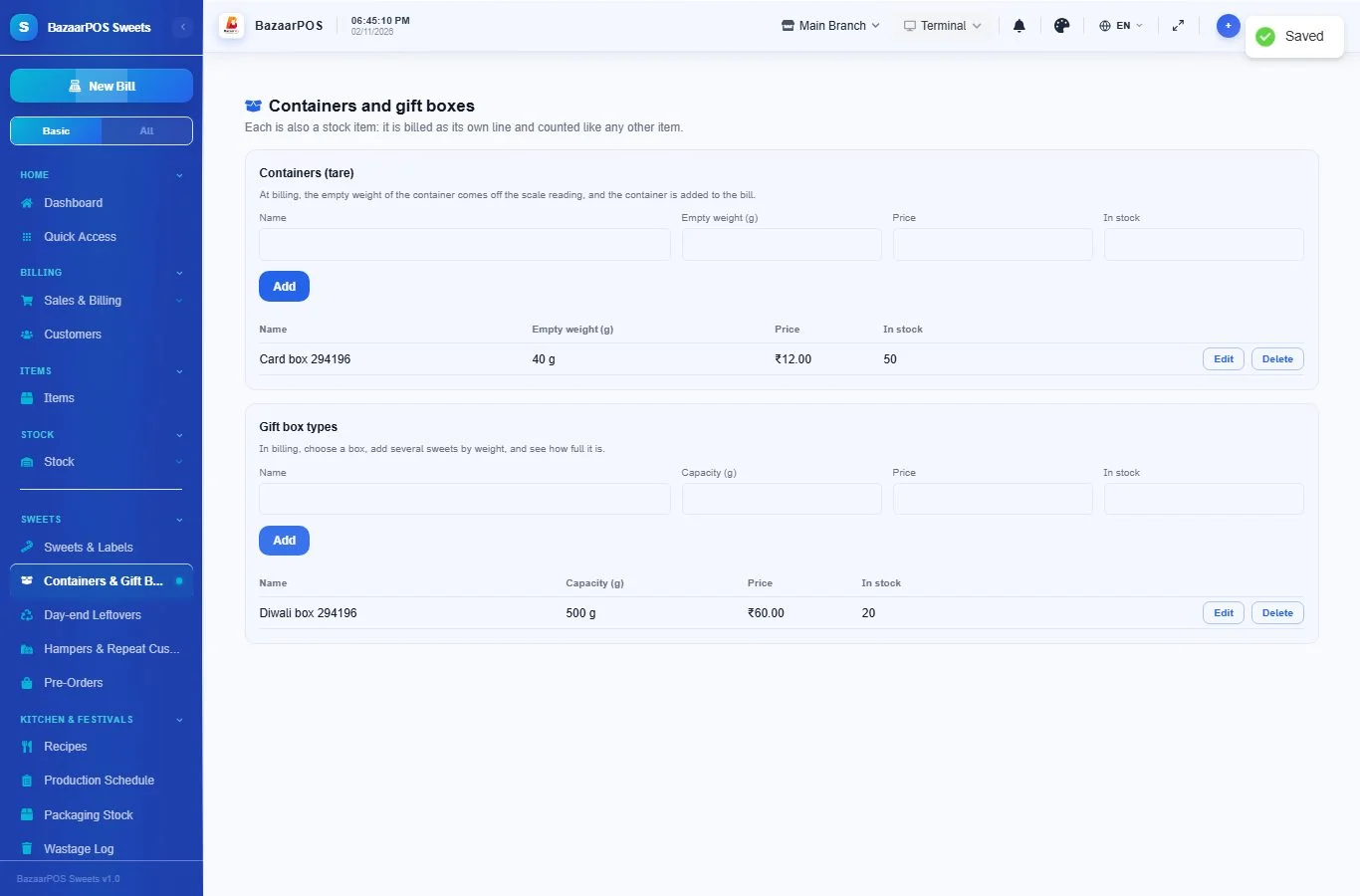
Open Sweets → Containers & Gift Boxes. For a container, type its name, its empty weight in grams, its price and how many you have. For a gift box, type its name, its capacity in grams, its price and the stock. Each one is also created as a stock item, so you can count it and buy more like any other item.
Step 2: Set up each sweet
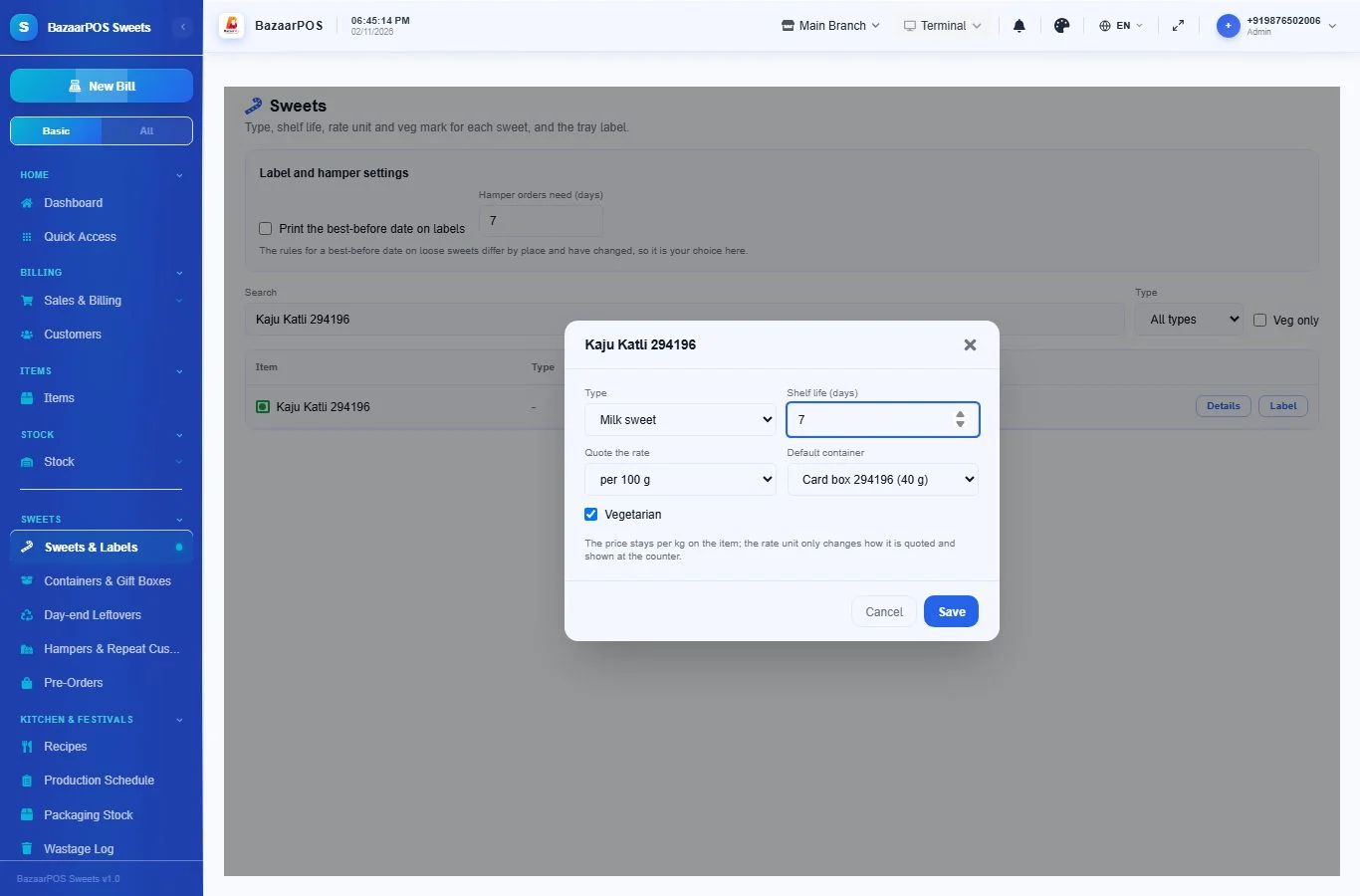
Open Sweets → Sweets & Labels, find the sweet and press Details. Choose its type (milk sweet, dry fruit, Bengali, syrup, namkeen and so on), its shelf life in days, how you quote the rate (per kg, per 100 g, per gram or per piece), whether it is vegetarian, and its default container. The price stays per kilogram on the item; the rate unit only changes how it is shown. A sweet at 800 per kg quoted per 100 g shows 80.
Step 3: Weigh and bill with the container
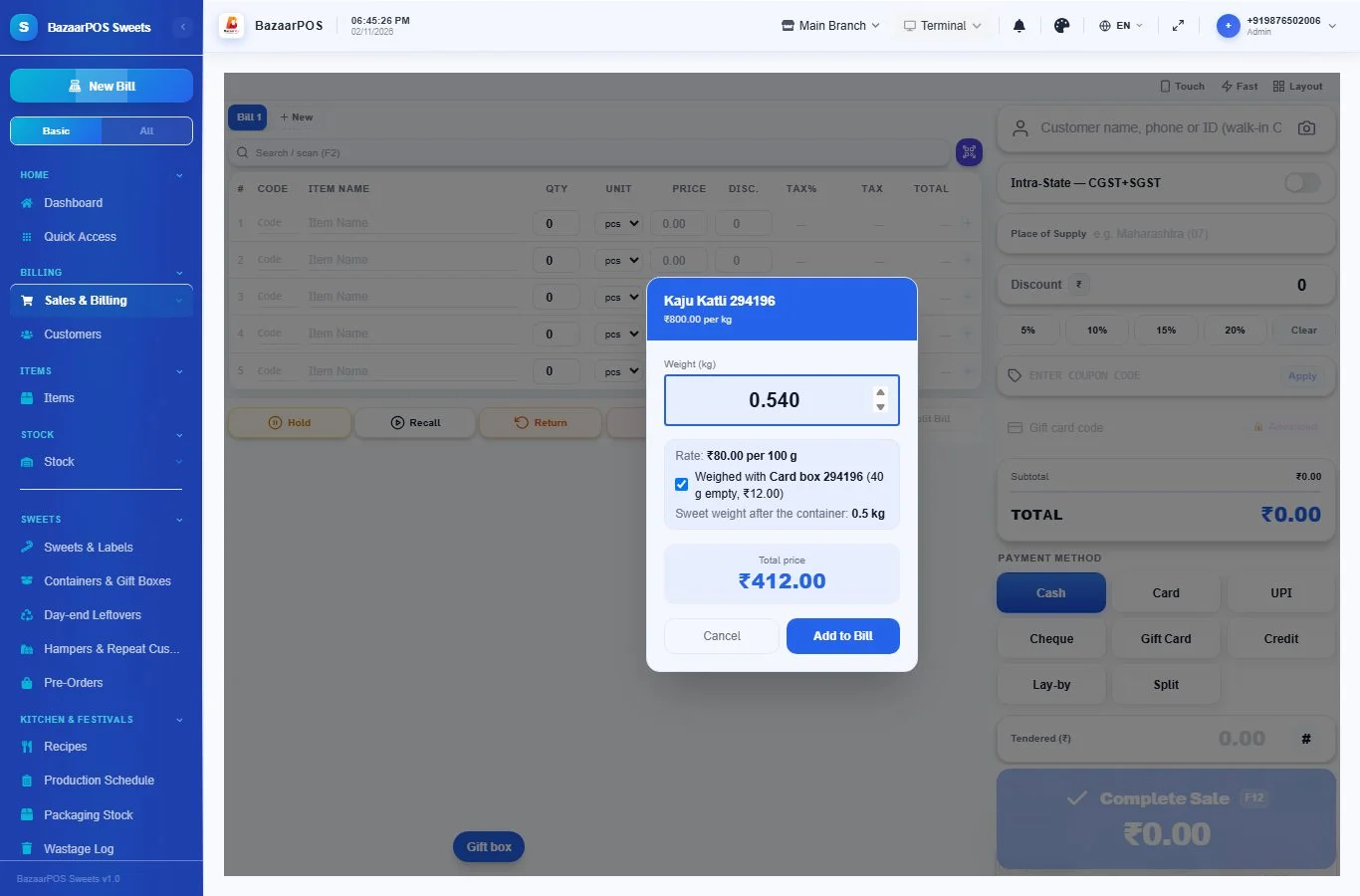
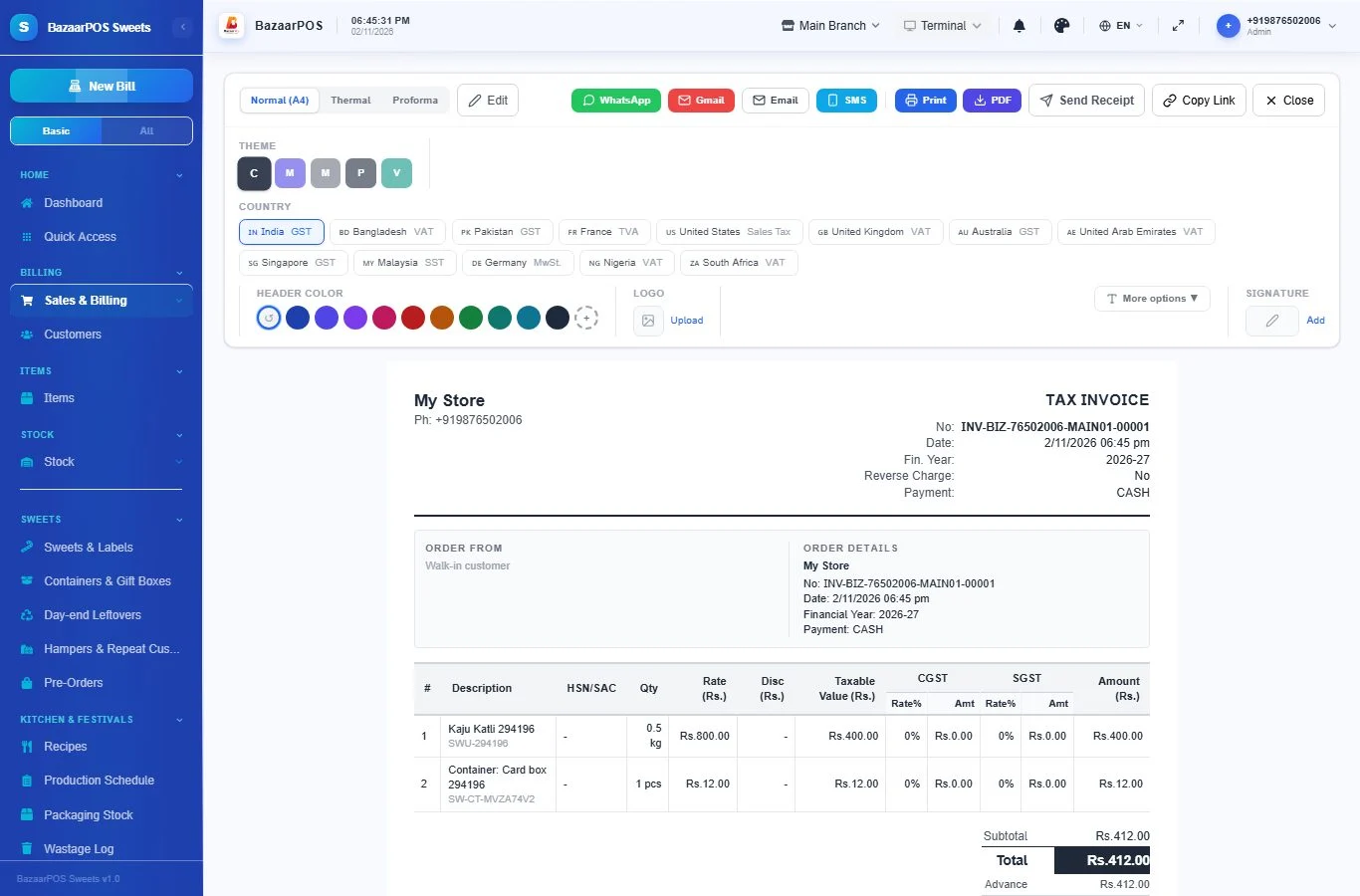
In the normal billing screen, tap the sweet. The weight window shows the rate in your quoted unit and, if the sweet has a default container, Weighed with the container (ticked). Type what the scale shows including the box. The window takes the box's empty weight off, shows the sweet's own weight, and adds the box's price to the total. Untick it to bill the sweet without the box.
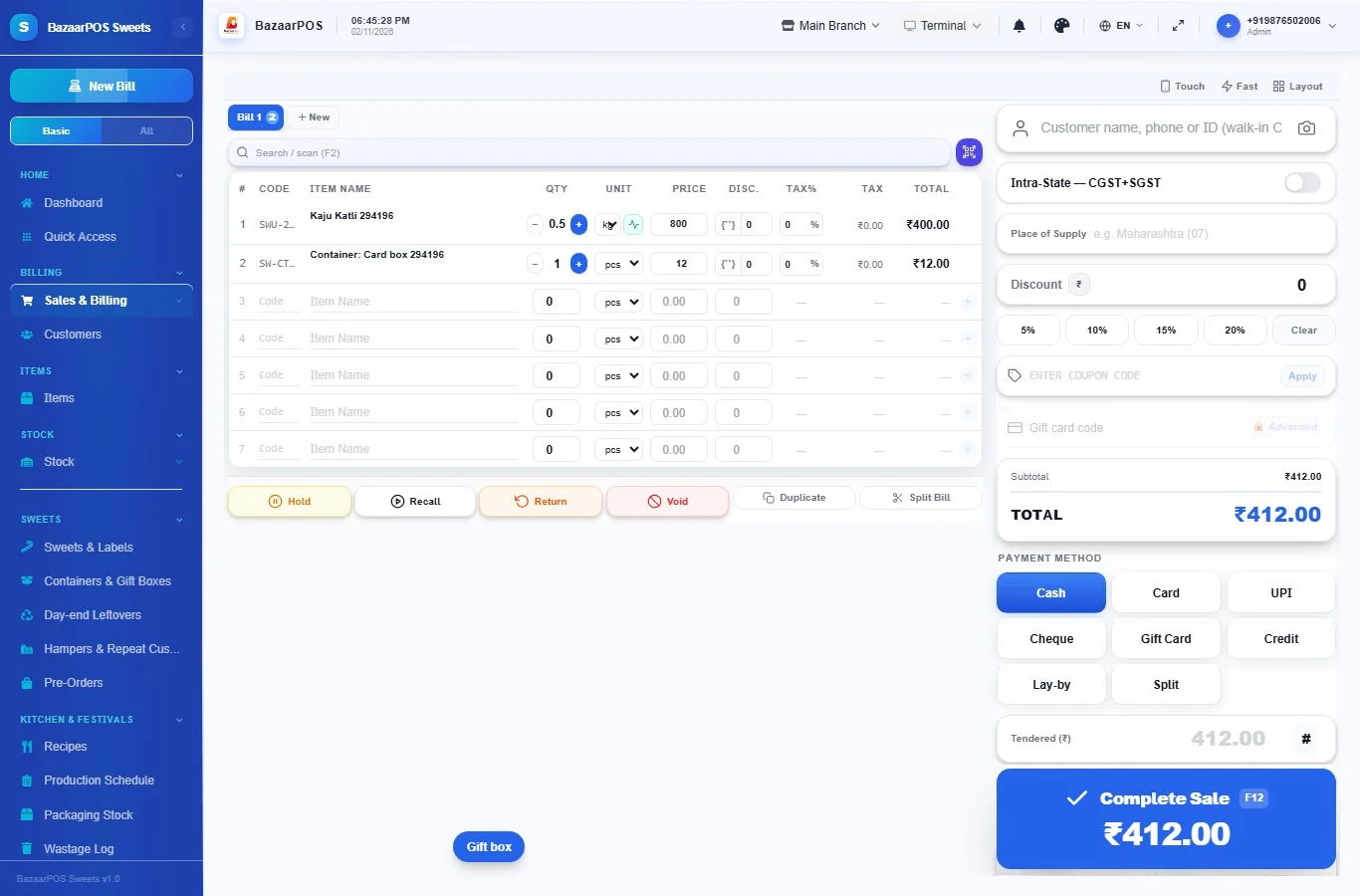
The bill has the sweet at its own weight and the container as its own line. When the sale is complete, the sweet's stock and the container's stock both go down, and a void puts both back.
Step 4: Build a gift box
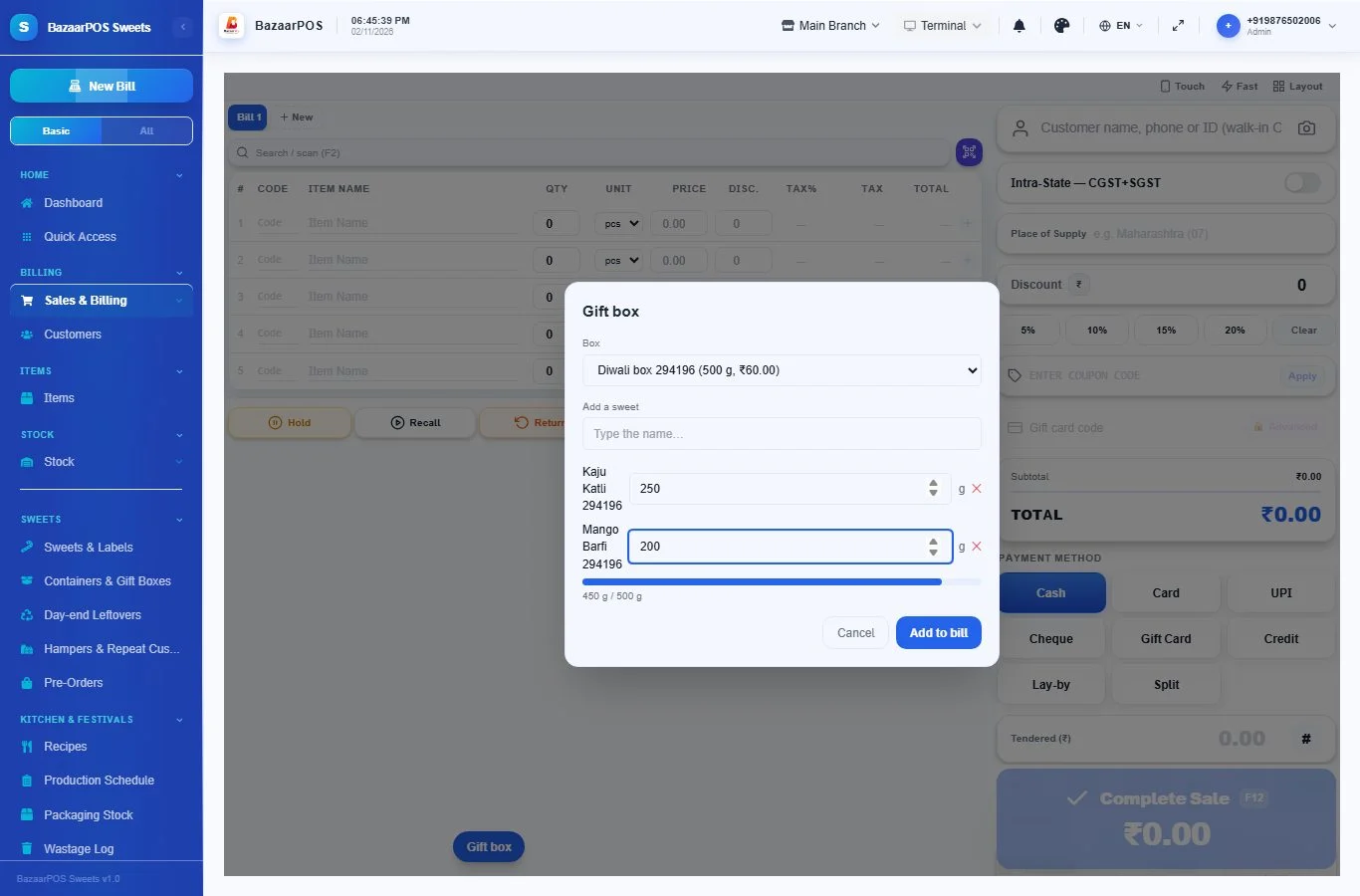
In billing, press the Gift box button. Choose the box type, search for each sweet and type its weight in grams. A bar shows how full the box is, and a warning appears if the sweets weigh more than the box holds. Press Add to bill: the box and every sweet are added as ordinary lines, each sweet at its own rate.
Step 5: Print a tray or box label
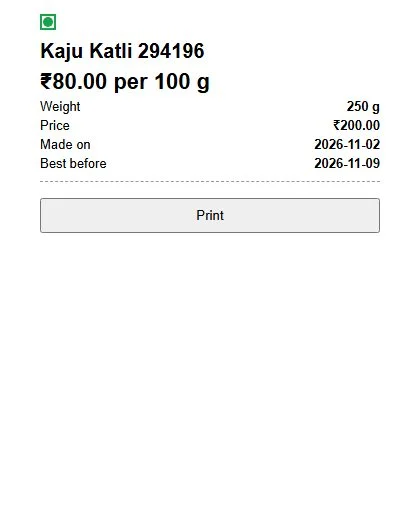
On Sweets & Labels press Label next to a sweet. Type the weight (optional) and the date it was made, and press Print. The label shows the name, the rate, the weight and its price, the made-on date, the vegetarian mark and your FSSAI number (from Settings). The best-before date is printed only if you tick Print the best-before date on labels at the top of the page, because the rules for loose sweets differ by place and have changed. Check the rule that applies to you.
Step 6: Recipes, production and packaging
Use Kitchen & Festivals → Recipes and Production Schedule as the bakery does: finishing a production run uses up the ingredients and adds the sweets to stock. On a recipe, Packaging used by one unit sold takes a box off packaging stock at every sale. Wastage Log and Expiry Monitor work the same way.
Step 7: Festival orders, hampers and repeat customers
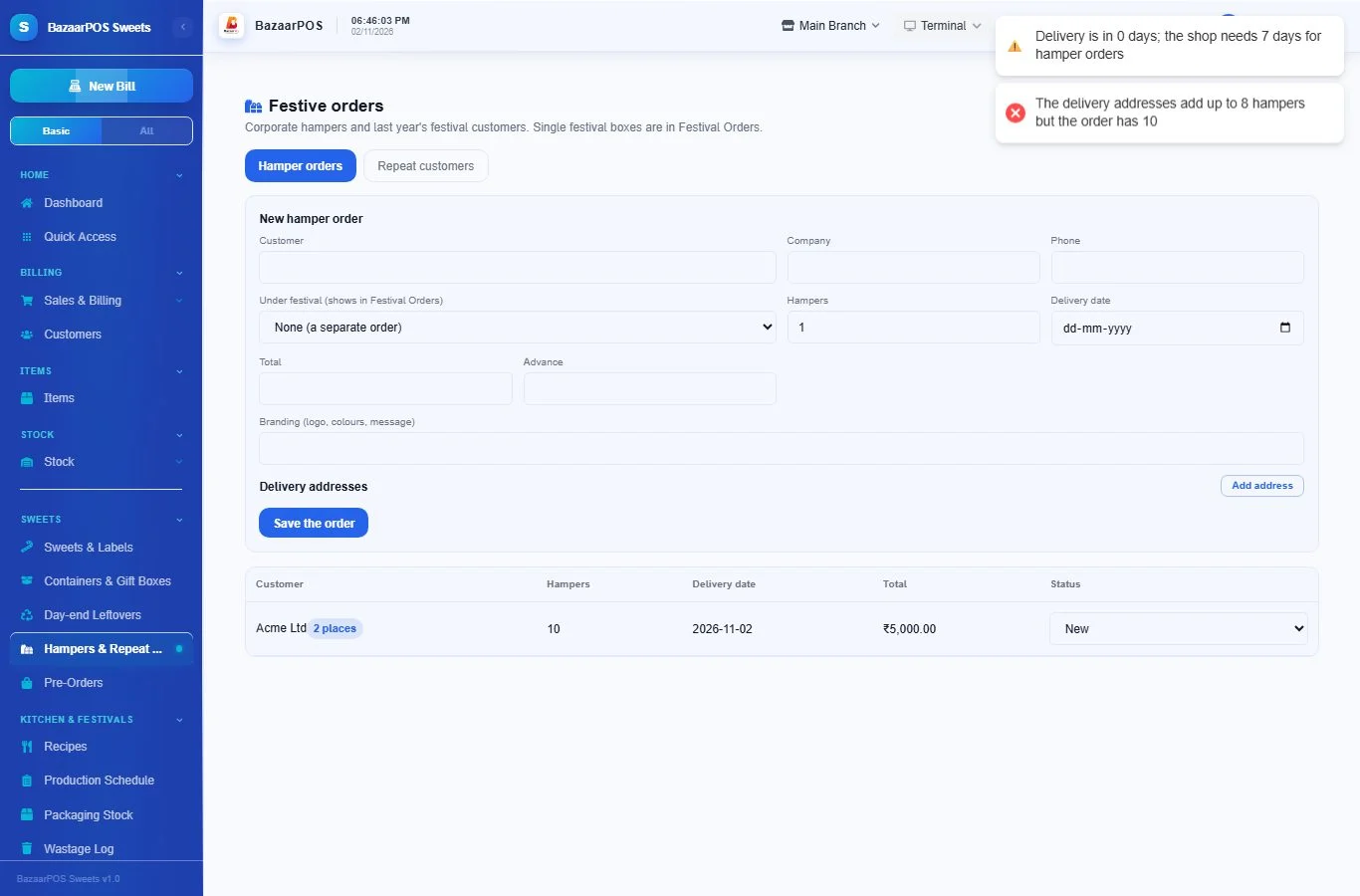
Open Sweets → Hampers & Repeat Customers. For a corporate or bulk order, type the customer, the number of hampers, the delivery date, the total and advance, and a branding note (logo, colours, message). If the hampers go to several places, press Add address for each; the numbers must add up to the hampers. Choose Under festival to make it a normal festival order too, so it also shows on Festival Orders with its advance and status. A delivery date closer than your lead time (set at the top of Sweets & Labels) is accepted but shows a warning.
On the Repeat customers tab, type the festival (for example Diwali) and press Find customers. You see who ordered in earlier years of that festival, with a WhatsApp button that opens a ready message. Nothing is sent from here.
Step 8: Close the day
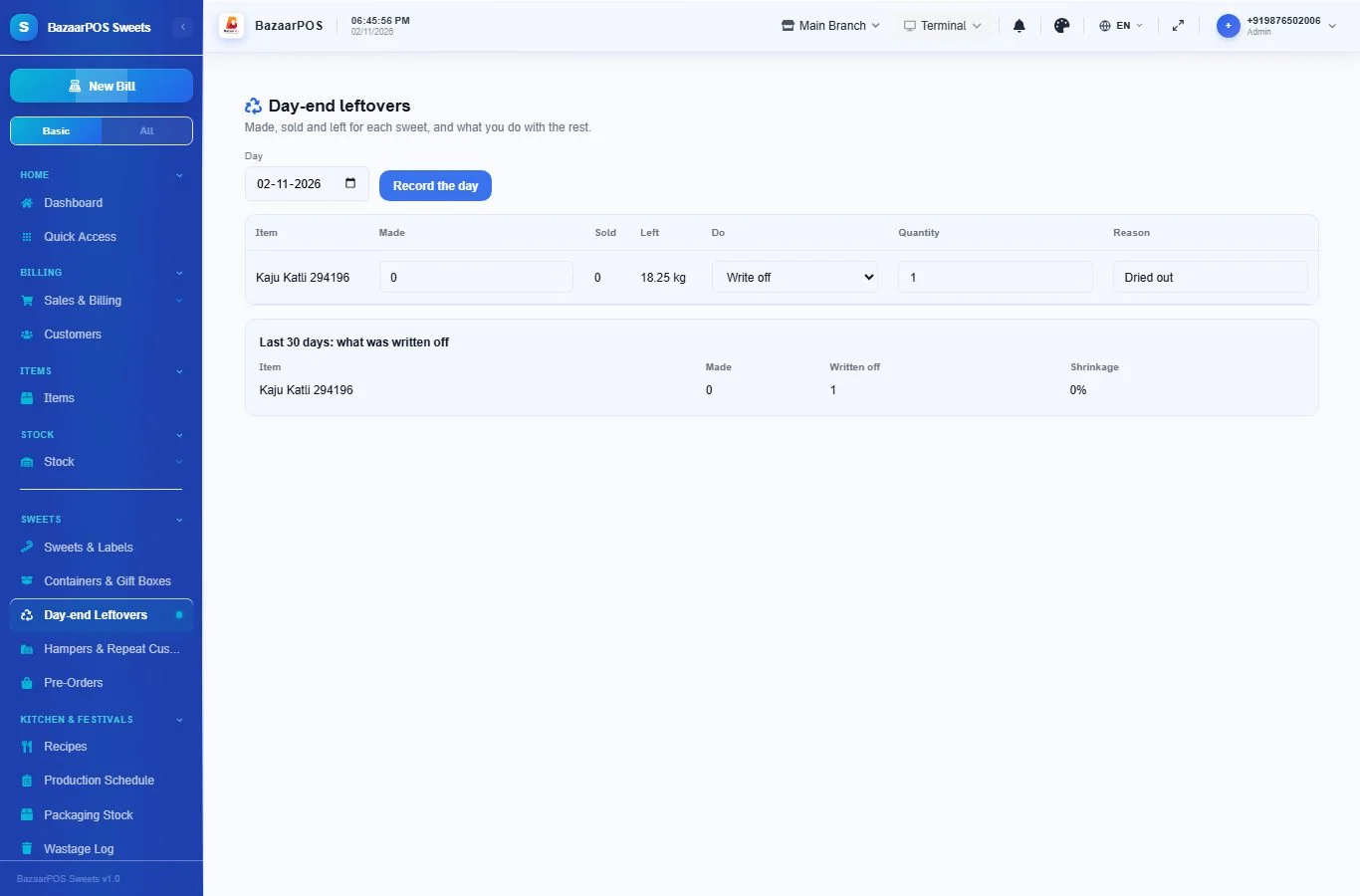
Open Sweets → Day-end Leftovers. For each sweet you see what was made (counted from finished production runs and stock received that day, which you can change), what was sold and what is left. Choose what to do: keep for tomorrow, mark down, return to the kitchen, or write off. A write-off needs a reason; it takes the quantity off stock and also appears in the Wastage Log. The bottom of the page shows the last 30 days: written off and the shrinkage % for each sweet.
Step 9: Order on WhatsApp
If your shop has a WhatsApp number in Settings and your online shop is on, each product page of the shop shows an Order on WhatsApp button that opens your chat with the item already written in the message.
On the phone
The phone app has Sweets & Labels (find, set details, see a label), Day-end Leftovers and Hamper Orders with repeat customers. Its weight window also takes the container off the scale reading.
Also useful for a sweet shop
- Pre-orders with an advance: see Pre-orders.
- Festival orders: see Festival Orders.
- Recipes: see Recipes.
- Barcode labels: see Barcodes.
- Counting stock: see Stock count.
Which plan includes what
Sweets & Mithai comes in Basic, Advanced and Enterprise plans. A screen your plan does not include shows a message with how to upgrade.
- Basic: billing, items, customers, reports, Sweets & Labels, Containers & Gift Boxes, recipes, production, packaging stock and the wastage log.
- Advanced: everything in Basic, plus Day-end Leftovers, Hampers & Repeat Customers, Festival Orders, the Expiry Monitor, customer advance, loyalty and promotions.
- Enterprise: everything in Advanced, plus more than one branch and AI sales forecasting.