Stationery & Books Setup
Run a stationery shop or bookshop in BazaarPOS: find a book by ISBN, bill a whole school list in one tap, see what to order before the school season, send unsold books back to the publisher in time, buy used textbooks back and price photocopies by quantity.
How it fits together
You keep your normal Items, Customers, billing, quotations, purchase orders and special orders. Nothing is entered twice. A book or a pen is an ordinary item; its ISBN is its barcode and its publisher is its manufacturer, so scanning, labels and reports already see them. A class set is an ordinary kit item. A school quotation is an ordinary quotation. A return to a publisher is an ordinary purchase return.
- Books & Stationery: author, publisher, edition, class and a checked ISBN on any item, a finder, and the HSN code and tax rate you choose for each kind of item.
- School Lists: each school's list, billed in one tap, with class sets, quotations and the season stock check.
- Returns & Consignment: each publisher's return window and limit, the return-soon list, and what you owe on consigned stock.
- Used Books: buy textbooks back and sell them again.
- Print-shop Services: photocopy, print, lamination and binding priced by quantity.
Step 1: Add the book details
Open Books & Stationery and press Details on an item. Choose the kind (book, notebook, pen and so on), type the ISBN, author, publisher, class and subject. The ISBN is checked: a wrong number is refused. A valid ISBN-10 is stored as ISBN-13 too, and it becomes the item's barcode when the item has none of its own. Then search by title, author, publisher, ISBN or class.
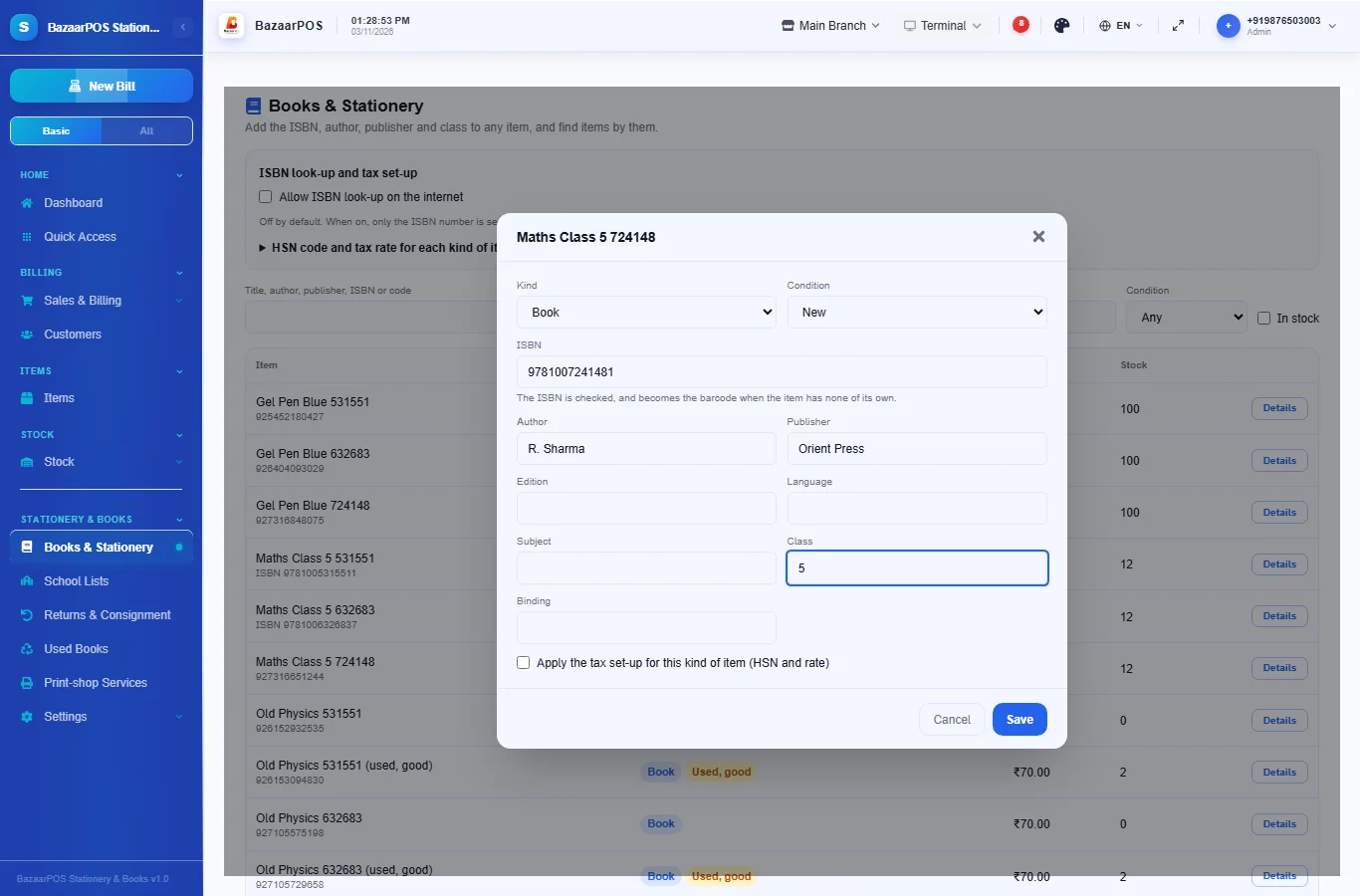
ISBN look-up on the internet is off by default. If you turn it on, only the ISBN number is sent to Open Library (then Google Books), and the result is a suggestion you accept or ignore.
Step 2: Set your tax codes
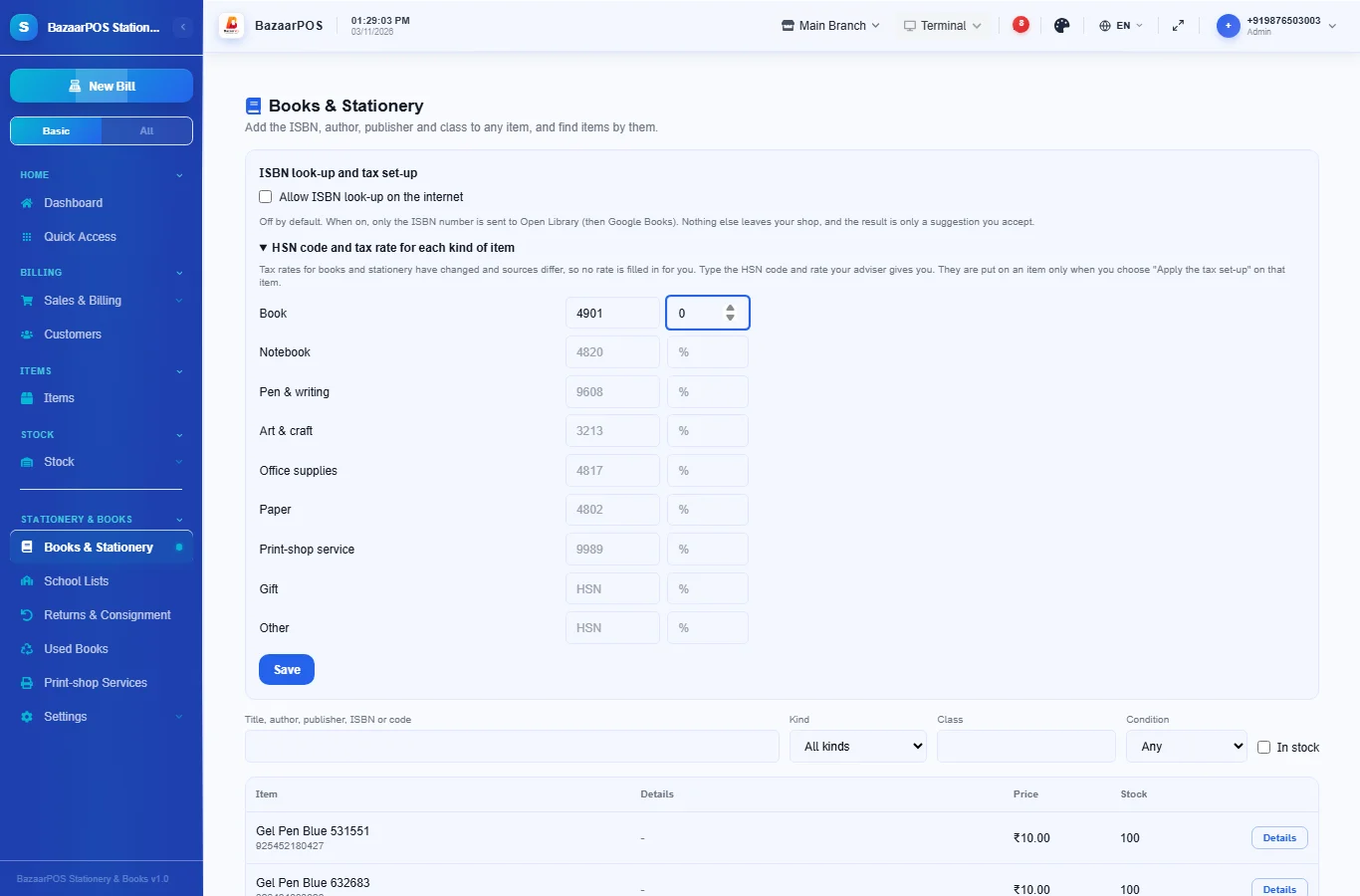
Rates for books and stationery have changed and sources differ, so BazaarPOS does not fill in a rate for you. Under ISBN look-up and tax set-up, type the HSN code and tax rate your adviser gives you for each kind of item. They are put on an item only when you tick Apply the tax set-up on that item.
Step 3: Keep each school's list
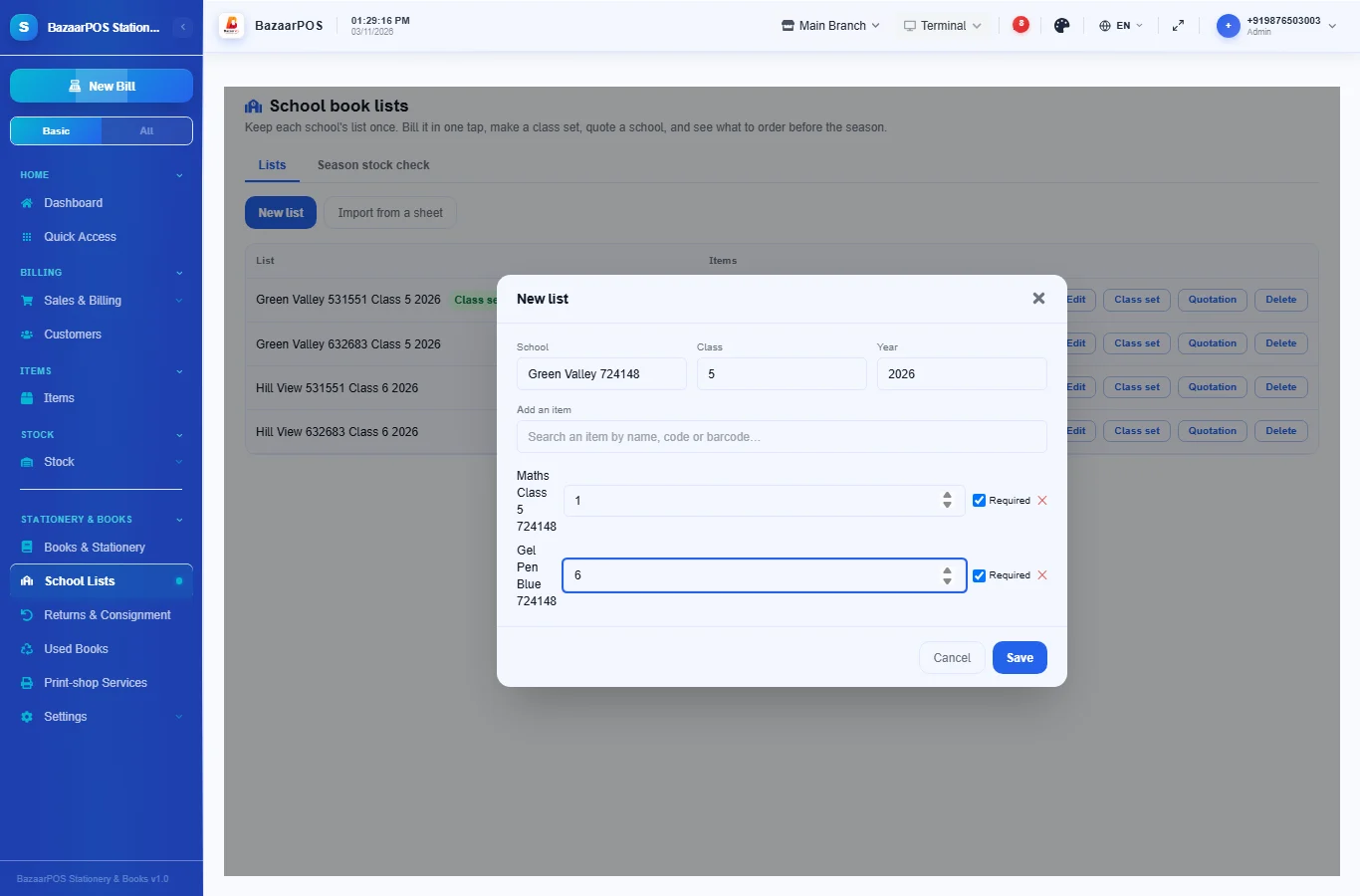
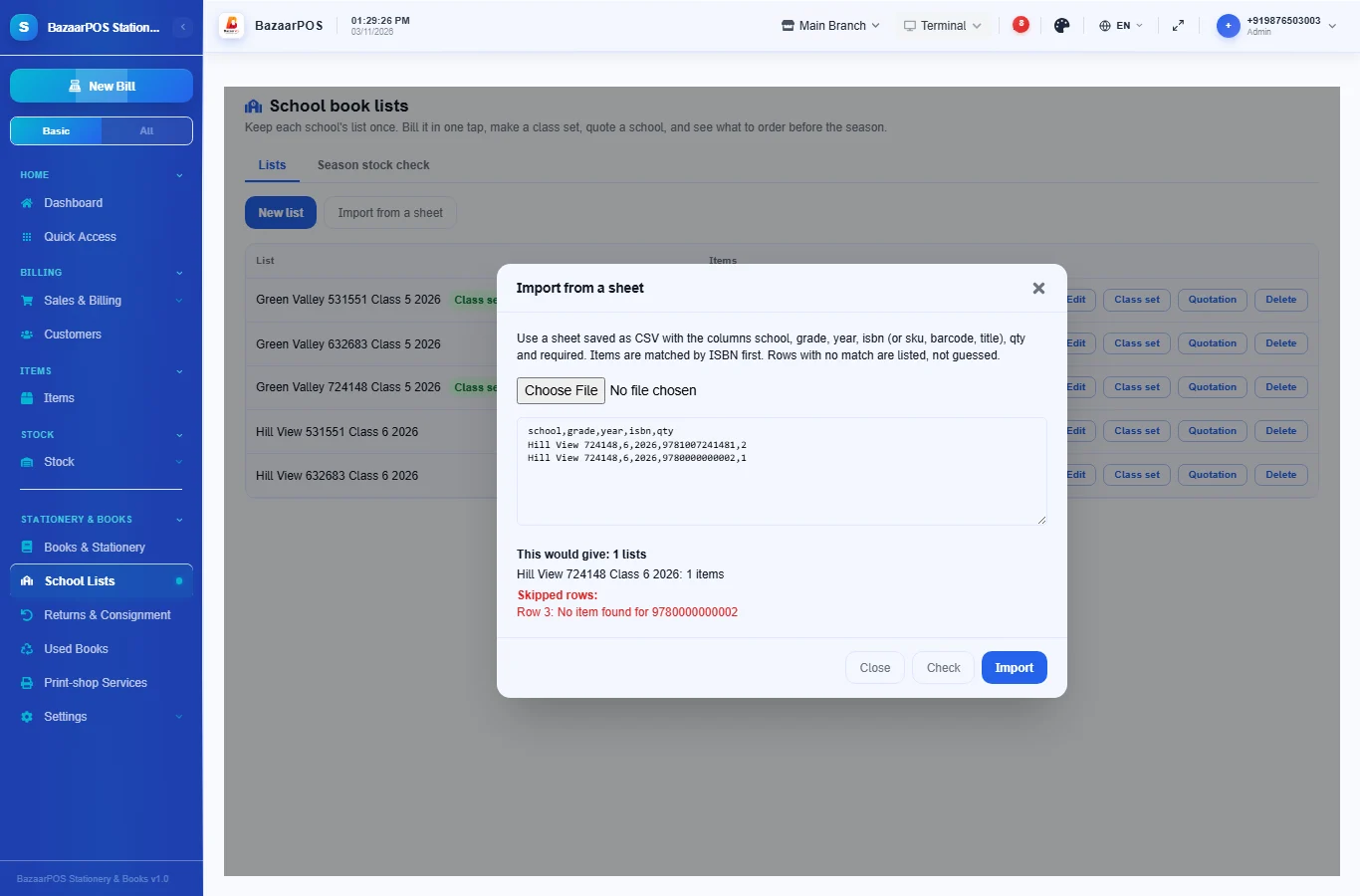
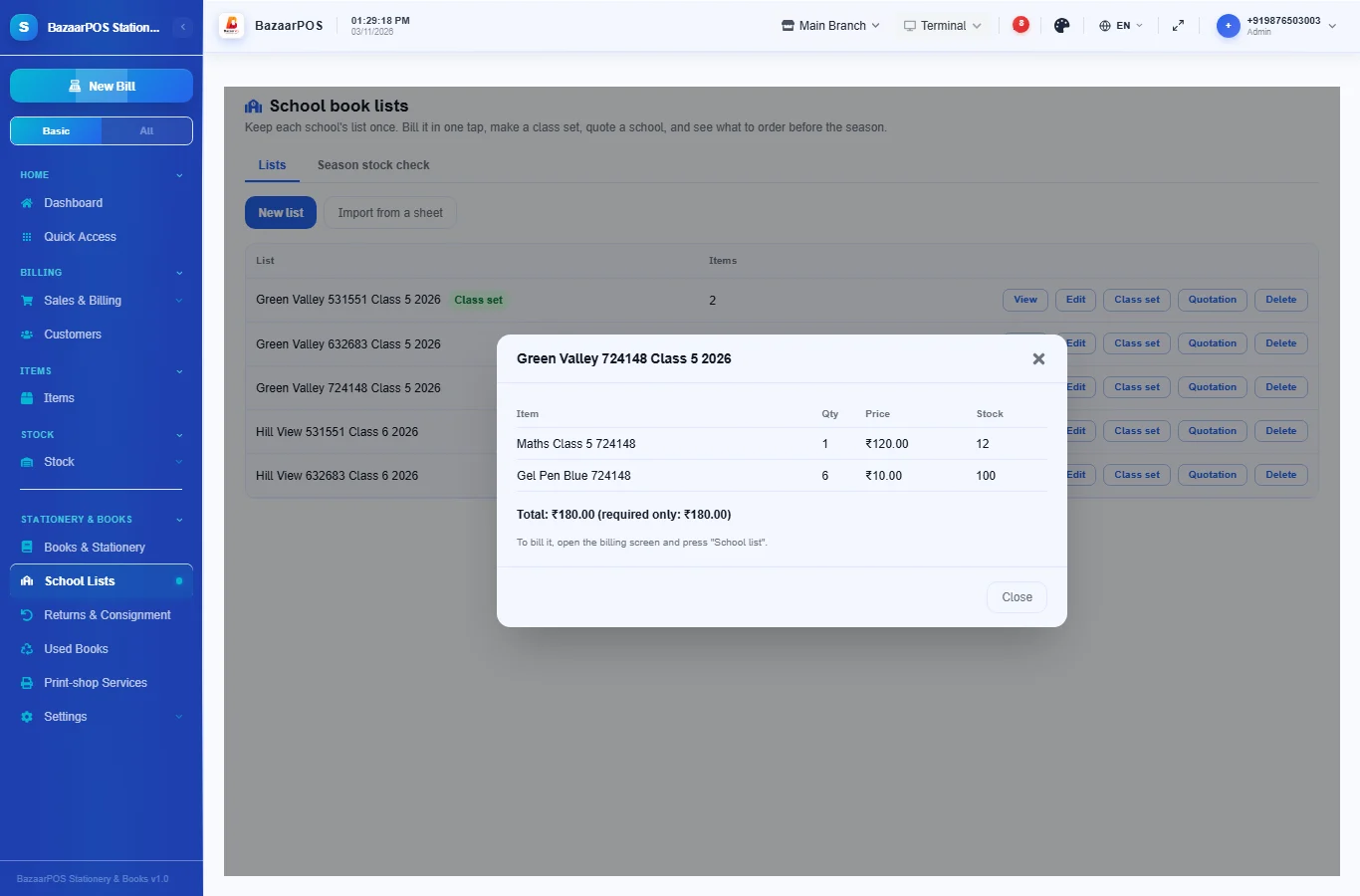
Open School Lists and press New list. Type the school and class, add each item and its quantity, and mark what is optional. Or press Import from a sheet and load a CSV with the columns school, grade, year, isbn (or sku, barcode or title), qty and required. Press Check first: it shows what would be created and lists every row it could not match, so nothing is guessed.
Step 4: Bill a list in one tap
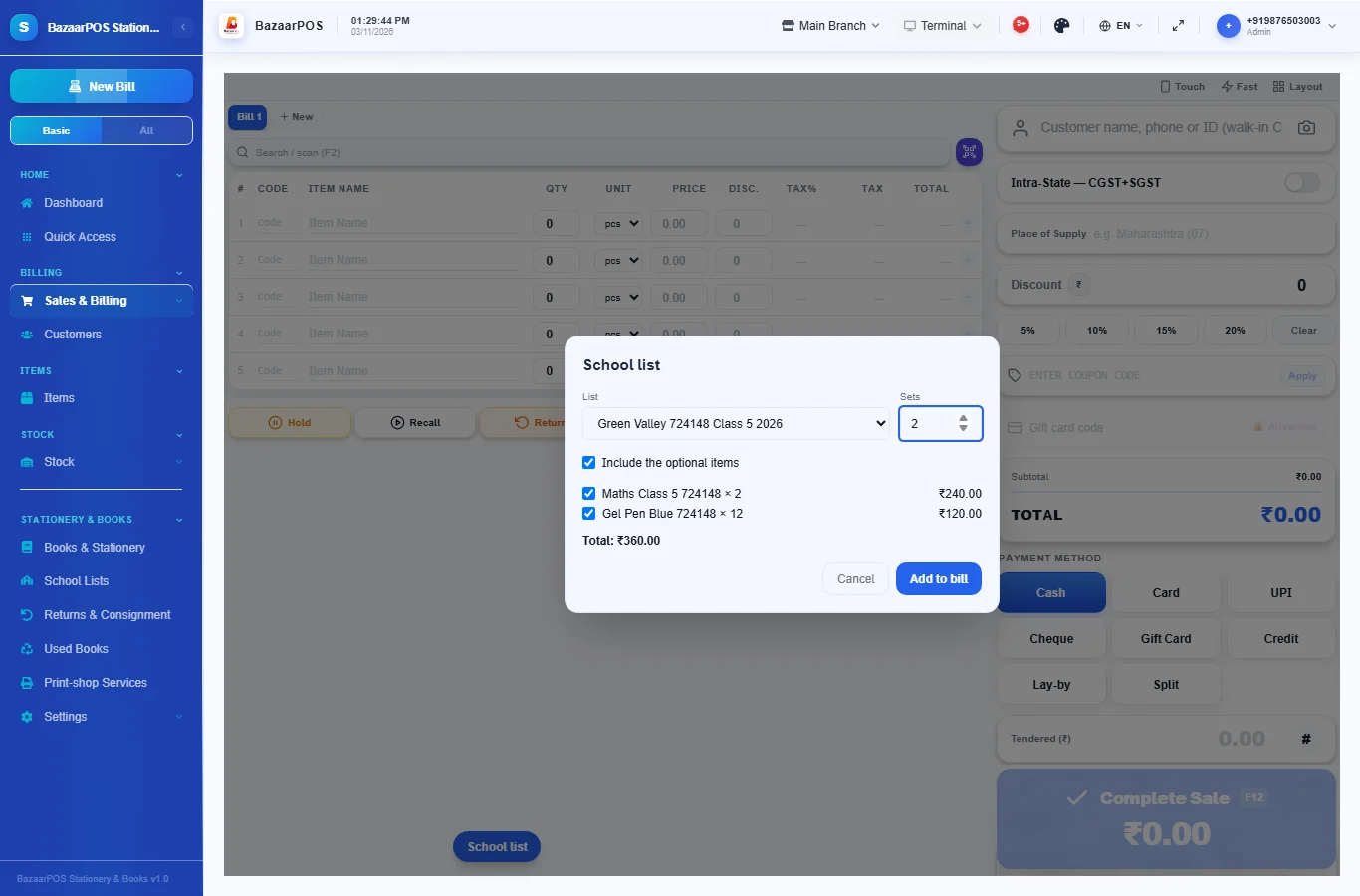
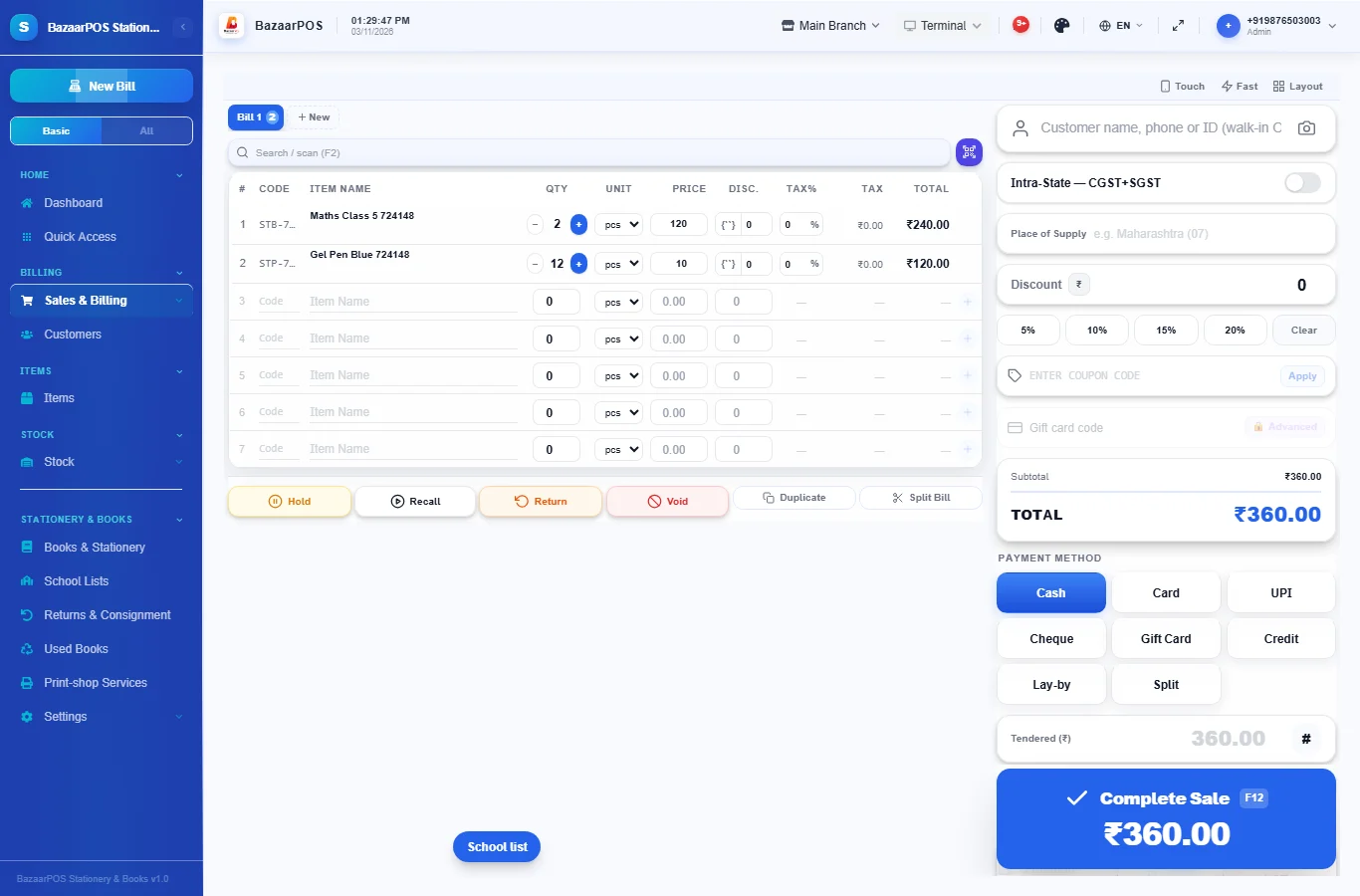
On the billing screen press School list, choose the list and the number of sets, untick anything the student already has, and press Add to bill. Items that are short on stock are marked before you add them.
Step 5: Class sets and school quotations
On a list press Class set to make one fixed-price item that sells every book on the list together and takes each one out of stock. Press Quotation to quote a whole class or school: it creates an ordinary quotation that you convert to a sales order as usual.
Step 6: Check the season stock
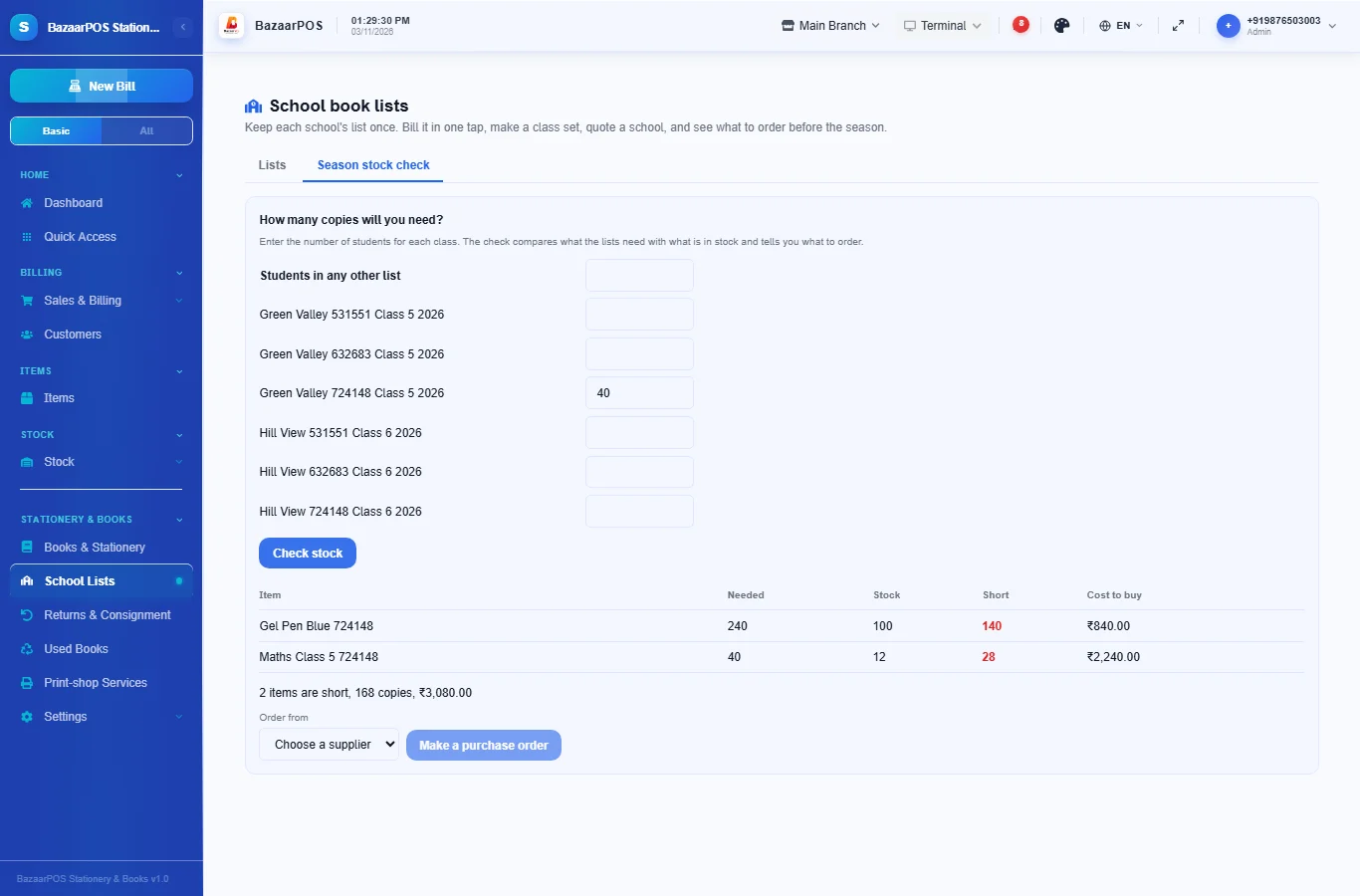
On the Season stock check tab, enter the number of students for each class. BazaarPOS compares what the lists need with what is in stock, shows what is short and what it would cost, and makes a purchase order for the supplier you choose.
Step 7: Return unsold books in time
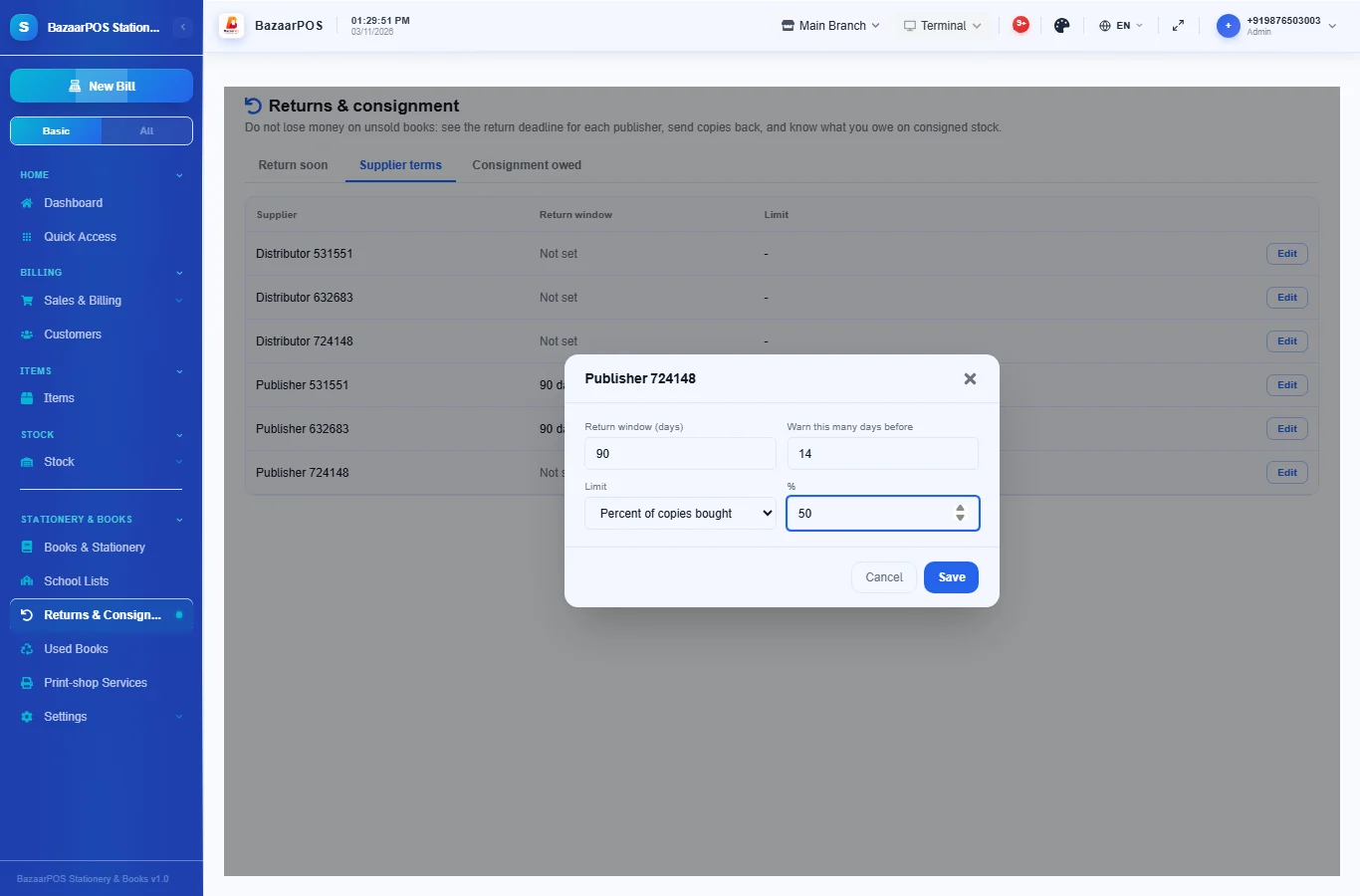
Open Returns & Consignment. On Supplier terms, give each publisher a return window in days and a limit, either a percent of the copies you bought or a number of copies. The Return soon tab then shows each purchase with its deadline, how many copies are unsold and how many may still go back. Press Return to record it: stock goes down and the supplier's account is reduced, as with any purchase return.
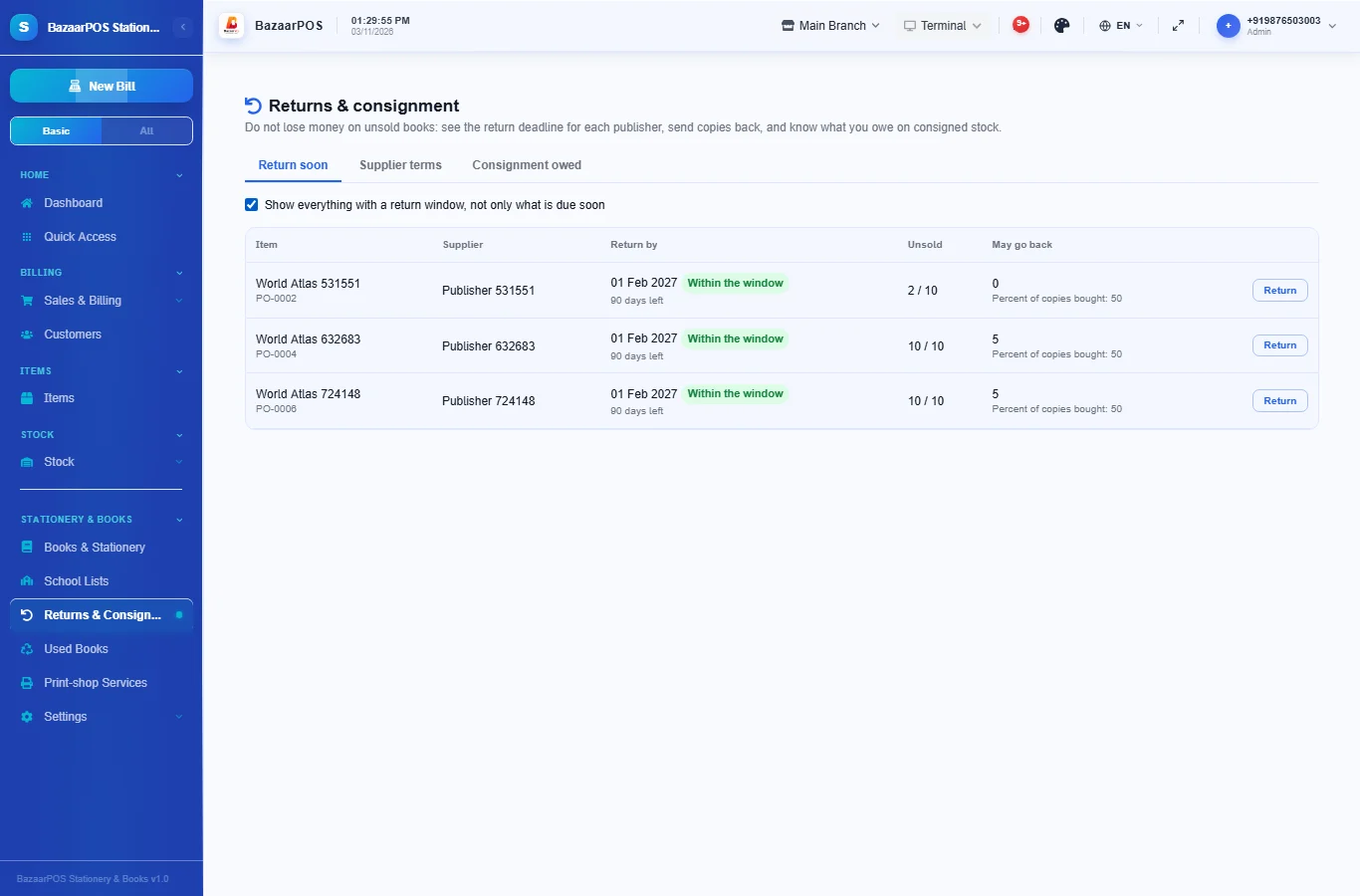
The Consignment owed tab shows what you owe each supplier for consigned stock that has sold. Payments to the supplier are not tracked there.
Step 8: Buy used books back
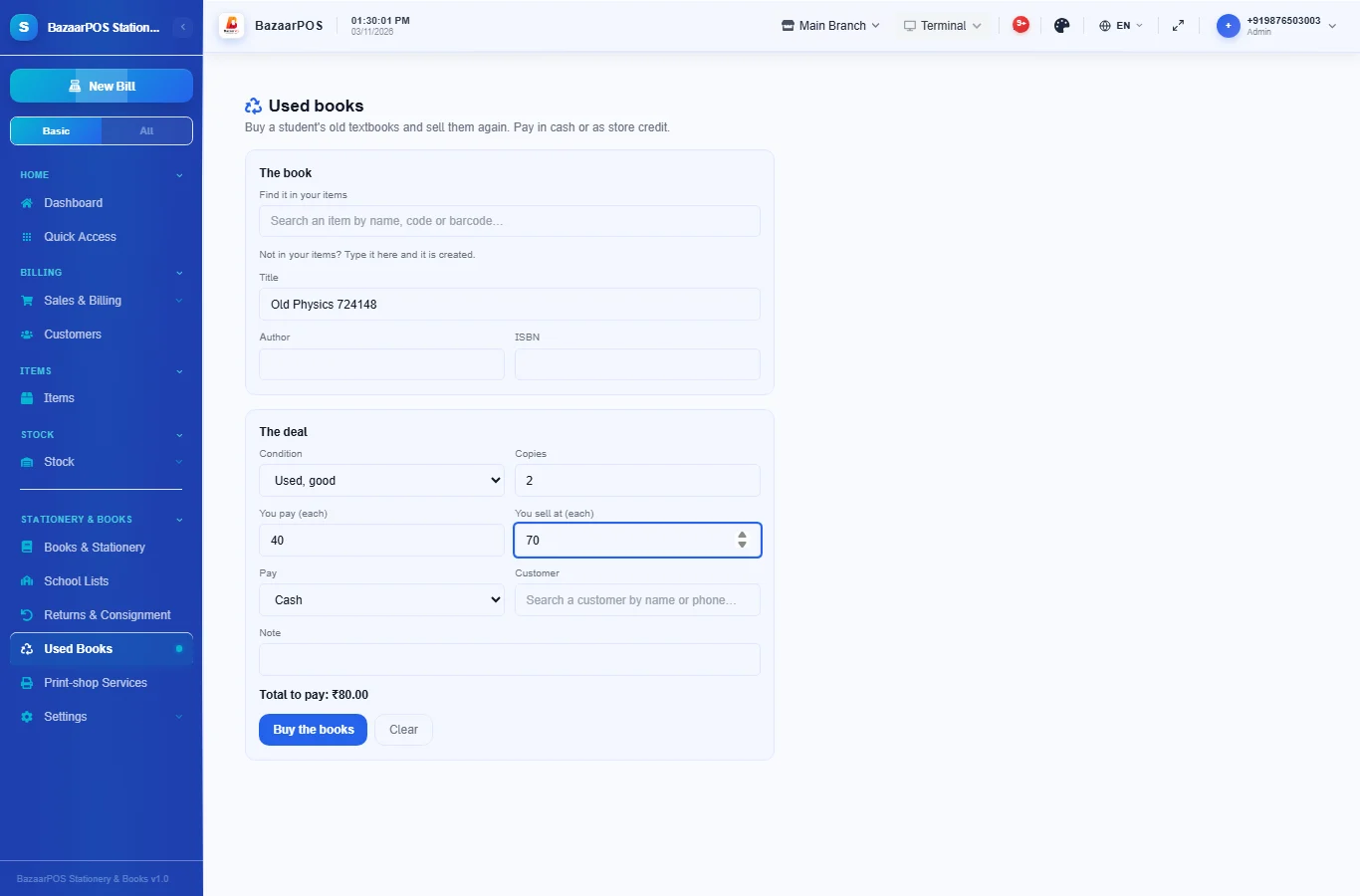
Open Used Books. Choose the book, or type a title that is not yet an item. Choose the condition, the number of copies, what you pay and the price you will sell at, and pay in cash or as store credit (which needs a customer). Each condition is its own item, so a worn copy never mixes with a like-new one or with new stock. Cash is recorded as an expense.
Step 9: Price print-shop services by quantity
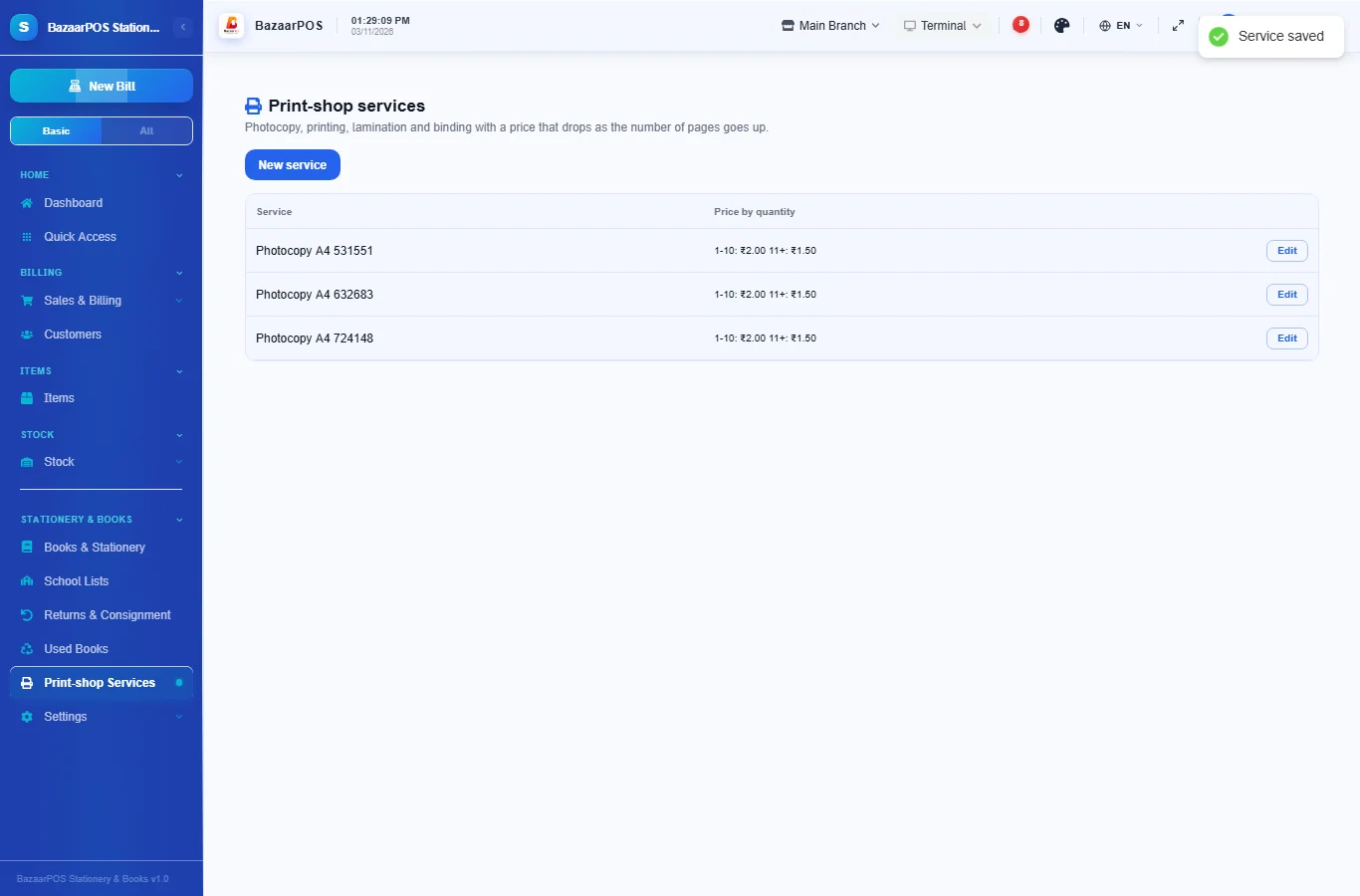
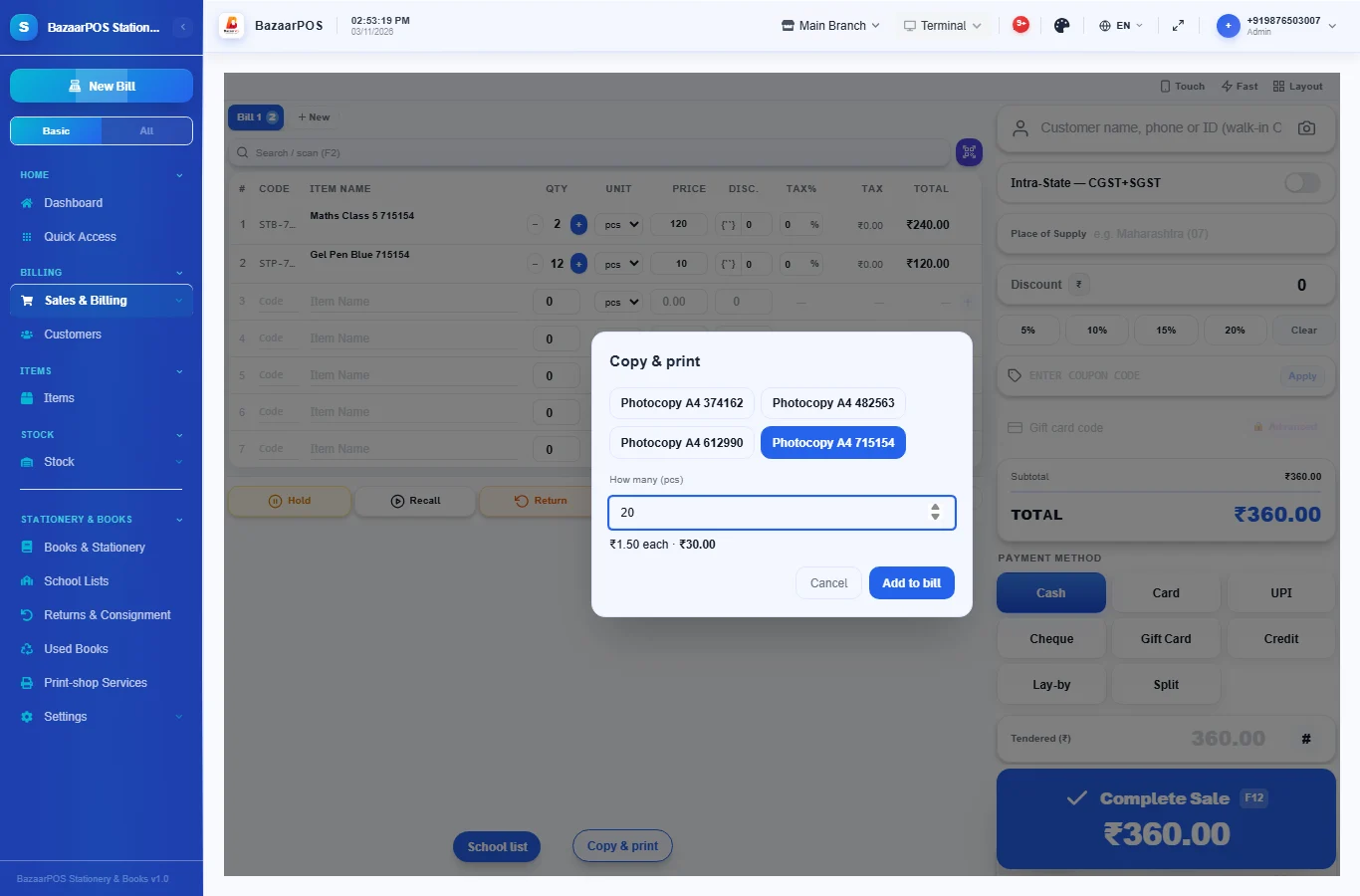
Open Print-shop Services and press New service. Give it a name, such as Photocopy A4, and the price for each page by quantity, for example 1 to 10 pages at Rs 2, 11 and above at Rs 1.50. These are ordinary service items with the existing quantity prices, so they bill like anything else.
On the billing screen, press Copy & print, choose the service and type the number of pages. The price for that quantity is shown, and the line is added to the bill at that price.
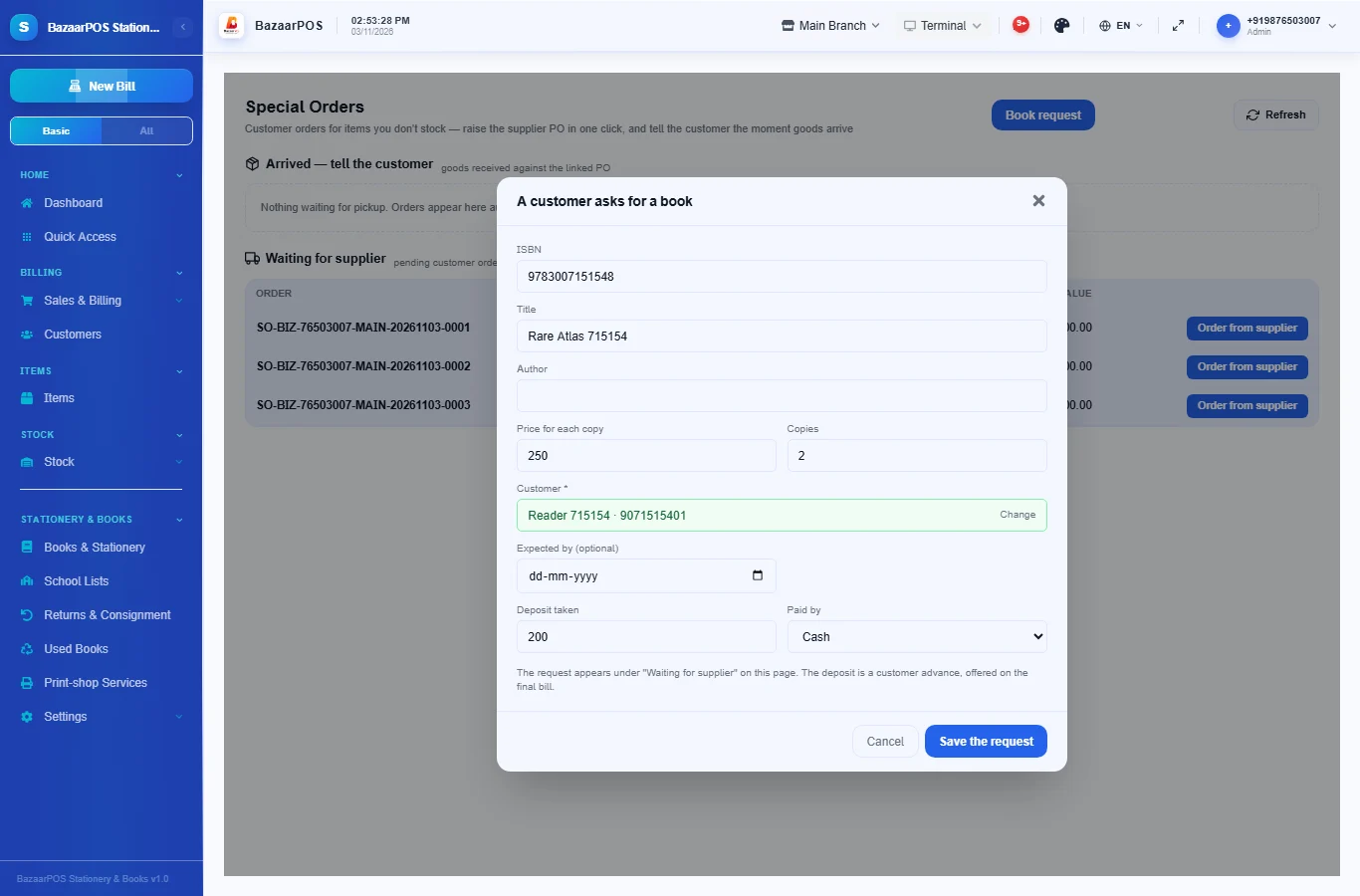
When a customer asks for a book you do not stock
Open Special Orders and press Book request. Type the ISBN: if the book is already in your items, it is found and its price filled in. If not, type the title (and the author and price) and the book is added to your items with no stock, together with its ISBN. Choose the customer, the number of copies and, if you take one, the deposit. The request is saved as an ordinary special order, and the deposit is recorded as a customer advance against it, so it is offered on the final bill.
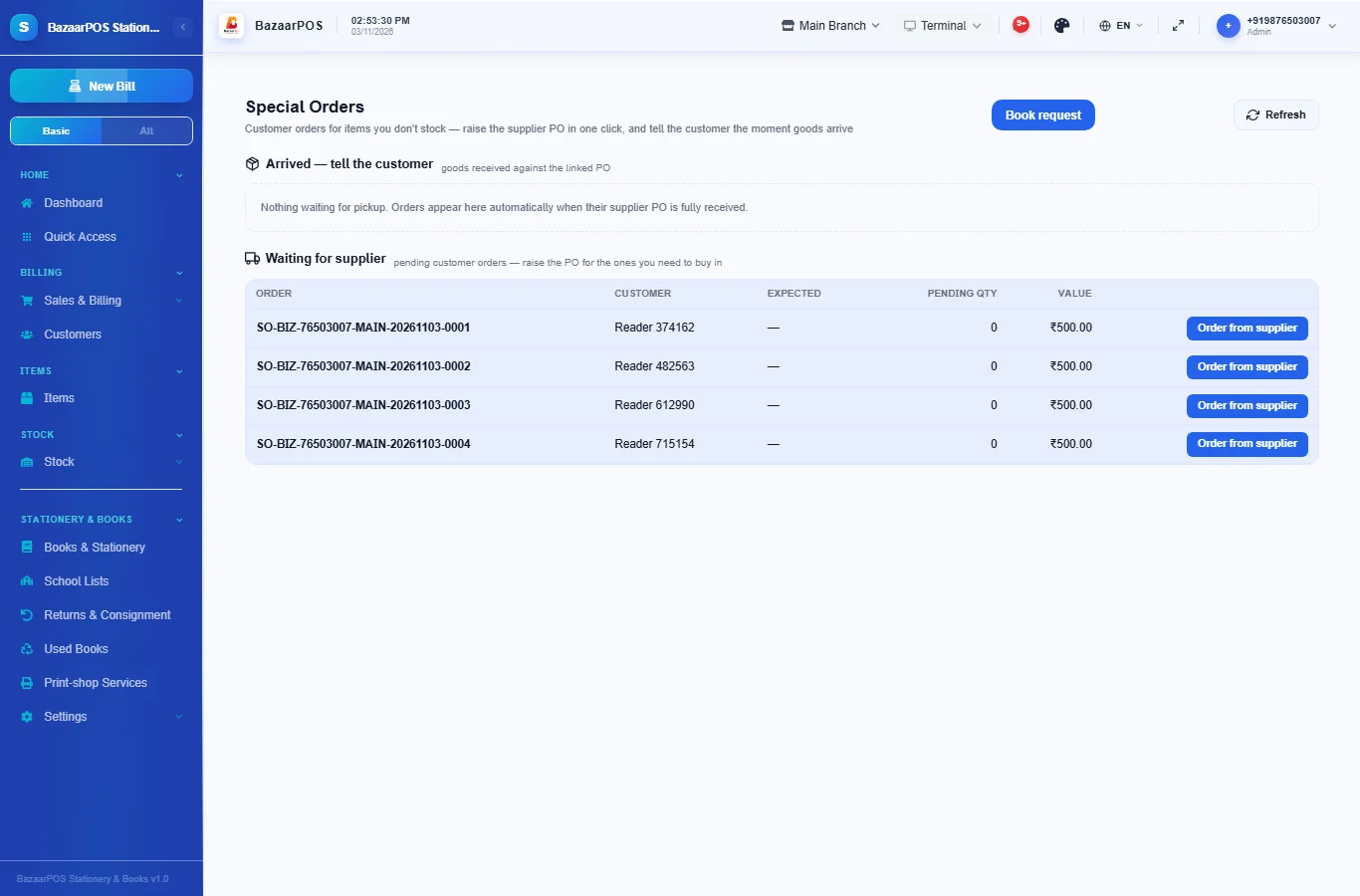
The order then appears under Waiting for supplier. Press Order from supplier to raise the purchase order, and when it is received the order moves to Arrived, where one tap sends the customer a WhatsApp message.
On the phone
The phone app has Books & Stationery (find a book, scan its ISBN, set the details), School Lists (add a list and bill it) and Return Soon (the deadlines, with a tap to return). A Request button on Books & Stationery takes a customer's request for a book with a deposit.
Also useful for a stationery shop
- Barcode labels: see Barcodes.
- Counting stock: see Stock count.
- Importing items: see Import and export.
Which plan includes what
Stationery & Books comes in Basic, Advanced and Enterprise plans. A screen your plan does not include shows a message with how to upgrade.
- Basic: billing, items, customers, reports, book details and the finder, tax set-up, print-shop services, school lists and billing a list.
- Advanced: everything in Basic, plus class sets, school quotations, the season stock check, publisher returns and consignment owed, used-book buy-back, customer advance, loyalty and promotions.
- Enterprise: everything in Advanced, plus more than one branch and AI sales forecasting.