Catering & Banquet Setup
Run a catering or banquet business in BazaarPOS: events with a hall that cannot be held twice, a menu priced per plate with its cost, staff and a purchase list, the advance, a printable quotation and one bill.
How it fits together
You keep your normal Items, Customers, billing, purchase orders and special orders. Nothing is entered twice. The client is a normal customer, the advance is a real payment and the invoice is a normal sale, so the tax comes from the rate you set. Added on top are the halls, events, lines, staff and the purchase list. The tax rate is your setting: check it with your accountant.
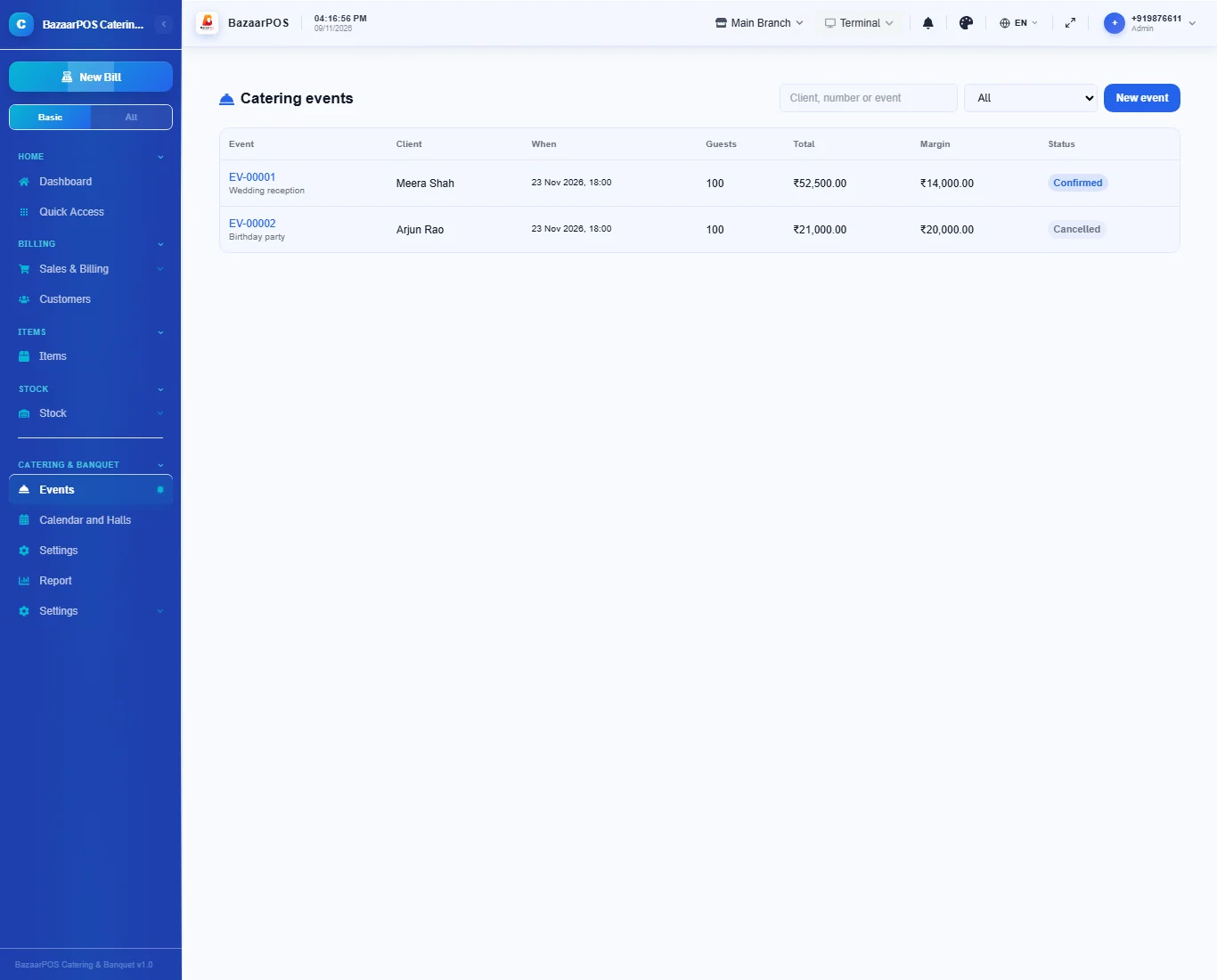
- Events: a client, a date and time, a hall, the guests; lines with price and cost, staff, the purchase list, the advance, confirm, the quotation and the bill.
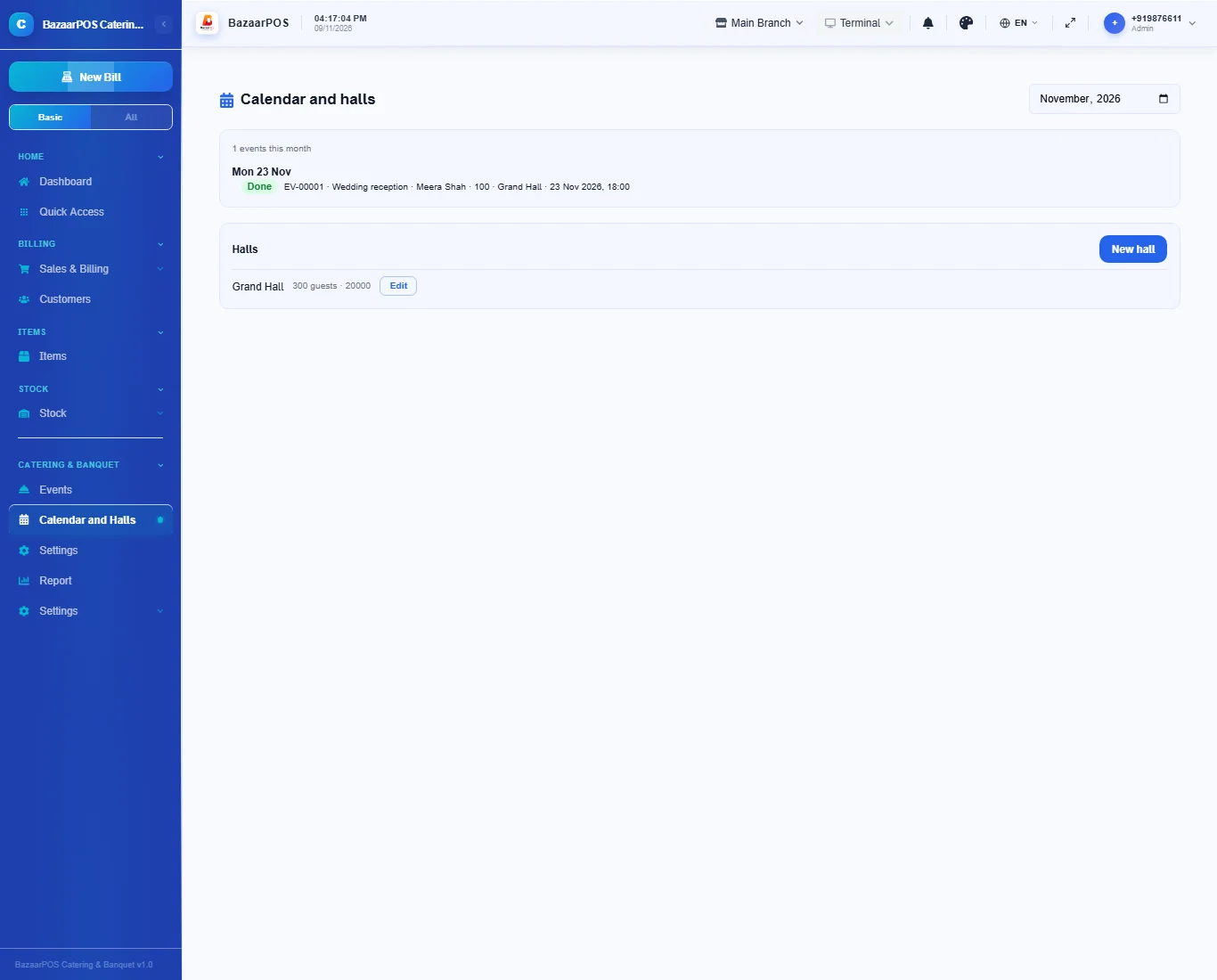
- Calendar and Halls: the month by day and each hall with its capacity and rate.
- Settings: the name on the quotation, the tax rate and your terms.
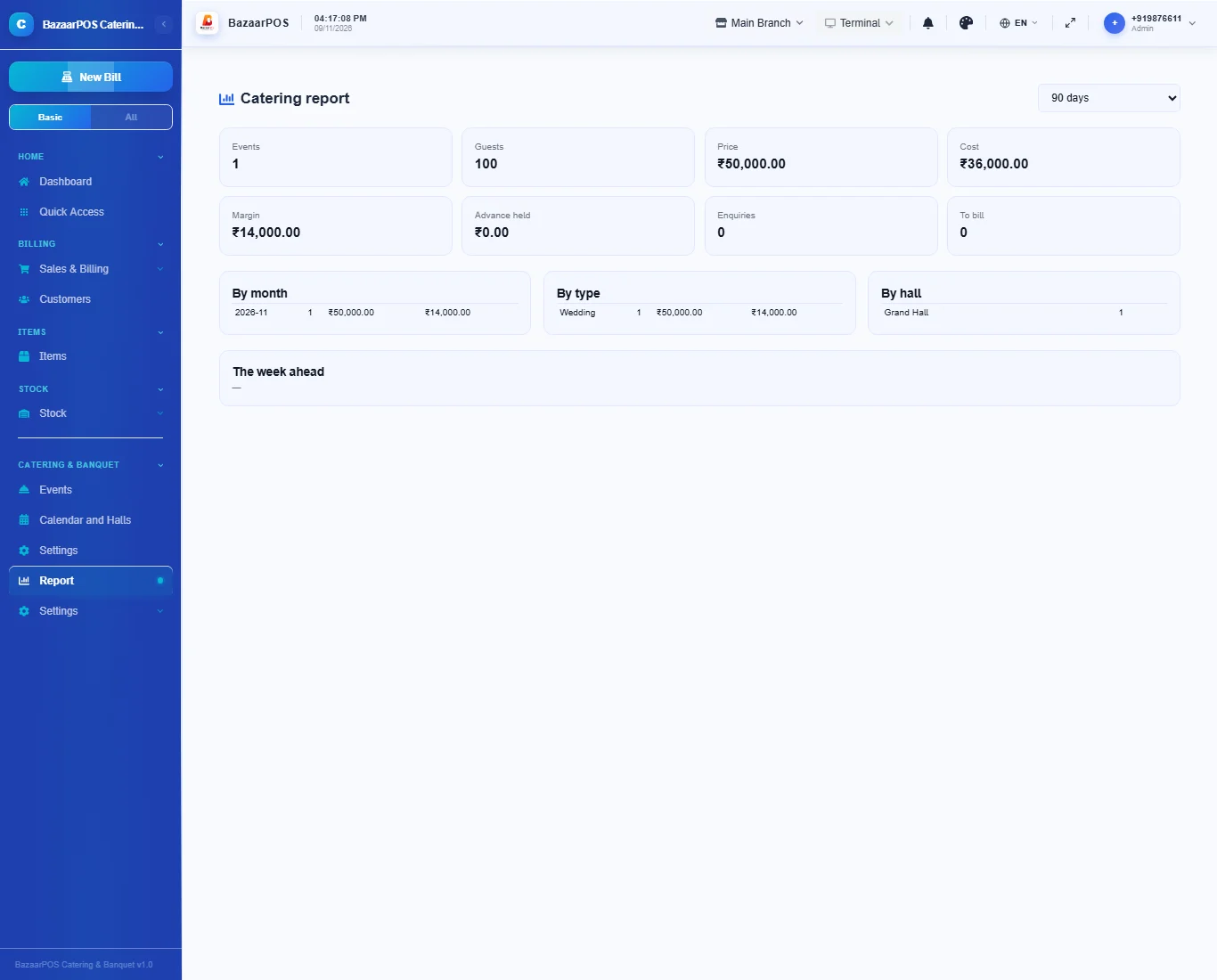
- Report: events, guests, price, cost and margin by month, type and hall, the advance held and what is still to bill.
Step 1: Settings and halls
Open Settings: type the name for the quotation, the tax rate and your terms, then press Save. Open Calendar and Halls and press New hall for each hall, with its capacity and rate. Events at the client’s place need no hall.
Step 2: Make an event
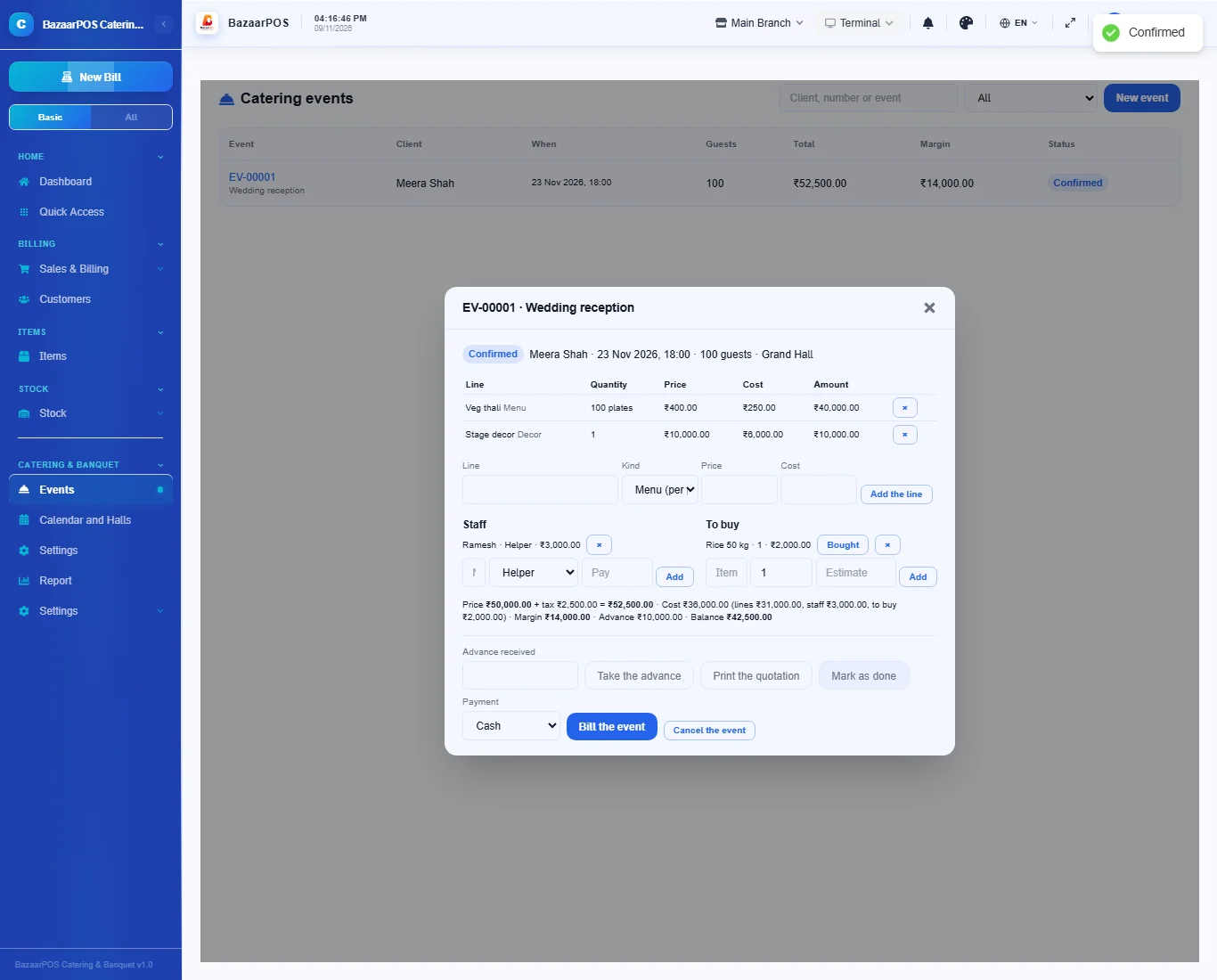
Open Events and press New event. Type the client, a phone number (needed for an advance or credit), the event, the hall, the day, the times and the guests. Then add lines: a Menu line is priced per plate and multiplied by the guests, other lines by quantity. Type the cost to you on each line.
Step 3: Staff, purchases and the advance
Add the cooks and waiters you hire with what they are paid, and the things to buy with an estimate (press Bought to type the real cost). They all count in the cost, so the margin shown is price less cost. Type the advance and press Take the advance.
Step 4: Confirm and print
Press Confirm when the client agrees: a hall that already has a confirmed event at an overlapping time is refused. Press Print the quotation for the page with your name, the lines, the tax and your terms.
Step 5: Bill and the report
After the event press Mark as done, choose how it is paid and press Bill the event: one bill, with the advance counted. Open Report for the events, guests, price, cost and margin, the advance held and what is still to bill.
On the phone
The phone app has Events, Calendar and Report.
Also useful here
- Barcode labels: see Barcodes.
- Counting stock: see Stock count.
- Importing items: see Import and export.
- Expiry dates and batches: see Expiry monitor.
Questions
Is this separate from items and billing?
No. The client is a customer, the advance is a real payment and the invoice is a normal sale.
Can a restaurant use it?
Yes. A Restaurant plan with menu management reaches the events, calendar, halls, settings and report inside the Restaurant app.
How is the tax handled?
The tax rate is your setting and applies to the price of the event: check it with your accountant.
What is not built?
Costing from recipes, guest RSVP, seating plans and online payment of the advance are not built. Cost is typed on each line.
Is there a phone version?
Yes. Events, lines, the advance, confirm, done, bill and cancel, the calendar and the report. Staff, the purchase list, the quotation and the halls are on the desk app.
Which plan includes what
Catering & Banquet comes in Basic, Advanced and Enterprise plans. A screen your plan does not include shows a message with how to upgrade.
- Basic: billing, items, customers, reports, halls and events.
- Advanced: everything in Basic, plus the report.
- Enterprise: everything in Advanced, plus more than one branch and AI sales forecasting.