Cloud Kitchen Setup
Run several virtual brands from one kitchen in BazaarPOS: give each its own menu prices, enter or paste orders from each channel, cook from one queue and see the real margin after commission, packaging and food cost.
How it fits together
You keep your normal Items, Customers, billing, purchase orders and special orders. Nothing is entered twice. The dishes are your normal items, with their cost price. A handed-over order is billed as a normal sale, so stock, recipes, taxes and reports work as before. There is no live link to Swiggy, Zomato or any delivery app: you type orders in or paste them.
- Brands & Menus: each brand with its dishes and its own prices.
- Channels: commission and packaging cost.
- Kitchen Queue: one queue, entry and paste, billing.
- Margin: by brand, channel and both.
Step 1: Add a brand and its menu
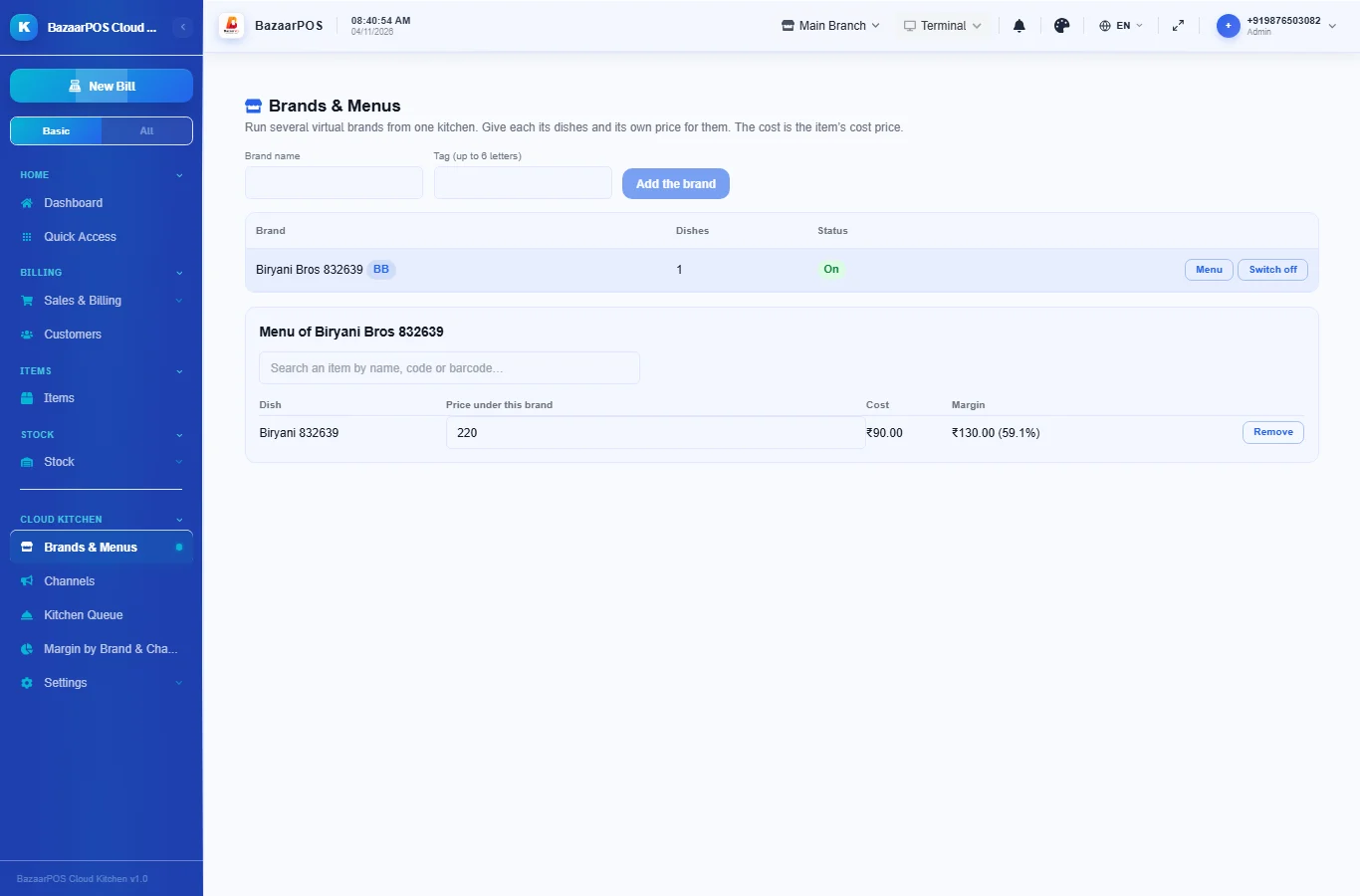
Open Brands & Menus, type the brand name and a short tag and press Add the brand. Then search for a dish and set its price under this brand. The table shows the item's cost and the margin before commission.
Step 2: Set the channels
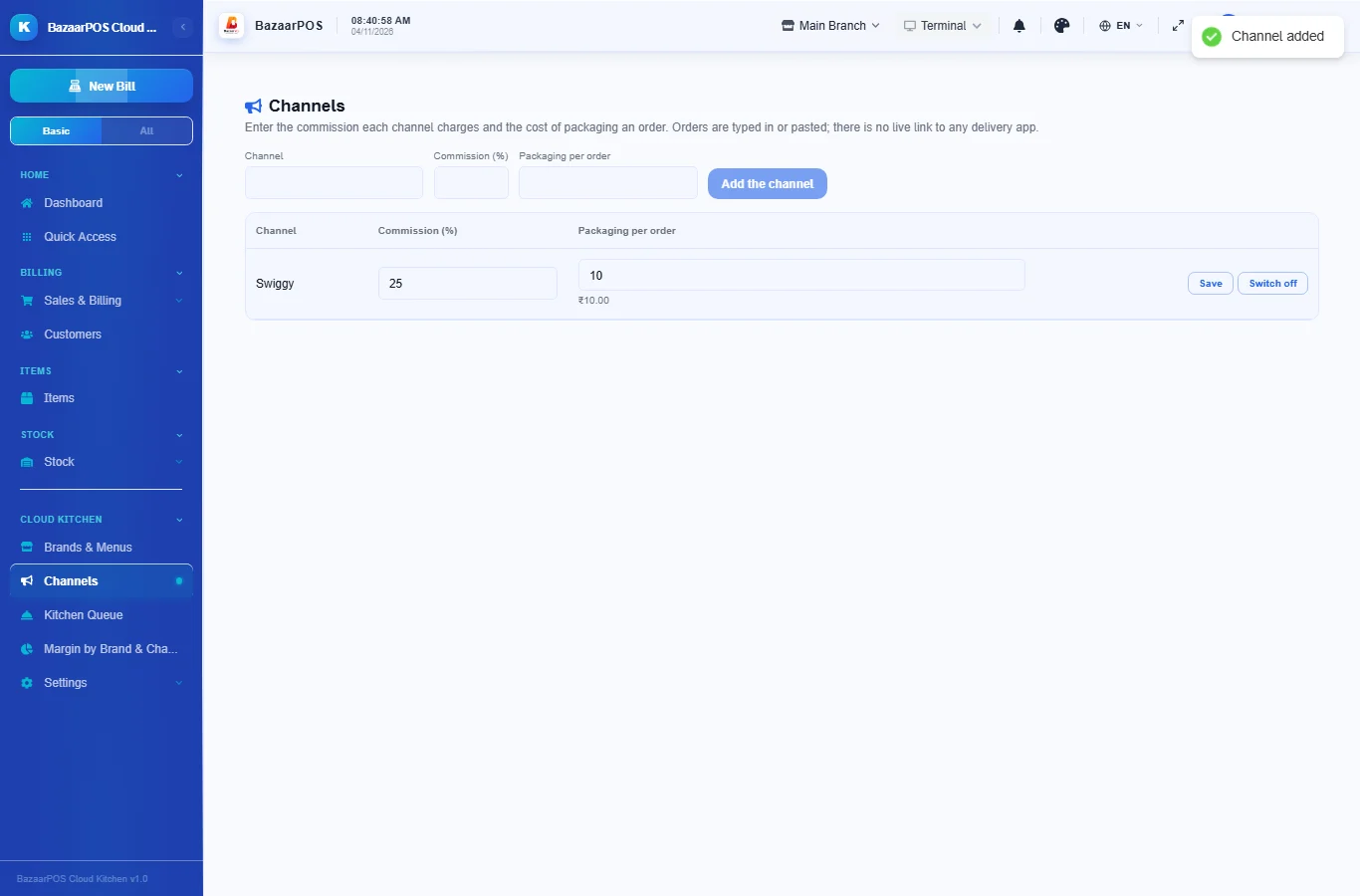
Open Channels and add each way orders arrive with the commission (%) it charges and the packaging cost of one order. You enter the rates; BazaarPOS does not know them.
Step 3: Enter an order
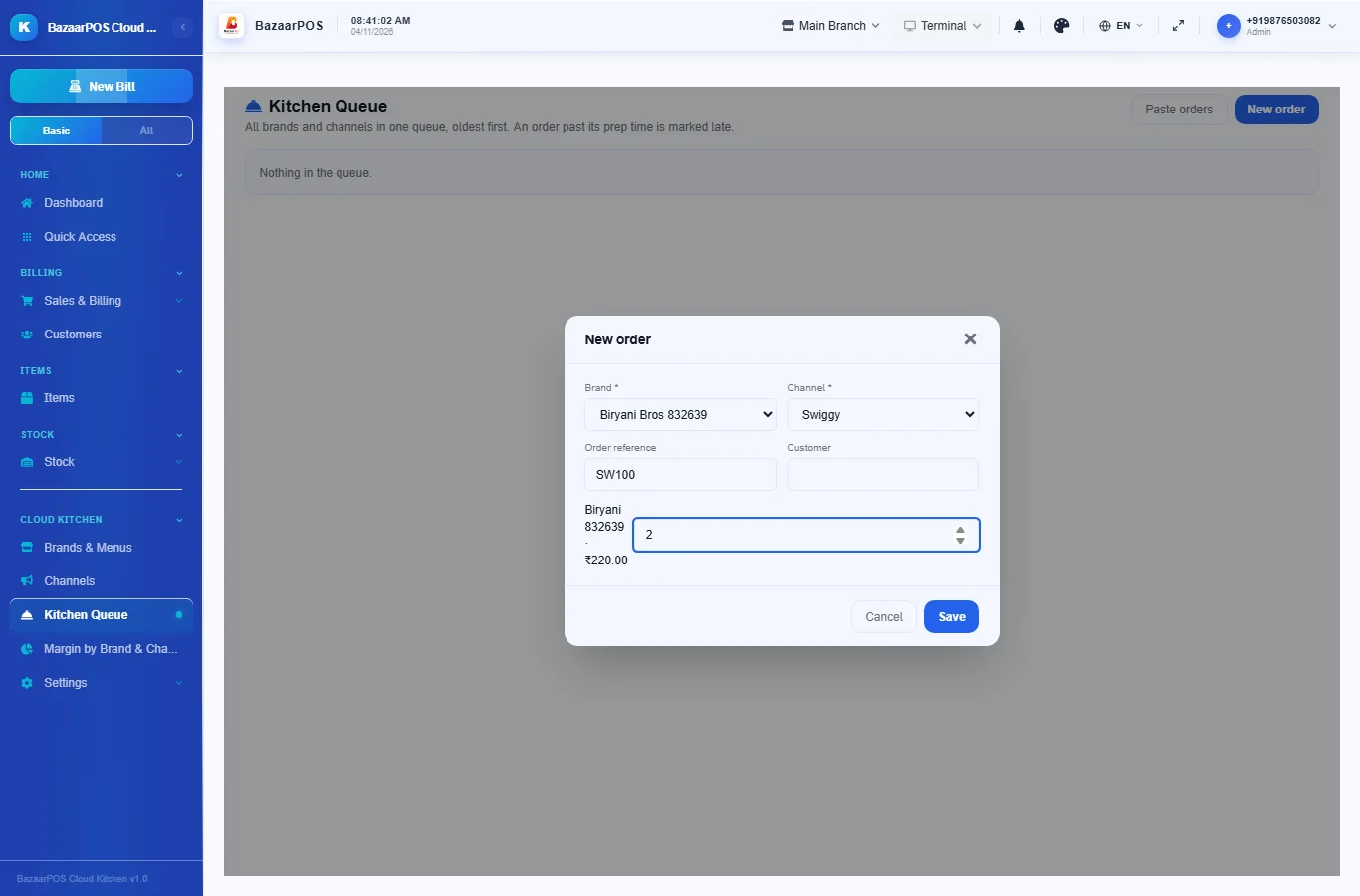
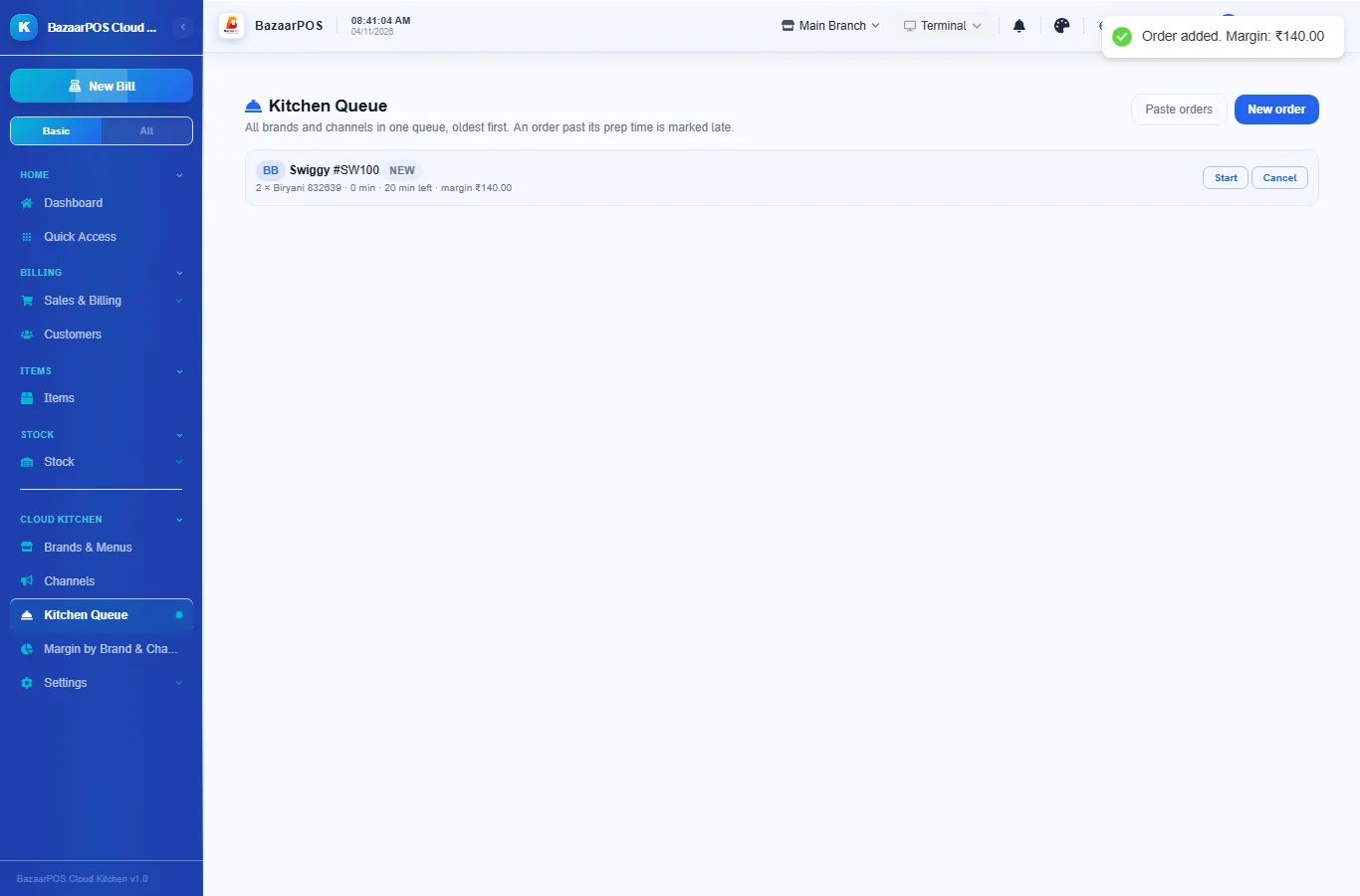
In Kitchen Queue press New order, choose the brand and channel, type the channel's order reference and the quantity of each dish. The margin is shown when it is saved.
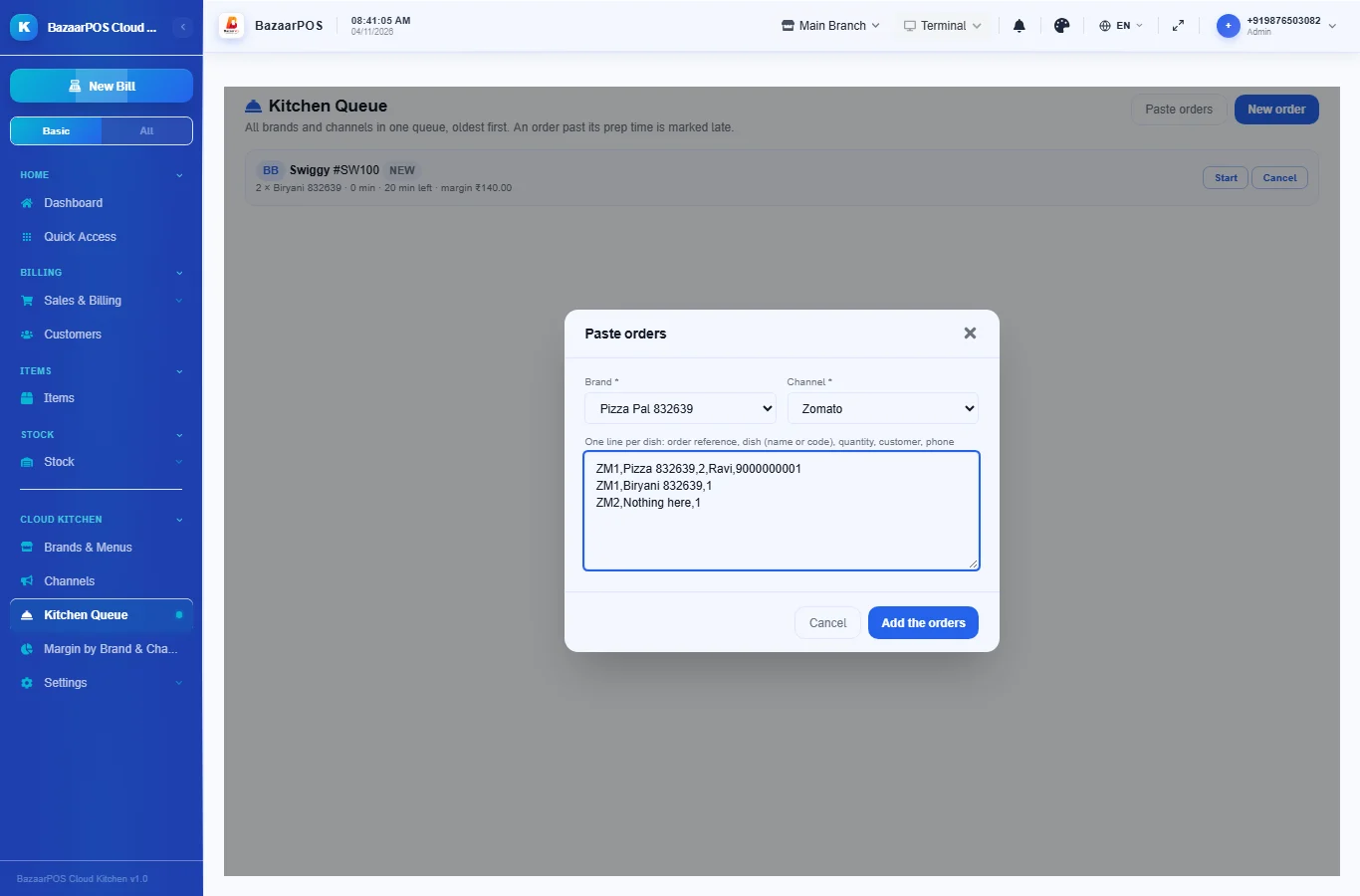
Step 4: Paste orders
Press Paste orders, choose the brand and channel and paste one line per dish: order reference, dish (name or code), quantity, customer and phone. Lines with the same reference make one order. Lines that do not match the brand's menu are reported and skipped.
Step 5: Cook and hand over
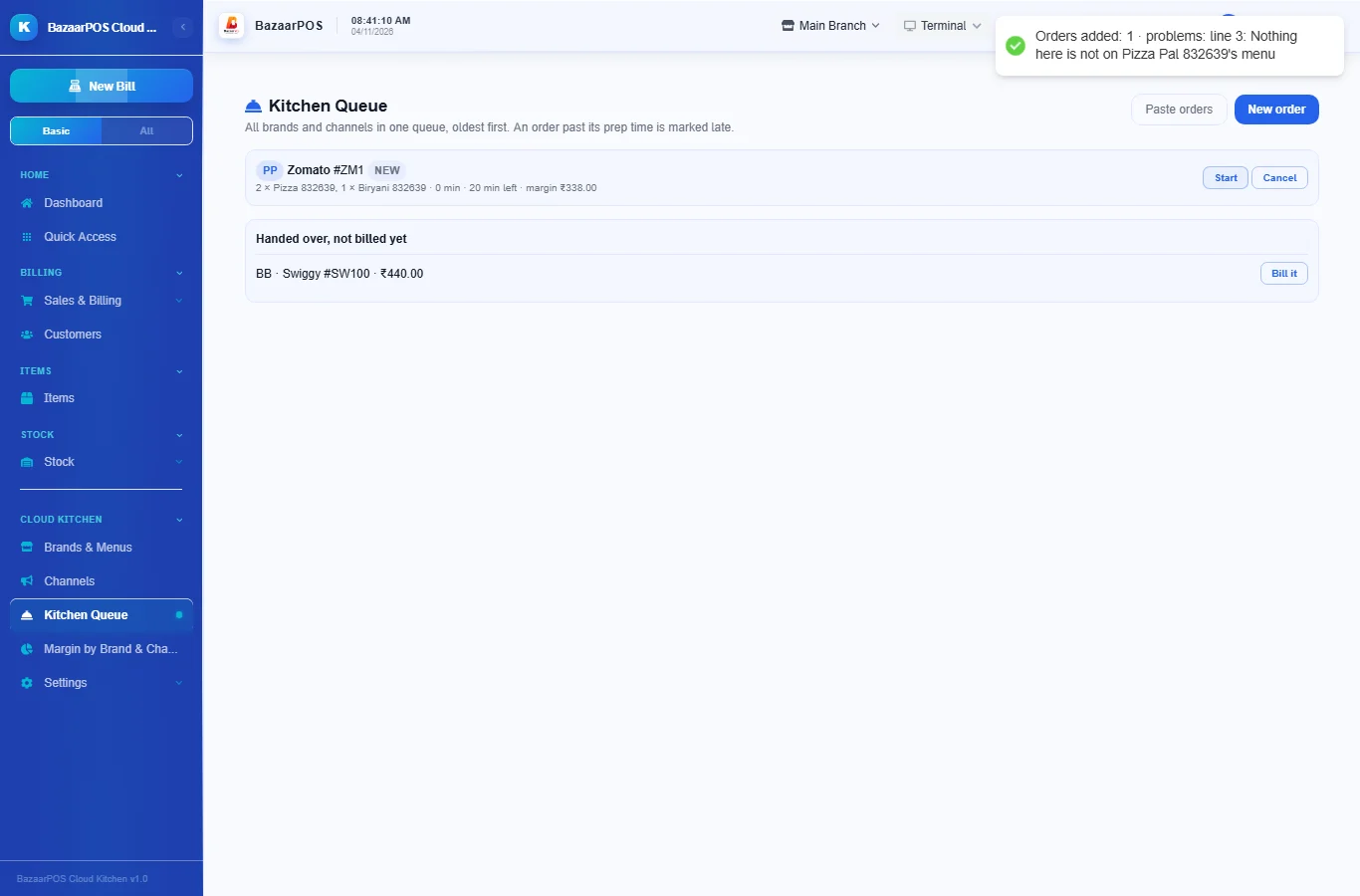
Orders from every brand are in one queue, oldest first, each with its brand tag and a timer. Press Start, Ready and Handed over. An order past its prep time (20 minutes to start) is marked late.
Step 6: Bill the order
A handed-over order appears under Handed over, not billed yet. Press Bill it to make a normal sale at the brand prices.
Step 7: Read the margin
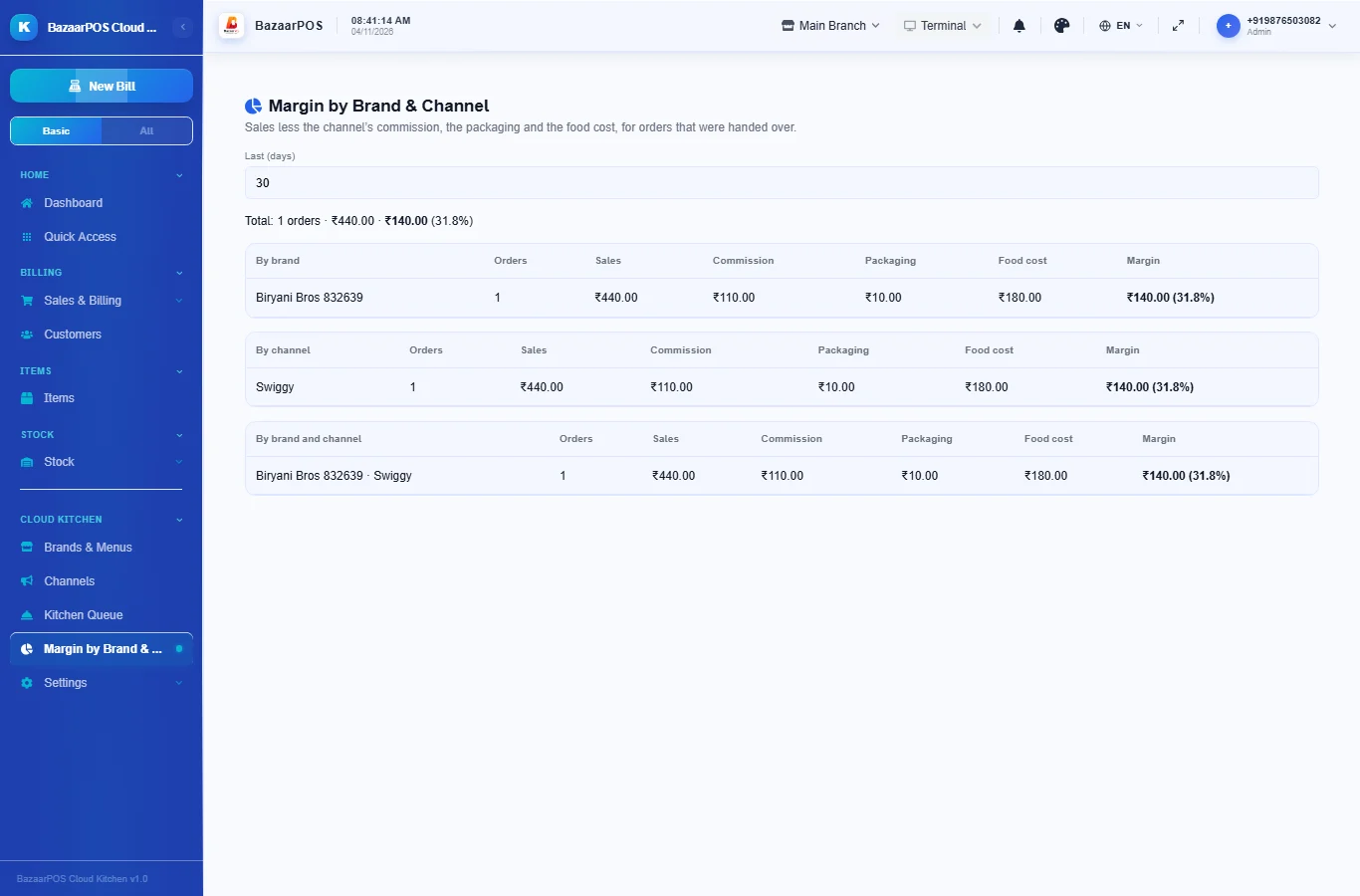
In Margin by Brand & Channel see the sales, commission, packaging, food cost and margin for the last days, by brand, by channel and by both.
On the phone
The phone app has Brands & Menus, Channels, Kitchen Queue and Margin.
Also useful here
- Barcode labels: see Barcodes.
- Counting stock: see Stock count.
- Importing items: see Import and export.
- Expiry dates and batches: see Expiry monitor.
Questions
Does it connect to Swiggy or Zomato?
No. Orders are typed in or pasted, and the commission rates are the ones you enter.
How is the margin worked out?
Order value at the brand prices, less the commission, the packaging cost and the cost price of the dishes.
Does it change menus on the delivery apps?
No.
Which plan includes what
Cloud Kitchen comes in Basic, Advanced and Enterprise plans. A screen your plan does not include shows a message with how to upgrade.
- Basic: billing, items, customers, reports, brands, channels, orders and the kitchen queue.
- Advanced: everything in Basic, plus margin by brand and channel.
- Enterprise: everything in Advanced, plus more than one branch and AI sales forecasting.