Fuel Station Setup
Run a fuel station in BazaarPOS: a rate by day, shifts with nozzle readings and a collection split, credit and fleet accounts, tank dips against book stock.
How it fits together
You keep your normal Items, Customers, billing, purchase orders and special orders. Nothing is entered twice. A fuel is a normal item sold by the litre, so the tax of your country comes from it. A credit account is a normal customer with a limit and a credit slip is a normal sale. Added on top are the shifts, the readings, the dips and the report.
- Fuels and Accounts: fuels with a rate by day, tanks, nozzles, accounts.
- Shift: open, credit slips, close with readings and the collection.
- Tank Stock: fuel received and dips.
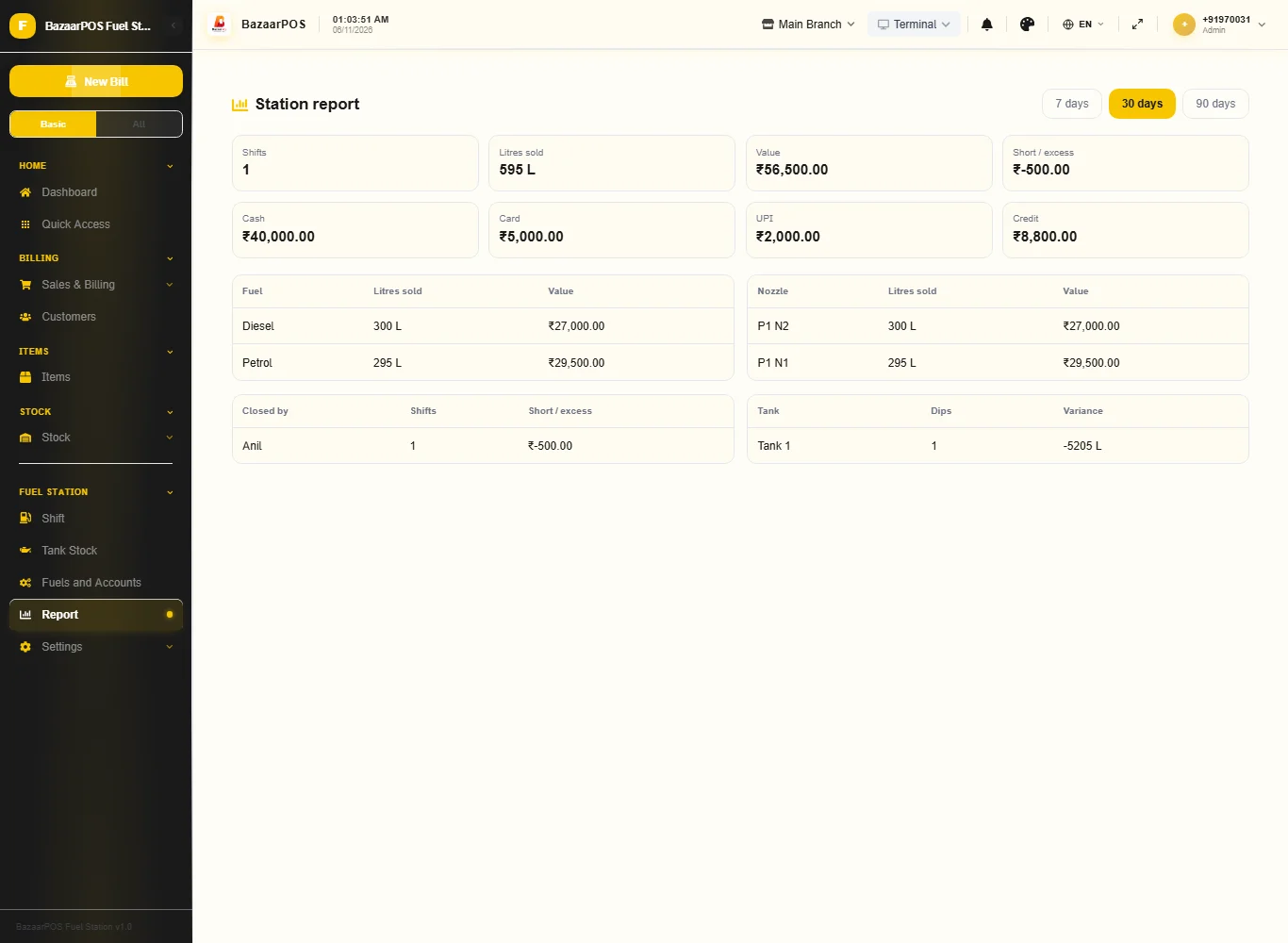
- Report: litres, collection split and variance.
Step 1: Set up fuels, tanks, nozzles and accounts
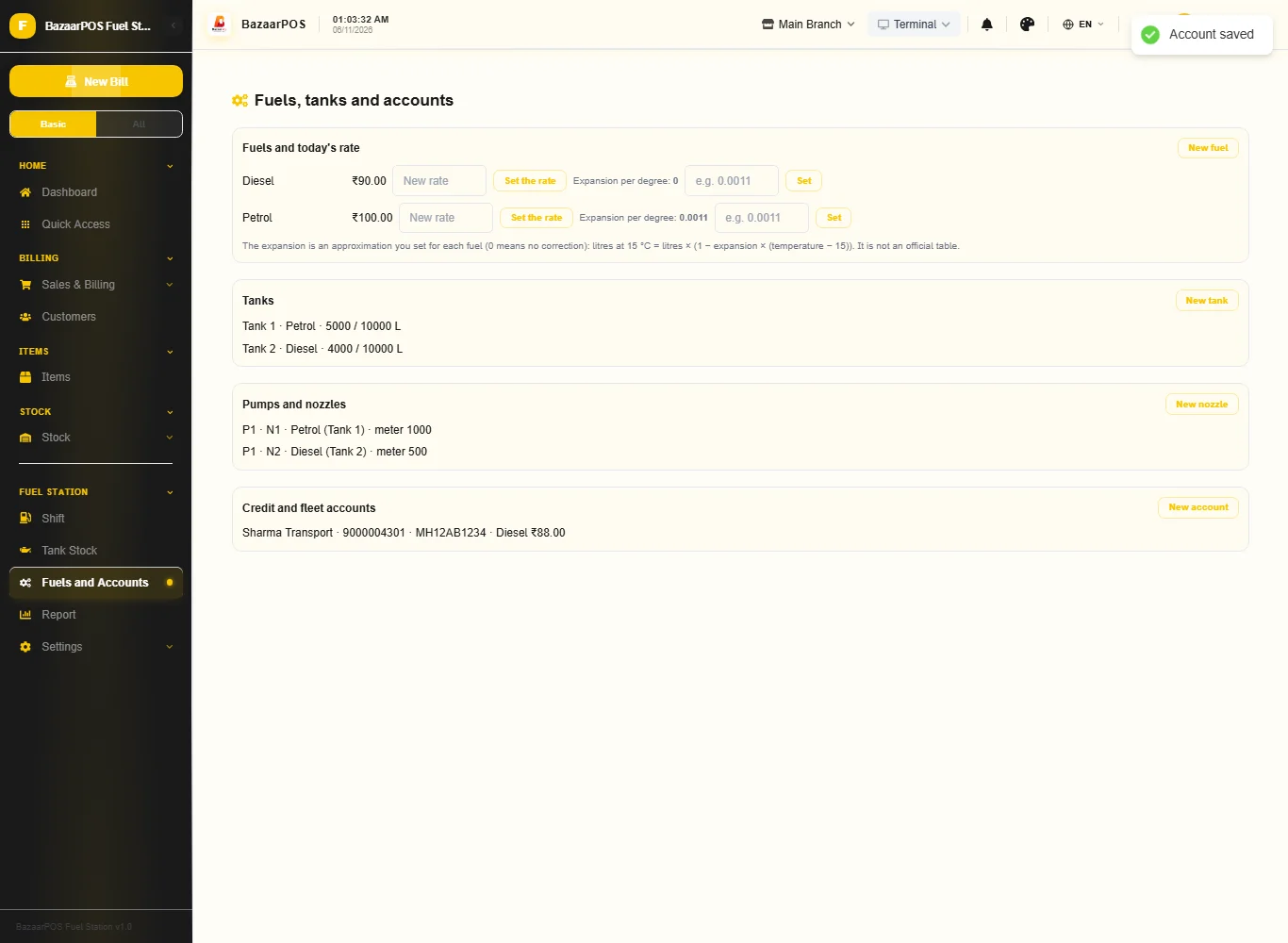
Open Fuels and Accounts. Press New fuel with its rate. For temperature correction type an expansion per degree in the fuel's row (for example 0.0011 for petrol): litres received and dipped are then also shown at 15 °C. To change a rate type the new one in the fuel's row and press Set the rate: each day keeps its own. Press New tank (capacity, litres now and a dip table of "mm litres" lines), New nozzle (pump, nozzle, tank and the meter reading now) and New account (phone, credit limit, a vehicle and an own rate).
Step 2: Open a shift
Open Shift, type your name and press Open a shift. The opening readings are the last closings; a reading below the last closing is refused.
Step 3: Credit slips
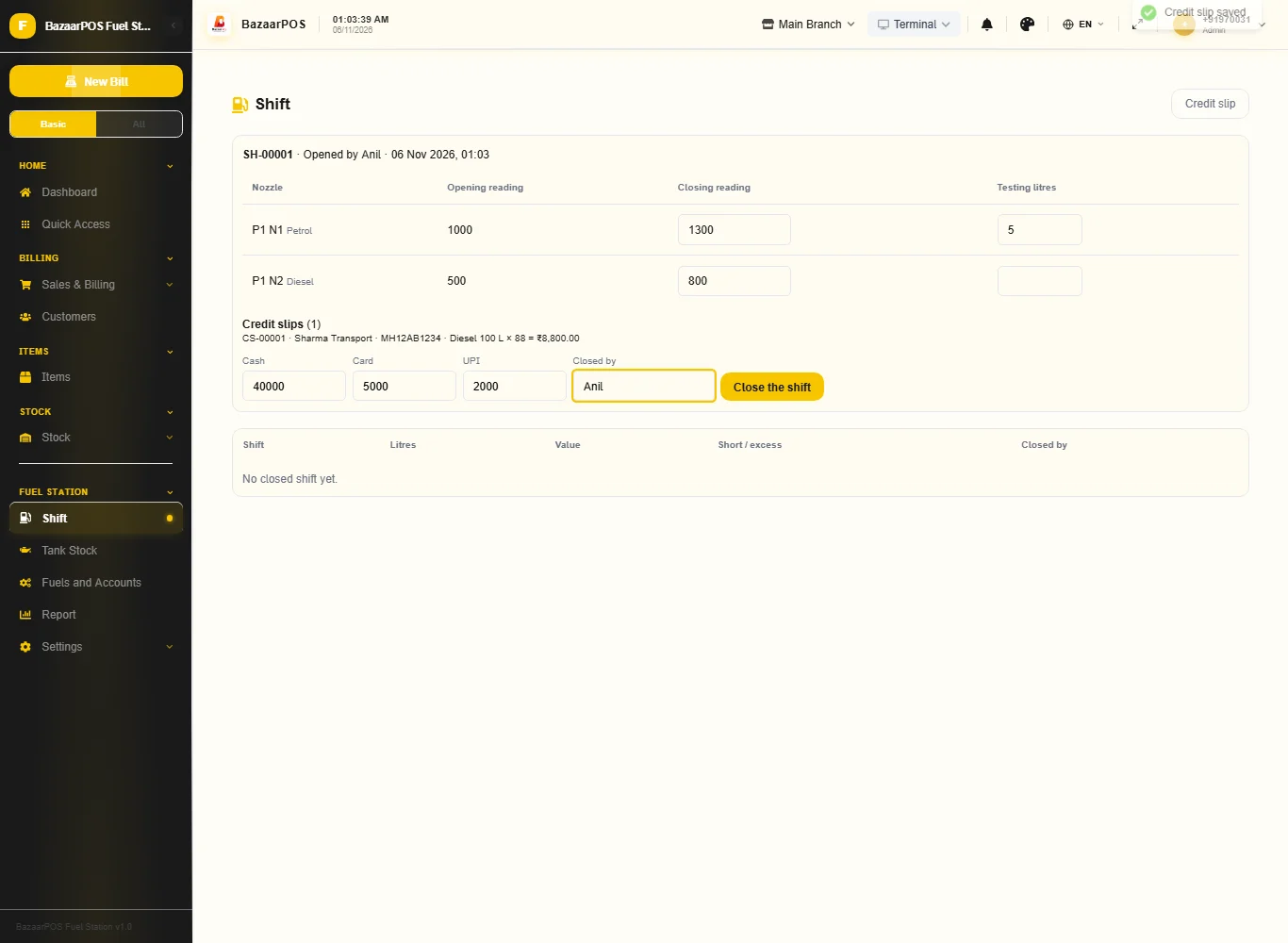
While the shift runs press Credit slip: the account, the vehicle, the fuel, the litres and who signed. It is billed as a normal sale at the account's own rate or the day's rate, and the credit limit is enforced.
Step 4: Close the shift
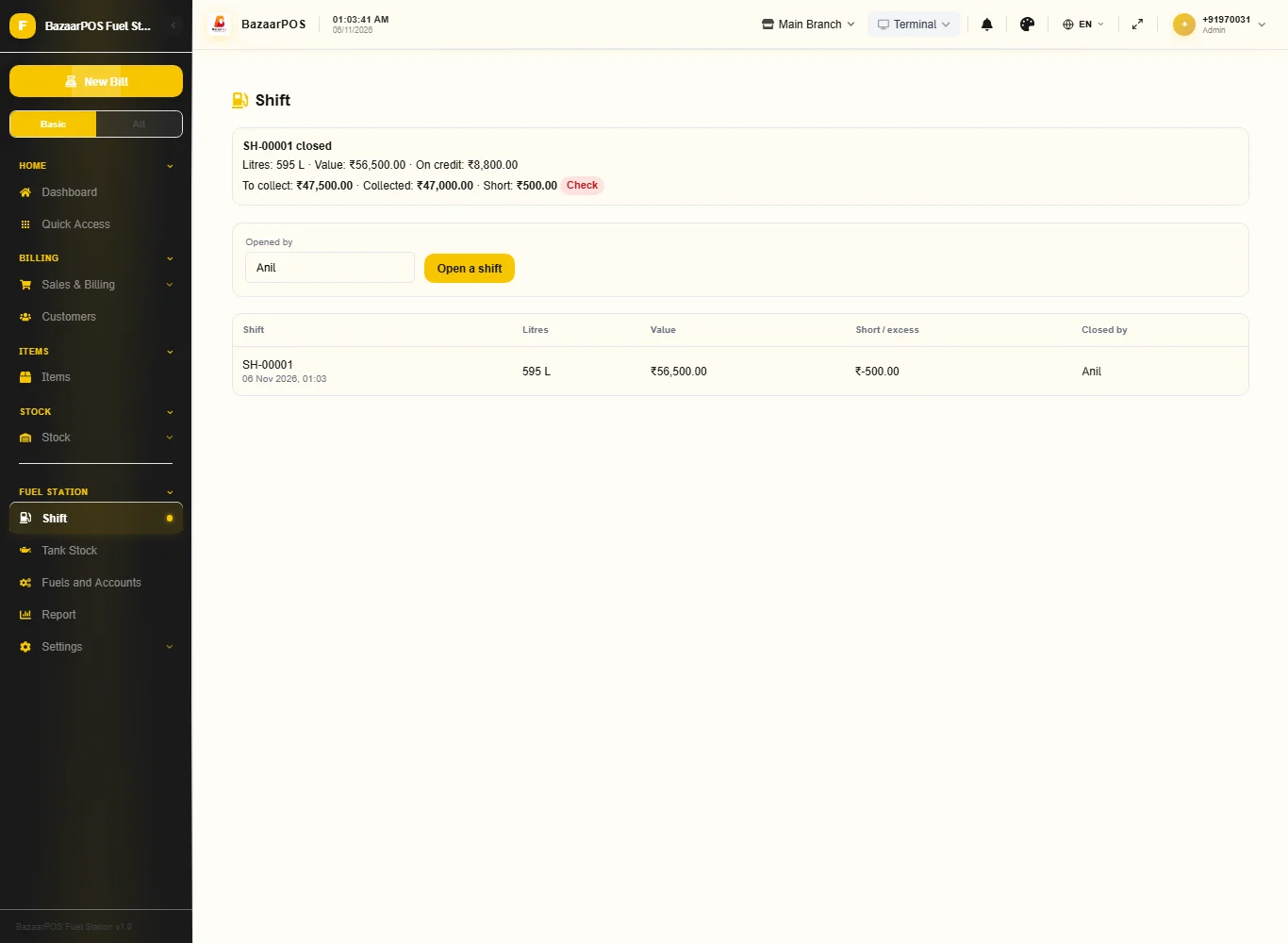
Type the closing reading of every nozzle (and the testing litres), the cash, card and UPI collected and your name, then press Close the shift. The litres are the closing less the opening less the testing litres, what was not on credit is posted as one sale, and the short or excess is shown. The shift is then locked.
Step 5: Fuel received and dips
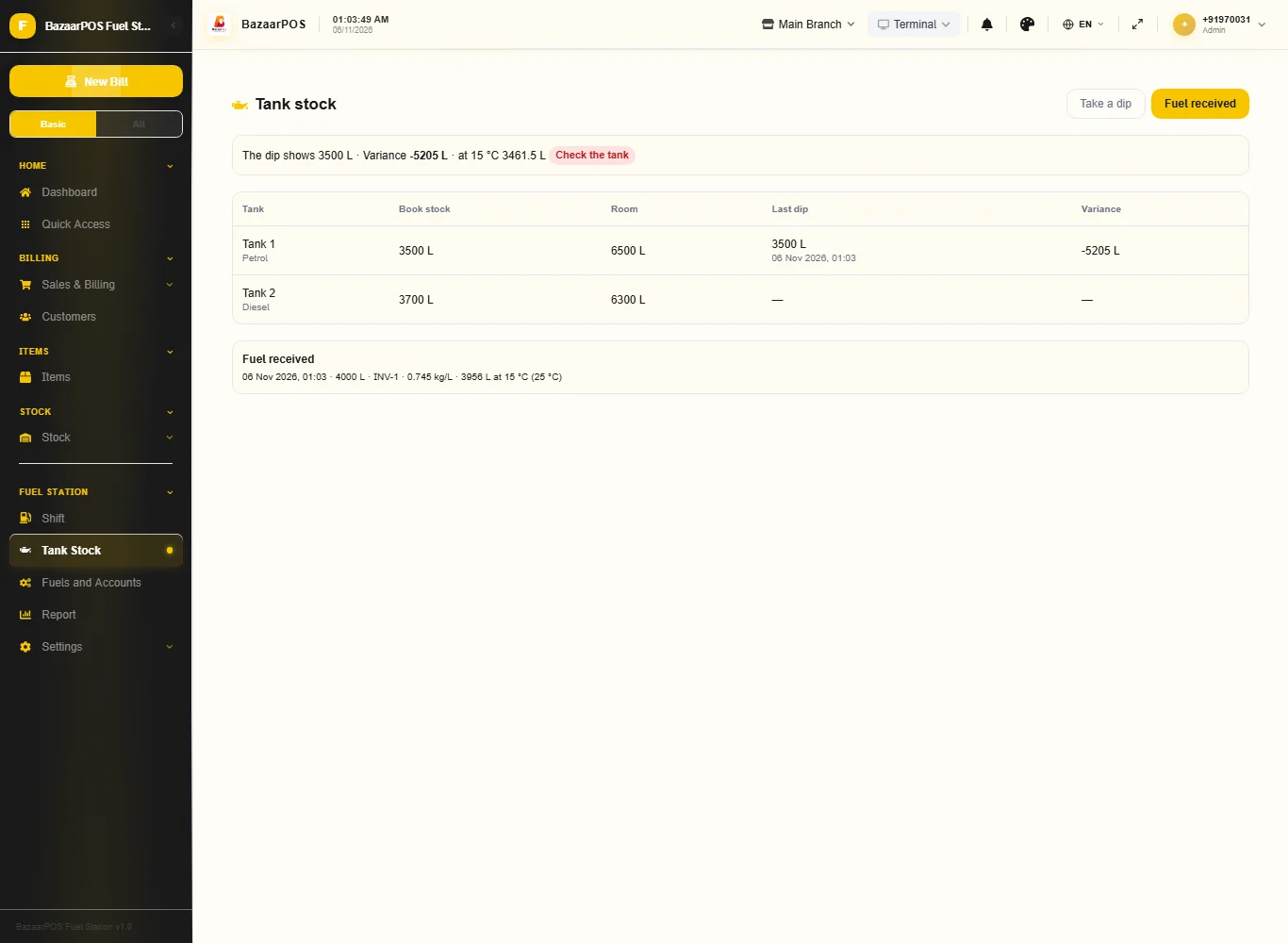
Open Tank Stock. Fuel received takes the tank, the litres, the invoice number and the density; a repeated invoice is refused. Take a dip turns the millimetres into litres from the tank's table and shows the variance against the book stock; tick Set the book stock to the dip to reconcile.
Step 6: The report
Open Report for shifts, litres and value by fuel and by nozzle, the collection split into cash, card, UPI and credit, the short or excess by person and the dip variance by tank.
On the phone
The phone app has Shift, Tank Stock and Report.
Also useful here
- Barcode labels: see Barcodes.
- Counting stock: see Stock count.
- Importing items: see Import and export.
- Expiry dates and batches: see Expiry monitor.
Questions
Is this separate from items and billing?
No. A fuel is an item, a credit account is a customer and a credit slip is a normal sale.
Does it read the dispenser or the tank gauge?
No. Readings, dips and rates are typed in.
Does it do fleet cards, temperature correction or oil company statements?
Litres received and dipped can be shown at 15 °C with an expansion per degree you set for each fuel: an approximation, not an official table. Fleet-card integration, the oil companies' statement formats and the legal rules for wet stock loss are not built.
Is there a phone version?
Yes. Opening and closing a shift, credit slips, tank dips, fuel received and the report are on the phone.
Which plan includes what
Fuel Station comes in Basic, Advanced and Enterprise plans. A screen your plan does not include shows a message with how to upgrade.
- Basic: billing, items, customers, reports, fuels, shifts and tank stock.
- Advanced: everything in Basic, plus the report.
- Enterprise: everything in Advanced, plus more than one branch and AI sales forecasting.