Juice Bar Setup
Run a juice bar in BazaarPOS: define a drink once and sell it in sizes, give recipes in millilitres of juice, take the fruit and cup off stock at every sale, and see what fruit to buy for tomorrow.
How it fits together
You keep your normal Items, Customers, billing, purchase orders and special orders. Nothing is entered twice. A fruit is an ordinary item stocked in kilograms. Each drink size is an ordinary item with a made-when-sold recipe, which is the same feature bakeries use, so billing, discounts, taxes, payment modes and reports all work as before. There is no separate billing screen.
- Fruit & Items: kind and the litres of juice from one kg on any item, a finder, and the fruit-list settings.
- Drinks: define a drink once and make its sizes.
- Add-ons: priced extras that can take an ingredient off stock.
- Fruit Pressed: kilograms in, litres out and waste, with the average yield.
- Daily Fruit List: what to buy, from recent sales.
Step 1: Mark your fruit and set the yield
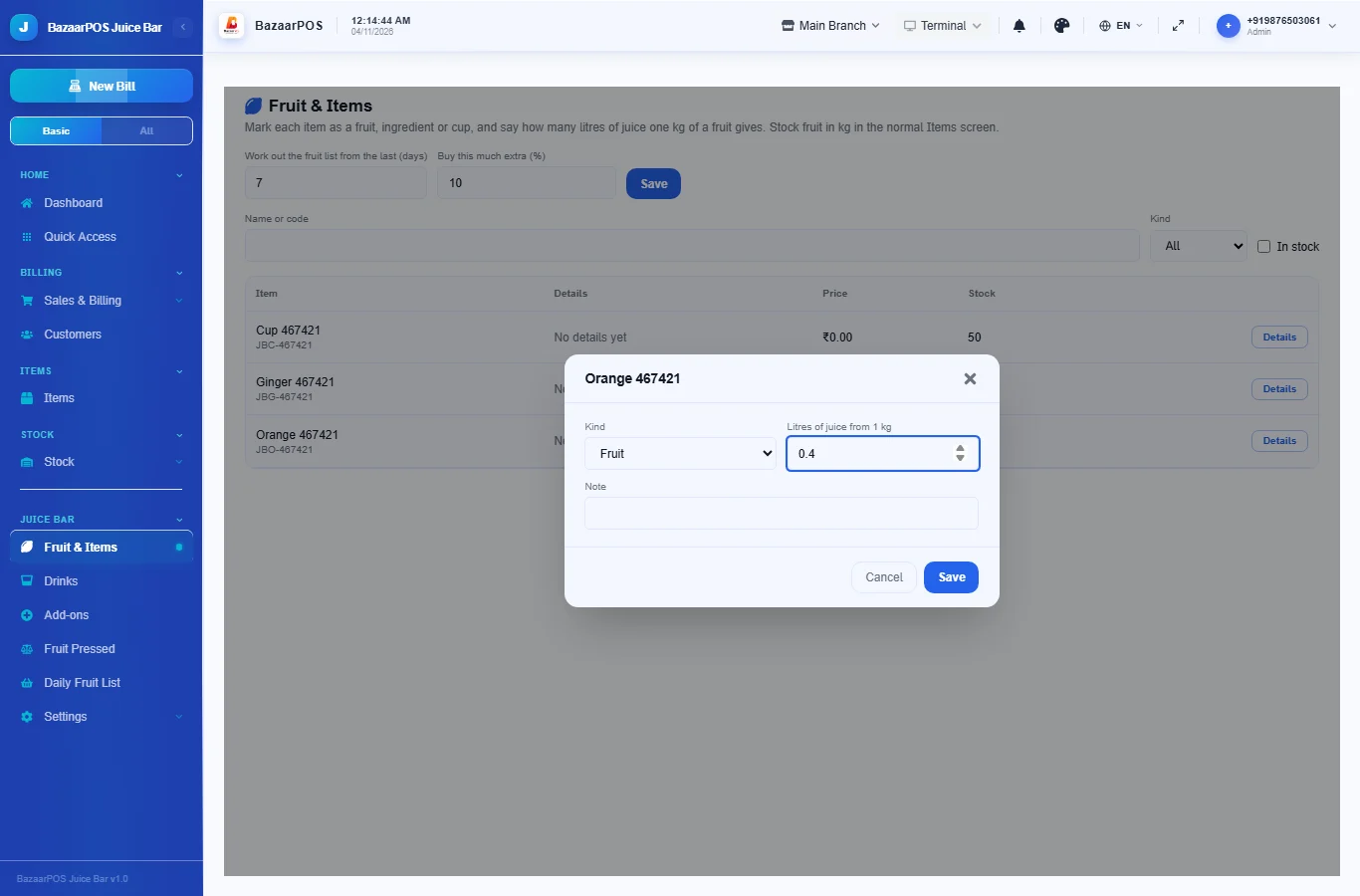
Add each fruit as an item stocked in kg and each cup as an item in pieces in the normal Items screen. Then open Fruit & Items, press Details and choose the kind. For a fruit, enter the litres of juice from 1 kg, for example 0.4 for oranges. You can also log a pressing (Step 5) and use its average.
Step 2: Make a drink
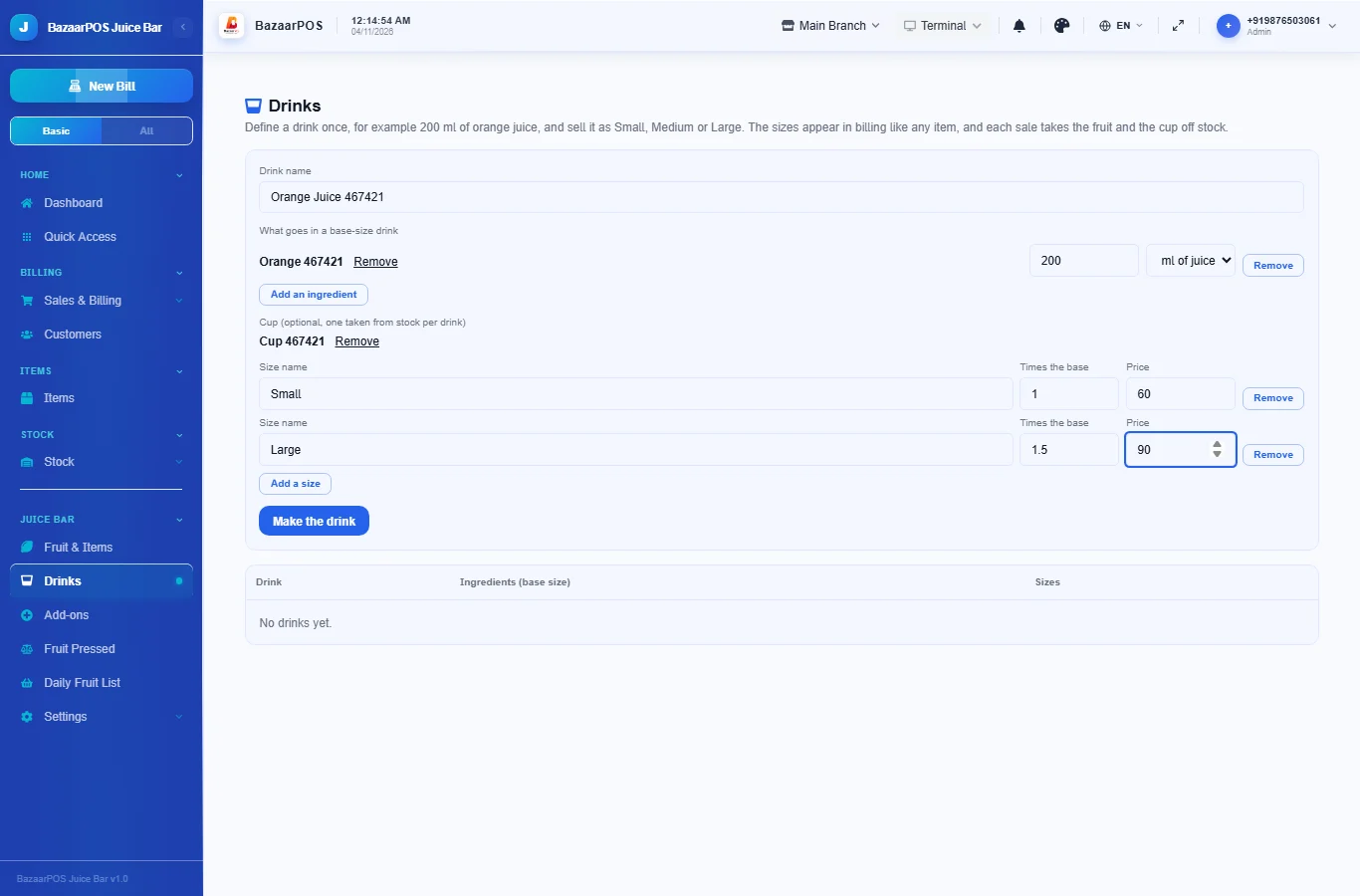
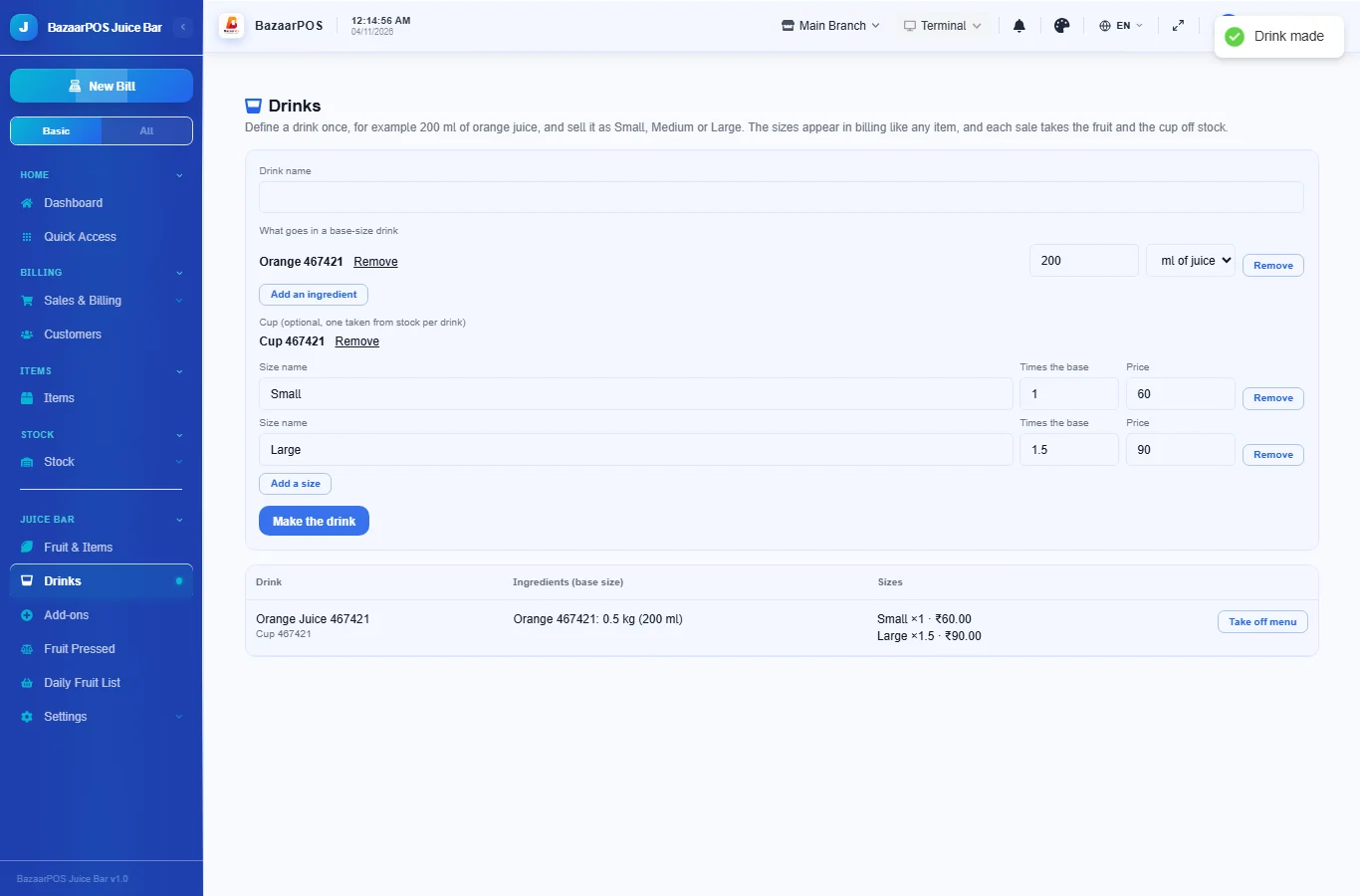
Open Drinks. Type the drink name, pick the fruit and enter the juice in a base-size drink in ml (the kilograms are worked out from the yield), or choose in its unit to give kilograms directly. Pick the cup, then fill in the sizes: a name, how many times the base amount, and the price. Press Make the drink.
Step 3: Sell as usual
The sizes are on the billing screen like any item. Each sale takes the fruit and one cup off stock, and voiding the sale puts them back.
Step 4: Add-ons
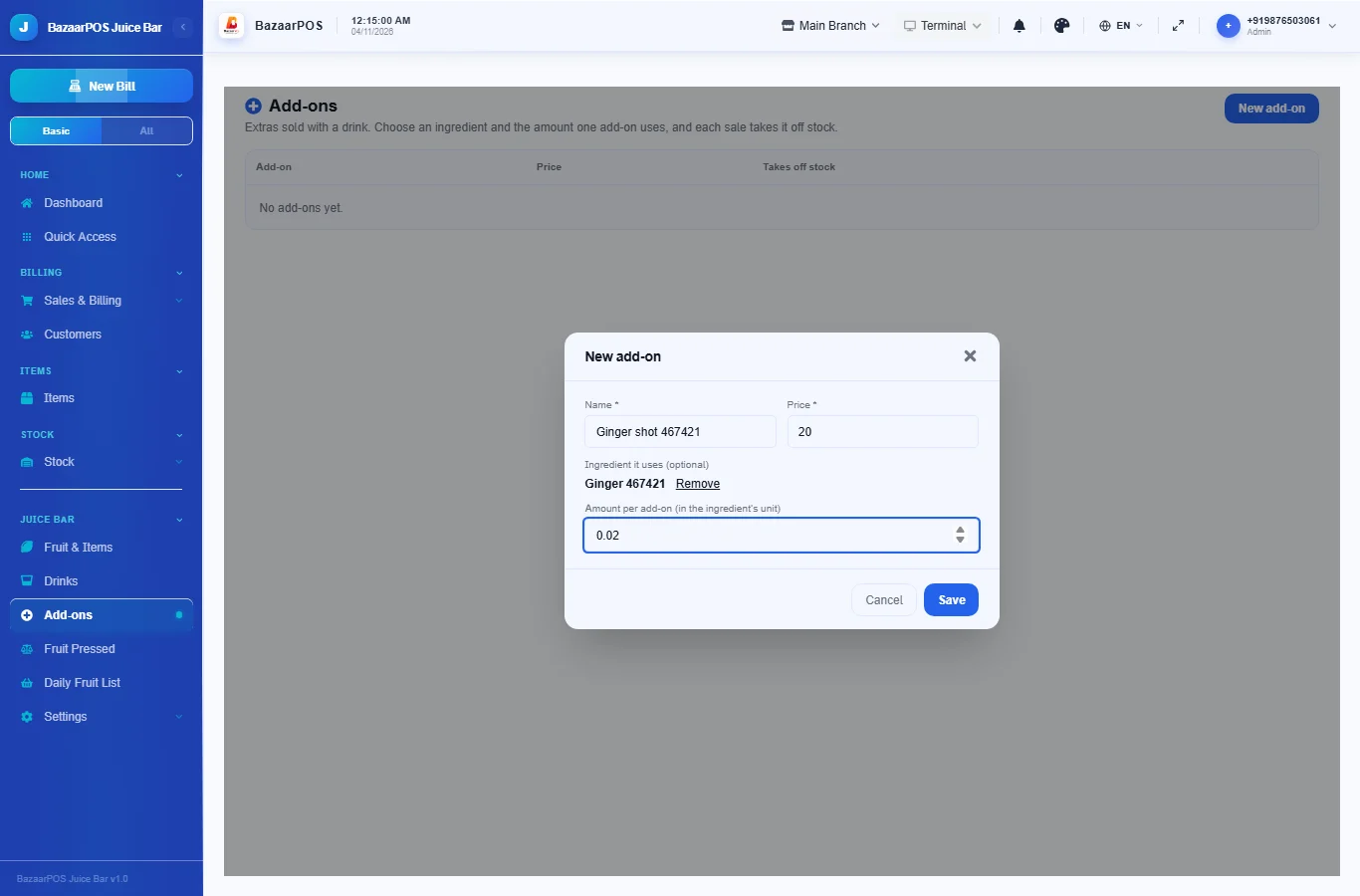
Open Add-ons and press New add-on. Give the name and price. To take stock, pick the ingredient and the amount one add-on uses.
Step 5: Log what you press
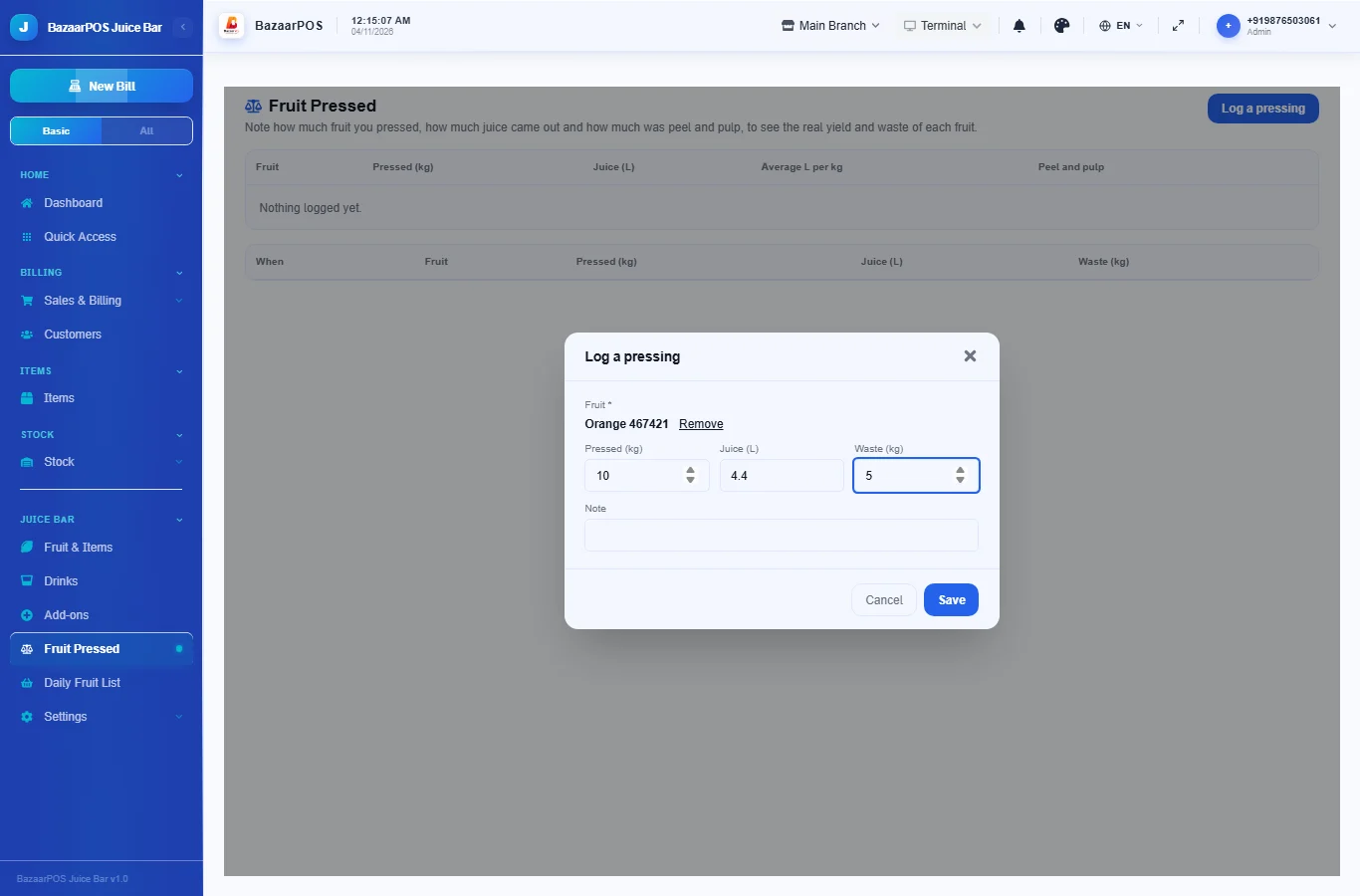
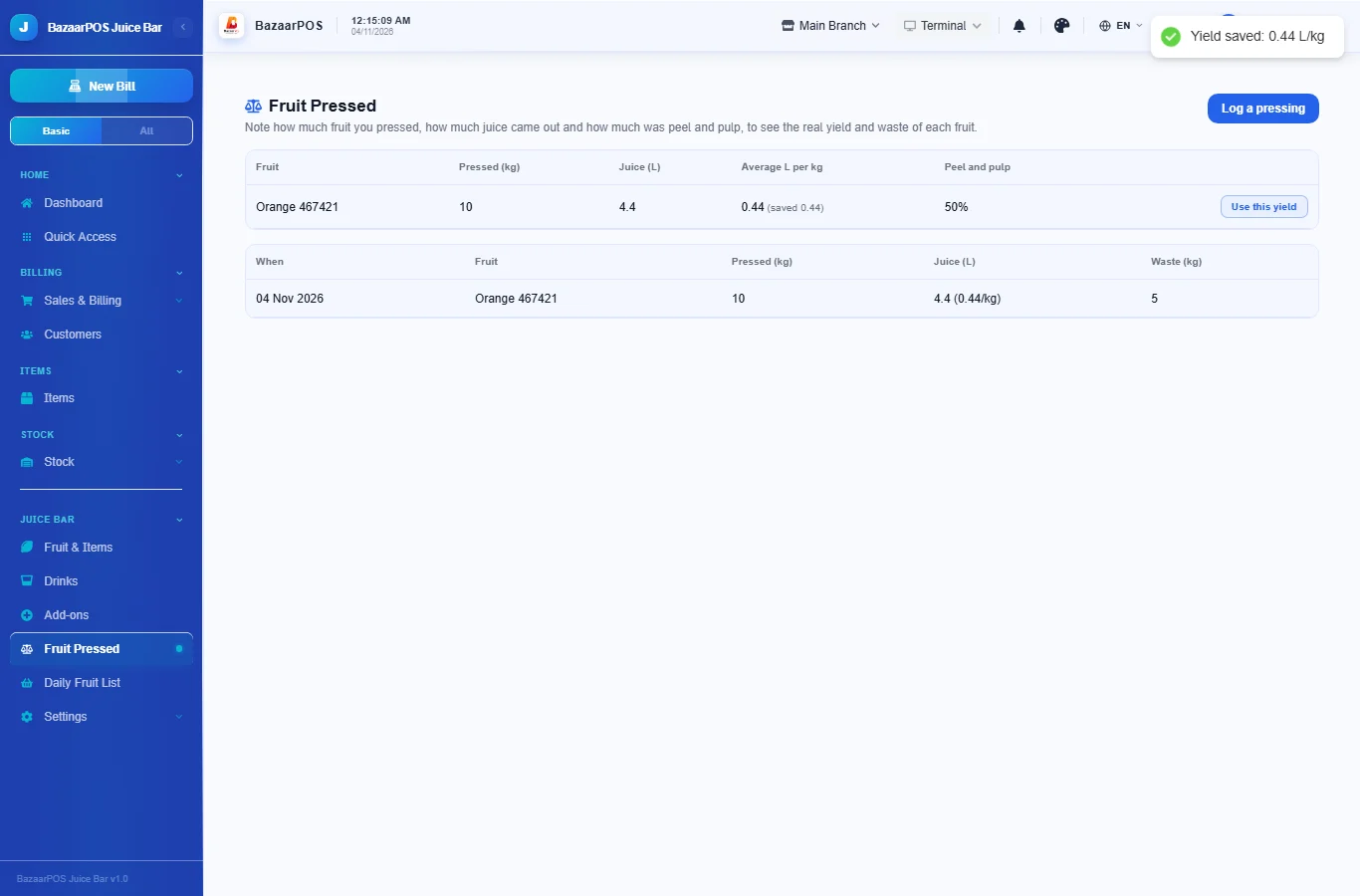
In Fruit Pressed press Log a pressing and enter the kilograms pressed, the litres of juice and the peel and pulp. The table shows the average litres per kg and the waste for each fruit. Press Use this yield to save the average as the fruit's yield.
Step 6: Read the daily fruit list
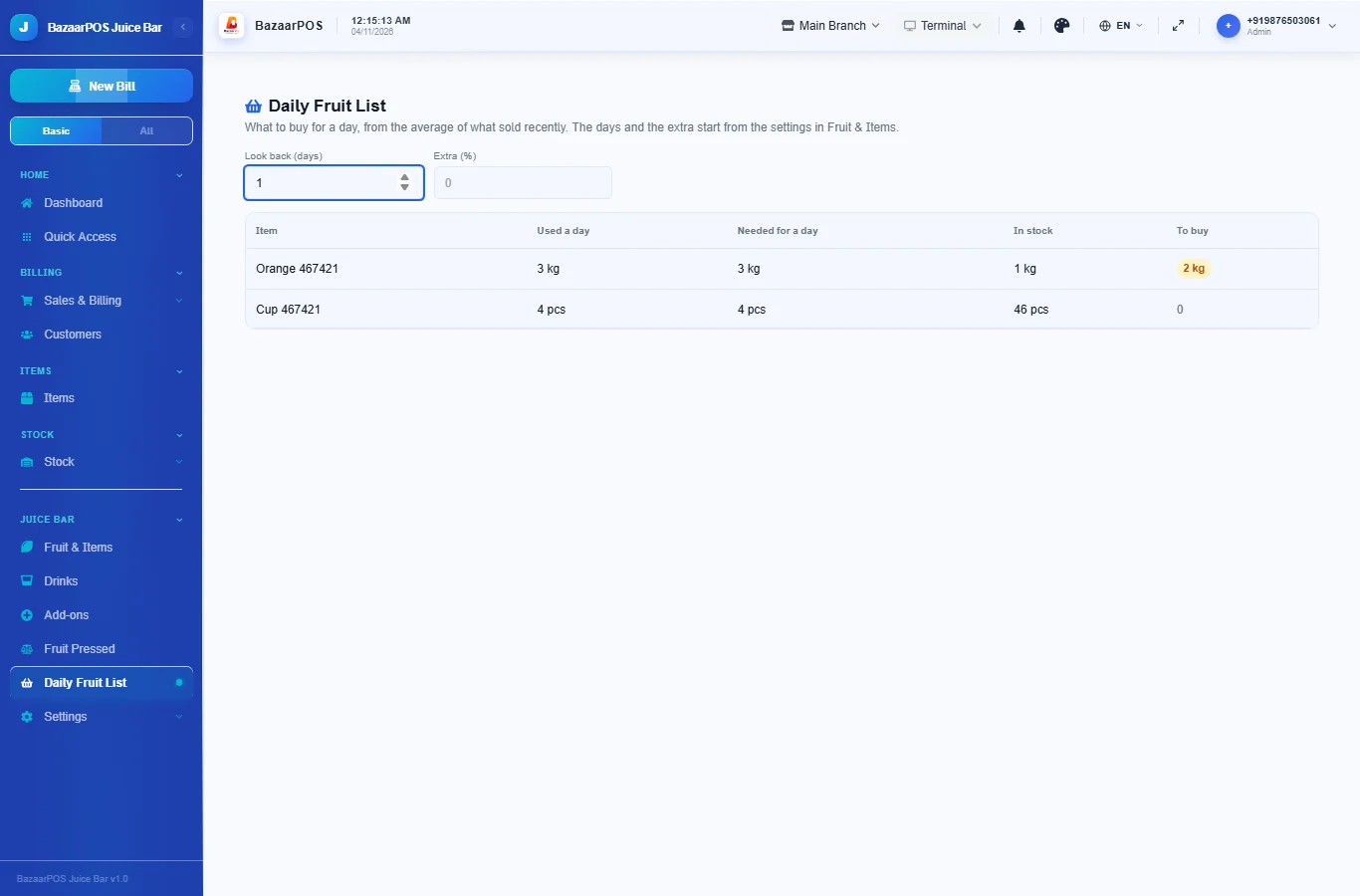
Open Daily Fruit List. It averages what sold over the last days (7 to start, change it in Fruit & Items), adds the extra you set (10% to start), subtracts what is in stock and shows what to buy.
On the phone
The phone app has Fruit & Items, Drinks, Add-ons, Fruit Pressed and Daily Fruit List.
Also useful here
- Barcode labels: see Barcodes.
- Counting stock: see Stock count.
- Importing items: see Import and export.
- Expiry dates and batches: see Expiry monitor.
Questions
How does it turn millilitres into kilograms?
It divides the millilitres by the litres of juice that one kilogram of that fruit gives, which you set or take from your logged pressings.
Does the list predict demand?
No. It averages recent sales and adds the extra you set. It does not know about weather or events.
Is there a separate billing screen?
No. The sizes and add-ons are ordinary items on the normal billing screen.
Which plan includes what
Juice Bar comes in Basic, Advanced and Enterprise plans. A screen your plan does not include shows a message with how to upgrade.
- Basic: billing, items, customers, reports, fruit details, drinks in sizes and add-ons.
- Advanced: everything in Basic, plus fruit pressed with yield and waste, and the daily fruit list.
- Enterprise: everything in Advanced, plus more than one branch and AI sales forecasting.