Ice Cream Shop Setup
Run an ice cream shop in BazaarPOS: see how many scoops are left of every flavour, make single and double servings for all your flavours in one go, and have each sale take the flavour and the cone off stock.
How it fits together
You keep your normal Items, Customers, billing, purchase orders and special orders. Nothing is entered twice. A flavour is an ordinary item stocked in kilograms. A serving is an ordinary item with a made-when-sold recipe, which is the same feature bakeries use, so billing, discounts, taxes, payment modes and reports all work as before.
- Flavours & Items: kind, type, allergens, seasonal mark and grams in a scoop on any item, a finder, and the shop settings.
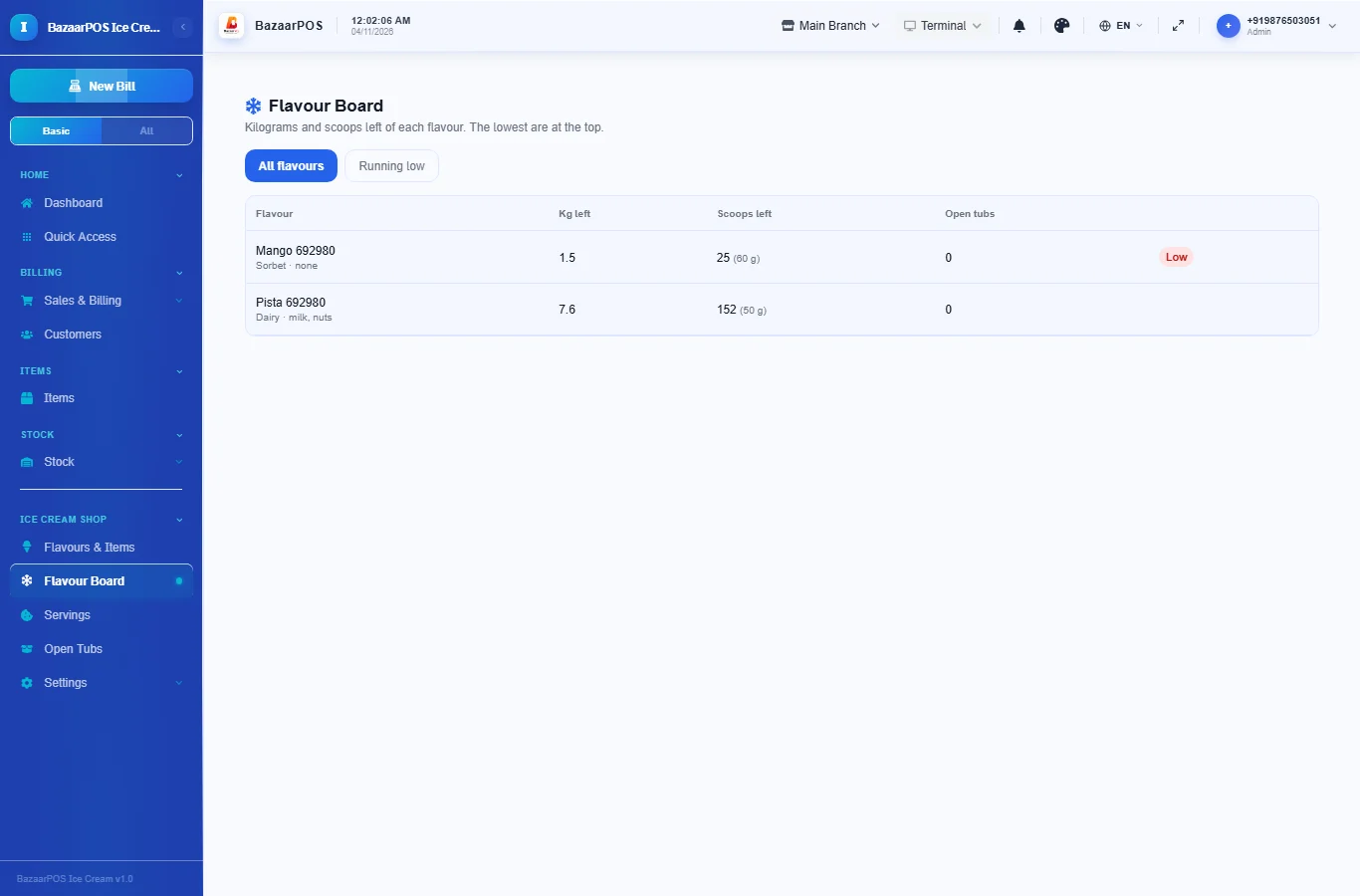
- Flavour Board: kilograms and scoops left of every flavour, lowest first.
- Servings: make single, double and triple servings for your flavours in one go.
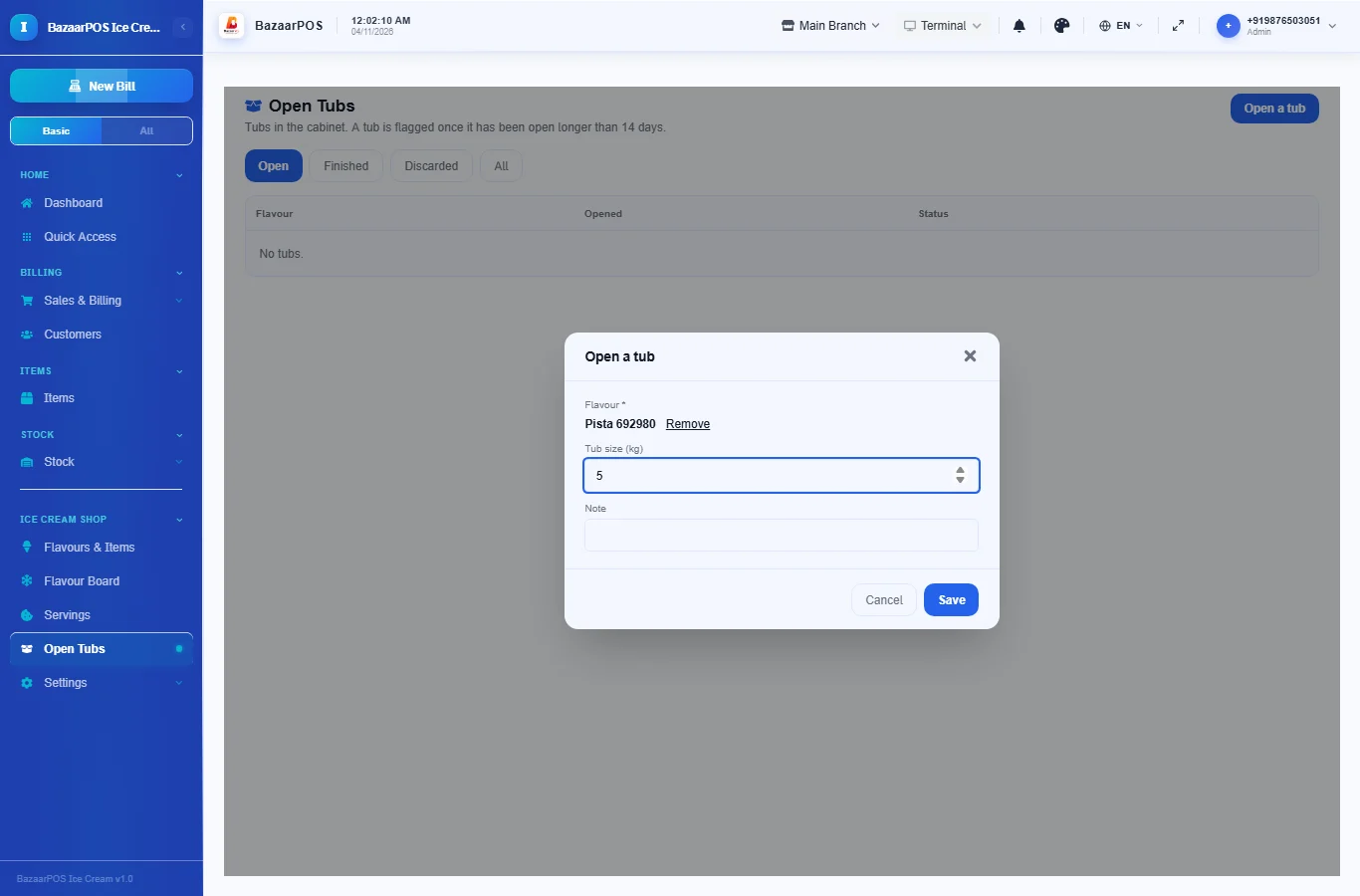
- Open Tubs: tubs in the cabinet with the days open and a use-by flag.
Step 1: Mark your flavours
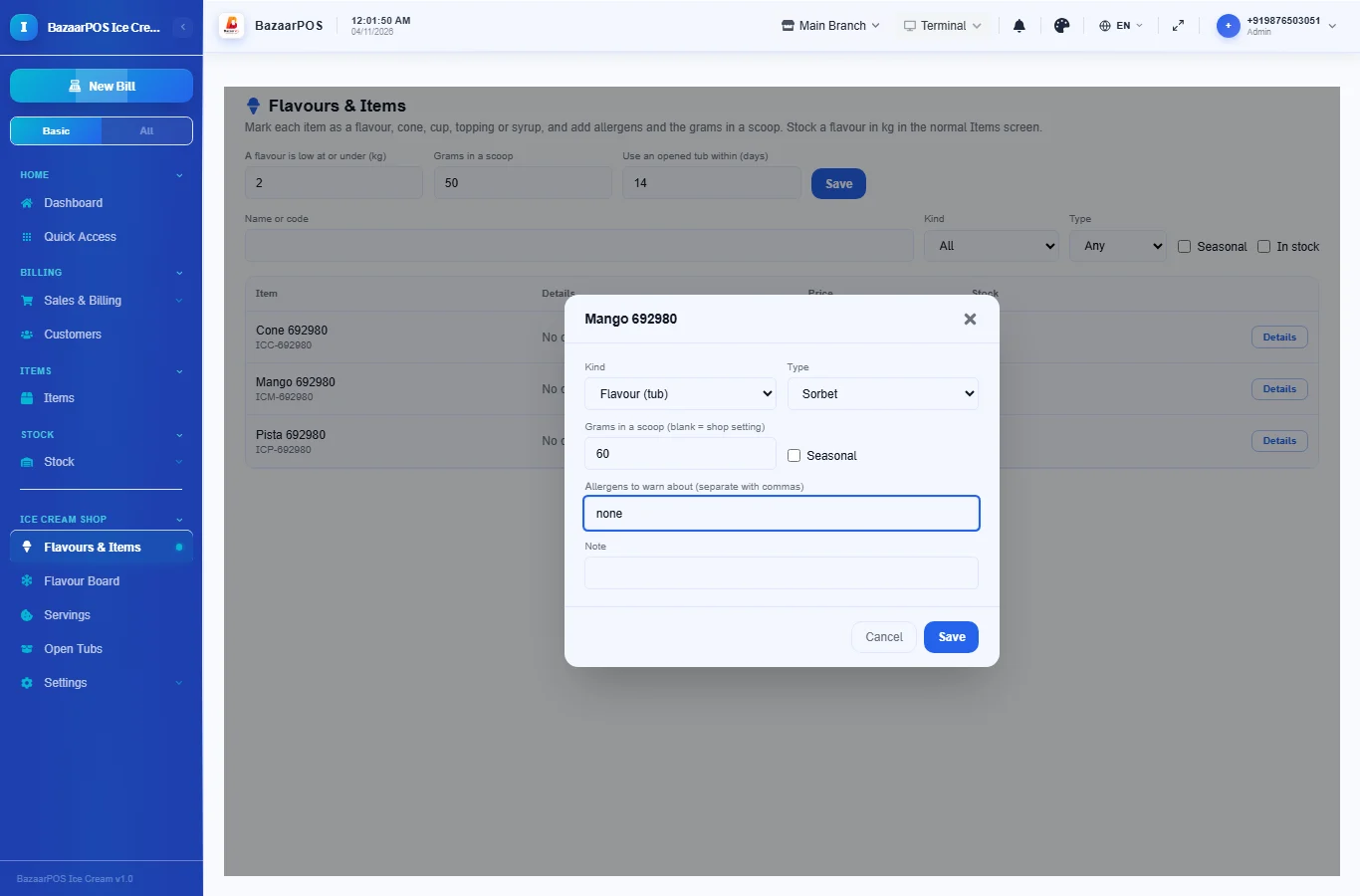
Add each flavour as an item stocked in kg in the normal Items screen. Then open Flavours & Items, press Details on it and choose the kind (flavour, cone, cup, topping or syrup), the type (dairy, sorbet, vegan, kulfi or sugar free), the allergens and, if it differs from the shop, the grams in a scoop. In the settings above the list set the grams in a scoop for the shop (50 to start), the low level in kg and how many days an opened tub may stay out.
Step 2: Watch the flavour board
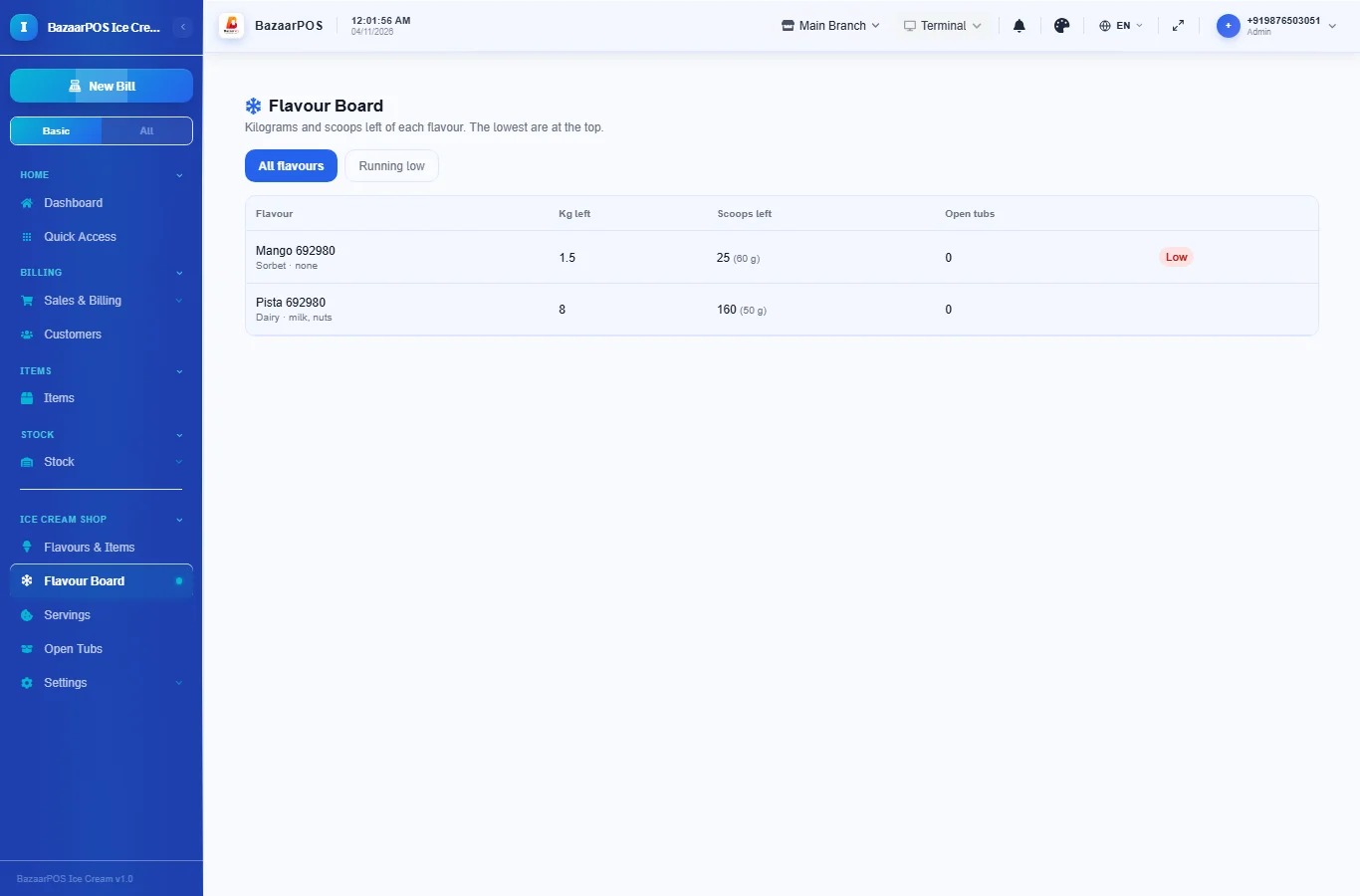
Open Flavour Board. Each flavour shows the kilograms left and the scoops that makes. Flavours at or under the low level are marked and listed first; press Running low to see only those.
Step 3: Make the servings
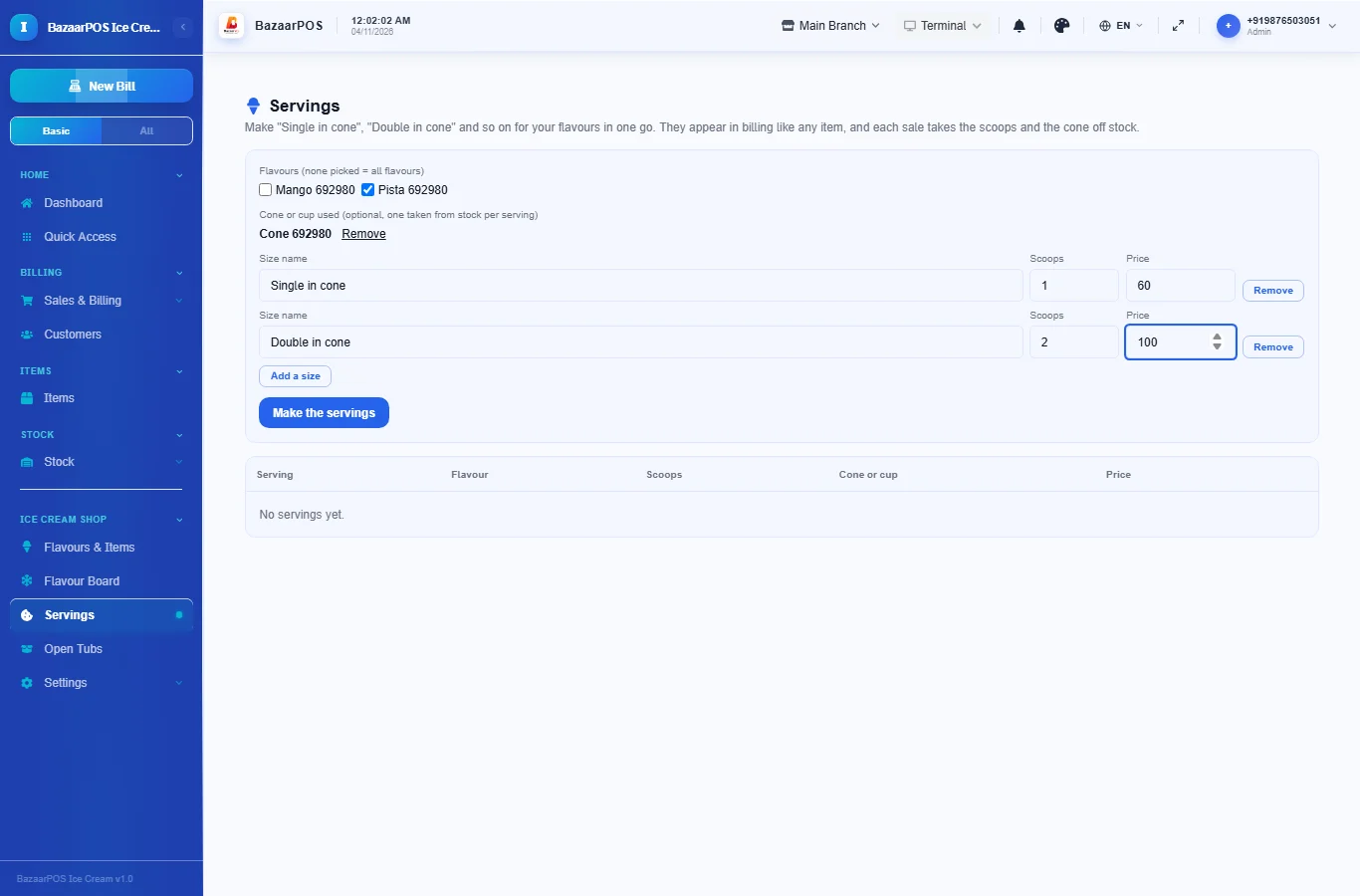
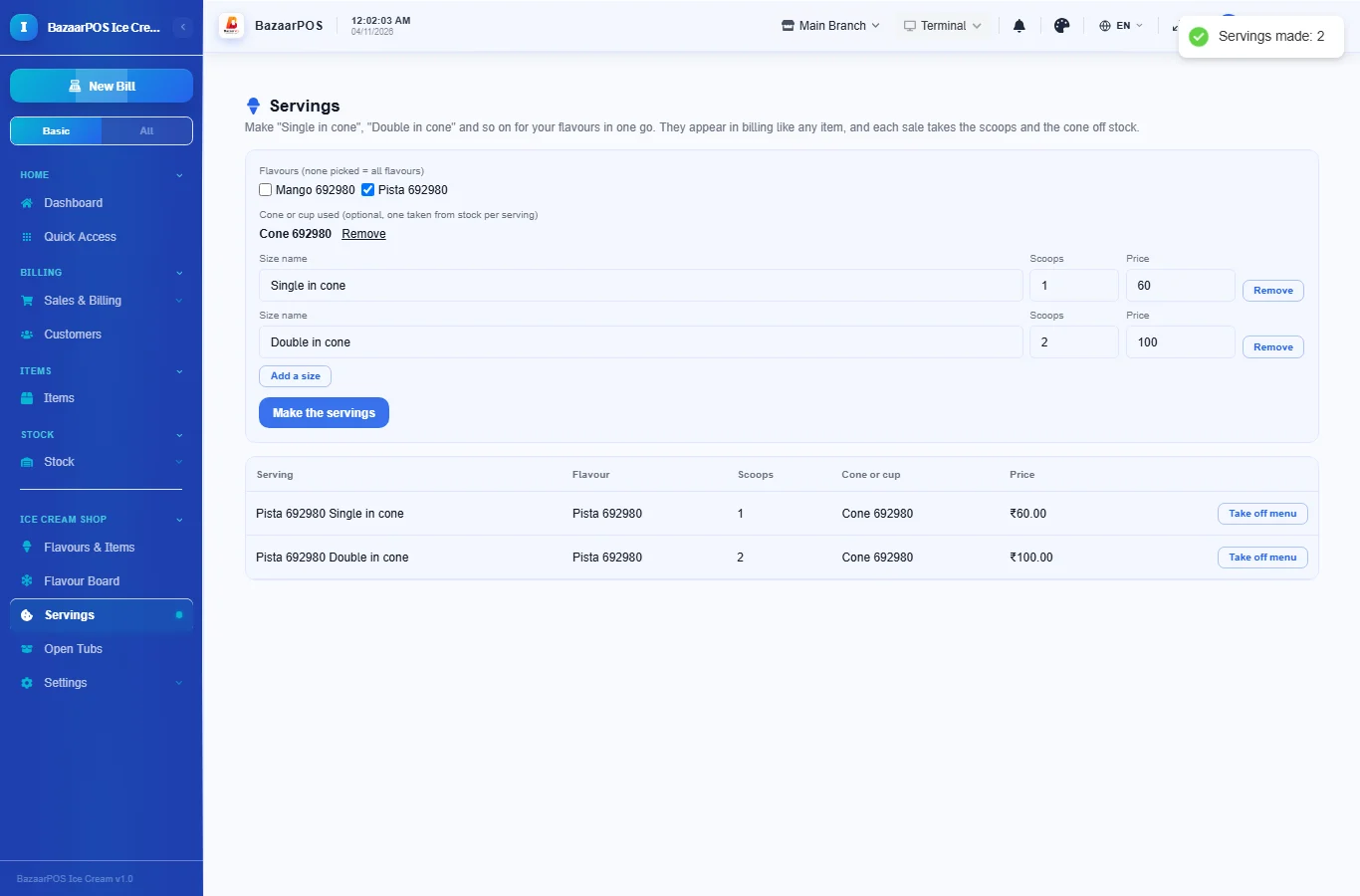
Open Servings. Tick the flavours (leave all unticked for every flavour), pick the cone or cup that one serving uses, and fill in the sizes: a name such as Single in cone, the number of scoops and the price. Press Make the servings. Each one becomes an item such as Pista Double in cone. Making them again skips the ones that already exist.
Step 4: Sell as usual
Servings are on the billing screen like any item. Each sale takes the scoops of that flavour and one cone or cup off stock, and voiding the sale puts them back.
Step 5: Track opened tubs
On Open Tubs press Open a tub when you open one in the cabinet, choose the flavour and the size. The list shows the days it has been open and flags a tub past the days you set. Press Finished or Throw away when it is done.
On the phone
The phone app has Flavours & Items, Flavour Board, Servings and Open Tubs.
Also useful here
- Barcode labels: see Barcodes.
- Counting stock: see Stock count.
- Importing items: see Import and export.
- Expiry dates and batches: see Expiry monitor.
Questions
How does it know how many scoops are left?
You stock a flavour in kilograms and set the grams in a scoop. The board divides the kilograms left by that weight.
Can I sell toppings and syrups?
Yes, as ordinary items with their own price and stock. They are not yet part of a serving.
Does an opened tub reduce the stock?
No. Stock comes off at each sale. Open Tubs is a reminder list of what has been out too long.
Which plan includes what
Ice Cream Shop comes in Basic, Advanced and Enterprise plans. A screen your plan does not include shows a message with how to upgrade.
- Basic: billing, items, customers, reports, flavour details and the flavour board, the serving builder.
- Advanced: everything in Basic, plus open tubs with use-by flags.
- Enterprise: everything in Advanced, plus more than one branch and AI sales forecasting.