Transport & Courier Setup
Run a transport business in BazaarPOS: lorry receipts with who pays the freight and the tax, trips that check the vehicle’s capacity and show their profit, delivery with the receiver’s name, courier rates by weight, and one bill for a party’s receipts.
How it fits together
You keep your normal Items, Customers, billing, purchase orders and special orders. Nothing is entered twice. The consignor is a normal customer and the invoice is a normal sale. Added on top are the lorry receipts, trips, expenses and the fleet. Who pays the tax, the default rate and the e-way bill limit are your settings; the e-way bill number is typed in and nothing is generated from a government portal.
- Lorry Receipts: book, print in three copies, mark delivered with the receiver’s name, and bill a party’s receipts together.
- Trips: a vehicle and a driver, receipts loaded within the capacity, start, expenses, the profit of the trip, close.
- Fleet and Rates: vehicles and drivers with the dates of their documents, courier rates, the documents to renew, and the settings.
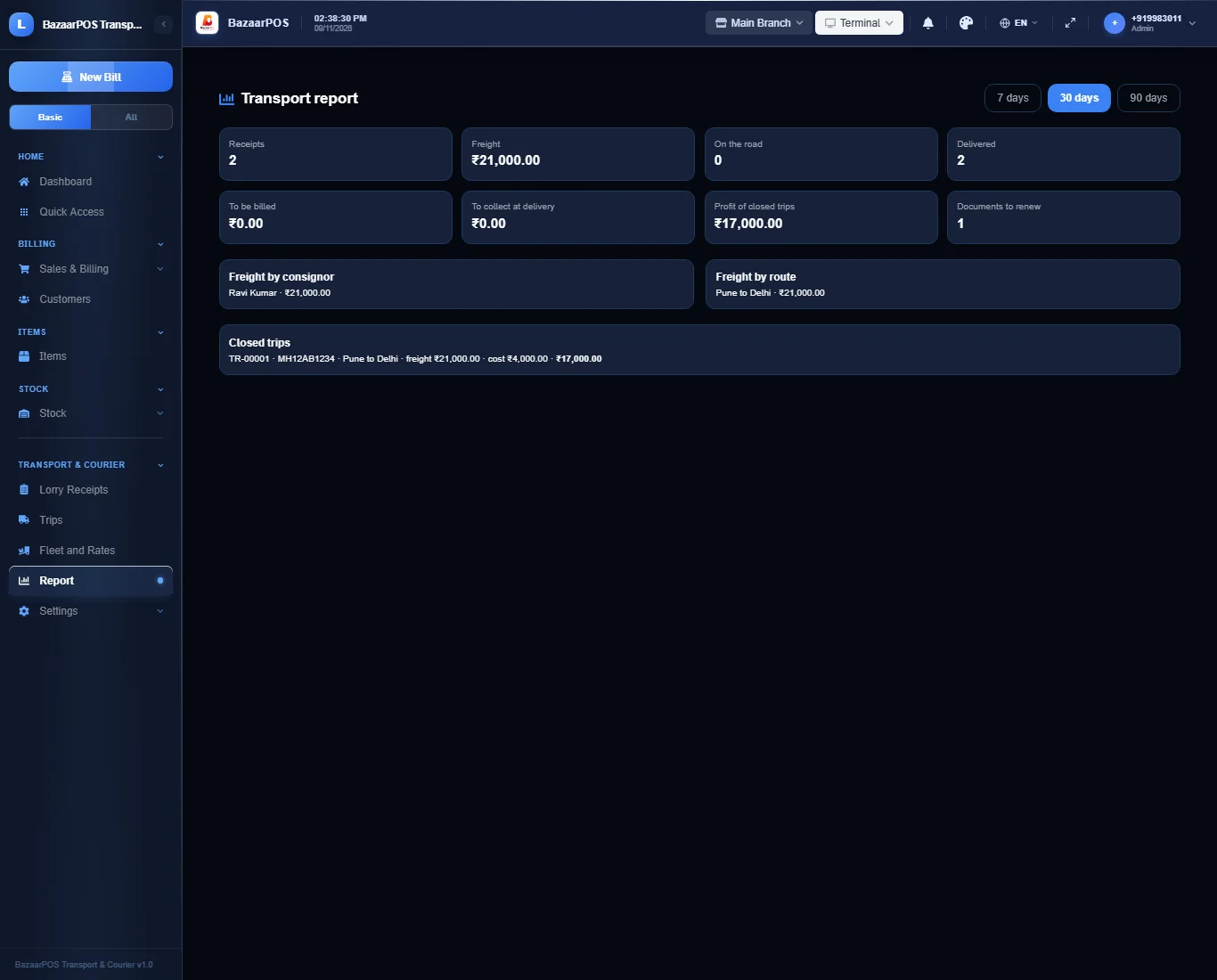
- Report: freight by party and route, receipts on the road, to be billed, to collect and the profit of closed trips.
Step 1: The fleet and the rates
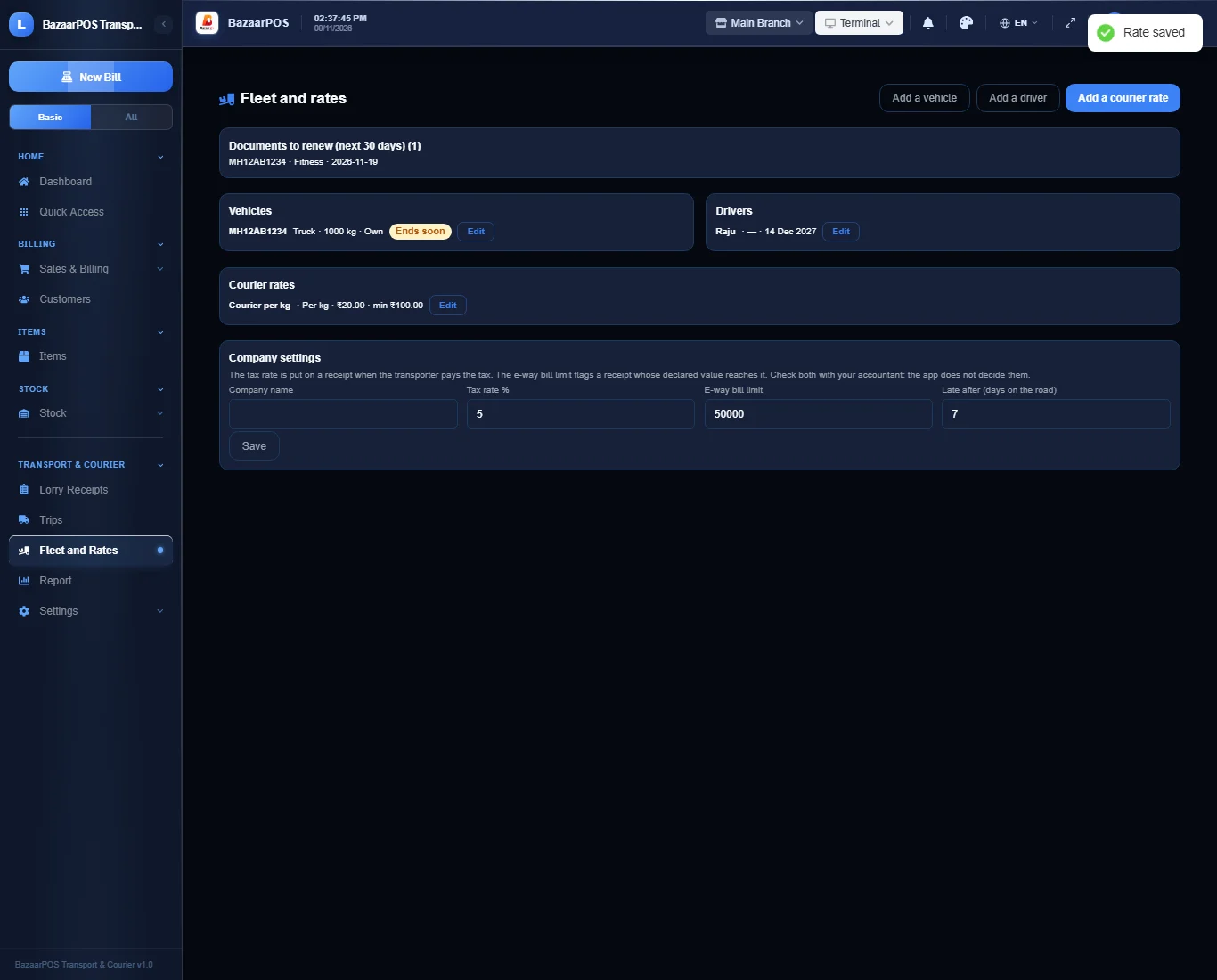
Open Fleet and Rates. Add each vehicle with its capacity and the dates its insurance, permit and fitness end, each driver with the licence date, and a courier rate if you price by weight (per kilogram, per package or fixed, with a minimum charge). Documents that end soon are listed.
Step 2: Book lorry receipts
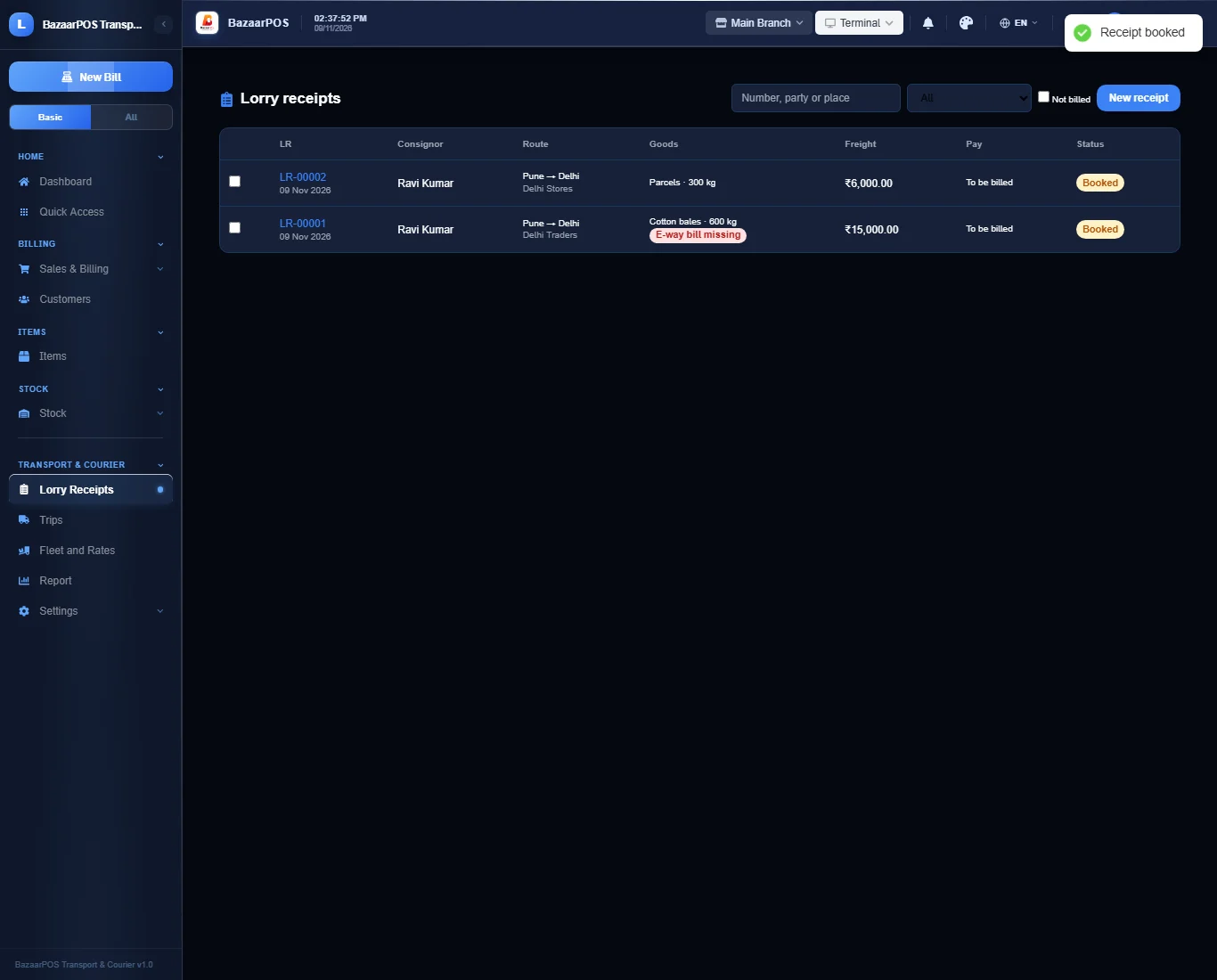
Open Lorry Receipts and press New receipt. Type the consignor, consignee, places, goods, weight and the freight, or choose a courier rate to price by weight. Choose who pays (paid, to pay or to be billed) and who pays the tax. A receipt whose declared value reaches the e-way bill limit is flagged until you type the number. Print the receipt gives three copies.
Step 3: Load and run a trip
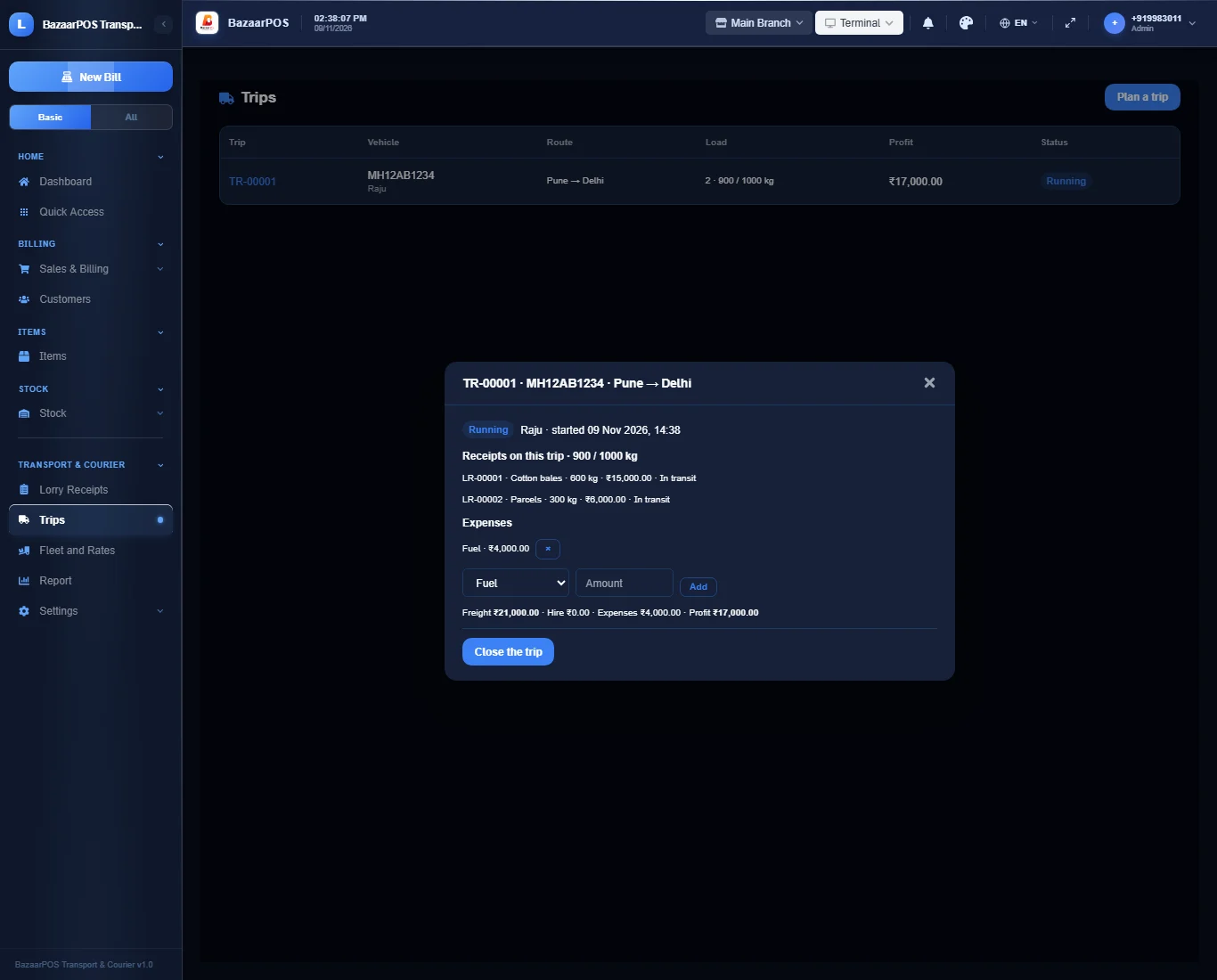
Open Trips, press Plan a trip, load the booked receipts (a load above the vehicle’s capacity is refused), then Start the trip: the receipts go on the road. Add fuel, toll and other expenses: the profit of the trip is the freight less hire and expenses.
Step 4: Deliver and bill
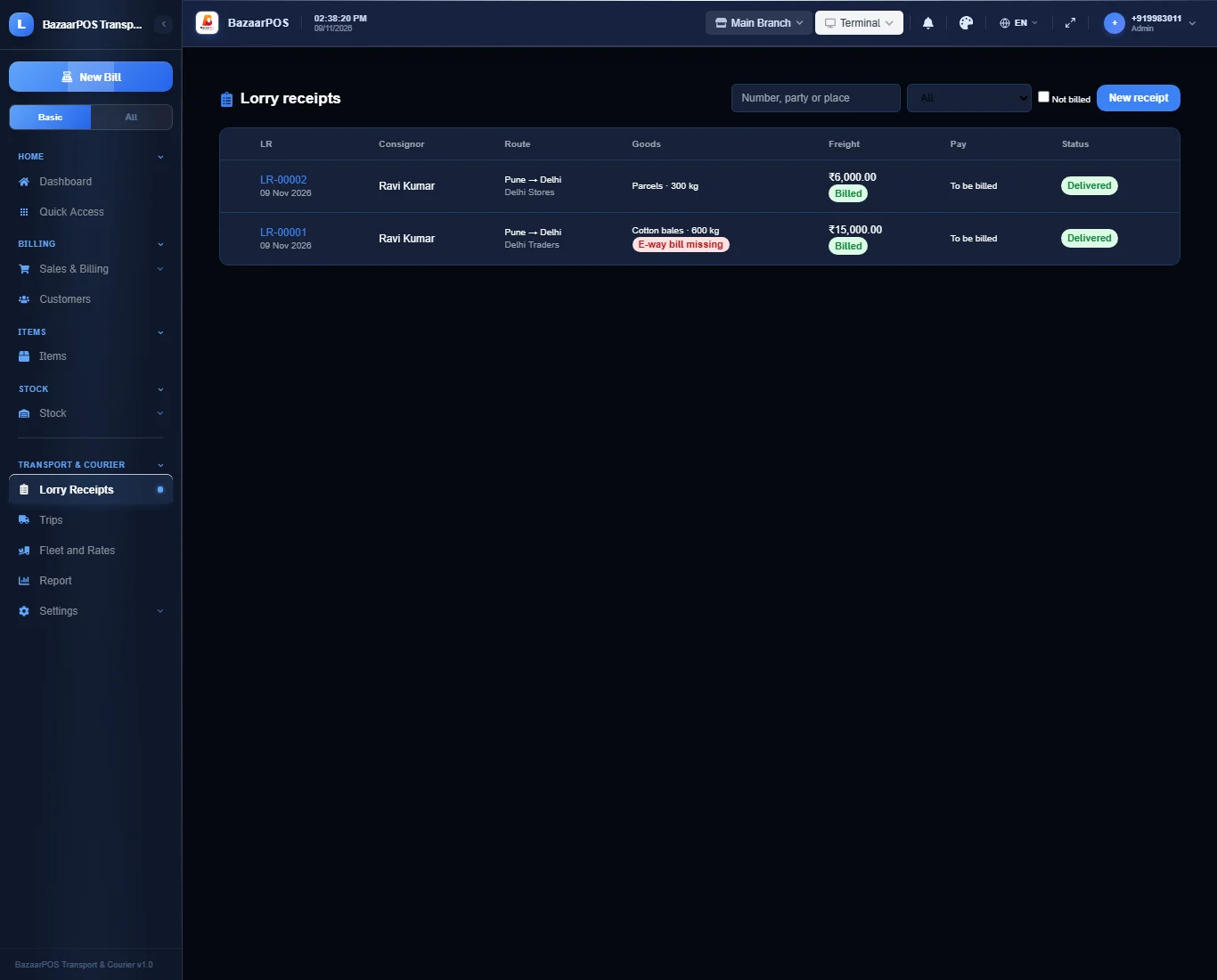
On Lorry Receipts open a receipt on the road and type the name of who received it. Tick the receipts of one party and press Bill these receipts: one invoice. Paid receipts bill at once, to-pay receipts after delivery.
Step 5: The report
Close the trip, then open Report for freight by party and route, receipts still on the road, what is to be billed and collected, and the profit of closed trips.
On the phone
The phone app has Lorry Receipts, Trips, Documents and Report.
Also useful here
- Barcode labels: see Barcodes.
- Counting stock: see Stock count.
- Importing items: see Import and export.
- Expiry dates and batches: see Expiry monitor.
Questions
Is this separate from items and billing?
No. The consignor is a customer and the invoice is a normal sale.
Does it generate the e-way bill?
No. The number is typed in and kept on the receipt. GPS tracking, FASTag or toll integration and driver payroll are not built.
How is the tax on freight handled?
Each receipt says who pays the tax. When the transporter pays, the invoice carries the tax at the rate on the receipt; otherwise the invoice says who pays it. The rate and the e-way bill limit are your settings: check them with your accountant.
Is there a phone version?
Yes. Booking a receipt, delivering with the receiver’s name, the e-way bill number, trips (start, expenses, close), documents to renew and the report. Printing, billing by party, planning trips and the fleet setup are on the desk app.
Which plan includes what
Transport & Courier comes in Basic, Advanced and Enterprise plans. A screen your plan does not include shows a message with how to upgrade.
- Basic: billing, items, customers, reports, the fleet, lorry receipts and trips.
- Advanced: everything in Basic, plus the report.
- Enterprise: everything in Advanced, plus more than one branch and AI sales forecasting.