Food Truck Setup
Run a food truck in BazaarPOS: open a stop when you park, compare places and events by what they took, keep a short menu with sold-out marks, take pickup orders by time slot and count the stock you loaded back in.
How it fits together
You keep your normal Items, Customers, billing, purchase orders and special orders. Nothing is entered twice. Items, prices and billing are the normal ones. A stop is a period of time: the bills you make while it is open count towards it, so nothing changes on the billing screen.
- Stops: plan, open and close a location or event; takings, hours and best sellers.
- Menu for the Stop: a short menu with sold-out marks.
- Pickup Orders: a queue by time slot.
- Load & Return: loaded, sold and what came back.
Step 1: Plan and open a stop
Open Stops, press Plan a stop, give it a name, say whether it is a Location or an Event and enter the Place (stops with the same place are compared together). Press Open when you park. Only one stop can be open at a time.
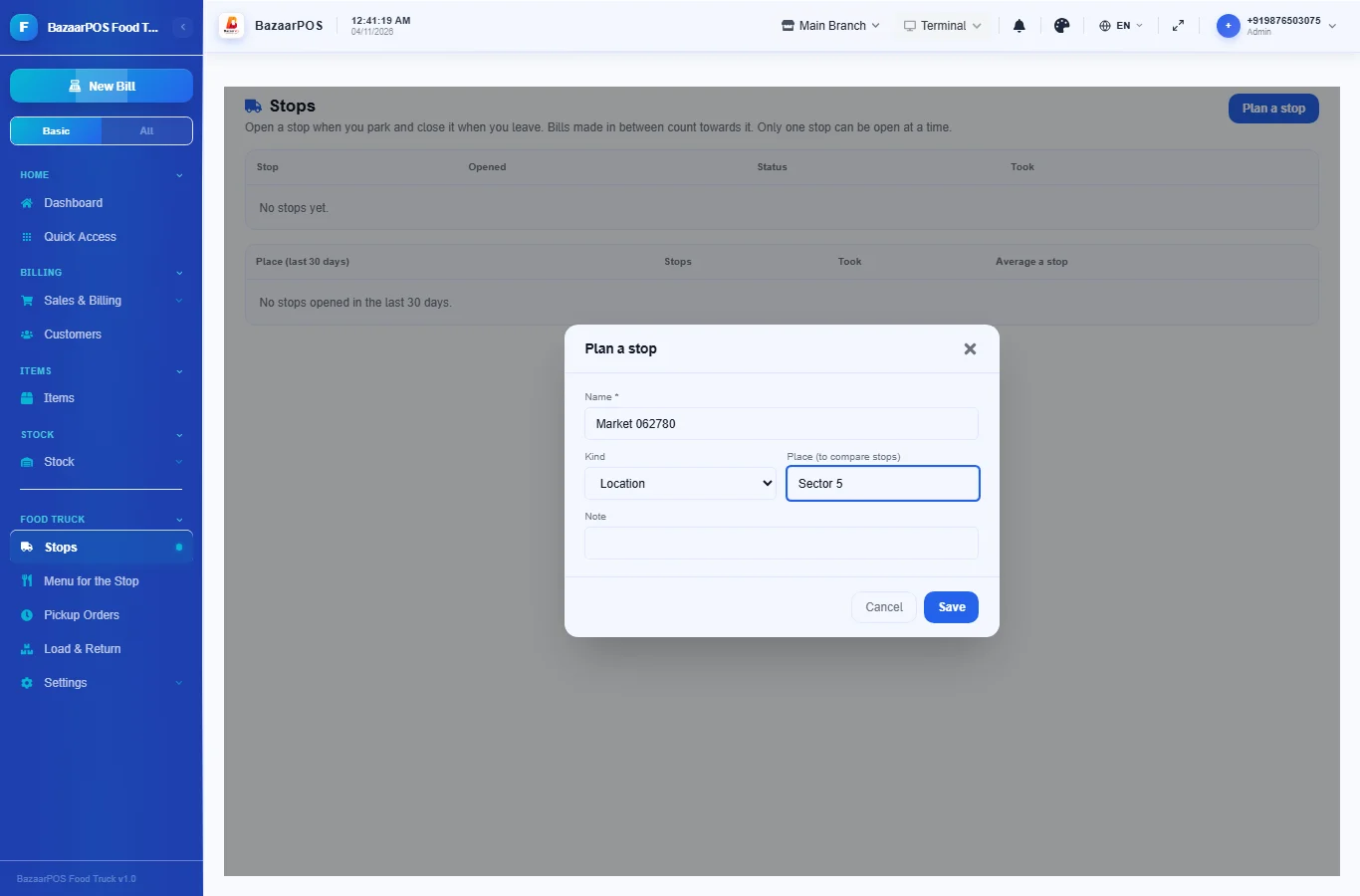
Step 2: Choose the menu
In Menu for the Stop choose the stop and search for the items you are selling. Press Sold out when one runs out. With nothing chosen the whole menu is on. This is a board for the crew; the billing screen still shows every item.
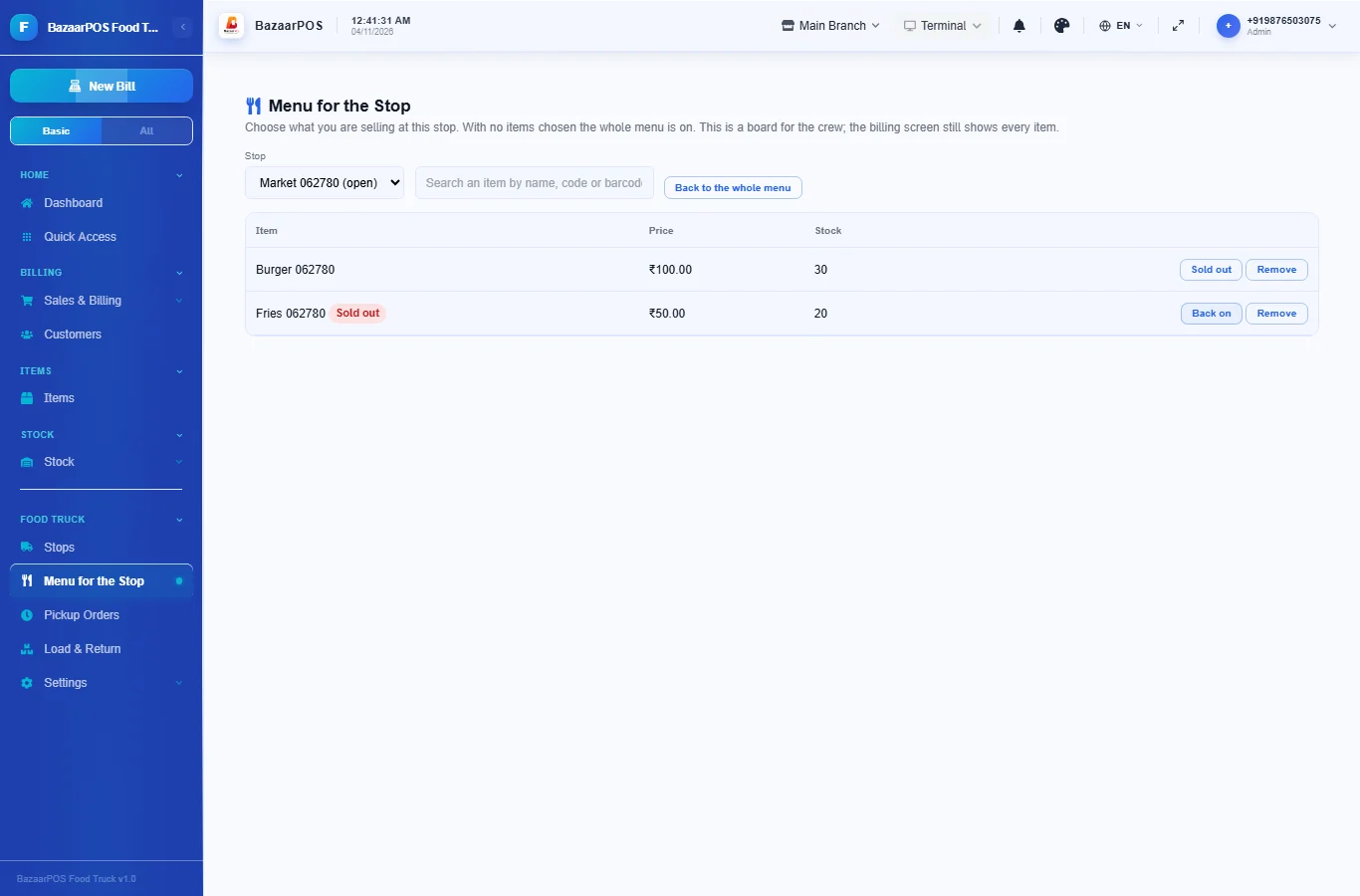
Step 3: Load the truck
In Load & Return choose the stop, pick an item and the quantity and press Load it. Your stock in the books is not moved; this is a count to check against.
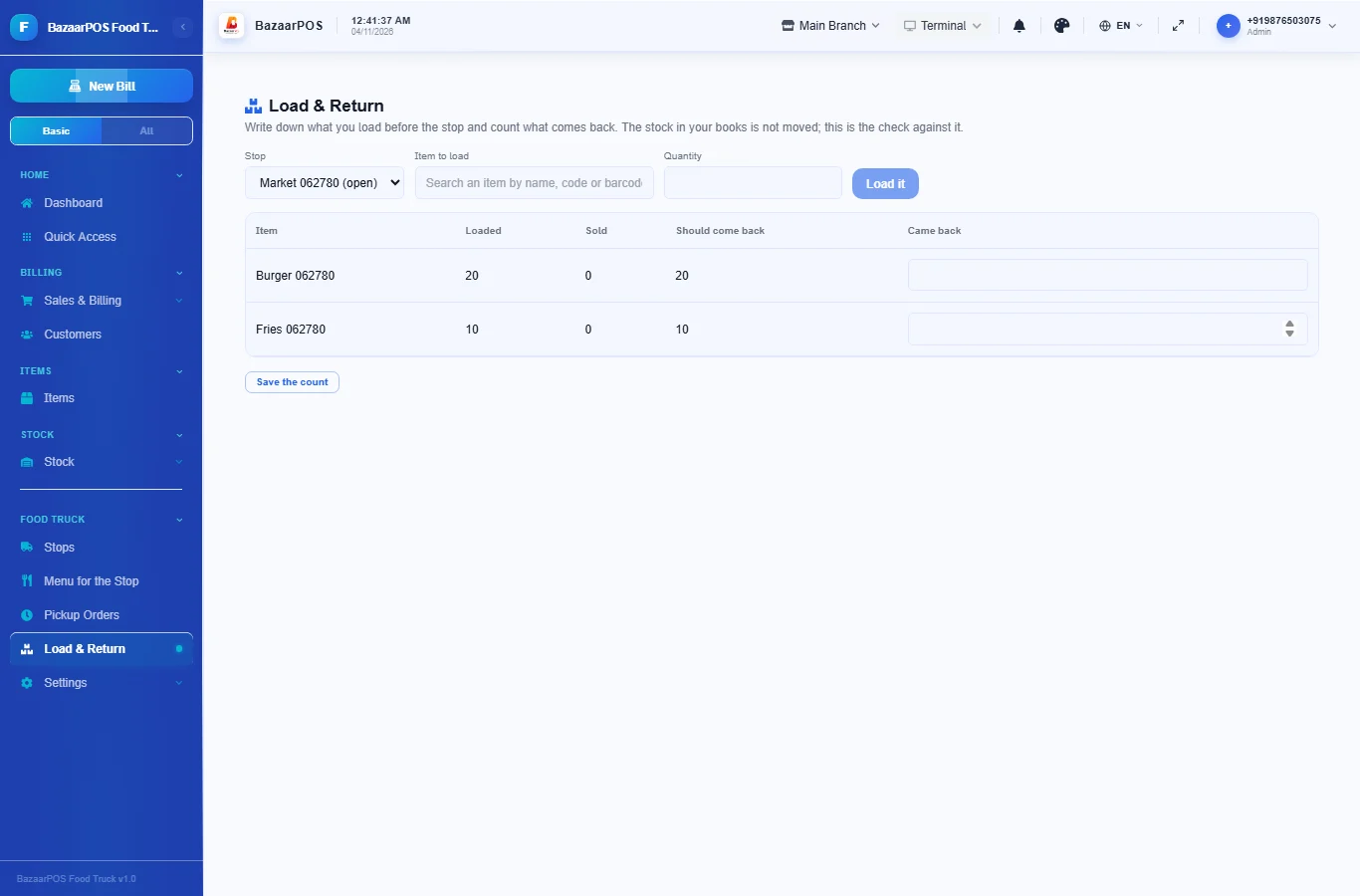
Step 4: Sell as usual
Bill on the normal billing screen. Bills made while the stop is open count towards it.
Step 5: Count back
When you return, type what came back for each item and press Save the count. The sheet shows what sold and what should have come back, and marks any difference.
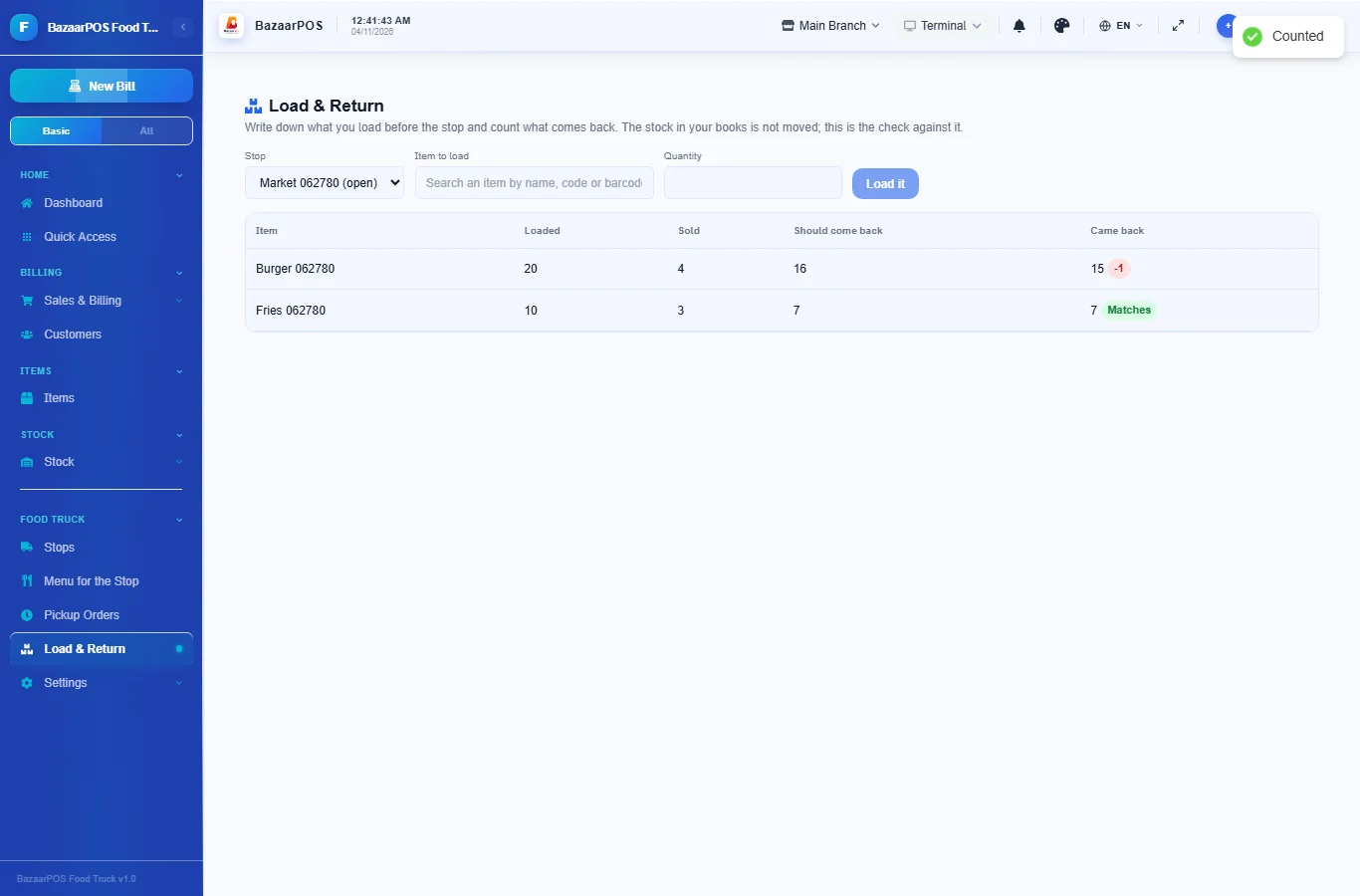
Step 6: Take pickup orders
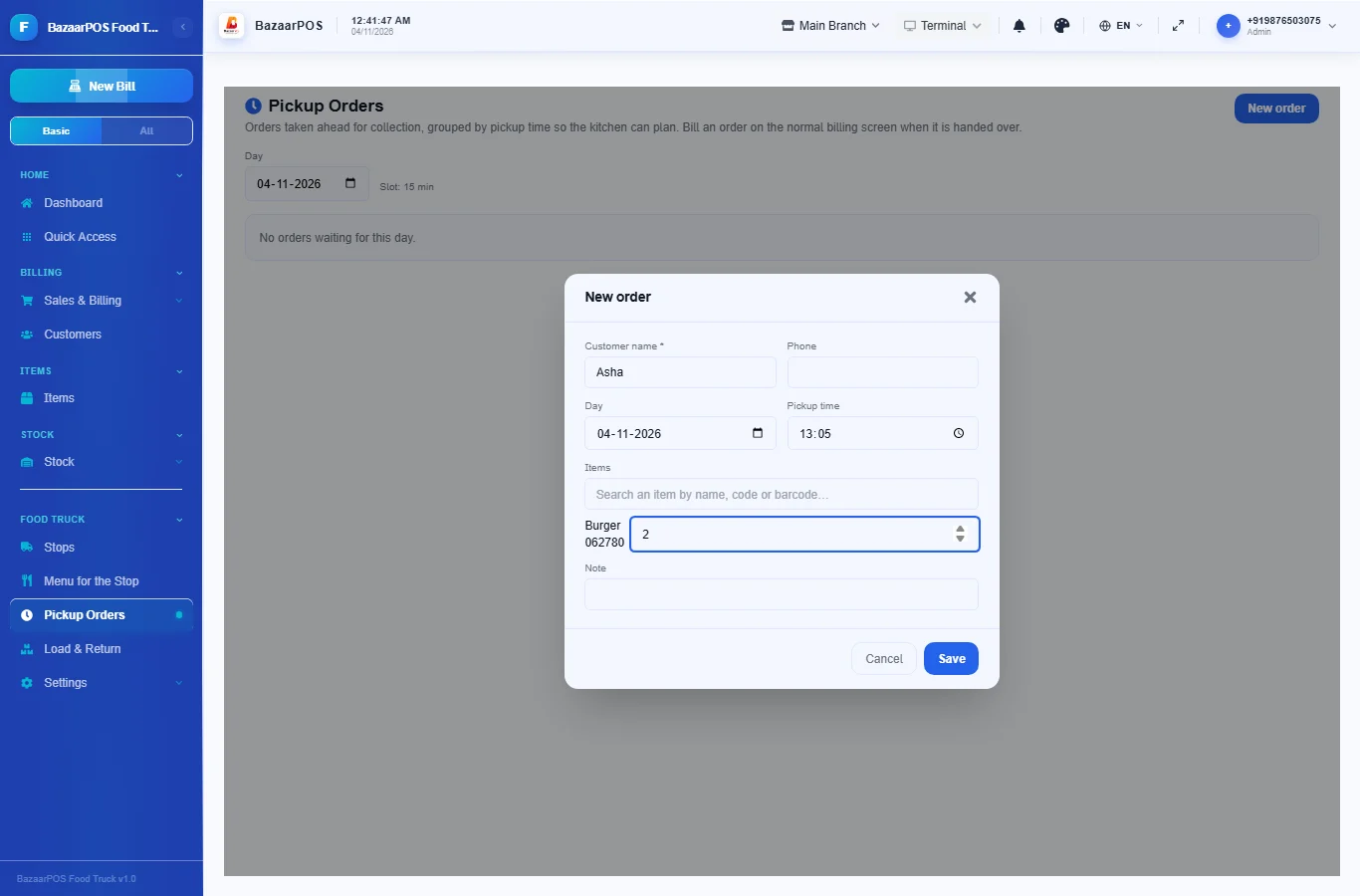
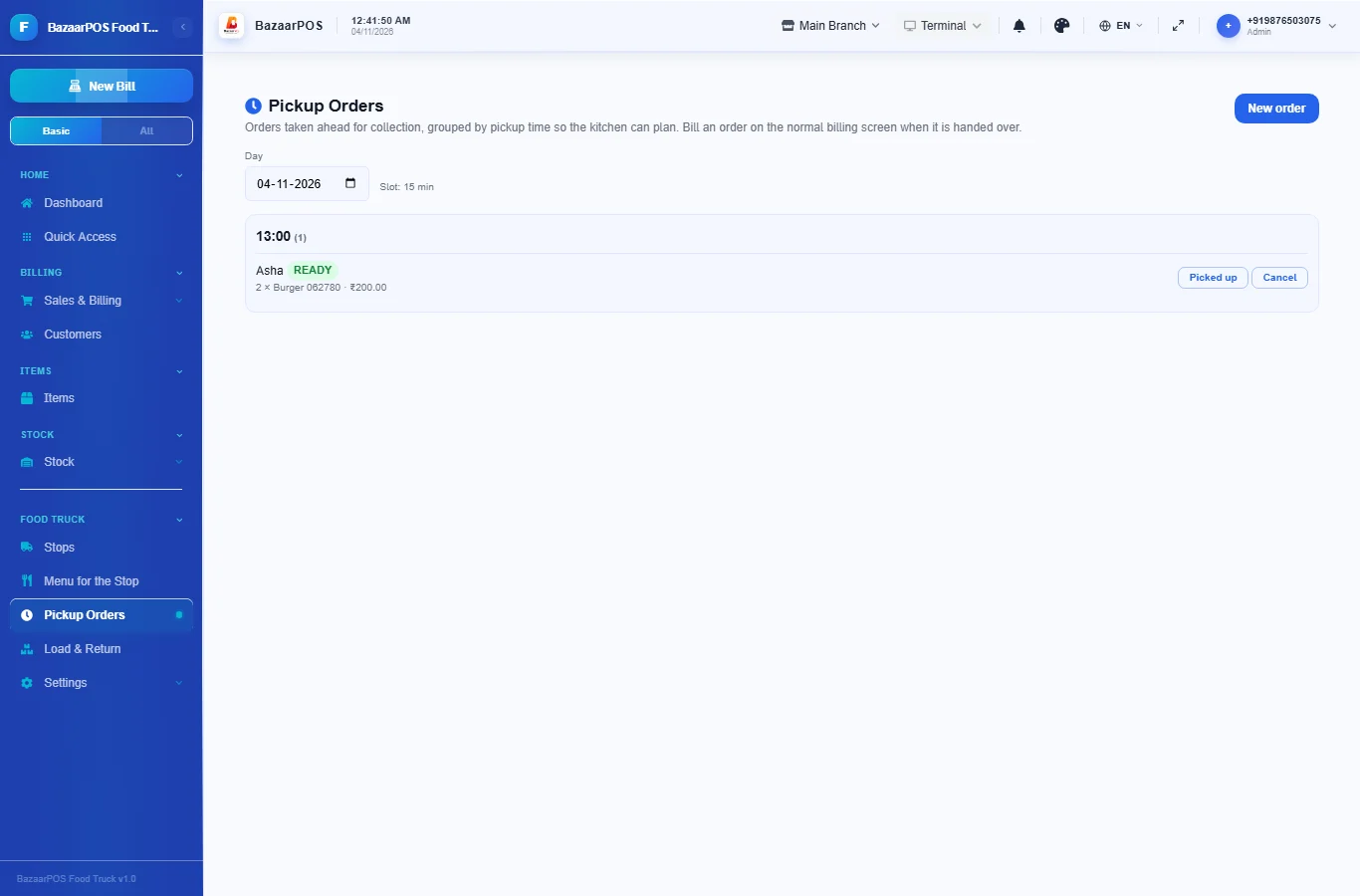
In Pickup Orders press New order, enter the customer, the day and time, and the items. Orders are grouped into slots (15 minutes to start). Press Ready and then Picked up, and bill the order on the billing screen.
Step 7: Close and read the report
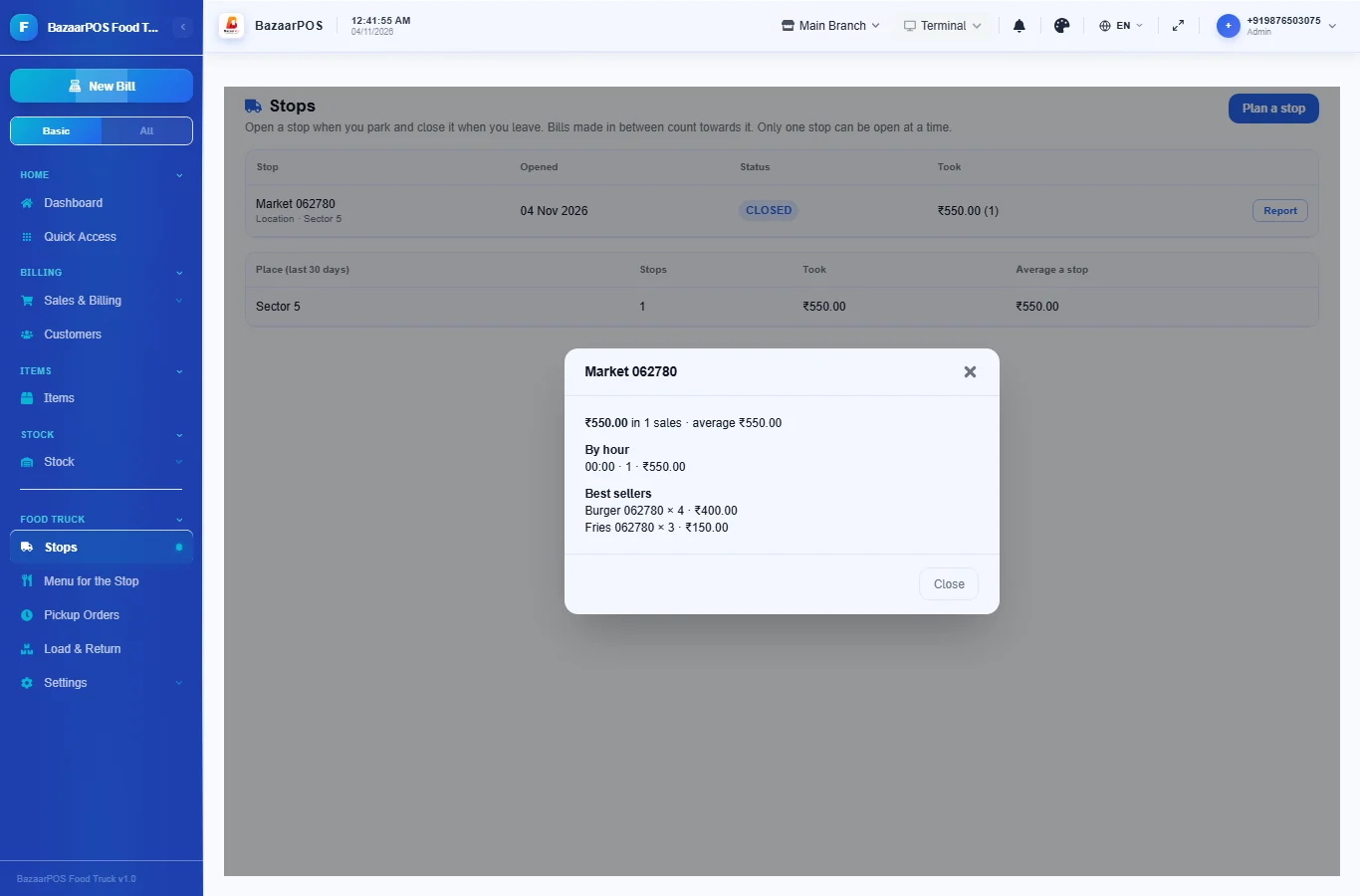
Press Close on the stop. Report shows the takings, the average sale, sales by hour and best sellers, and the table below the list compares places over the last 30 days.
On the phone
The phone app has Stops, Menu for the Stop, Pickup Orders and Load & Return.
Also useful here
- Barcode labels: see Barcodes.
- Counting stock: see Stock count.
- Importing items: see Import and export.
- Expiry dates and batches: see Expiry monitor.
Questions
How does a bill count towards a stop?
By the time it was made: it must fall between the stop being opened and closed.
Does it track the truck’s location?
No. You name the stop yourself.
Does loading move stock?
No. It is a count to check against your books.
Which plan includes what
Food Truck comes in Basic, Advanced and Enterprise plans. A screen your plan does not include shows a message with how to upgrade.
- Basic: billing, items, customers, reports, stops with takings, the short menu.
- Advanced: everything in Basic, plus pickup orders and load and return.
- Enterprise: everything in Advanced, plus more than one branch and AI sales forecasting.