Printing Press Setup
Run a printing press in BazaarPOS: a rate card by piece, set or square foot, quotes that become job tickets, proofs approved by version, paper taken off stock, partial deliveries with challans and billing with your country's tax.
How it fits together
You keep your normal Items, Customers, billing, purchase orders and special orders. Nothing is entered twice. Each product on the rate card is a normal service item, so the tax of your country comes from it. The paper is a normal item whose stock comes off when a job is ready, the customer is a normal customer (credit customers pay through the normal dues) and the finished job is billed as a normal sale. Added on top are the quotes, the job tickets, the proofs, the challans and the costing.
- Rate Card: products, quantity prices, paper, finishing and settings.
- Quotes: the price worked out as you type, then a job ticket in one step.
- Job Tickets: proofs by version, stages, costing, deliveries.
- Report: revenue, cost and margin by product.
Step 1: Build the rate card
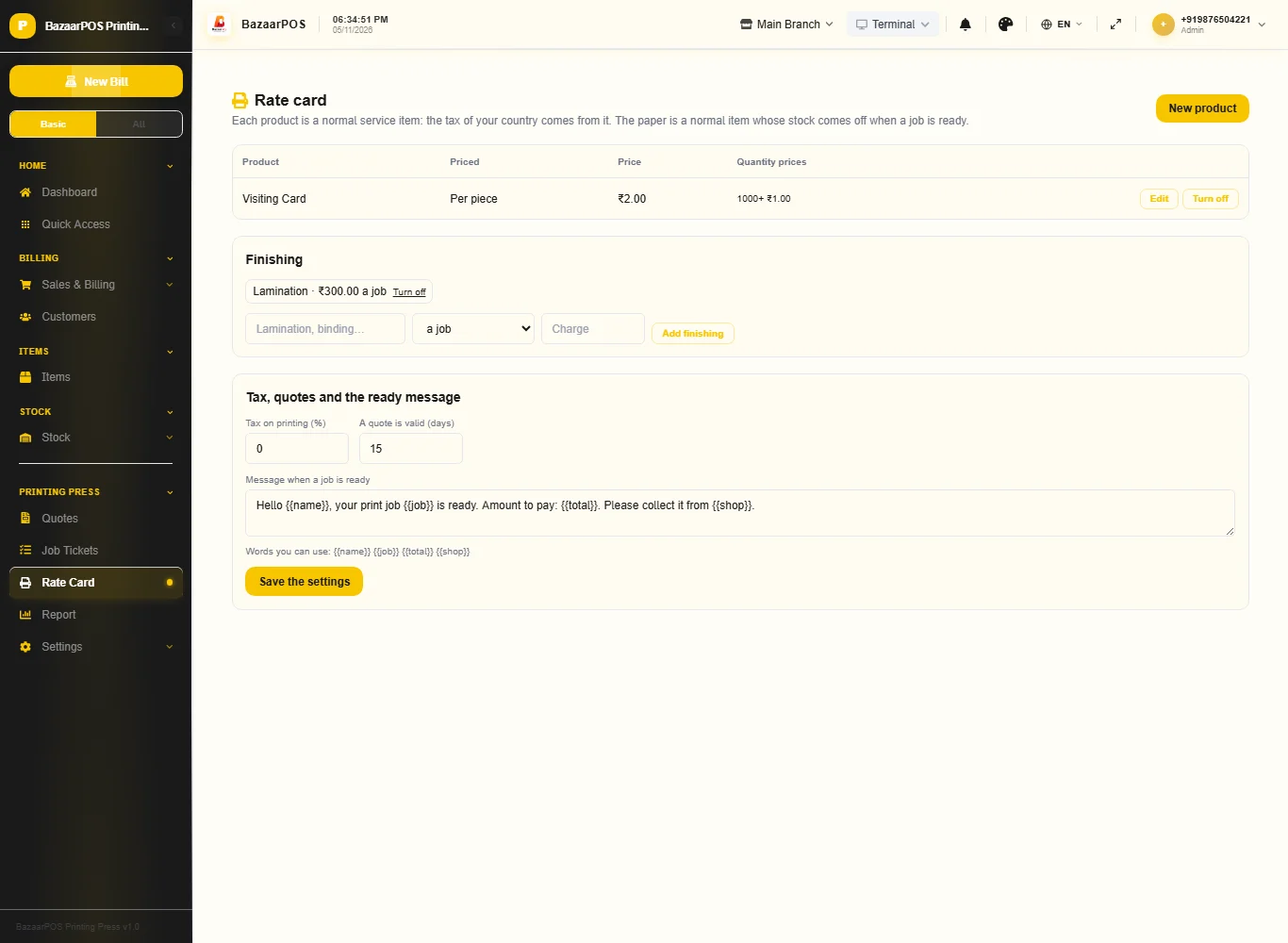
Open Rate Card and press New product. Choose how it is priced: a price for each piece (with cheaper prices from a quantity, such as 1000:1), for each set, or for each square foot. Add an extra for two sides, and search the paper from your items with the paper used for each piece and the wastage. Add finishing such as lamination, charged for the job or for each piece, and set the tax.
Step 2: Make a quote
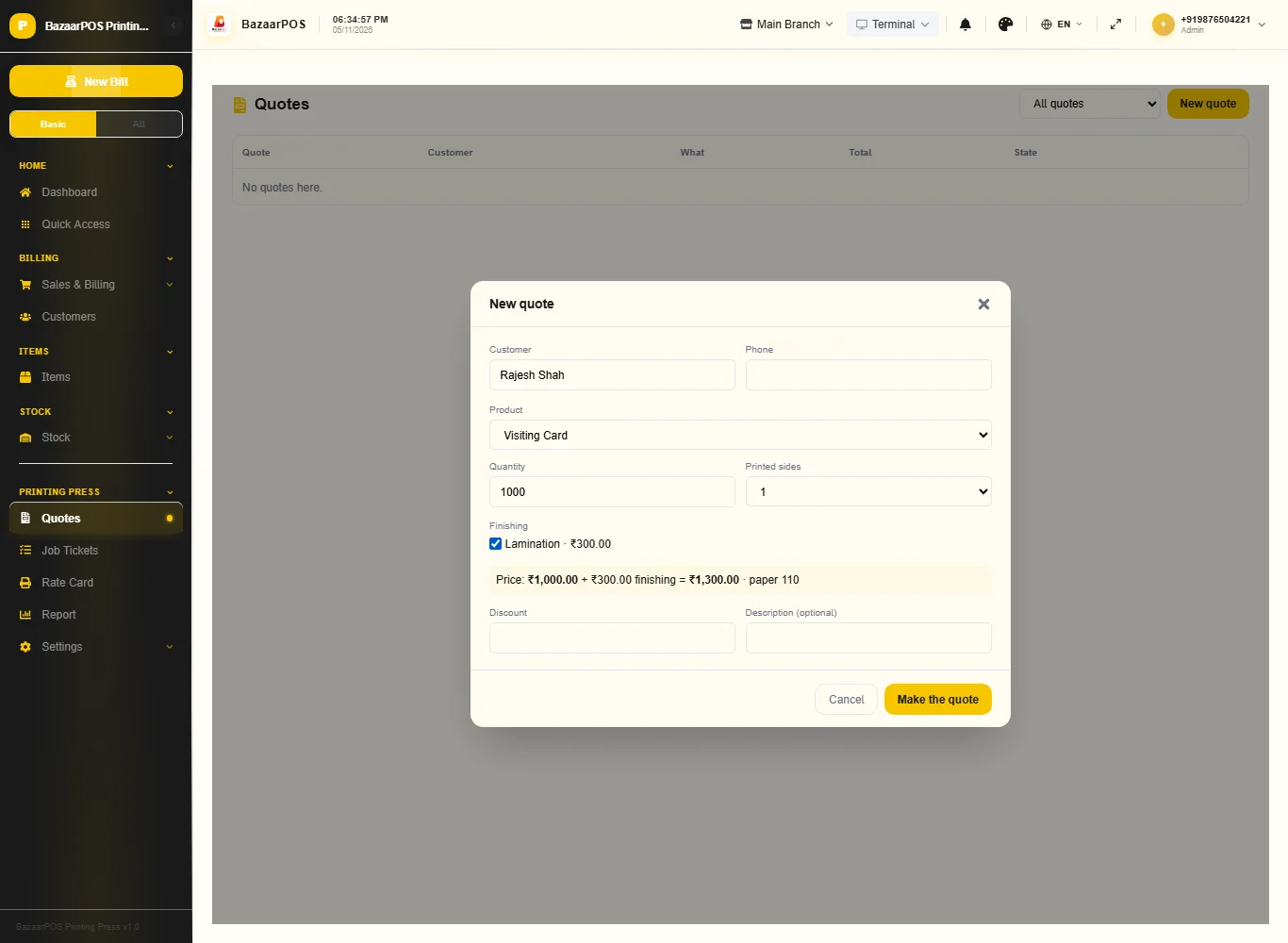
Open Quotes and press New quote. Choose the product, the quantity (and the size in inches for square-foot products), the sides and the finishing: the price and the paper needed show as you type. Press Make the quote.
Step 3: Turn it into a job
Mark the quote approved and press Make the job: type the delivery date, an advance and the operator. A quote that has passed its valid date cannot be approved.
Step 4: Approve the proof
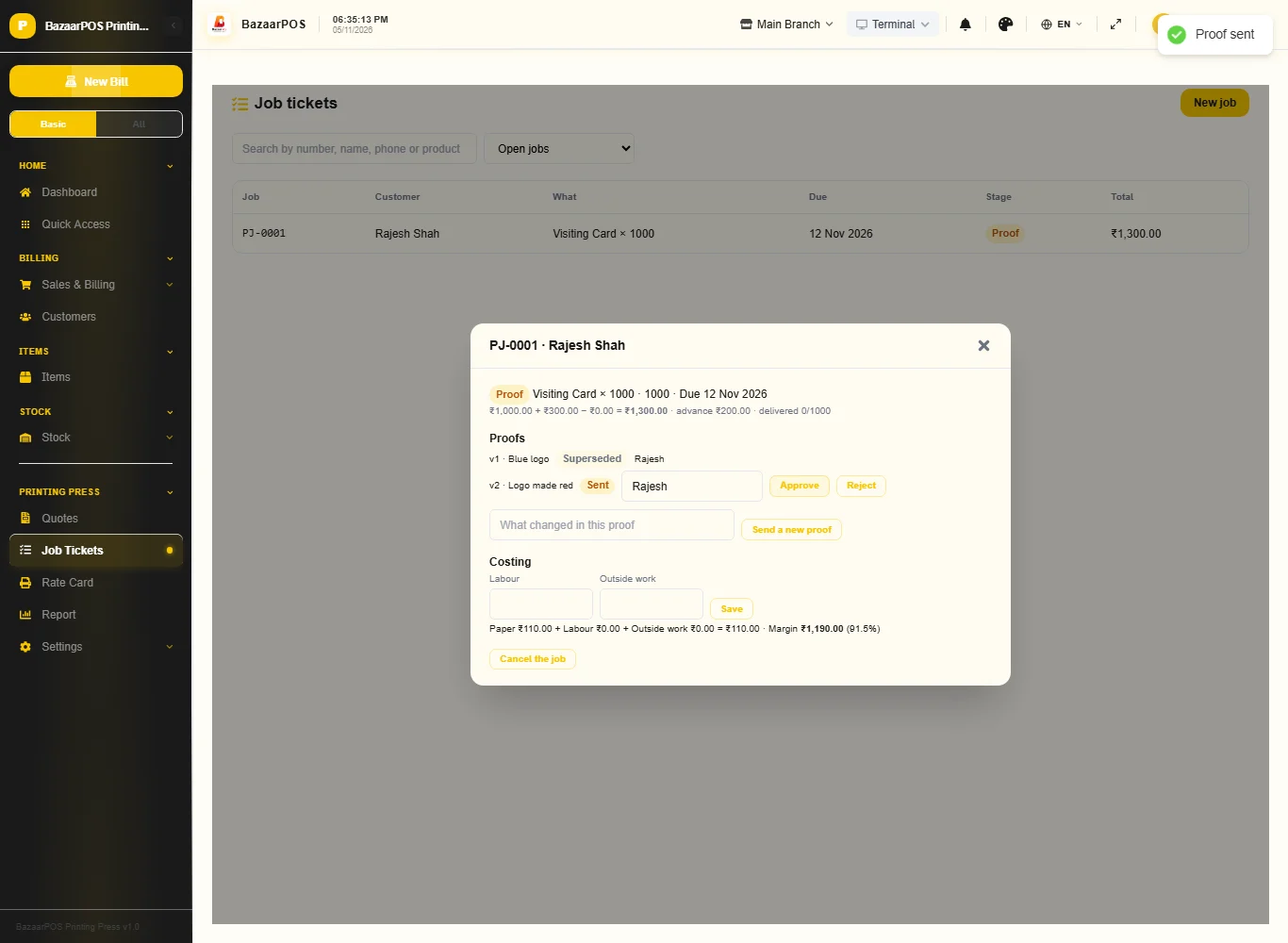
Open the job and press Send the proof. When the customer agrees, type who approved it and press Approve. If you send a new proof the earlier one is replaced and the approval is void, so printing only starts on the version the customer approved. A rejected proof sends the job back to design.
Step 5: Print, finish and ready
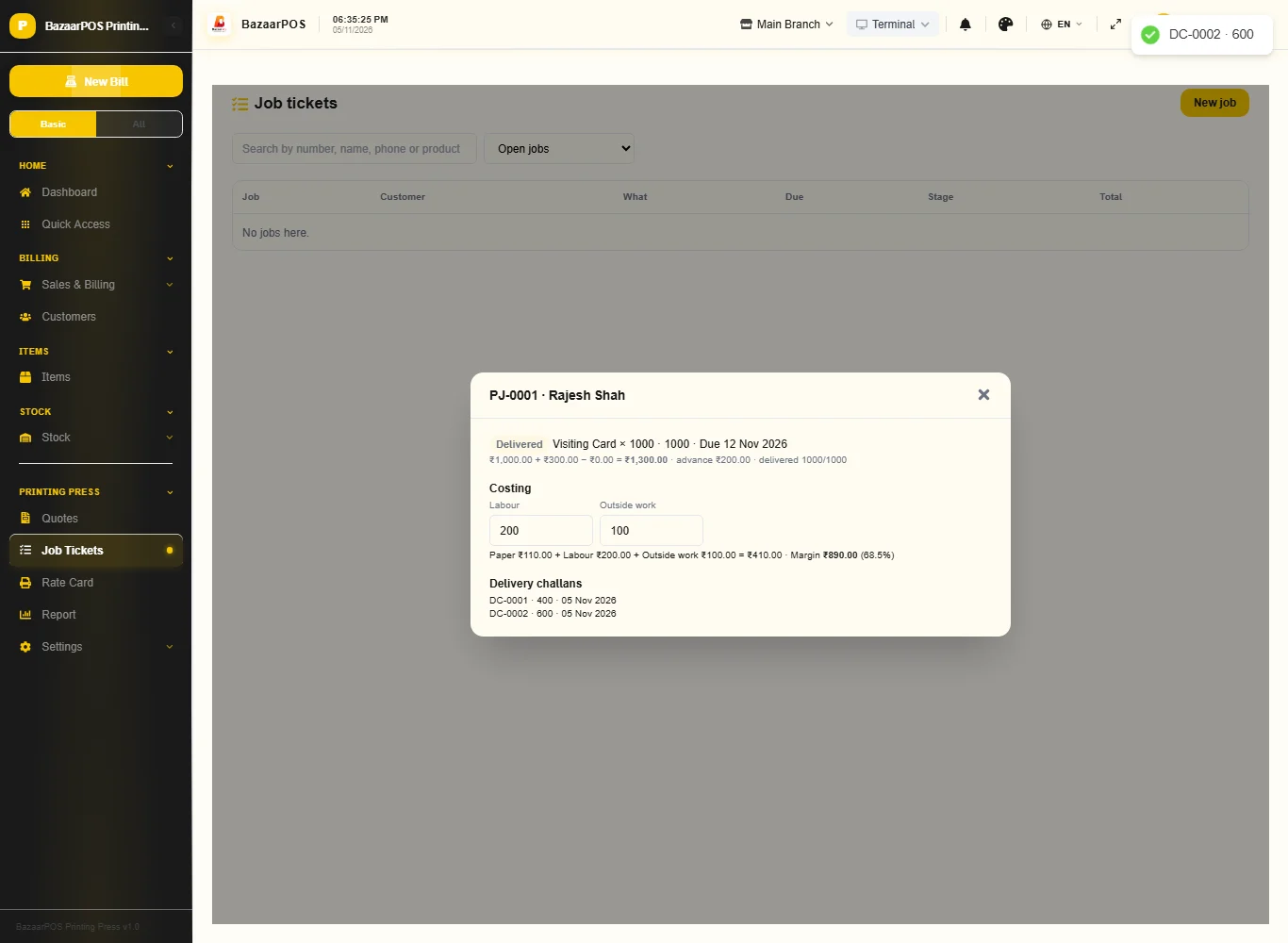
Move the job to Press, Finishing and Ready. When it becomes ready the paper comes off stock; if there is not enough the job stays in finishing and says so. Type the labour and outside work costs to see the margin.
Step 6: Deliver with a challan
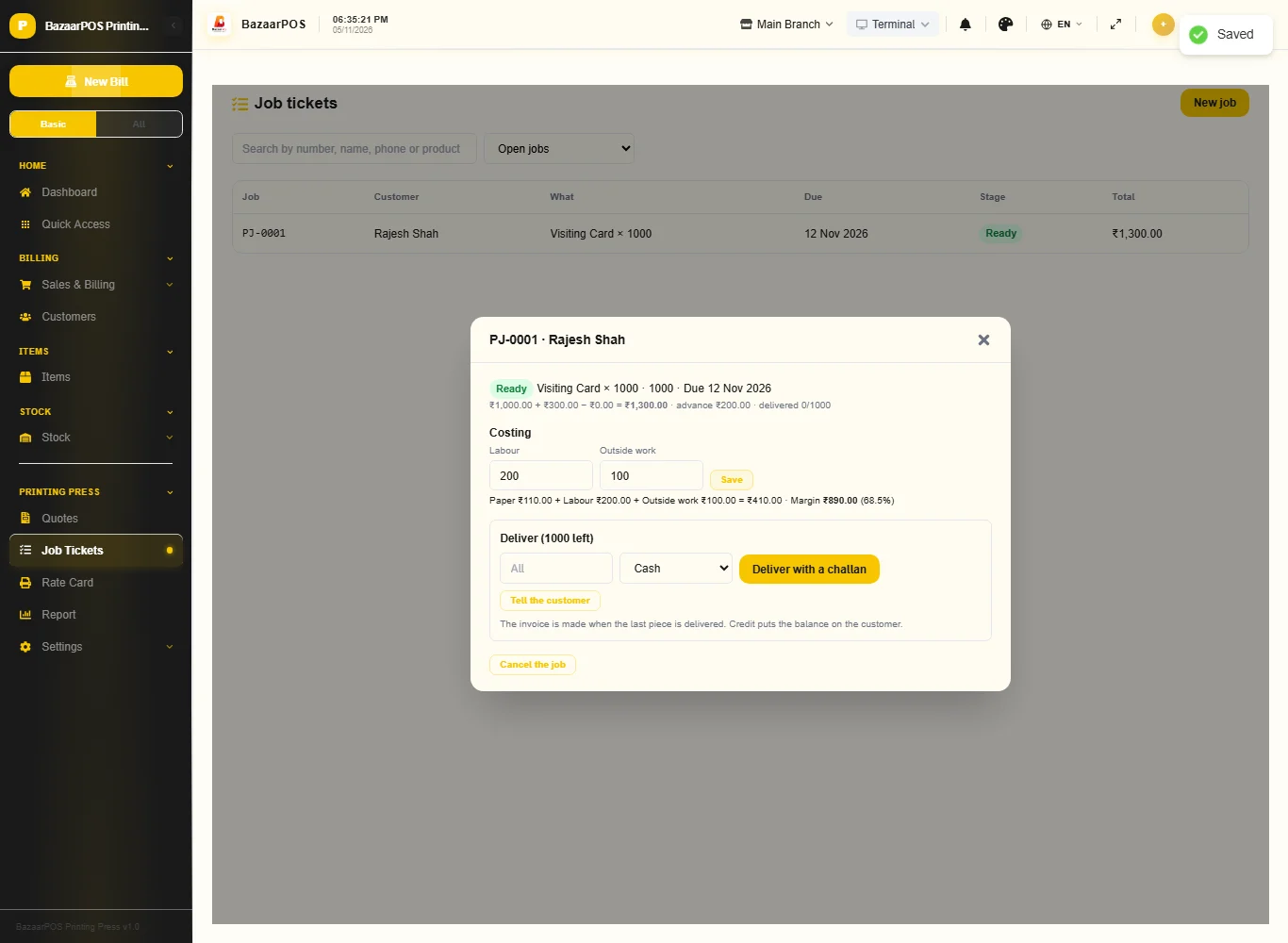
Press Deliver with a challan, with the number of pieces if it is only part of the job. Each delivery gets its own challan number. When the last piece goes the job is billed as one normal sale; choose Credit to put the balance on the customer.
Step 7: The report
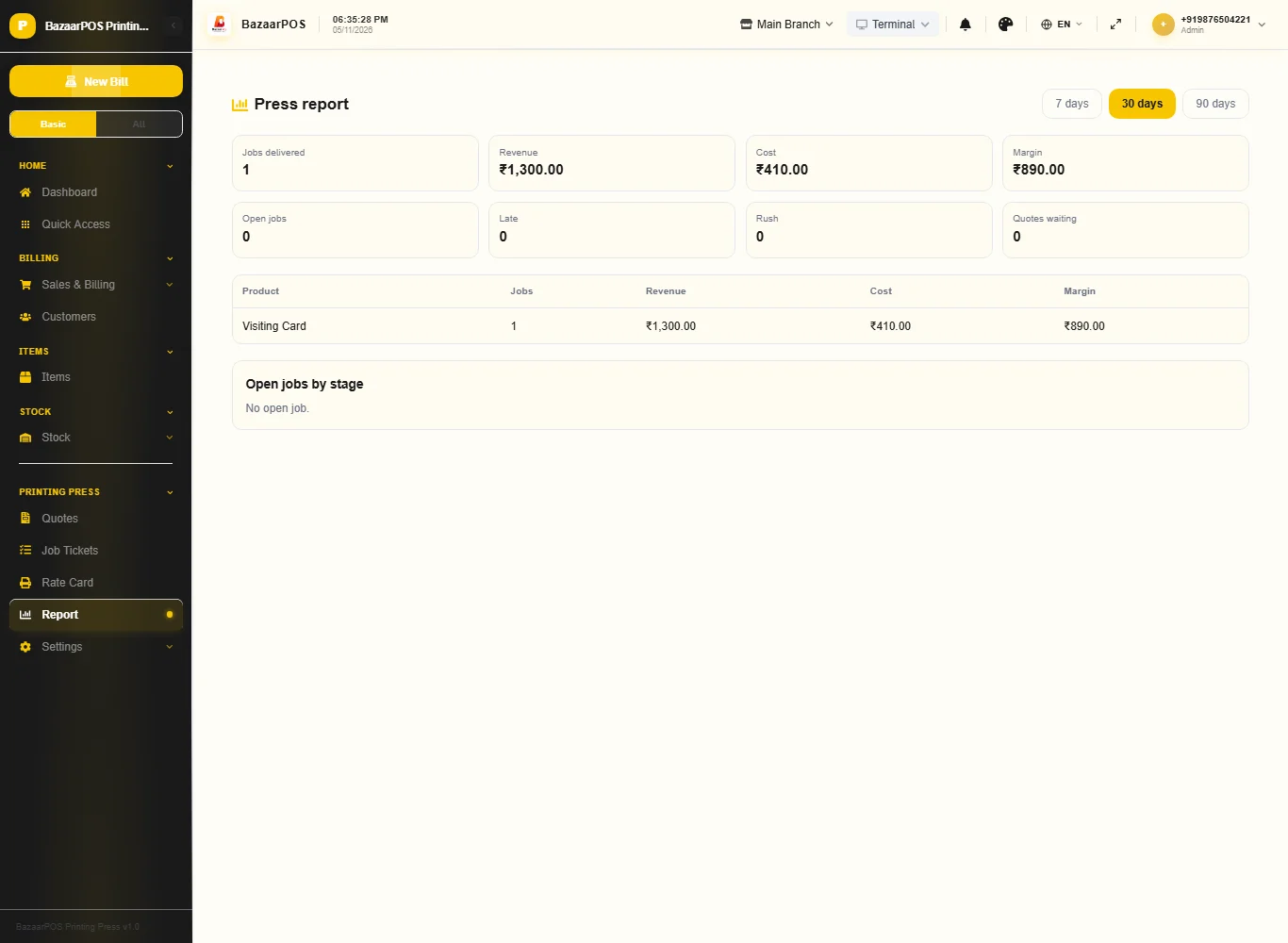
Open Report for jobs delivered with revenue, cost and margin, open, late and rush jobs, quotes waiting and the margin by product.
On the phone
The phone app has Job Tickets (send and approve proofs, move stages, deliver with a challan), Quotes and Report.
Also useful here
- Barcode labels: see Barcodes.
- Counting stock: see Stock count.
- Importing items: see Import and export.
- Expiry dates and batches: see Expiry monitor.
Questions
Is this separate from items and billing?
No. A product is a service item, the paper is an item, the customer is a customer and the finished job is a normal sale.
What if there is not enough paper?
The job cannot become ready and stays in finishing until the stock is added.
Does it take print files or run a press?
Not a press, and not print-ready files. A proof can carry a link to its file or a small picture or PDF so you can see the version that was approved.
Does it use my country's tax?
Yes. The product items carry the tax and the invoice is made by the shared sale code.
Is there a phone version?
Yes. Job tickets (proof, stage, deliver), quotes and the report are on the phone.
Which plan includes what
Printing Press comes in Basic, Advanced and Enterprise plans. A screen your plan does not include shows a message with how to upgrade.
- Basic: billing, items, customers, reports, the rate card, quotes and job tickets.
- Advanced: everything in Basic, plus costing and the report.
- Enterprise: everything in Advanced, plus more than one branch and AI sales forecasting.