Sports & Fitness Setup
Run a sports shop in BazaarPOS: find goods by sport and level, follow every stringing or repair job to pickup, take team kit orders with sizes and a deposit, and rent out equipment by the day.
How it fits together
You keep your normal Items, Customers, billing, purchase orders and special orders. Nothing is entered twice. A bat or a pair of shoes is an ordinary item. Sizes use the item variants the garment and footwear shops use. A team order is a normal special order, so ordering from your supplier works as usual.
- Sports Goods: sport, gender, level, brand, material and warranty on any item, and a finder.
- Repairs & Services: a board for stringing, grips, bat repairs, tune-ups and fitting, with payments.
- Team & Club Orders: sizes, print text and a deposit.
- Equipment Rental: kit by the day with a deposit.
Step 1: Add the sports details
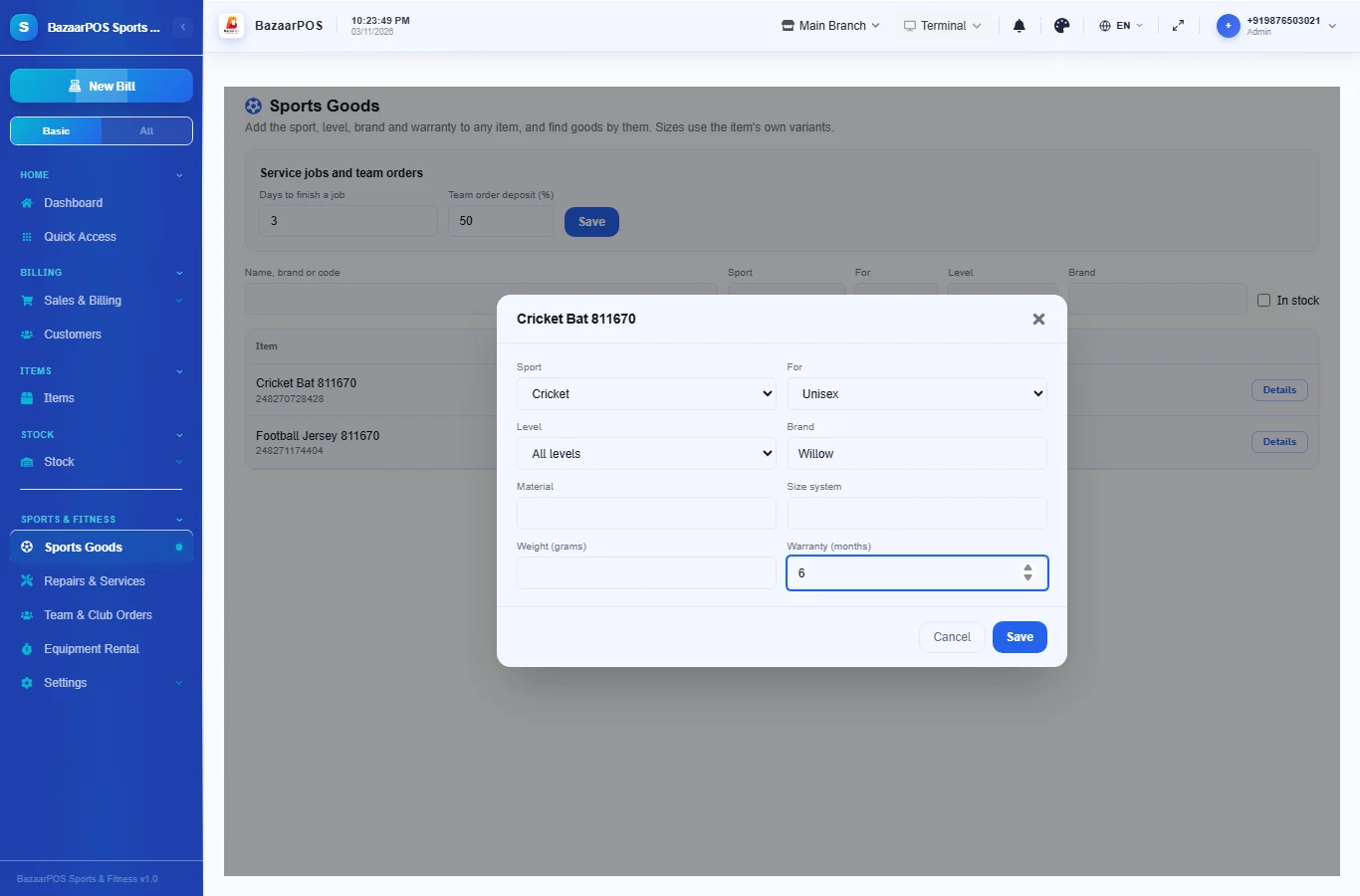
Open Sports Goods, press Details on an item and choose the sport, who it is for, the level, the brand and the warranty in months. Use the item’s variants for sizes and colours.
Step 2: Take in a repair or service job
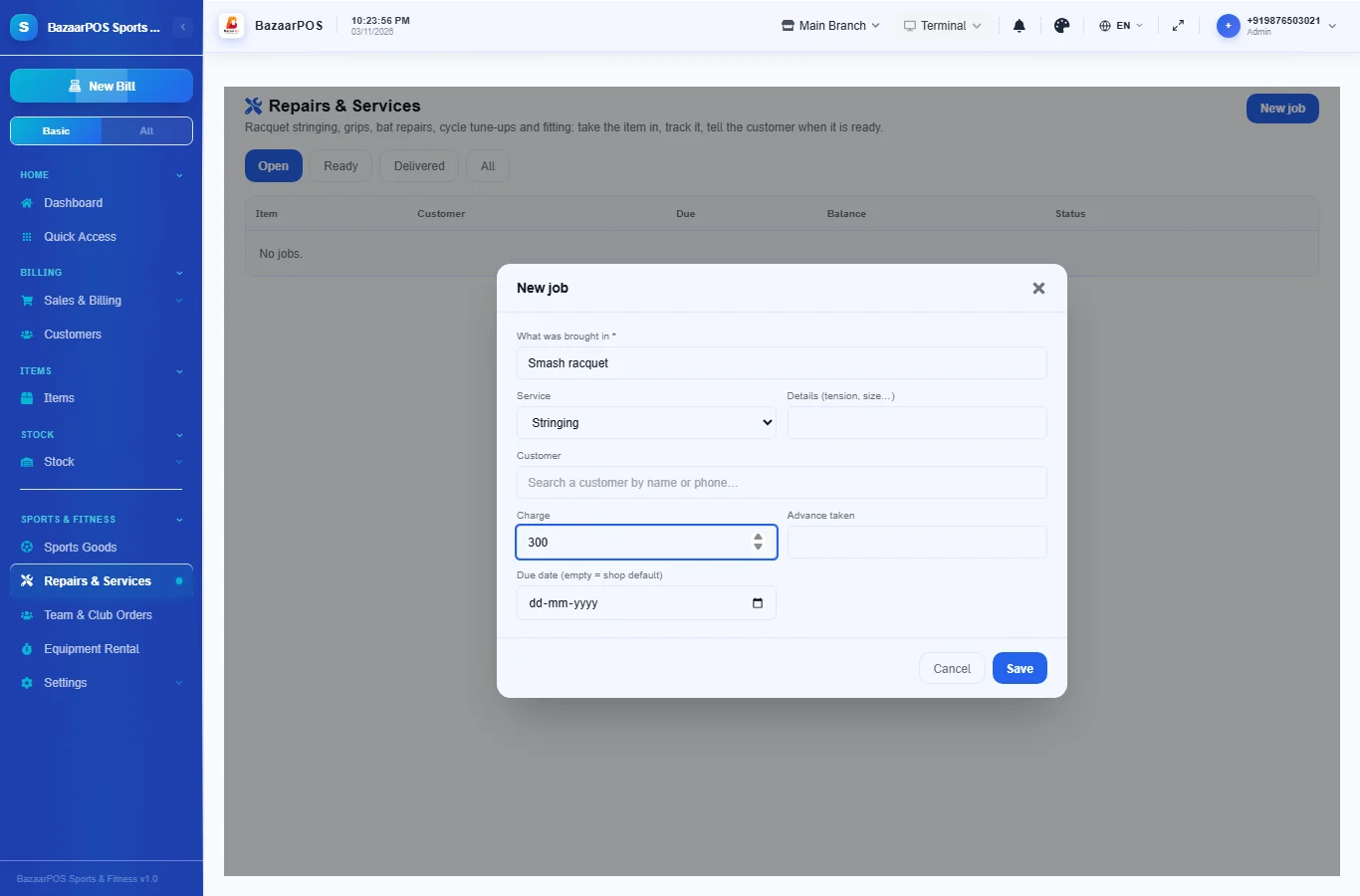
Open Repairs & Services and press New job. Write what was brought in, choose the service, add details such as the string tension, the charge and any advance. The due date is filled in from your shop’s job days.
Step 3: Move the job along and take the balance
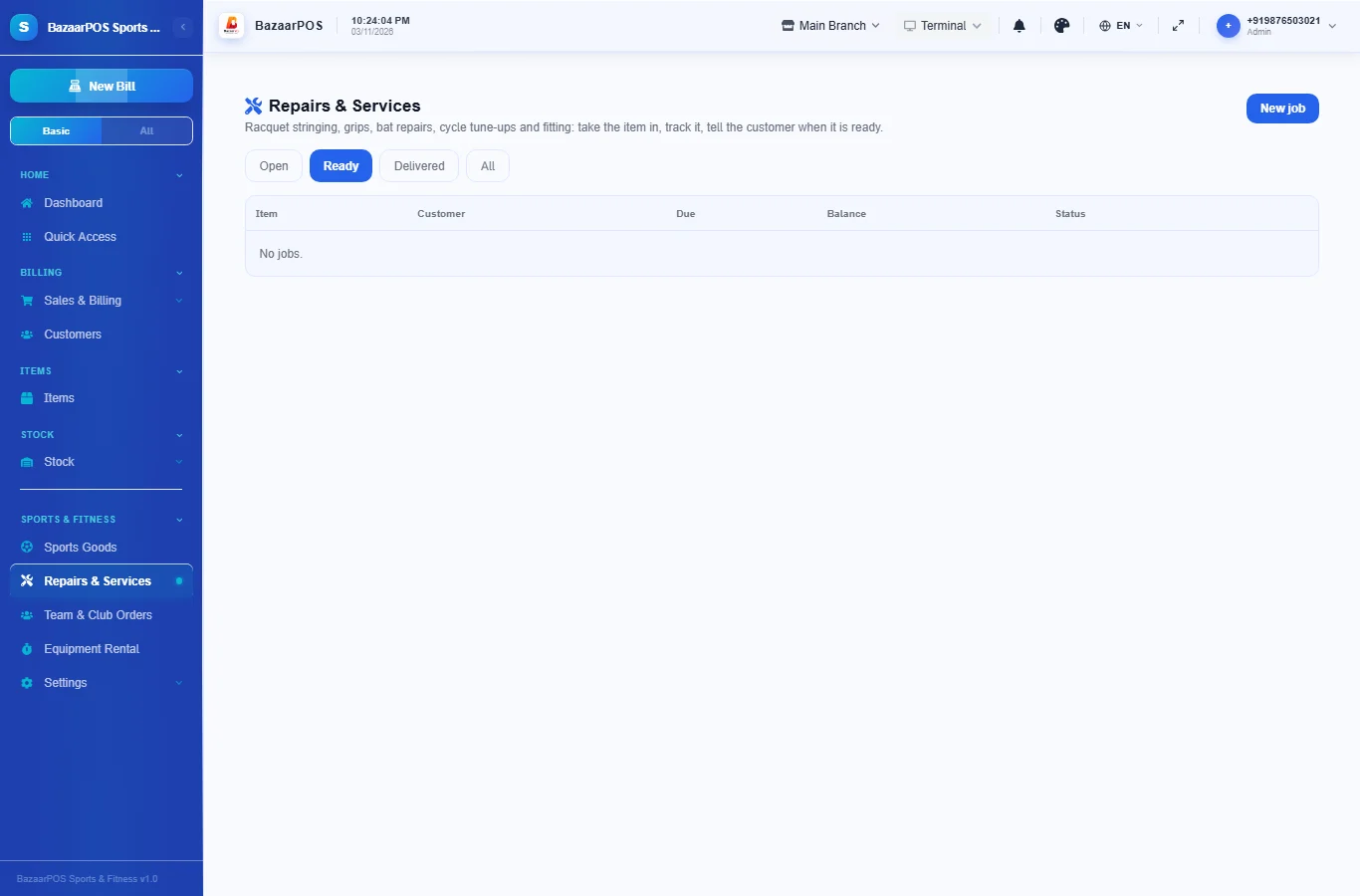
Press Take payment to take part or all of the balance. Use the buttons to mark the job in progress, ready and delivered. A job that is late is marked.
Step 4: Take a team order
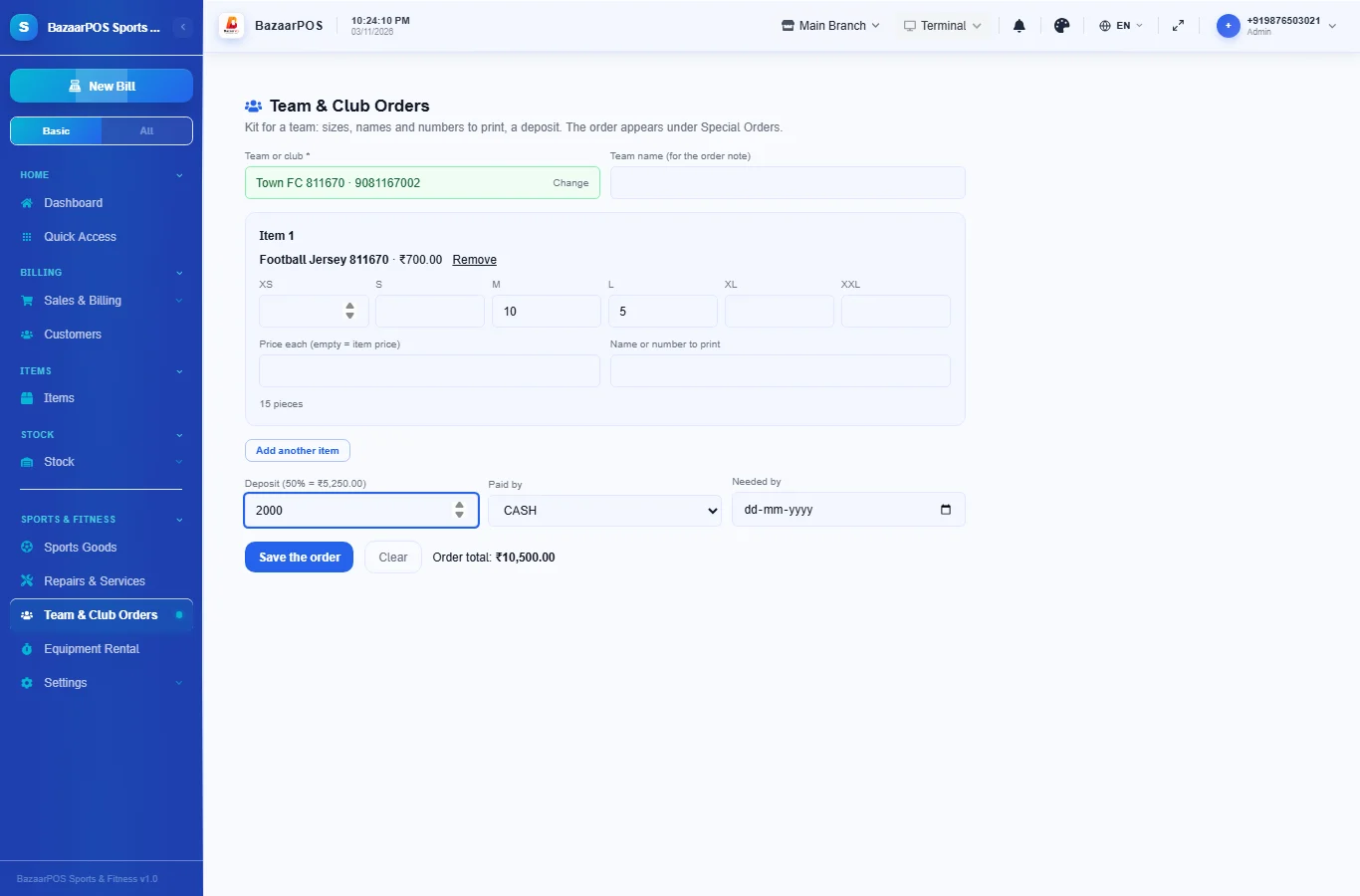
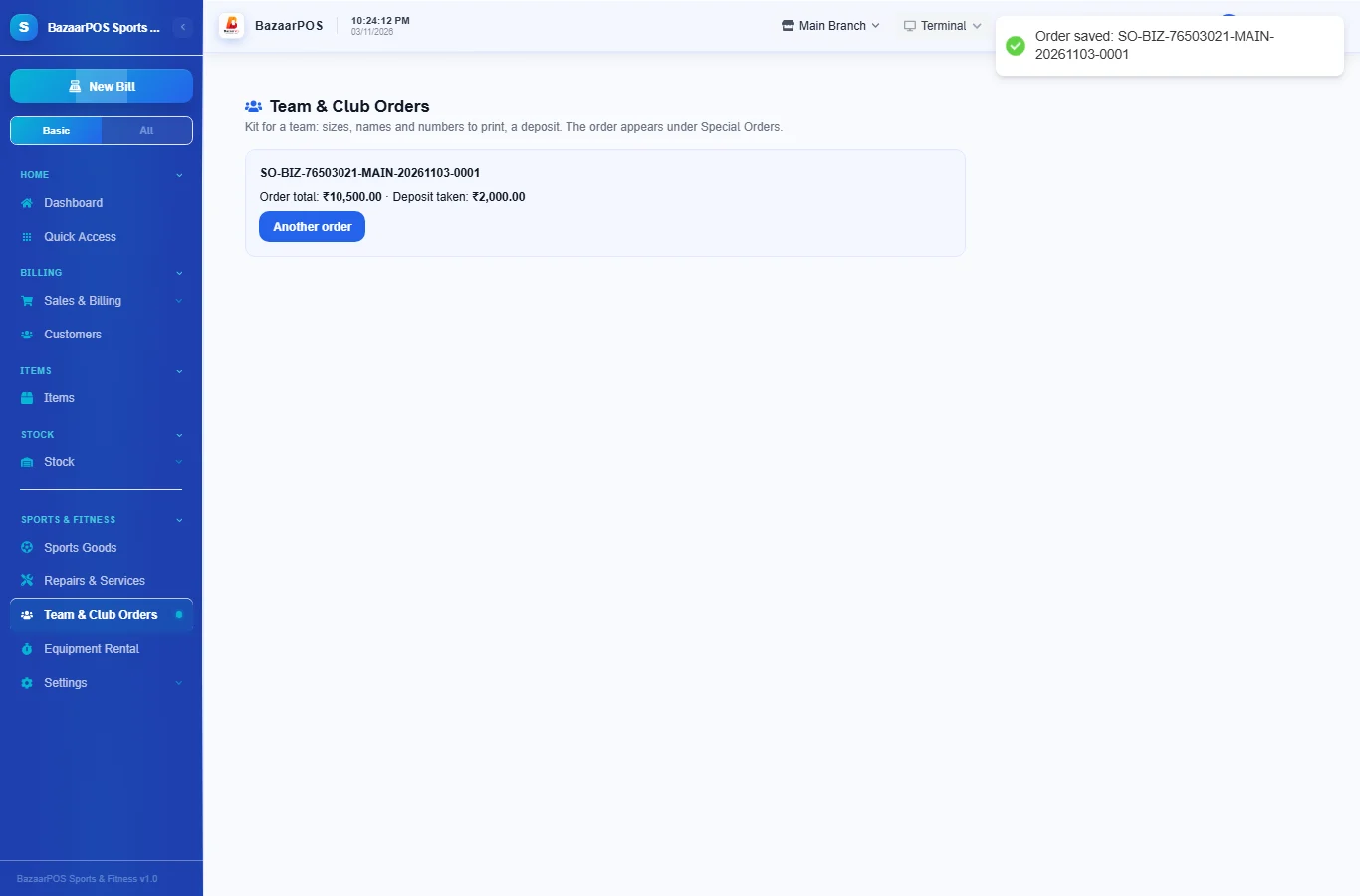
Open Team & Club Orders. Choose the team or club, pick each item, enter how many of each size, the price if it differs and the name or number to print. Enter a deposit; your usual percent is shown. The order appears under Special Orders and is ordered from your supplier as usual.
Step 5: Rent out equipment
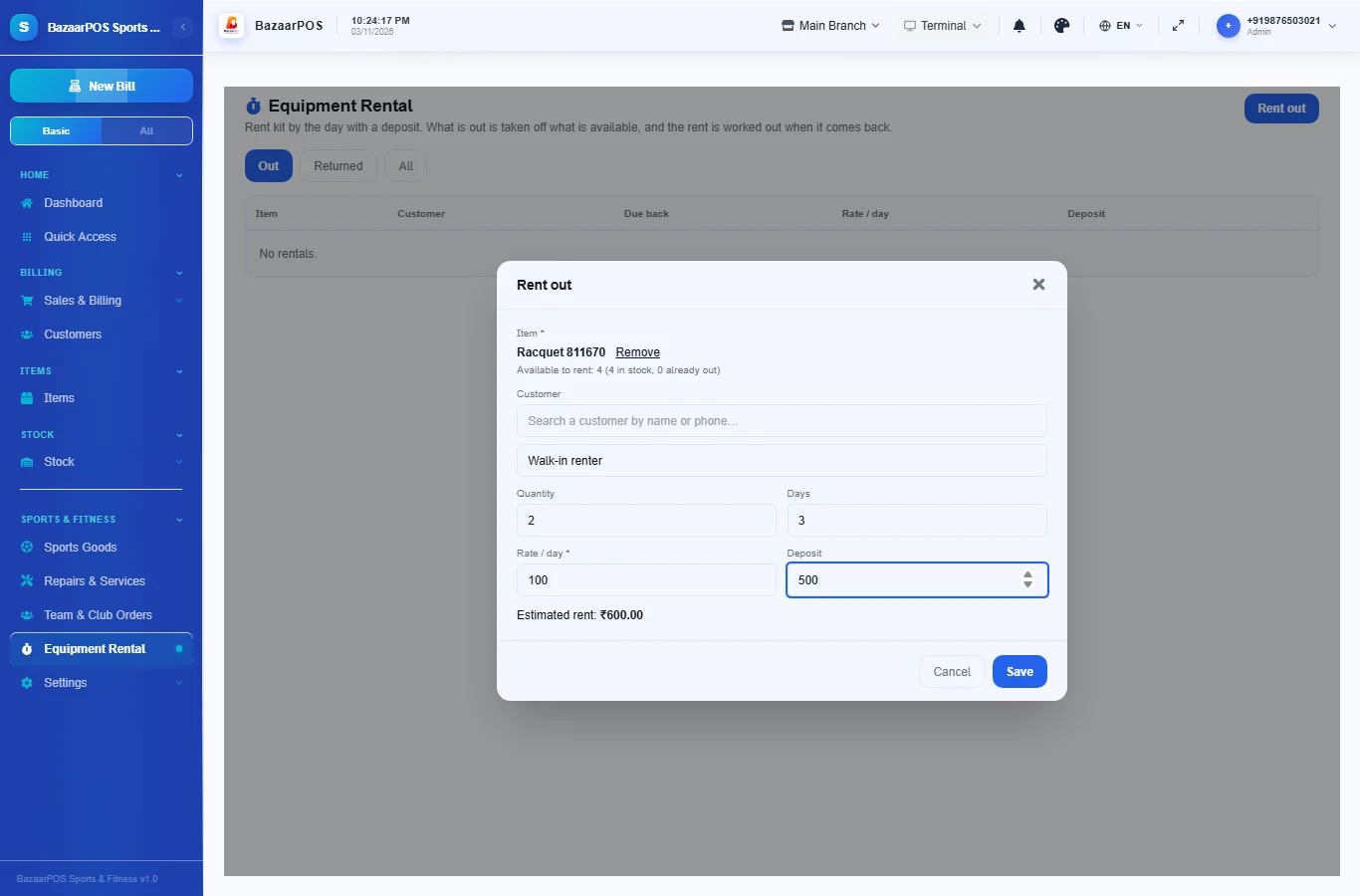
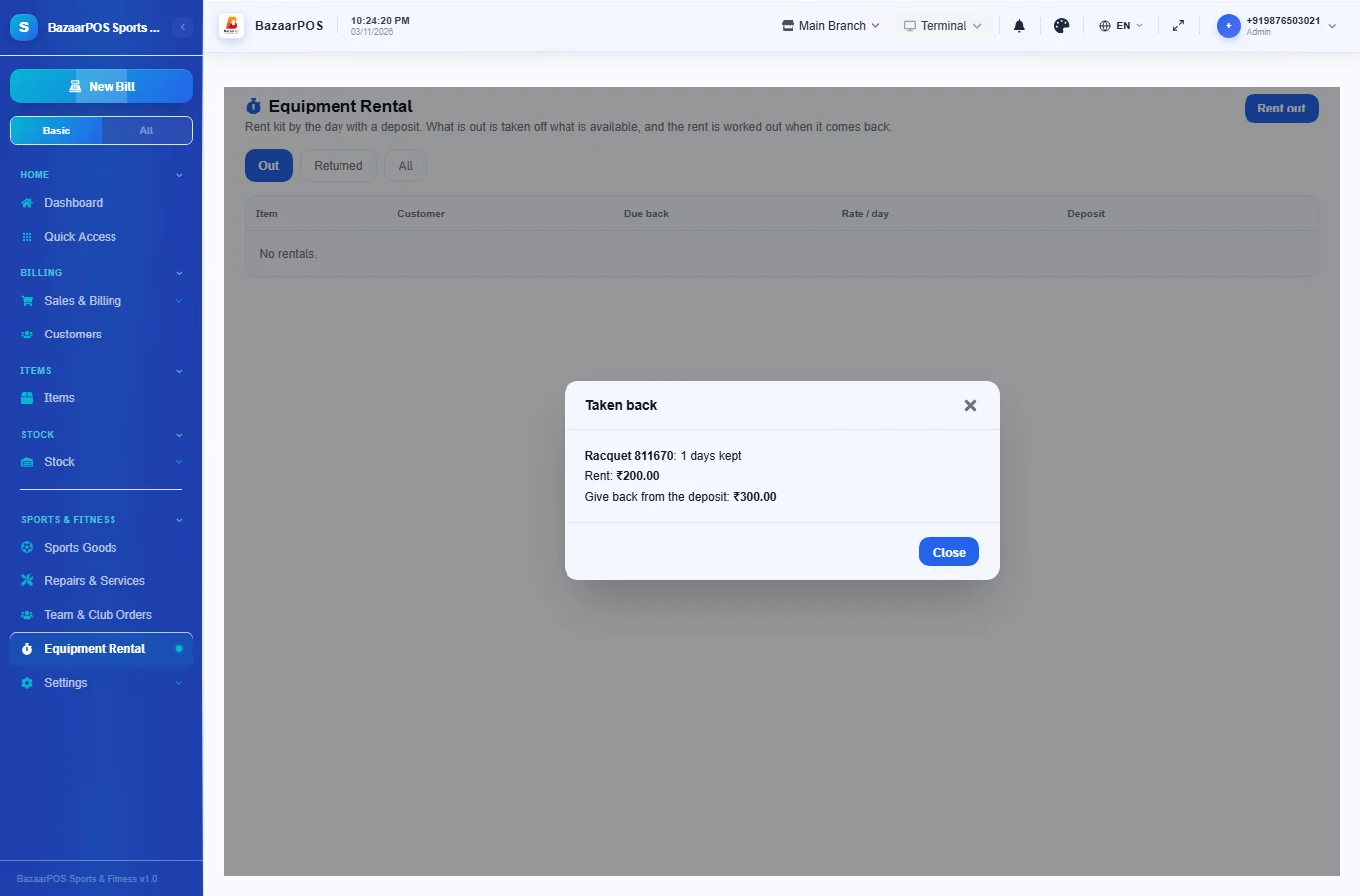
Open Equipment Rental and press Rent out. Choose the item (you see how many are available to rent), the customer, the quantity, the days, the rate a day and a deposit. When it comes back press Take back: the rent is worked out from the days kept, late days included, and you see what the customer owes or what to give back from the deposit.
On the phone
The phone app has Sports Goods (find by sport and set the details), Repairs & Services (tap a job to take a payment or move it along) and Equipment Rental (tap a rental to take it back).
Also useful here
- Barcode labels: see Barcodes.
- Counting stock: see Stock count.
- Importing items: see Import and export.
- Expiry dates and batches: see Expiry monitor.
Questions
How are sizes handled?
Give the item variants such as size and colour, as in the garment and footwear shops. The team order page takes the number of each size.
Does the job take payment itself?
It records the charge and the payments you take with Take payment. You can also collect the balance on an ordinary bill.
Does a rental reduce my stock?
No. What is available to rent is your stock minus what is out on rent.
Which plan includes what
Sports & Fitness comes in Basic, Advanced and Enterprise plans. A screen your plan does not include shows a message with how to upgrade.
- Basic: billing, items, customers, reports, sports details and the finder, repair and service jobs.
- Advanced: everything in Basic, plus team orders, equipment rental, customer advance, loyalty and promotions.
- Enterprise: everything in Advanced, plus more than one branch and AI sales forecasting.