Hotel & Resort Setup
Run a hotel in BazaarPOS: room types with a rate by date, reservations without double booking, check-in and check-out, a folio settled as one bill, and housekeeping.
How it fits together
You keep your normal Items, Customers, billing, purchase orders and special orders. Nothing is entered twice. A room type is a normal service item billed per night, so the tax of your country comes from it. The guest is a normal customer and check-out is a normal sale. Added on top are the rates by date, the availability, the folio and the housekeeping.
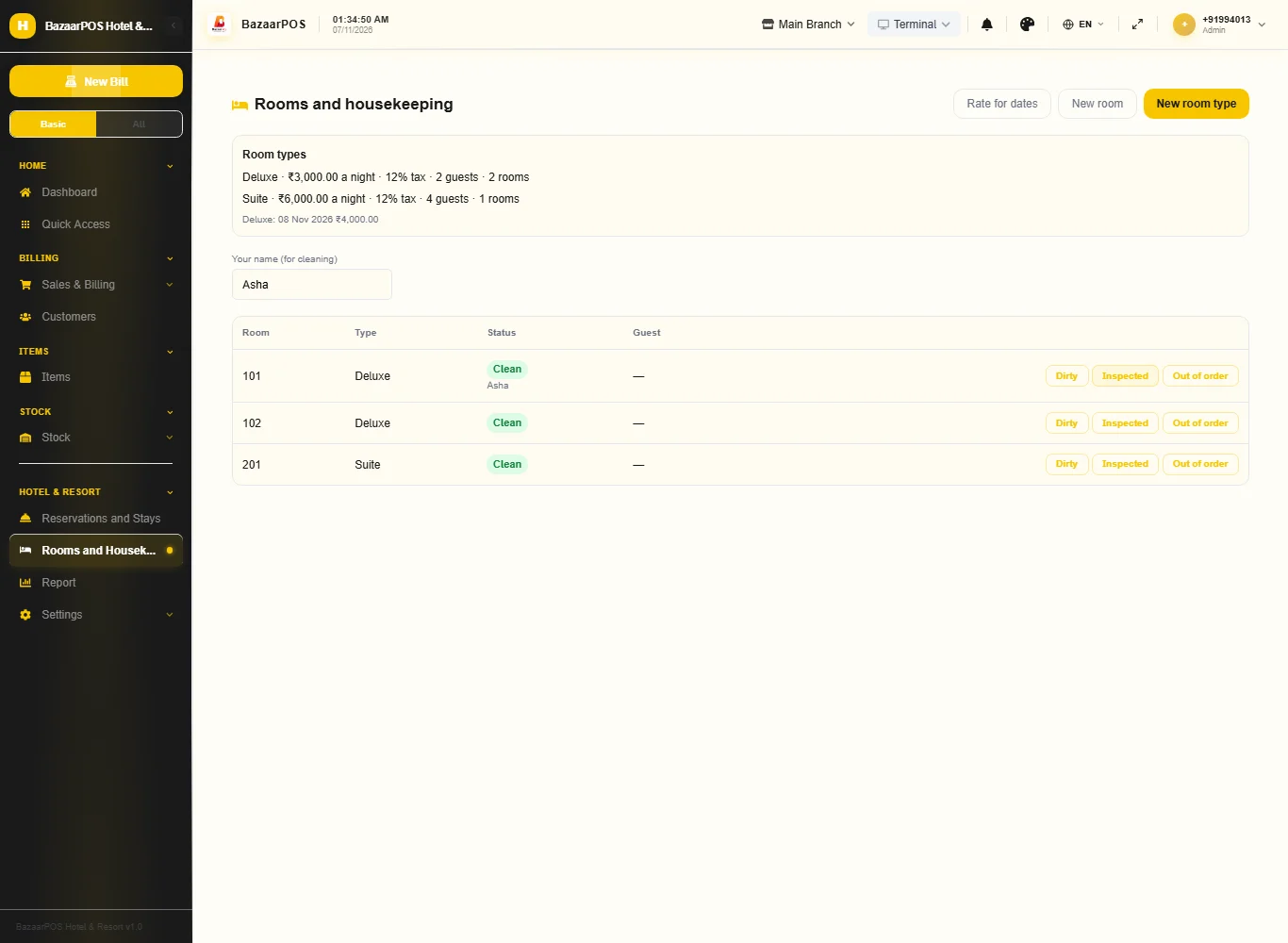
- Rooms and Housekeeping: room types, rooms, rates by date, status of every room.
- Reservations and Stays: availability, booking, check-in, folio, check-out.
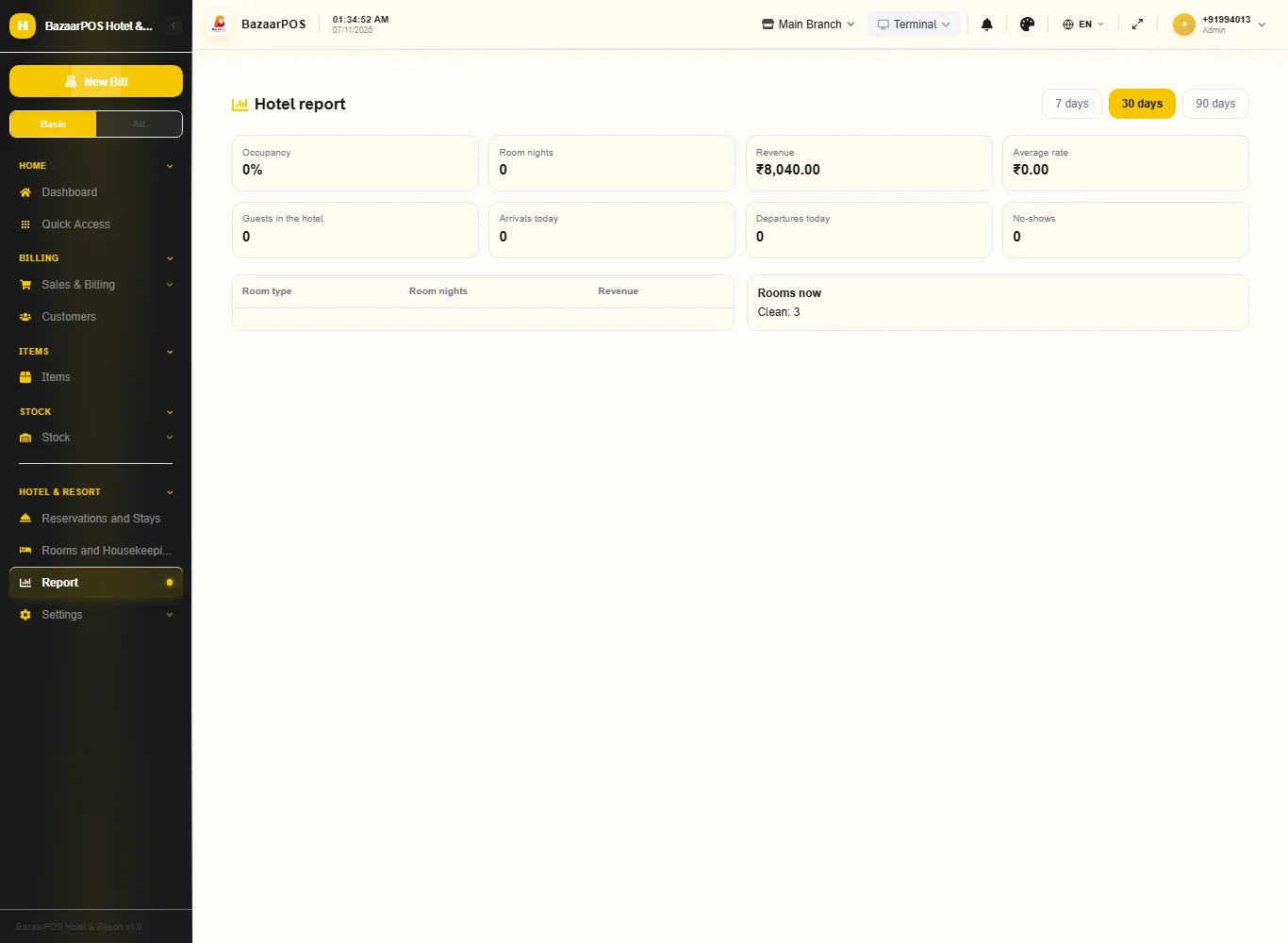
- Report: occupancy, average rate and revenue by room type.
Step 1: Set up rooms and rates
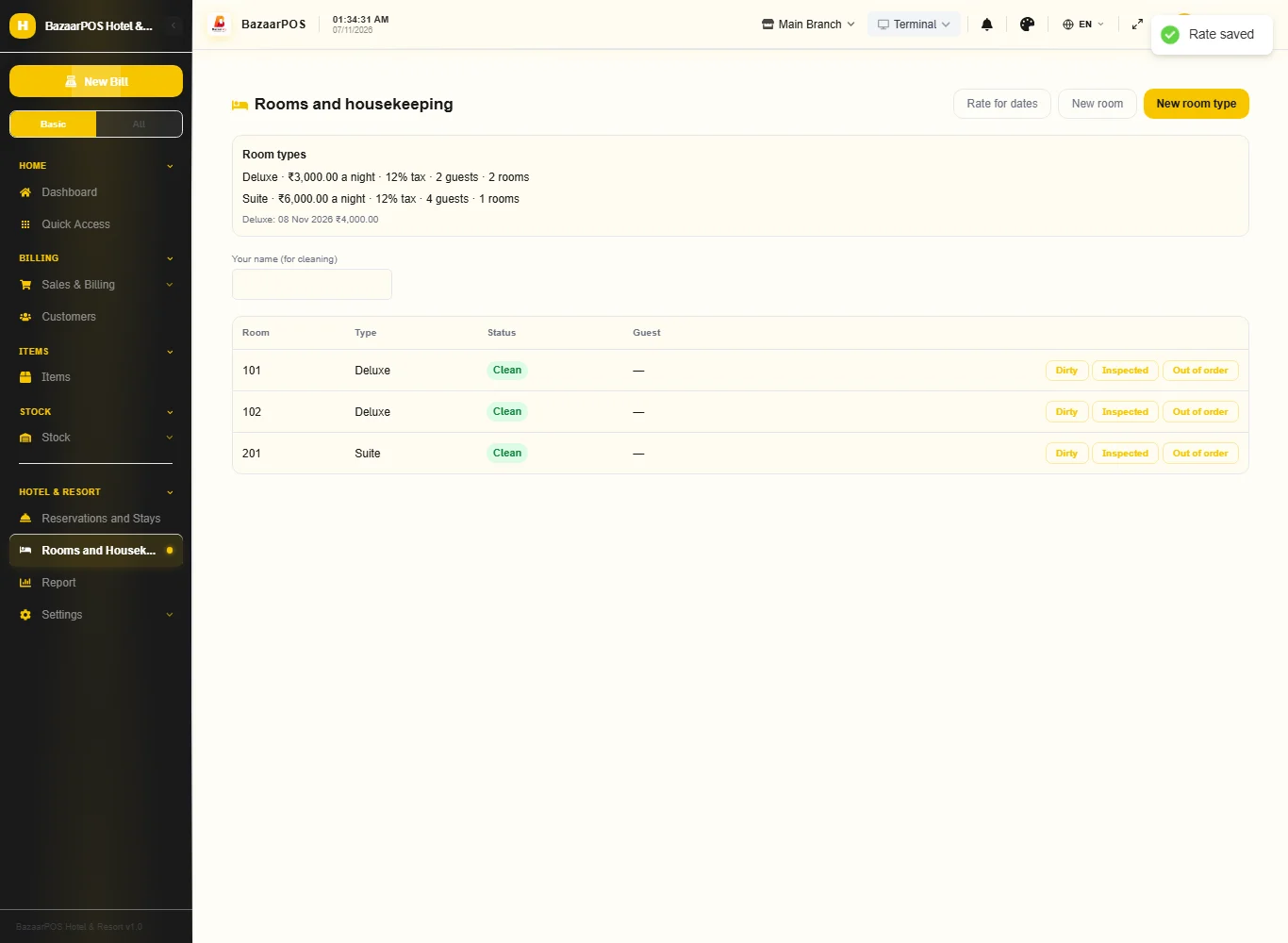
Open Rooms and Housekeeping. Press New room type (name, rate per night, the tax rate of the tariff and the guests it takes), then New room for each room. For a season or a festival press Rate for dates: the rate of a night is the latest rule that covers it, else the base rate.
Step 2: Reserve
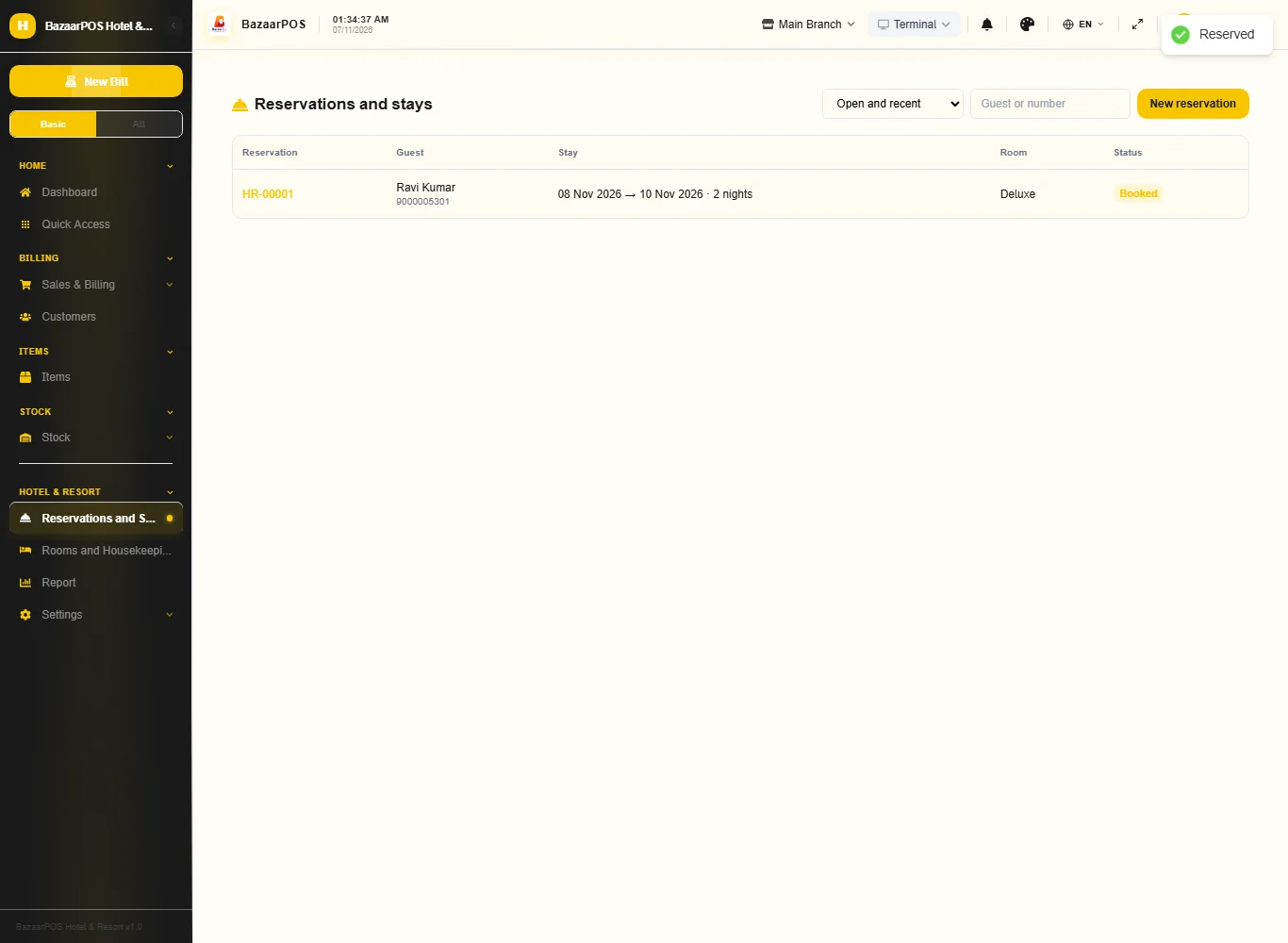
Open Reservations and Stays and press New reservation. Choose the dates and the free room types are shown with the price of the stay; choose one, type the guest name, the phone and an advance. A room already taken for any of the nights is refused.
Step 3: Check in and post extras
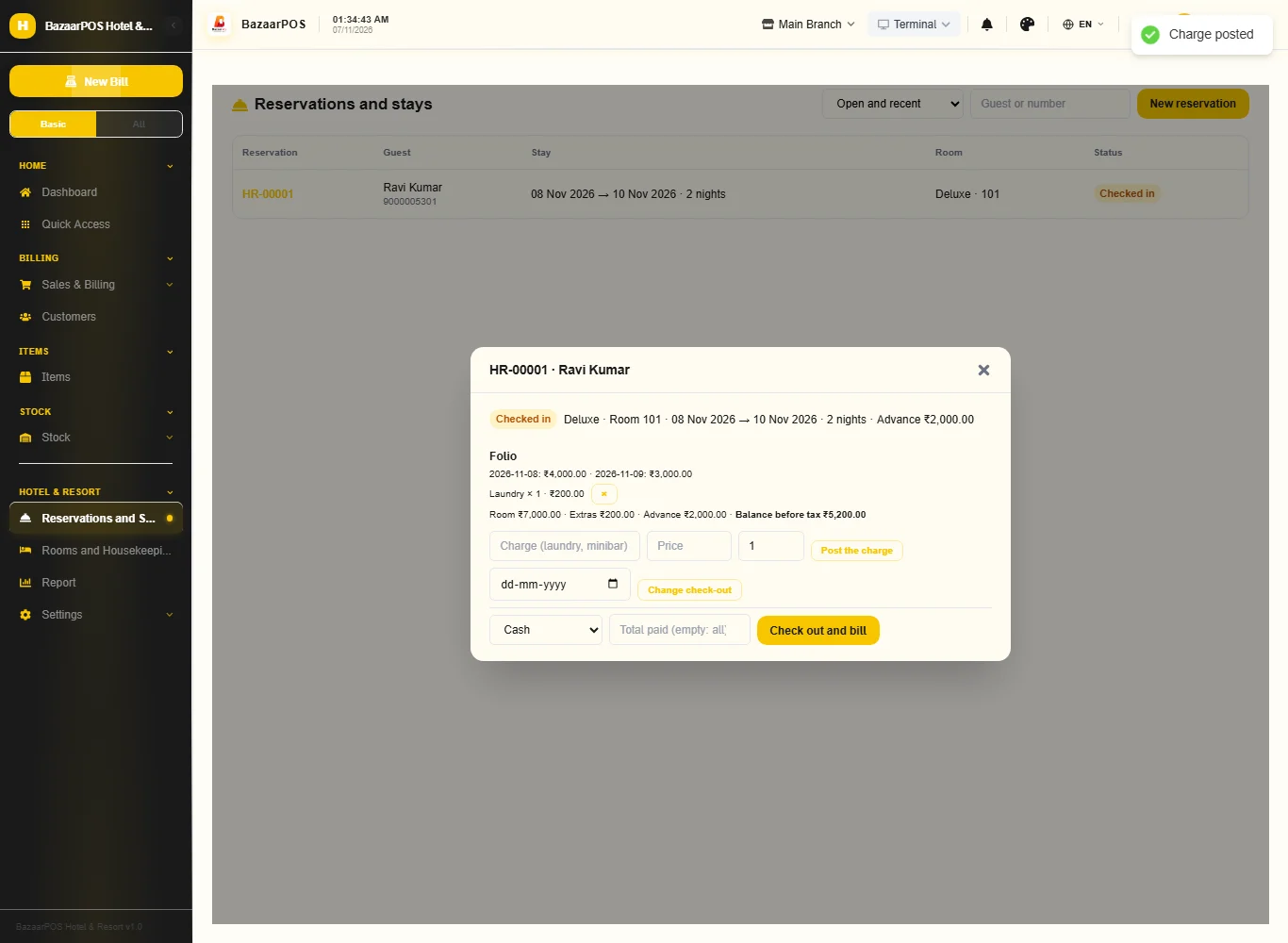
Open the reservation and press Check in: a clean room is given (a dirty or out-of-order room cannot be). While the guest stays post laundry or minibar with Post the charge; Change check-out extends or shortens the stay if the room is free.
Step 4: Check out
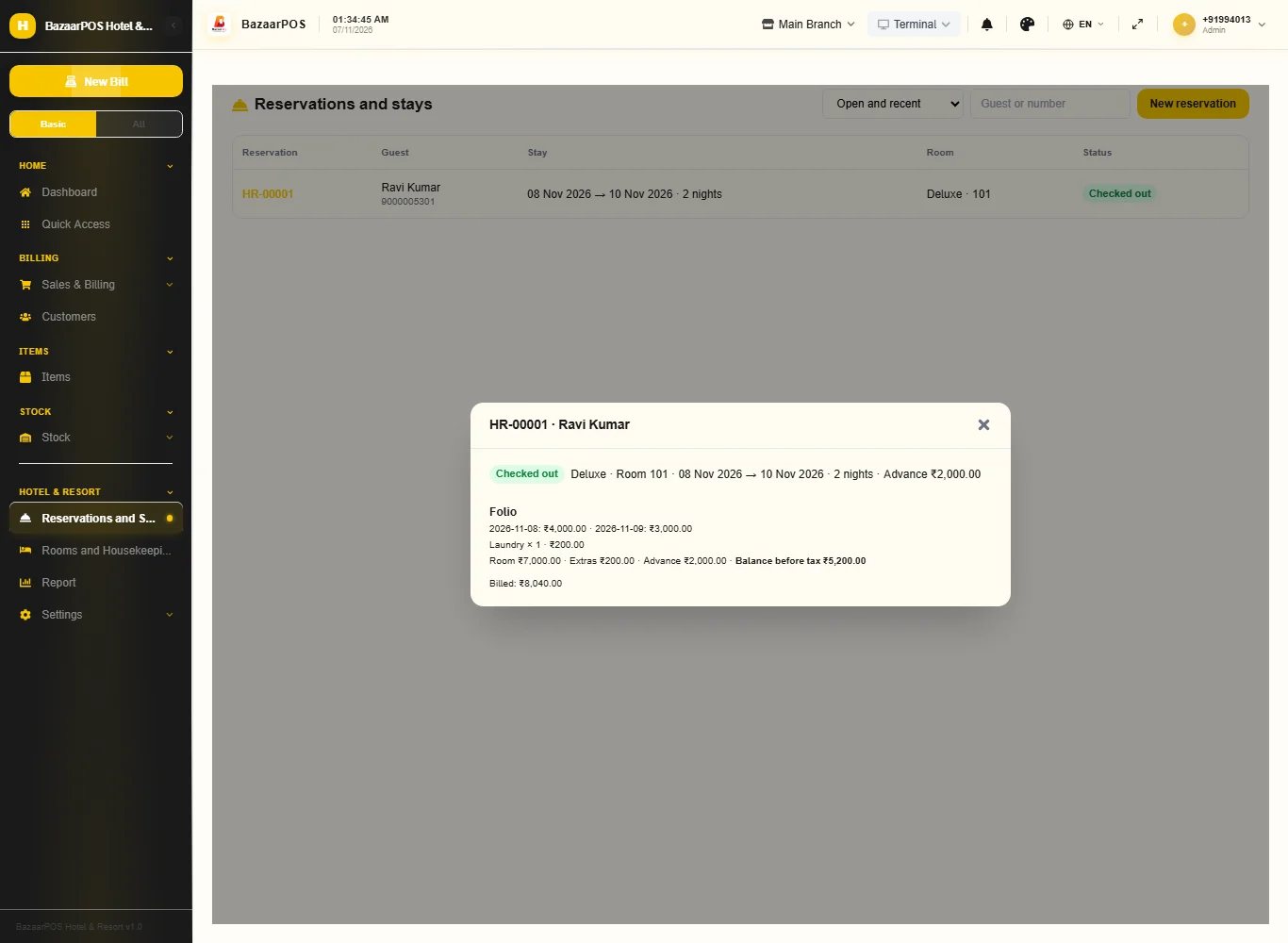
Press Check out and bill: one bill with the nights at the rate of each night, the extras, the tax, and the advance counted as paid. The advance is kept on the reservation, not as a separate payment. The room becomes dirty.
Step 5: Housekeeping
Back on Rooms and Housekeeping type your name and press Cleaned on a dirty room, then Inspected if you inspect. Out of order needs a reason.
Step 6: The report
Open Report for occupancy, room nights, revenue, the average rate, guests in the house, arrivals and departures today and revenue by room type.
On the phone
The phone app has Stays, Housekeeping and Report.
Also useful here
- Barcode labels: see Barcodes.
- Counting stock: see Stock count.
- Importing items: see Import and export.
- Expiry dates and batches: see Expiry monitor.
Questions
Is this separate from items and billing?
No. A room type is a service item, the guest is a customer and check-out is a normal sale.
Does it connect to booking sites or door locks?
Through a Channex account (a channel manager) online bookings come in once only and availability and rates go out. It was written from Channex's public documentation and has not been tested against the live service. Links straight to individual booking sites, an online booking page and key-card systems are not built.
Is there a guest register, and company rates?
It keeps a guest register: ID type, number, nationality and address are taken at booking or check-in, and the register can be printed for any dates. The layout is general: the rules differ by country and were not checked. Company rates are on Rooms and Housekeeping: a fixed rate for a room type or a discount, chosen when you reserve.
Is there a phone version?
Arrivals and stays, new reservations (with a company rate), check-in with the guest ID, charges, check-out, housekeeping, company rates, the guest register and the report are on the phone. Fixed company rates per room type, the channel connection and printing are on the desk app.
Which plan includes what
Hotel & Resort comes in Basic, Advanced and Enterprise plans. A screen your plan does not include shows a message with how to upgrade.
- Basic: billing, items, customers, reports, rooms, reservations and housekeeping.
- Advanced: everything in Basic, plus the report.
- Enterprise: everything in Advanced, plus more than one branch and AI sales forecasting.