Food Court Setup
Run a food court in BazaarPOS: one bill across counters, a token and a ticket for each counter, prepaid cards, and vendor settlement with commission.
How it fits together
You keep your normal Items, Customers, billing, purchase orders and special orders. Nothing is entered twice. A dish is a normal item, so the tax of your country and the reports come from it, and the whole order is one normal sale. Added on top are the counters, the tickets, the token board, the cards and the settlement.
- Order Desk: dishes from any counter, one bill, one token.
- Counter Tickets: each counter makes its own and the token board shows what is ready.
- Counters, Dishes, Cards: commission, dishes and prepaid cards.
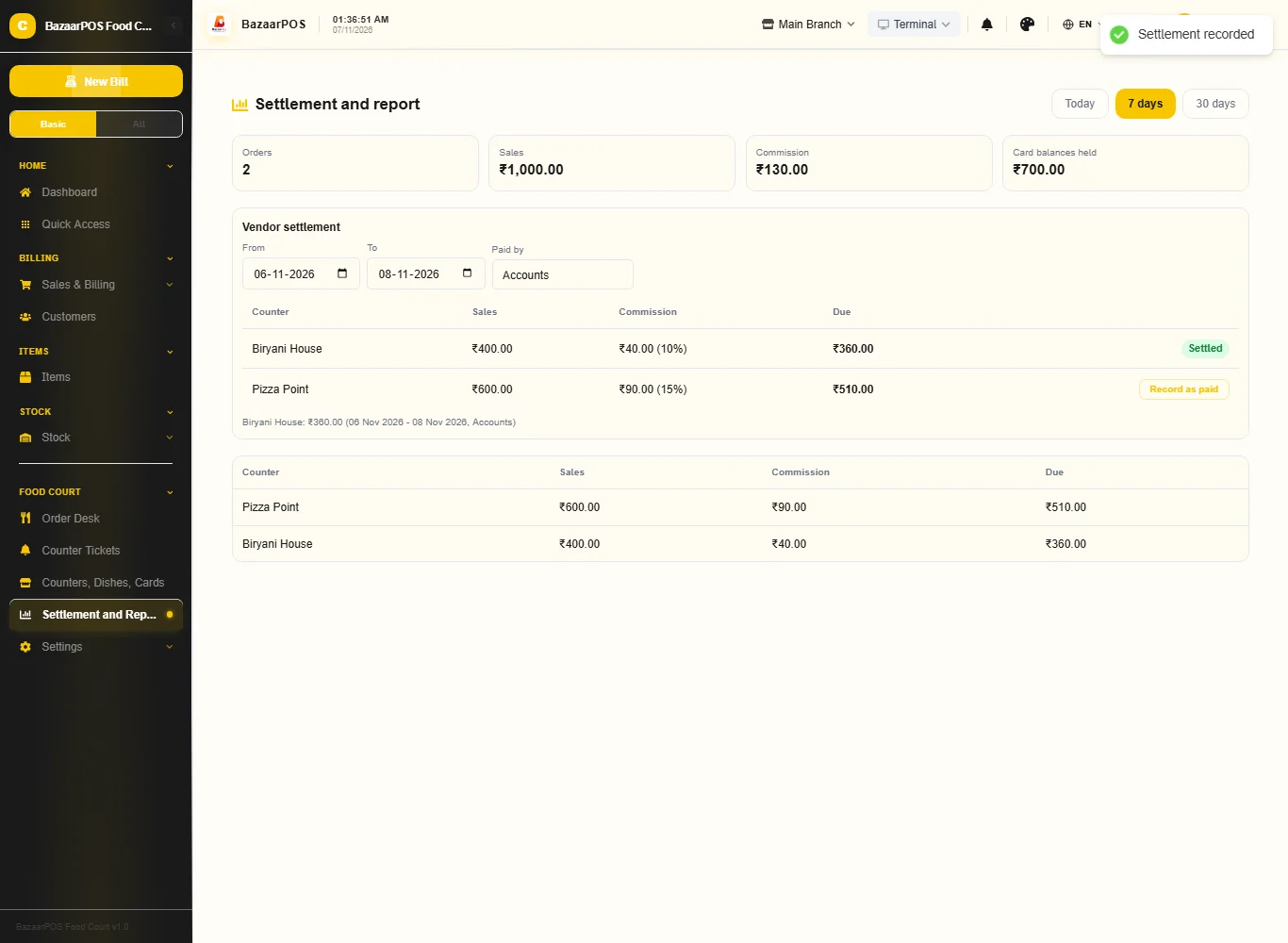
- Settlement and Report: what each vendor is due.
Step 1: Counters, dishes and cards
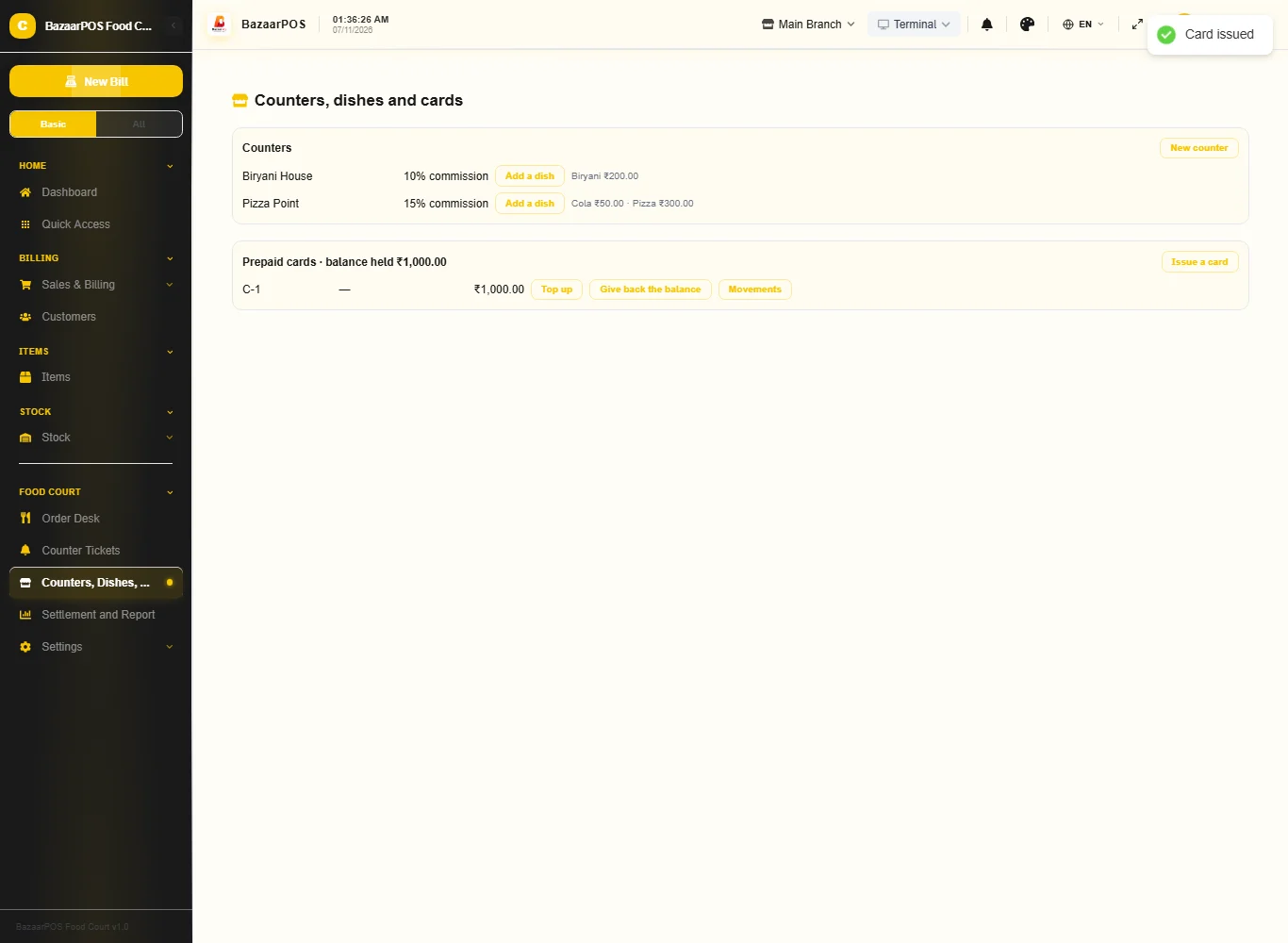
Open Counters, Dishes, Cards. Press New counter with its commission percent, then Add a dish on the counter. Issue a card gives a prepaid card with an opening balance; Top up adds money and Give back the balance returns it.
Step 2: Take an order
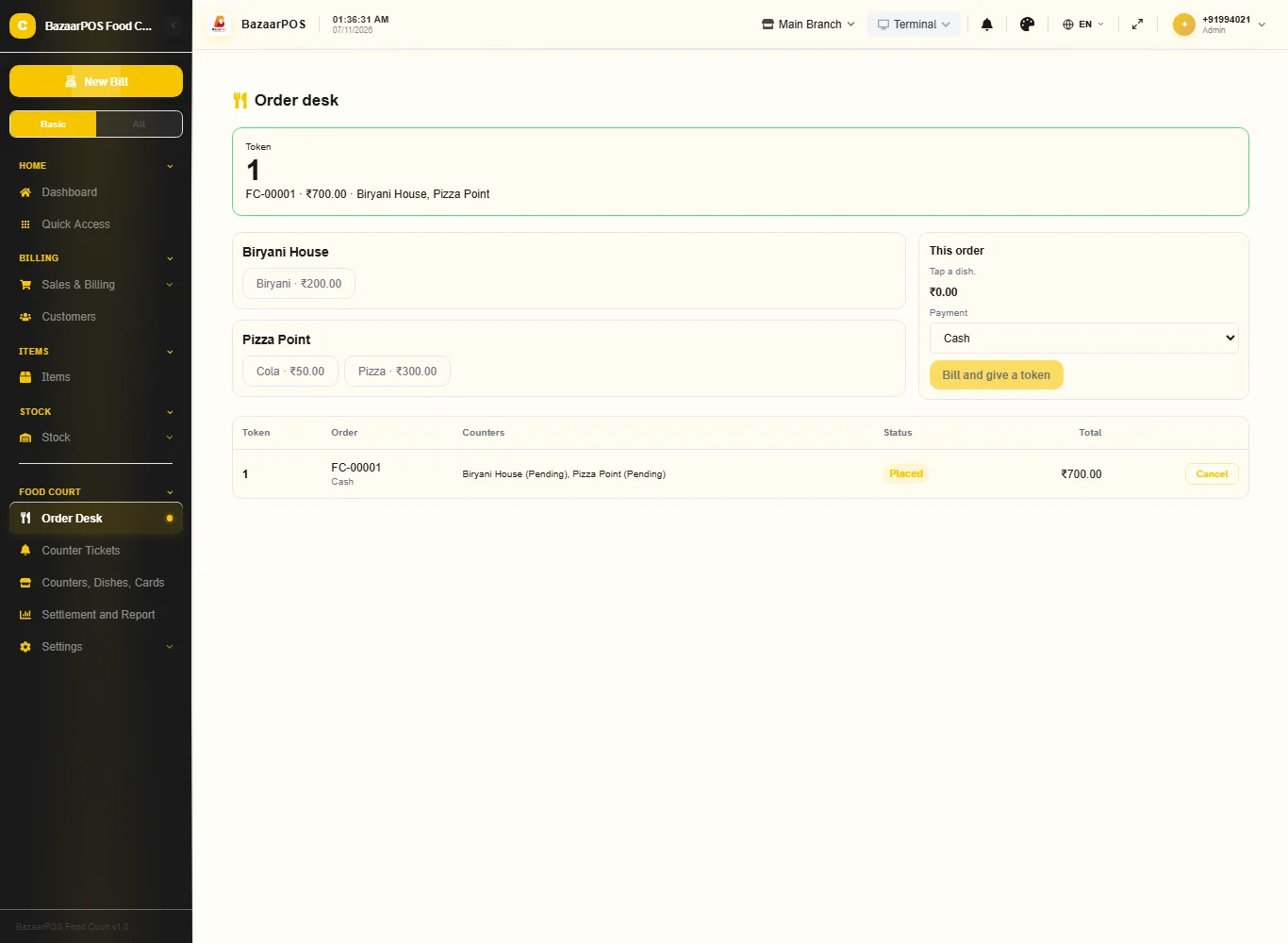
Open Order Desk, tap dishes from any counters, choose how it is paid (a prepaid card needs its number) and press Bill and give a token. It is one bill and the customer gets one token.
Step 3: The counters make the food
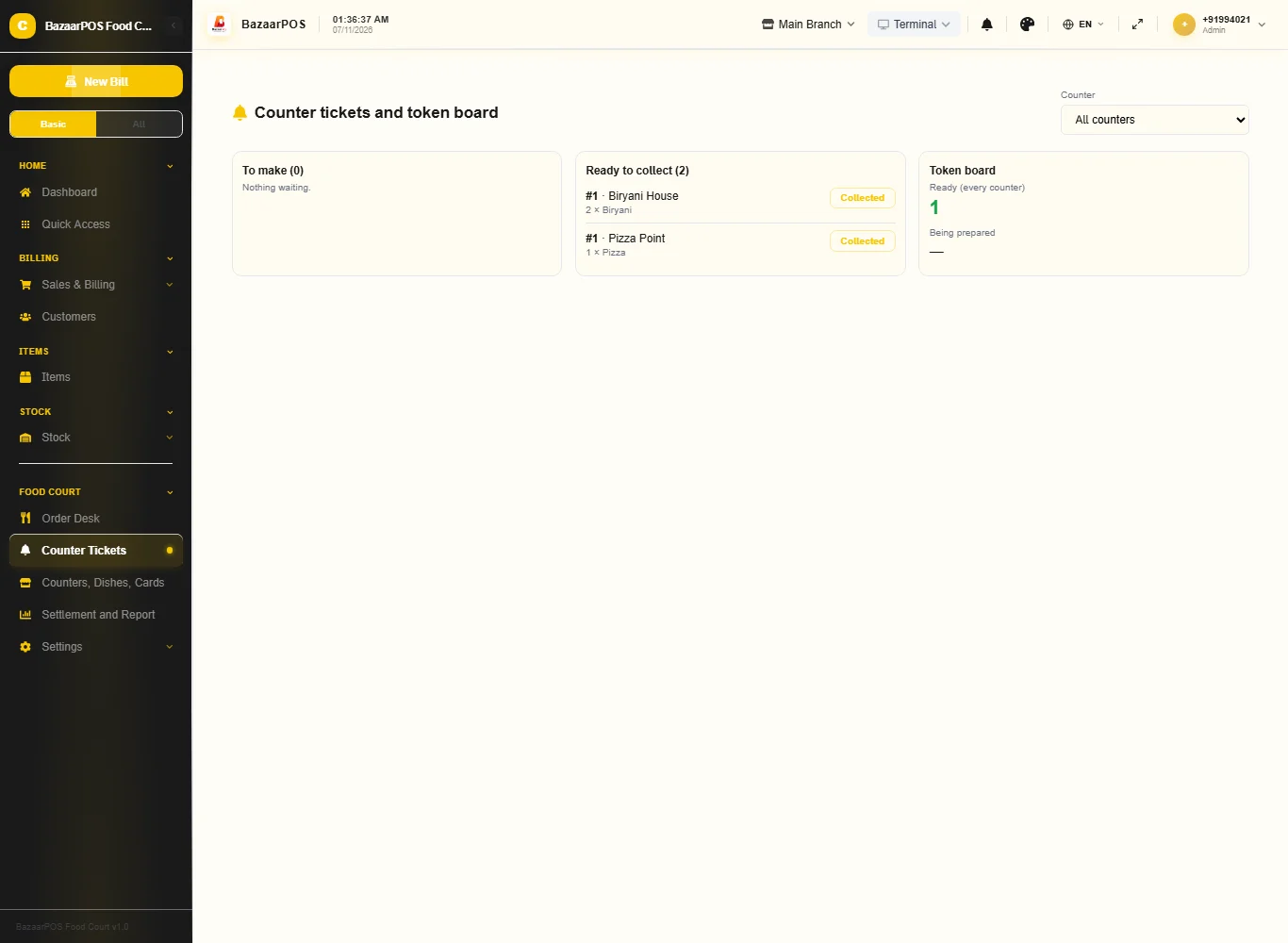
Open Counter Tickets. Each counter chooses itself and presses Ready on its tickets, then Collected. The token shows on the board only when every counter is ready.
Step 4: Cancelling
An order can be cancelled before any counter starts. A prepaid card is refunded; for any other payment the bill must be returned in Sales.
Step 5: Settle with the vendors
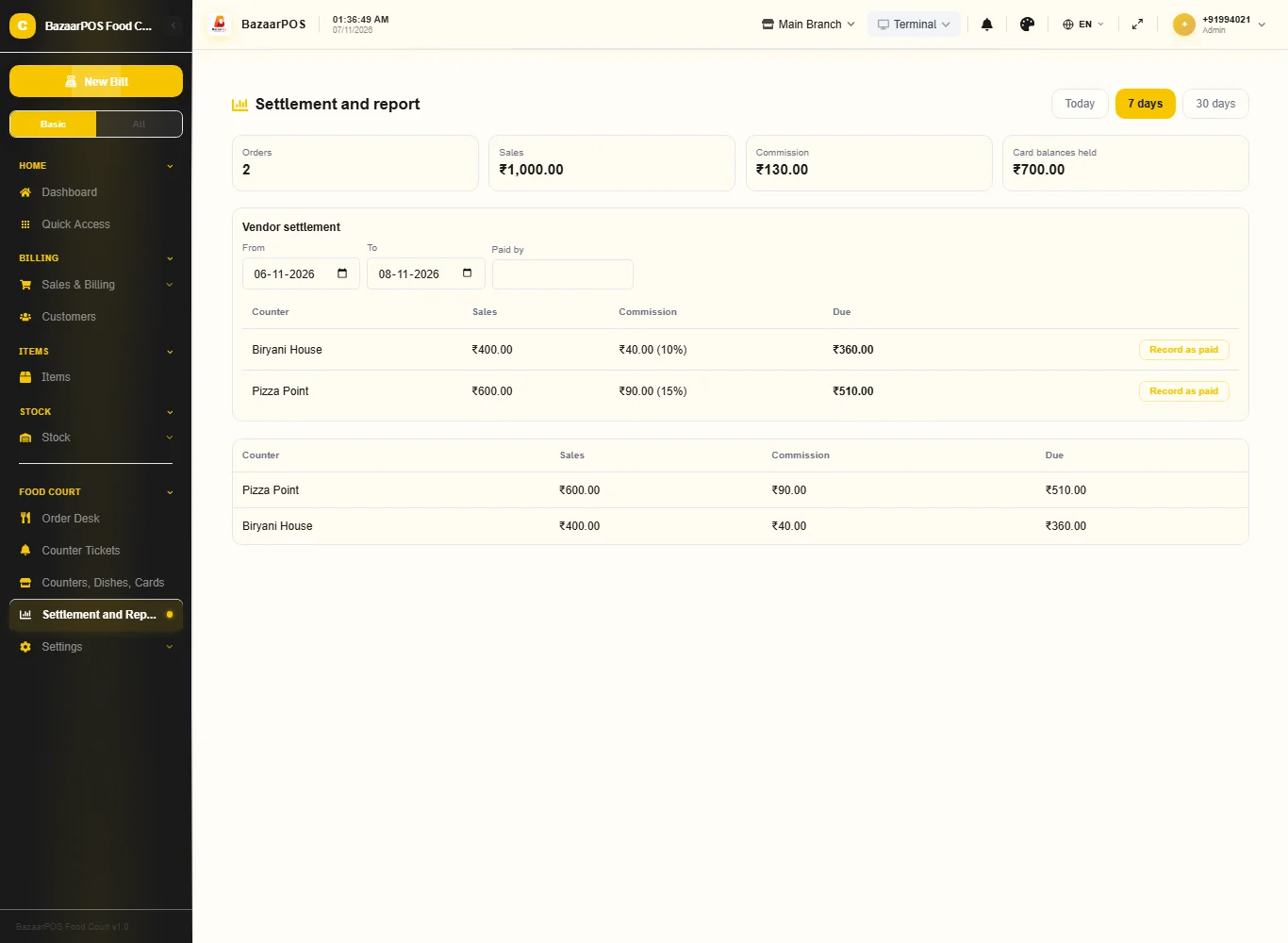
Open Settlement and Report, choose the dates and type your name: each counter shows its sales, the commission and what is due. Press Record as paid once; the same dates cannot be paid twice.
On the phone
The phone app has Counter Tickets, Token Board, Prepaid Cards and Settlement.
Also useful here
- Barcode labels: see Barcodes.
- Counting stock: see Stock count.
- Importing items: see Import and export.
- Expiry dates and batches: see Expiry monitor.
Questions
Is this separate from items and billing?
No. A dish is an item and the order is a normal sale.
How is the commission worked out?
As the percentage you set for each counter, of that counter's sales.
Can customers order by QR or pay online?
Ordering by QR: yes. Open QR Orders and Token Screen, make the link and print the code; the customer sends the order and pays at the counter, where you bill it and give the token. Payment gateways, hardware token displays and printers, and statutory vendor tax reporting are not built.
Is there a full-screen token board and a statement for each counter?
Yes. The token screen opens from QR Orders and Token Screen and needs no login. The counter statement prints from Settlement and Report.
Is there a phone version?
Counter tickets, the token board, QR orders (bill or cancel), prepaid cards, the settlement figures and each counter's statement are on the phone; making the QR code, printing and recording a payment to a vendor are on the desk app.
Which plan includes what
Food Court comes in Basic, Advanced and Enterprise plans. A screen your plan does not include shows a message with how to upgrade.
- Basic: billing, items, customers, reports, counters, orders and cards.
- Advanced: everything in Basic, plus settlement and the report.
- Enterprise: everything in Advanced, plus more than one branch and AI sales forecasting.