Pet Store Setup
Run a pet shop in BazaarPOS: keep each customer’s pets and vaccination dates, remind owners before a vaccine is due and before the food runs out, book vet and grooming visits and keep a register of animals for sale.
How it fits together
You keep your normal Items, Customers, billing, purchase orders and special orders. Nothing is entered twice. A bag of food or a collar is an ordinary item. Loose food is sold by weight on the normal billing screen. Reminders use the customers and sales you already have.
- Pet Supplies: species, category, life stage and pack size on any item, a finder, and how much each kind of pet eats.
- Pets & Vaccinations: each customer’s pets and their vaccination records.
- Pet Reminders: vaccinations due and food about to run out, with a WhatsApp message.
- Appointments and Animals for Sale.
Step 1: Add the supply details
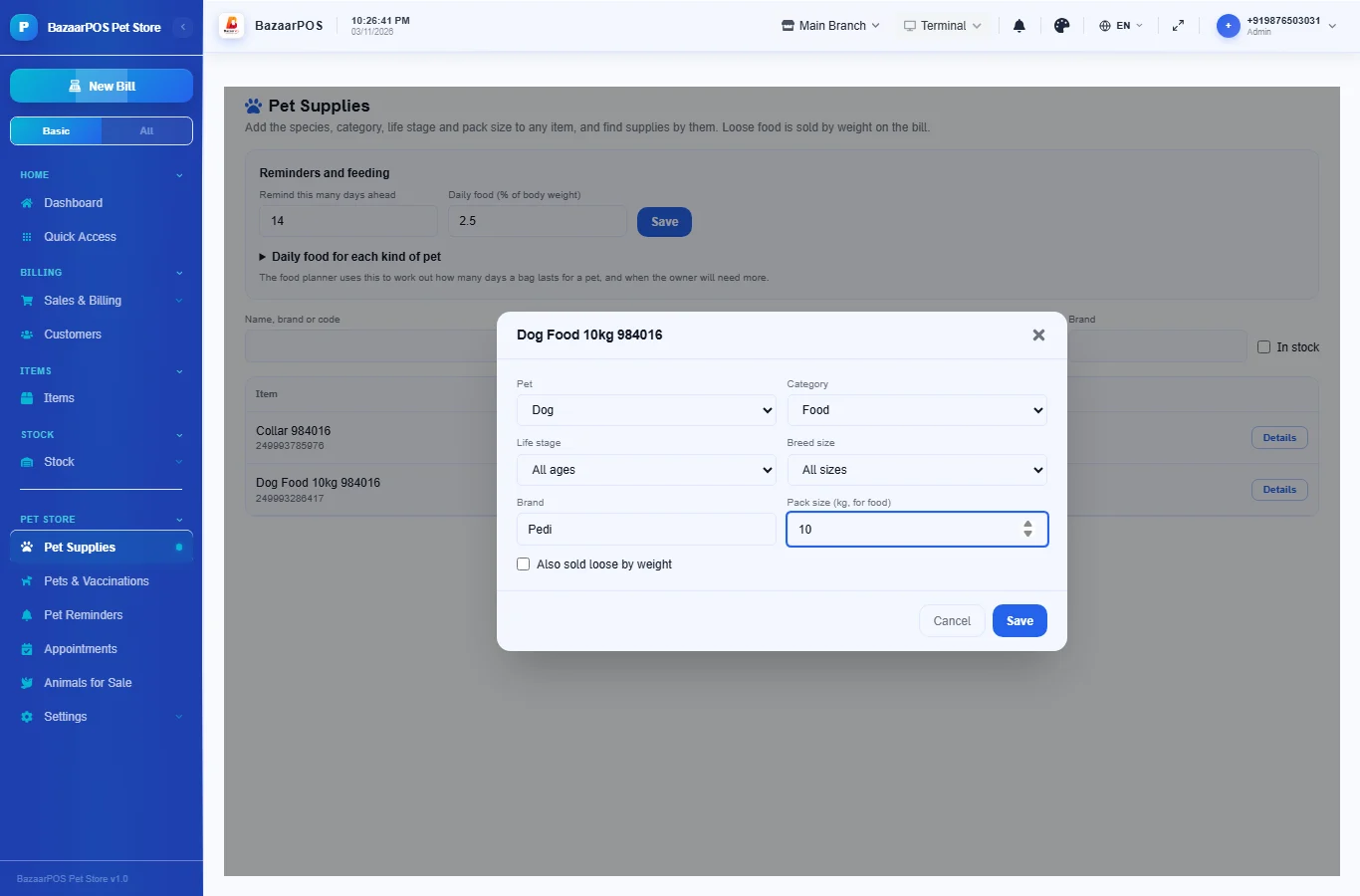
Open Pet Supplies, press Details on an item and choose the pet it is for, the category, the life stage, the brand and, for food, the pack size in kg.
Step 2: Add your customers’ pets
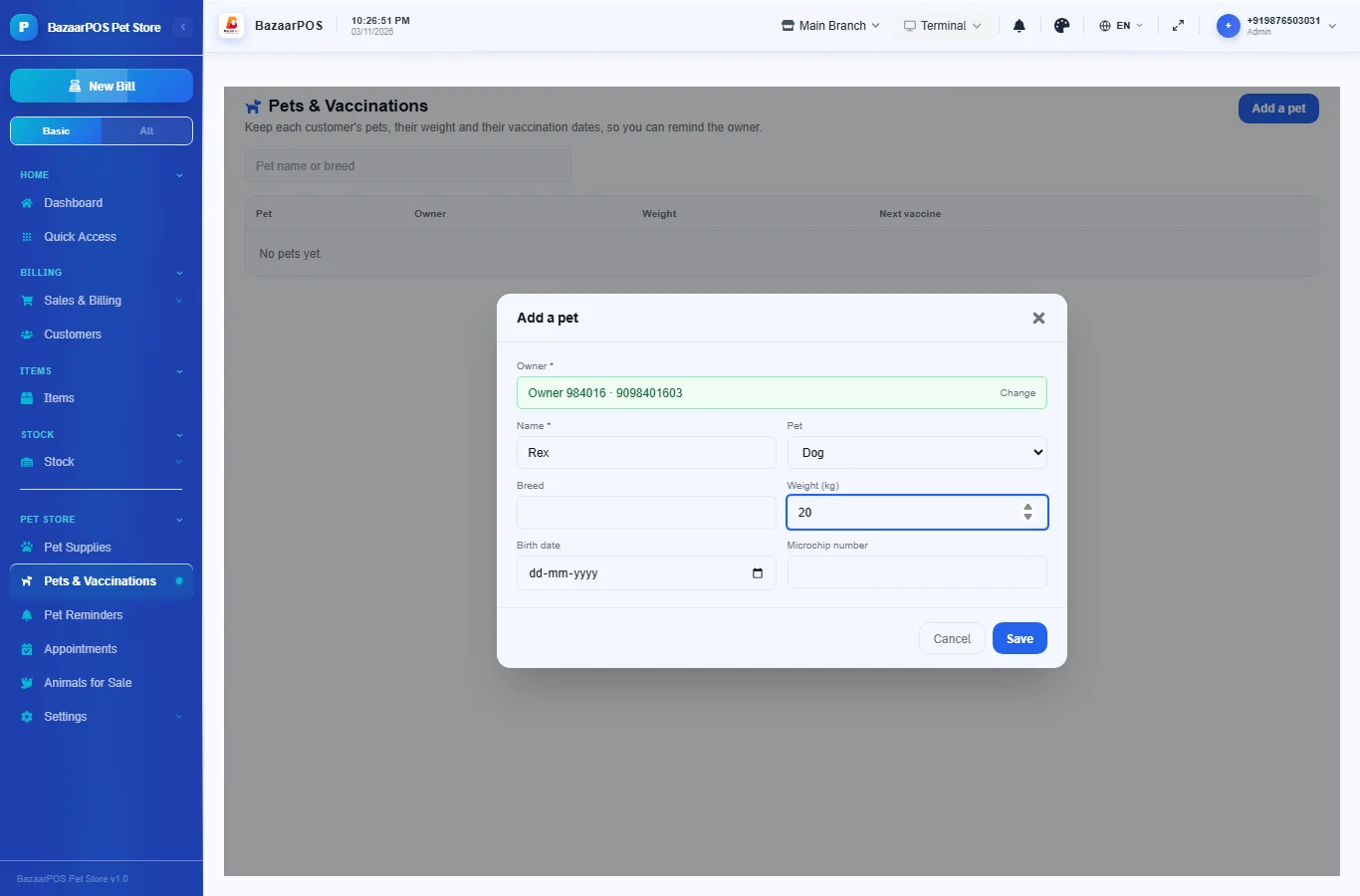
Open Pets & Vaccinations and press Add a pet. Choose the owner, give the name, the kind of pet, the breed, the weight and the birth date. The weight is what the food planner needs.
Step 3: Record vaccinations
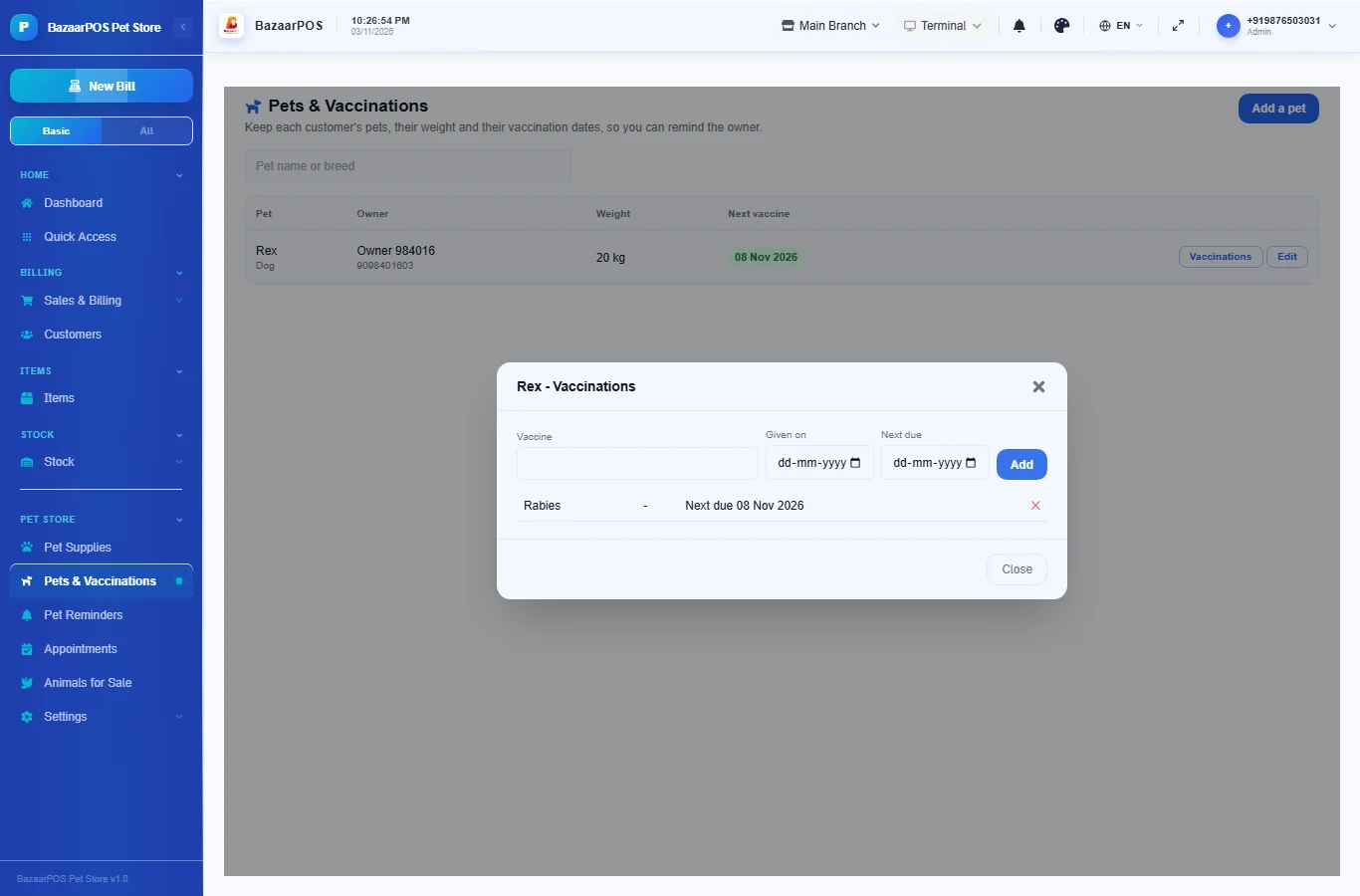
Press Vaccinations on a pet, enter the vaccine, the date it was given and the date it is next due, and press Add. When the same vaccine is given again, the older record no longer shows as due.
Step 4: Send reminders
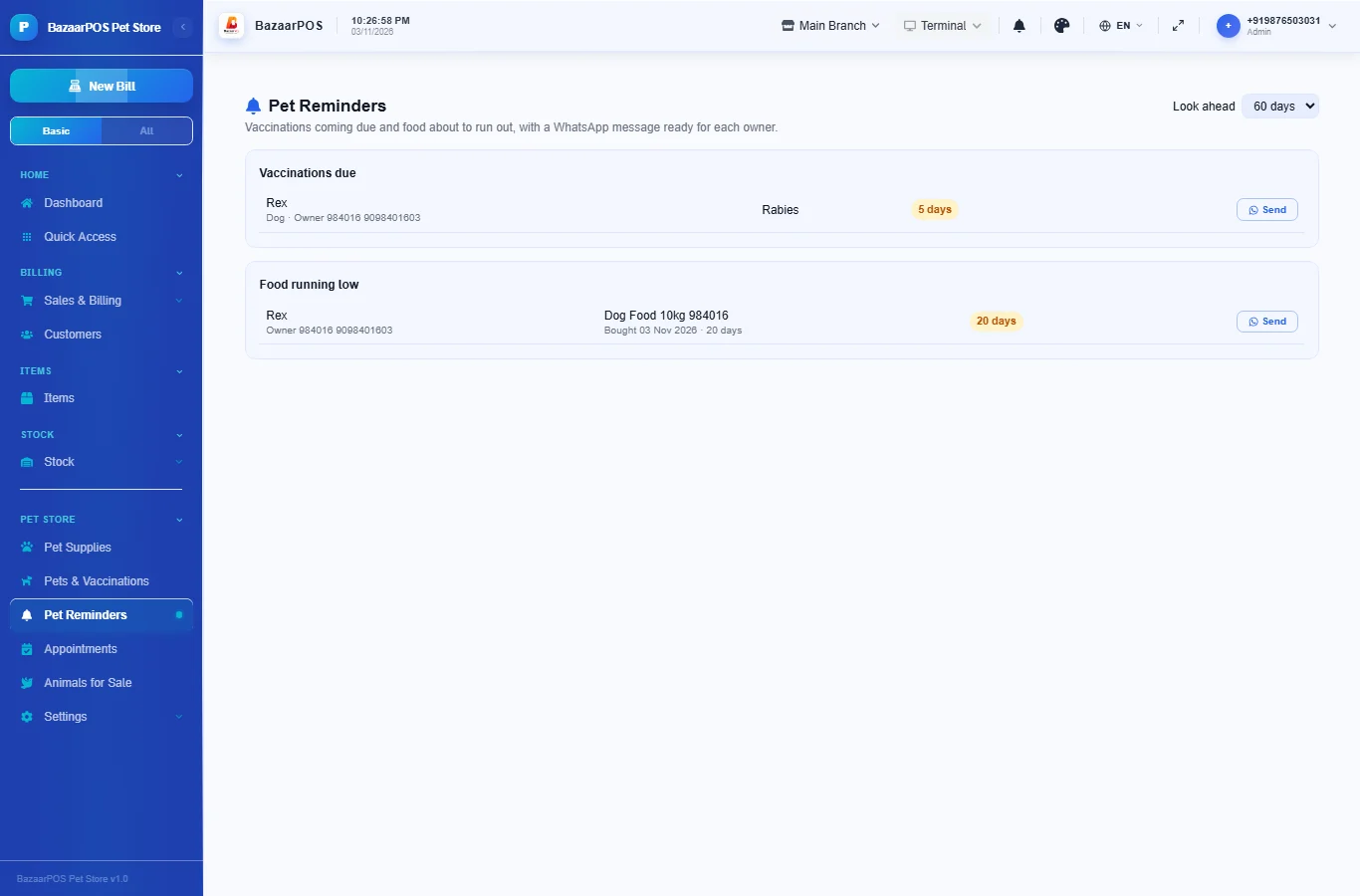
Open Pet Reminders. The first list shows vaccinations that are due or overdue, the second shows owners whose pet’s food is about to run out, worked out from the weight of the pet, the daily share you set and the pack size of the food they last bought. Press Send to open a WhatsApp message to the owner. Choose how many days ahead to look.
Step 5: Set how much each pet eats
On Pet Supplies, under Reminders and feeding, set the daily food as a percent of body weight (2.5 to start). Open Daily food for each kind of pet to give a dog, a cat or a bird its own number.
Step 6: Book appointments
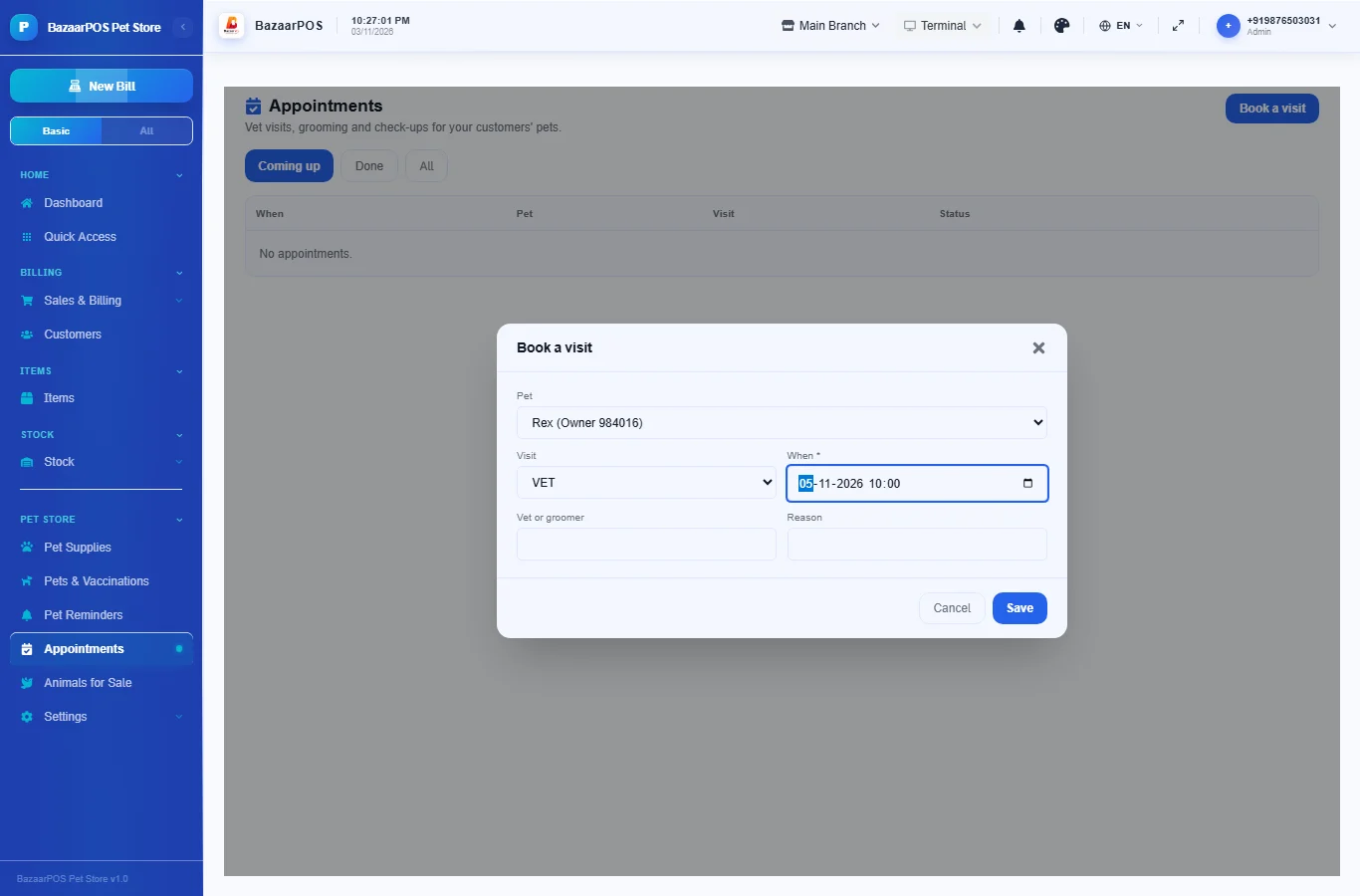
Open Appointments and press Book a visit. Choose the pet (or type the owner’s name), the kind of visit, the day and time, and the vet. The same pet cannot be booked twice at one time. Mark a visit done or cancel it; press Send to remind the owner.
Step 7: Sell an animal
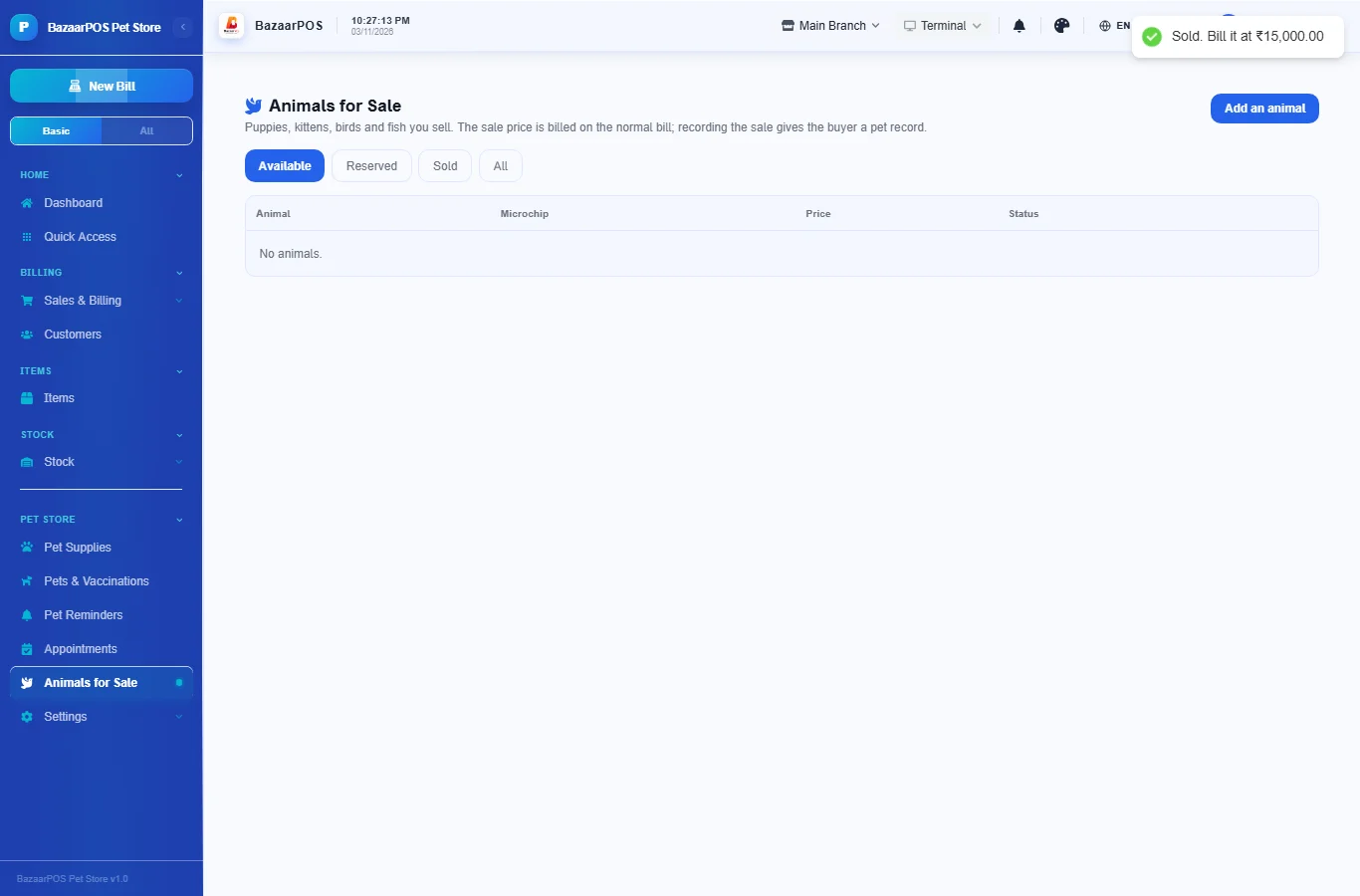
Open Animals for Sale to keep puppies, kittens and birds with the breed, birth date, microchip, parents, supplier and price. Press Sell to record the buyer; the animal becomes a pet on the buyer’s record. Bill the price on the normal billing screen.
On the phone
The phone app has Pet Supplies, Pets & Vaccinations, Pet Reminders (tap one for a WhatsApp message), Appointments and Animals for Sale.
Also useful here
- Barcode labels: see Barcodes.
- Counting stock: see Stock count.
- Importing items: see Import and export.
- Expiry dates and batches: see Expiry monitor.
Questions
How does it know when food will run out?
It takes the weight of the pet, the share of body weight you set and the pack size of the last food the owner bought.
Does it send messages by itself?
It prepares a WhatsApp message and opens it for you to send.
Can I sell food from a sack?
Yes. The billing screen takes decimal quantities, so food can be sold by weight.
Which plan includes what
Pet Store comes in Basic, Advanced and Enterprise plans. A screen your plan does not include shows a message with how to upgrade.
- Basic: billing, items, customers, reports, pet item details and the finder, pets and vaccination records.
- Advanced: everything in Basic, plus reminders, the food planner, appointments, animals for sale, customer advance, loyalty and promotions.
- Enterprise: everything in Advanced, plus more than one branch and AI sales forecasting.