Paint Store Setup
Run a paint shop in BazaarPOS: paints with their pack sizes as items, litres on the shelf, a paint calculator, shade codes with a tinted-can log, batches with shelf life and contractor accounts with a volume scheme and credit.
How it fits together
You keep your normal Items, Customers, billing, purchase orders and special orders. Nothing is entered twice. Each pack size is a normal item, so its price, tax, barcode and stock are the item's. A contractor is a normal customer whose credit limit and credit days are enforced by the shared sale code on every credit sale. Selling paint and tinting a can are billed as normal sales. Added on top are the litres for the whole paint, the calculator, the shade log, the batches and the volume scheme.
- Paints and Stock: paints, pack sizes, litres, batches and the tinting charge.
- Paint Counter: the calculator and billing.
- Shades and Tinting: shade codes and the tinted-can log.
- Contractors and Report: the scheme, credit, statements and numbers.
Step 1: Add a paint and its pack sizes
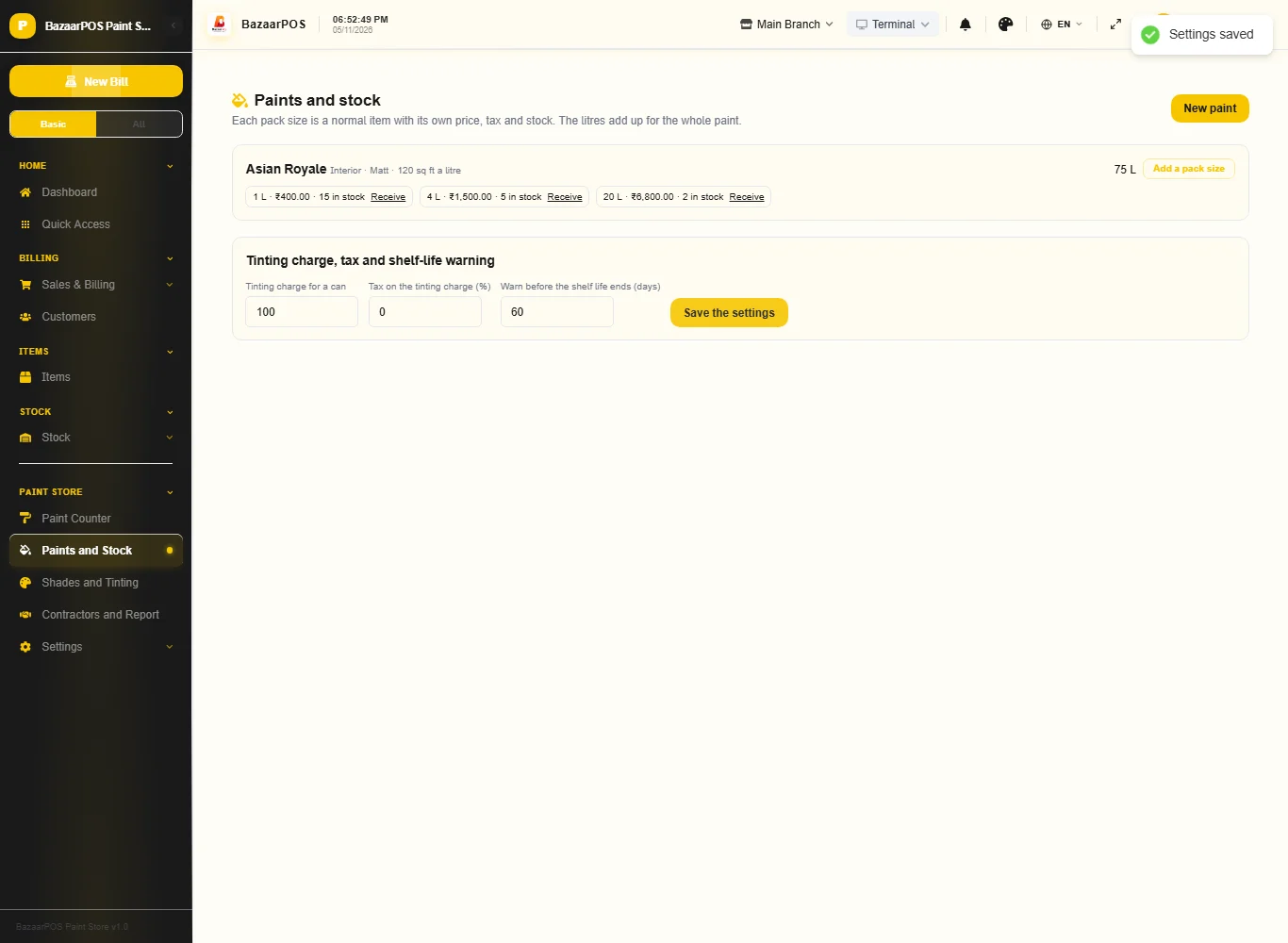
Open Paints and Stock and press New paint: the name, brand, type, finish, the square feet one litre covers in a coat, the litres you want to keep and the shelf life. Press Add a pack size for each pack (1, 4, 20 litres): the litres, the price, the cost and the packs in stock. Each becomes a normal item. The paint shows its litres together and a Low mark when they fall under what you keep.
Step 2: Receive stock with a batch
Press Receive on a pack size, type the packs, the batch number and the date made. The shelf life of the paint sets the date the batch expires, and a batch past its shelf life or close to it is listed at the top of the page.
Step 3: Calculate and bill
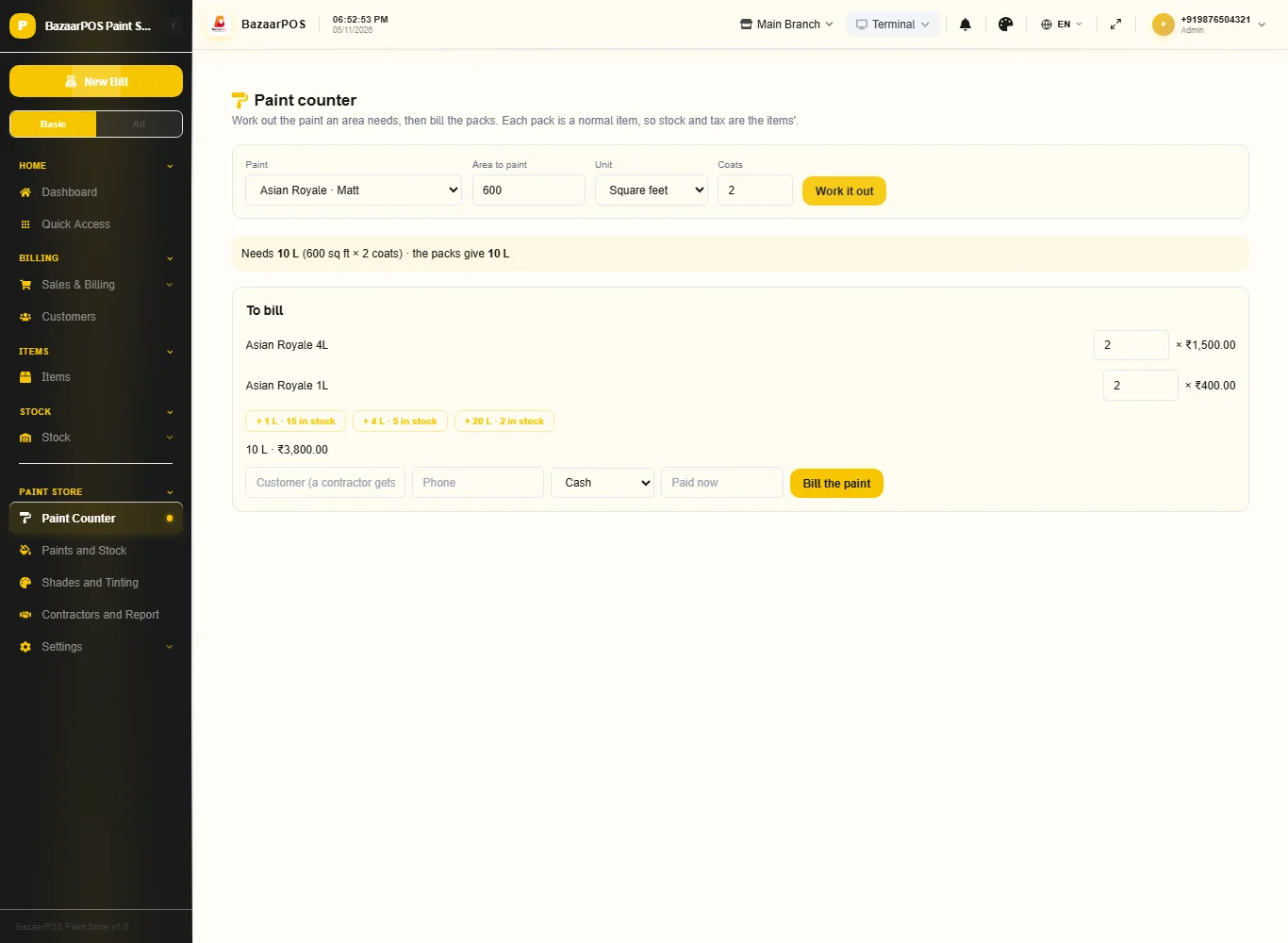
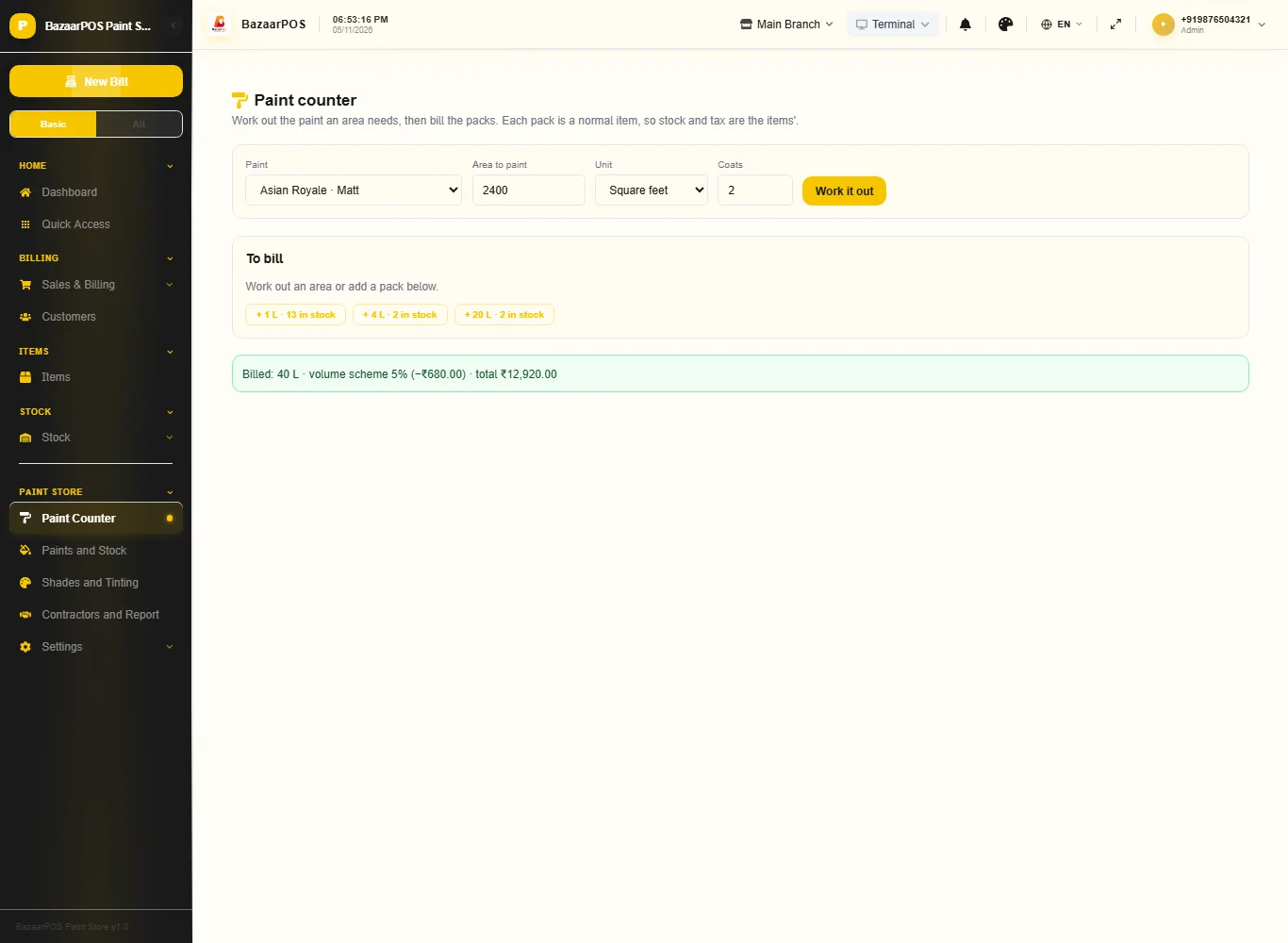
Open Paint Counter, choose the paint, type the area and the coats and press Work it out. You see the litres needed and the packs that cover it with the least left over. Change the packs if you like, add the customer and press Bill the paint. A contractor on a volume scheme gets a percent off by the litres on the bill.
Step 4: Add shades and tint a can
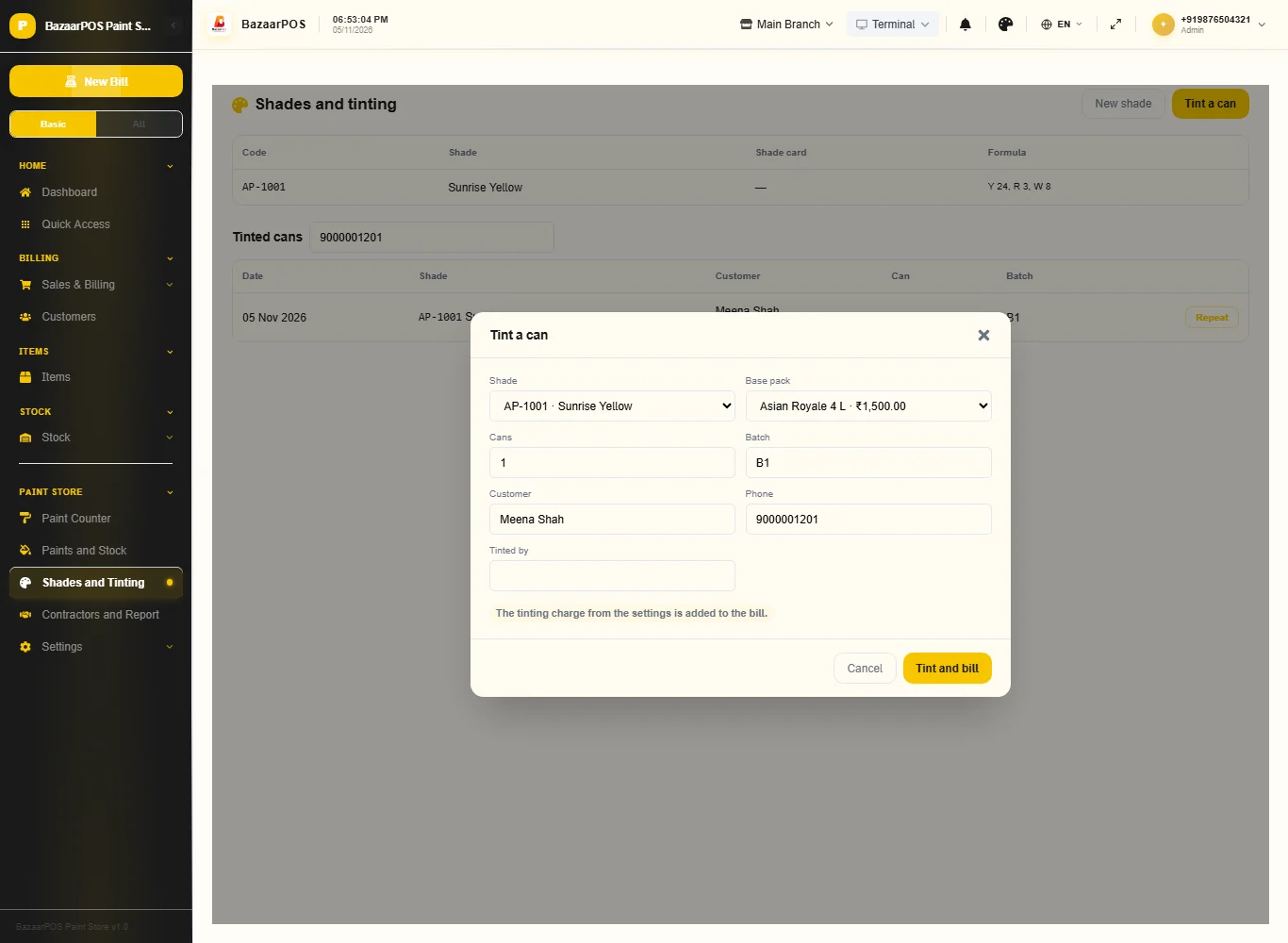
Open Shades and Tinting, press New shade and type the code, the name, the shade card and the formula. Press Tint a can, choose the shade and the base pack, the customer and the batch: the base pack is sold from stock, the tinting charge from the settings is added, and the can goes in the log.
Step 5: Repeat a shade
Search the log by shade code, name, customer or phone and press Repeat to open the tinting form already filled in.
Step 6: Contractors and dealers
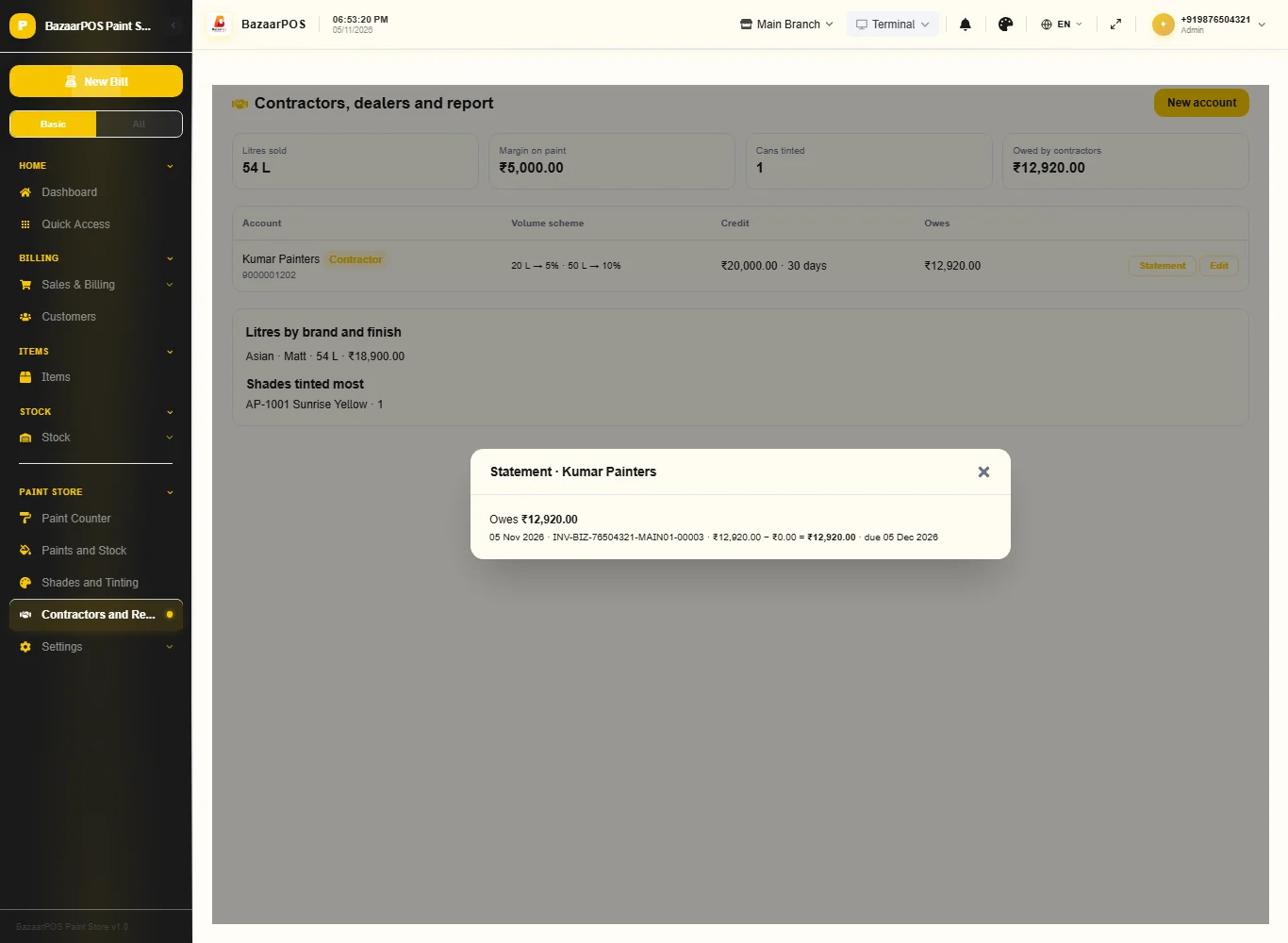
Open Contractors and Report and press New account: the name and phone, the kind, the credit limit and the credit days, and the volume scheme as litres and percent (for example 20:5, 50:10: 5% from 20 litres and 10% from 50). A credit sale that would take the customer over the limit is refused. Press Statement to see what is owed, with due dates and what is overdue.
Step 7: The report
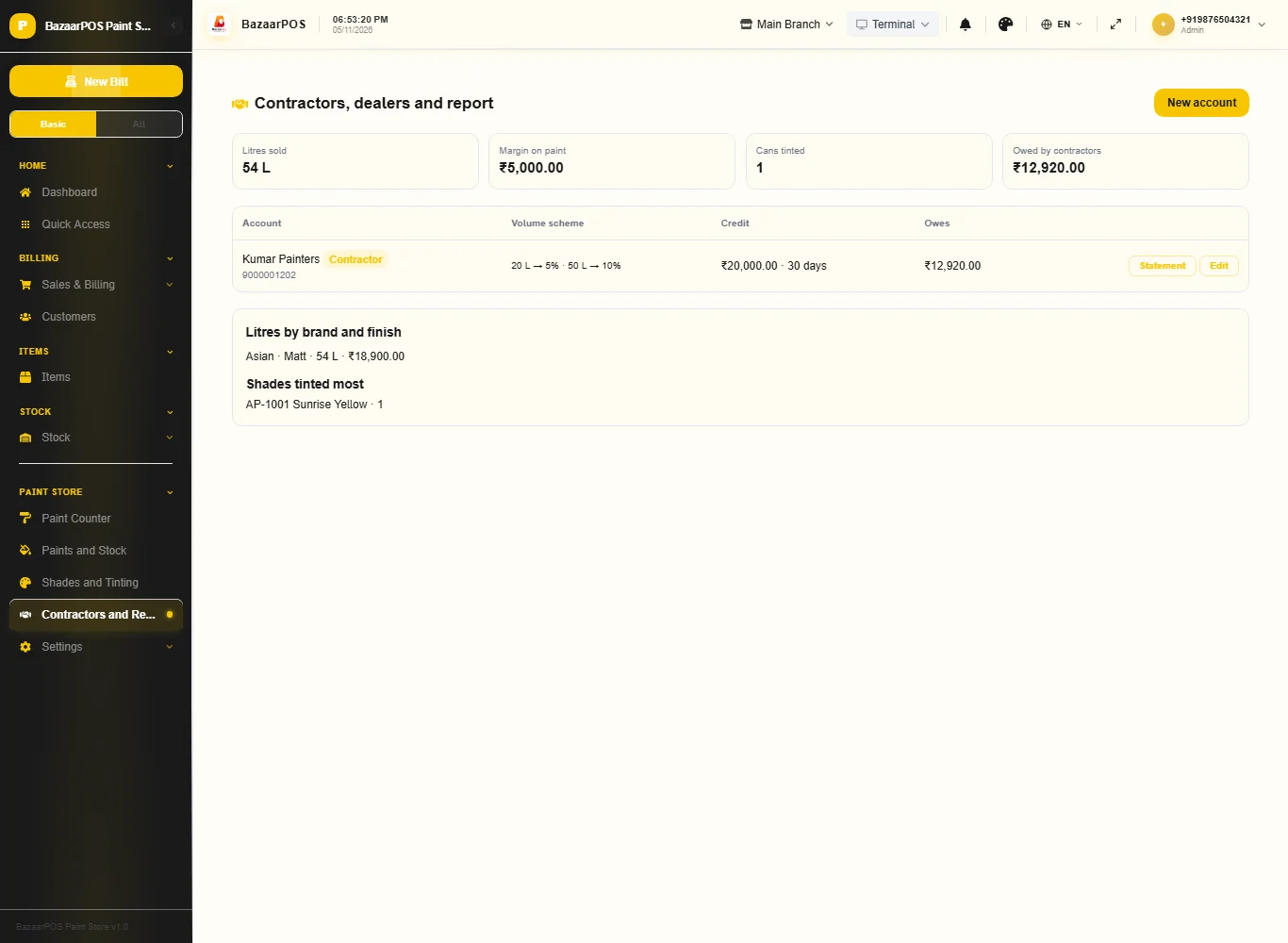
The same page shows the litres sold, the margin on paint, the cans tinted, what contractors owe, litres by brand and finish and the shades tinted most.
On the phone
The phone app has Paint Stock (litres, the calculator and billing), Tinting, Contractors (statements) and Report.
Also useful here
- Barcode labels: see Barcodes.
- Counting stock: see Stock count.
- Importing items: see Import and export.
- Expiry dates and batches: see Expiry monitor.
Questions
Is this separate from items and billing?
No. Each pack size is an item, the contractor is a customer and every sale is a normal sale.
Does it work with a tinting machine?
Not by a direct link. Import the machine's formula list as a CSV with Import shades, and press Export the log to get the tinted cans as a CSV to match against the machine.
How is the credit limit enforced?
It is the customer's own credit limit and credit days; the shared sale code refuses a credit sale that would go over it.
Does it use my country's tax?
Yes. Each pack item carries its tax; attach a tax from the Tax Master to the item if your country needs one.
Is there a phone version?
Yes. Paint stock with the calculator, tinting, contractors and the report are on the phone.
Which plan includes what
Paint Store comes in Basic, Advanced and Enterprise plans. A screen your plan does not include shows a message with how to upgrade.
- Basic: billing, items, customers, reports, paints, the counter and tinting.
- Advanced: everything in Basic, plus contractor accounts and the report.
- Enterprise: everything in Advanced, plus more than one branch and AI sales forecasting.