Diagnostic Lab Setup
Run a diagnostic lab in BazaarPOS: a test catalogue with reference ranges, orders billed as a sale, samples followed to the report, flagged results and approved reports that are locked.
How it fits together
You keep your normal Items, Customers, billing, purchase orders and special orders. Nothing is entered twice. A test or a panel is a normal service item, so the tax of your country comes from it. The patient is a normal customer and an order is billed as a normal sale (a part payment stays as dues). Added on top are the ranges, the sample tracking, the results and the locked report.
- Tests and Panels: parameters, units, reference ranges by sex and age.
- Orders and Reports: billing, samples, results, approval, messages.
- Patients: date of birth and sex, which choose the range.
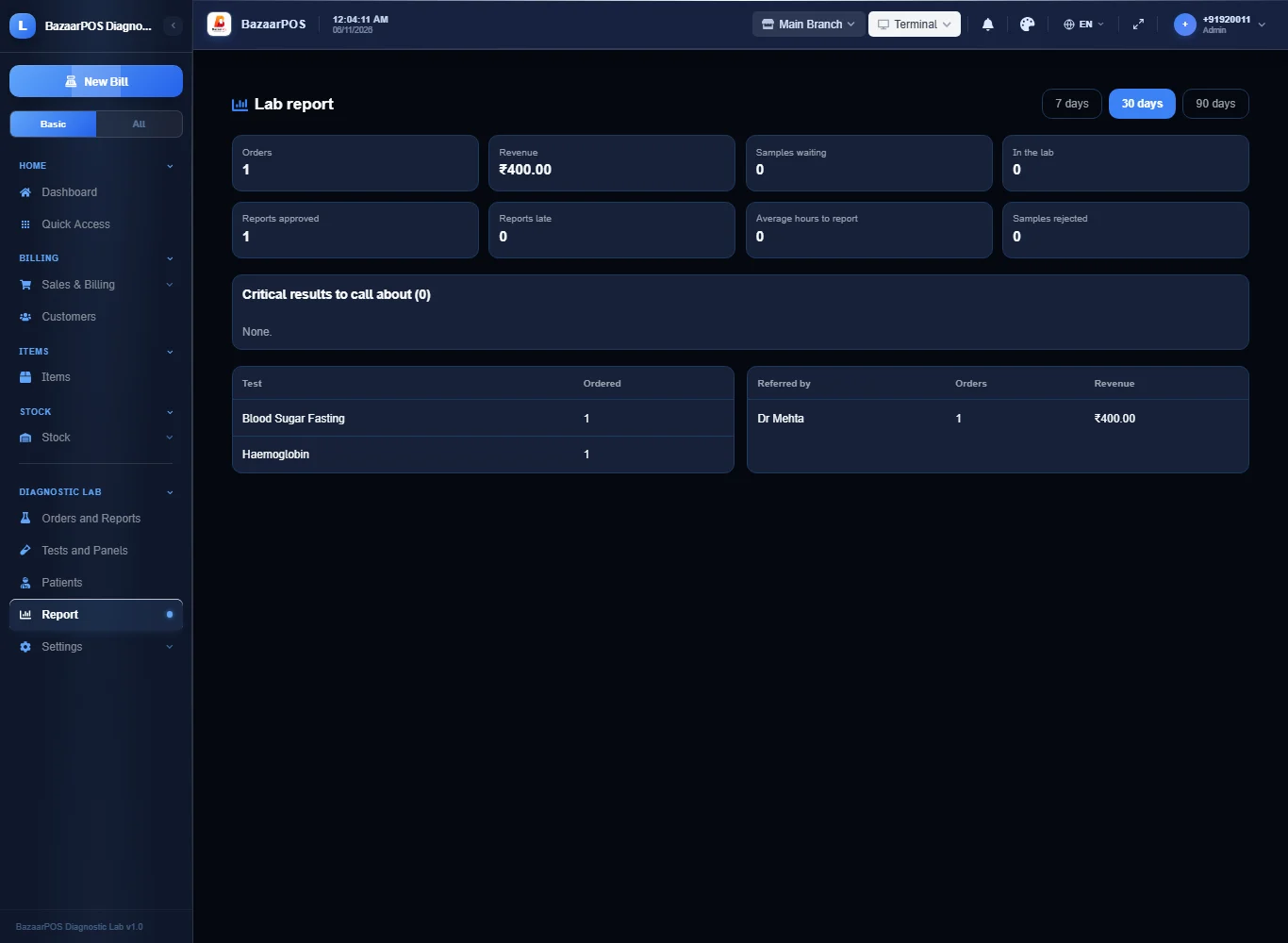
- Report: critical results, late reports and orders by test and by doctor.
Step 1: Build the catalogue
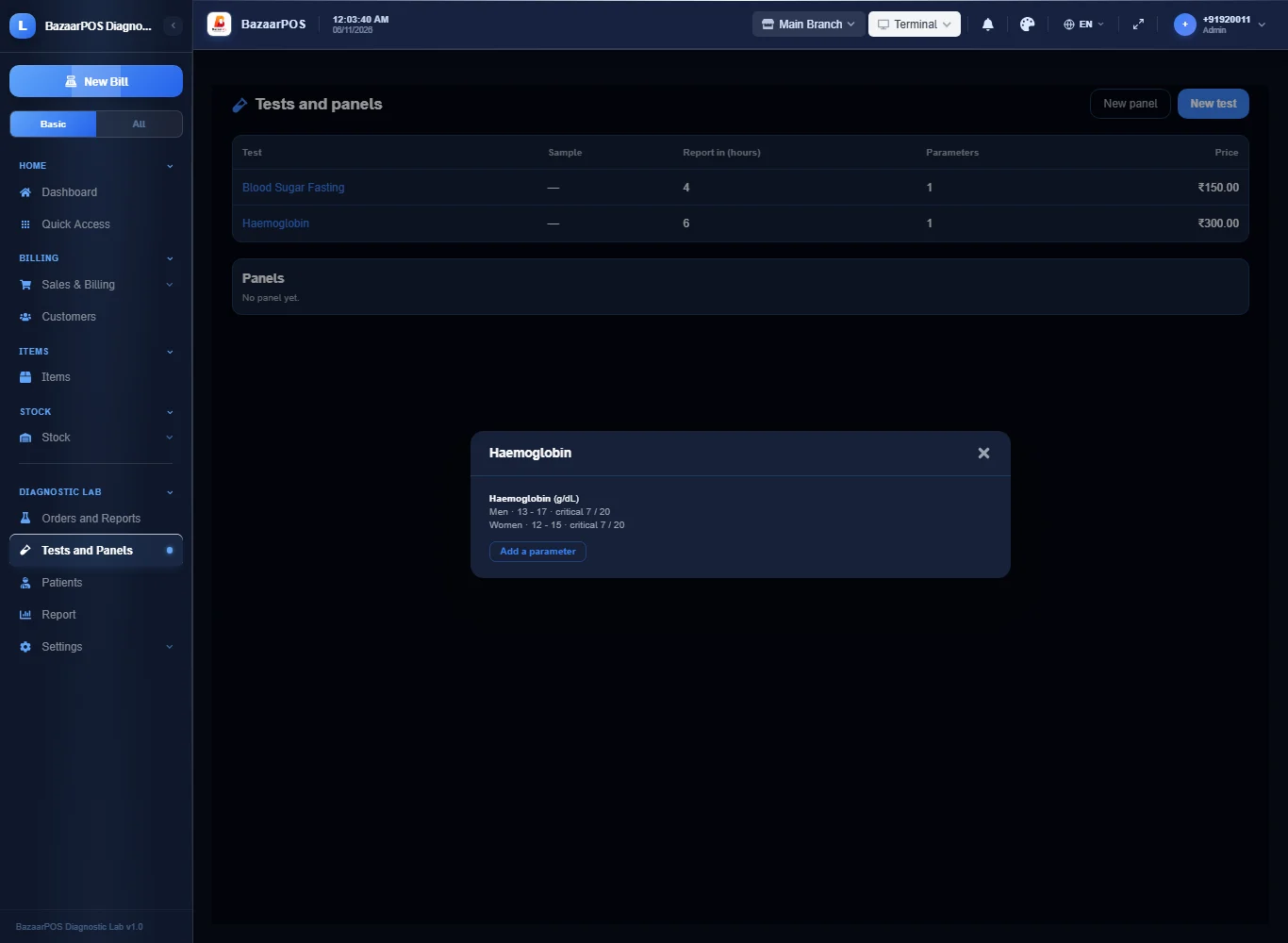
Open Tests and Panels and press New test: name, report time in hours, price and the first parameter with its unit and its range (press Another range for a different range for women). Ranges are typed in by the lab. Press Add common tests for a short list with typical adult ranges to start from: check every range against your own method before you use it. Press a test to see or add parameters. A panel bills two or more tests as one item.
Step 2: Register the patient
Open Patients and press New patient with the name, phone, sex and date of birth: they decide which range is used for the results.
Step 3: Take an order
Open Orders and Reports, press New order, choose the patient, tick tests or panels and press Create and bill. For a home collection tick it and give the address and the collector. The order is billed as a normal sale and gets a sample number.
Step 4: Follow the sample and enter the results
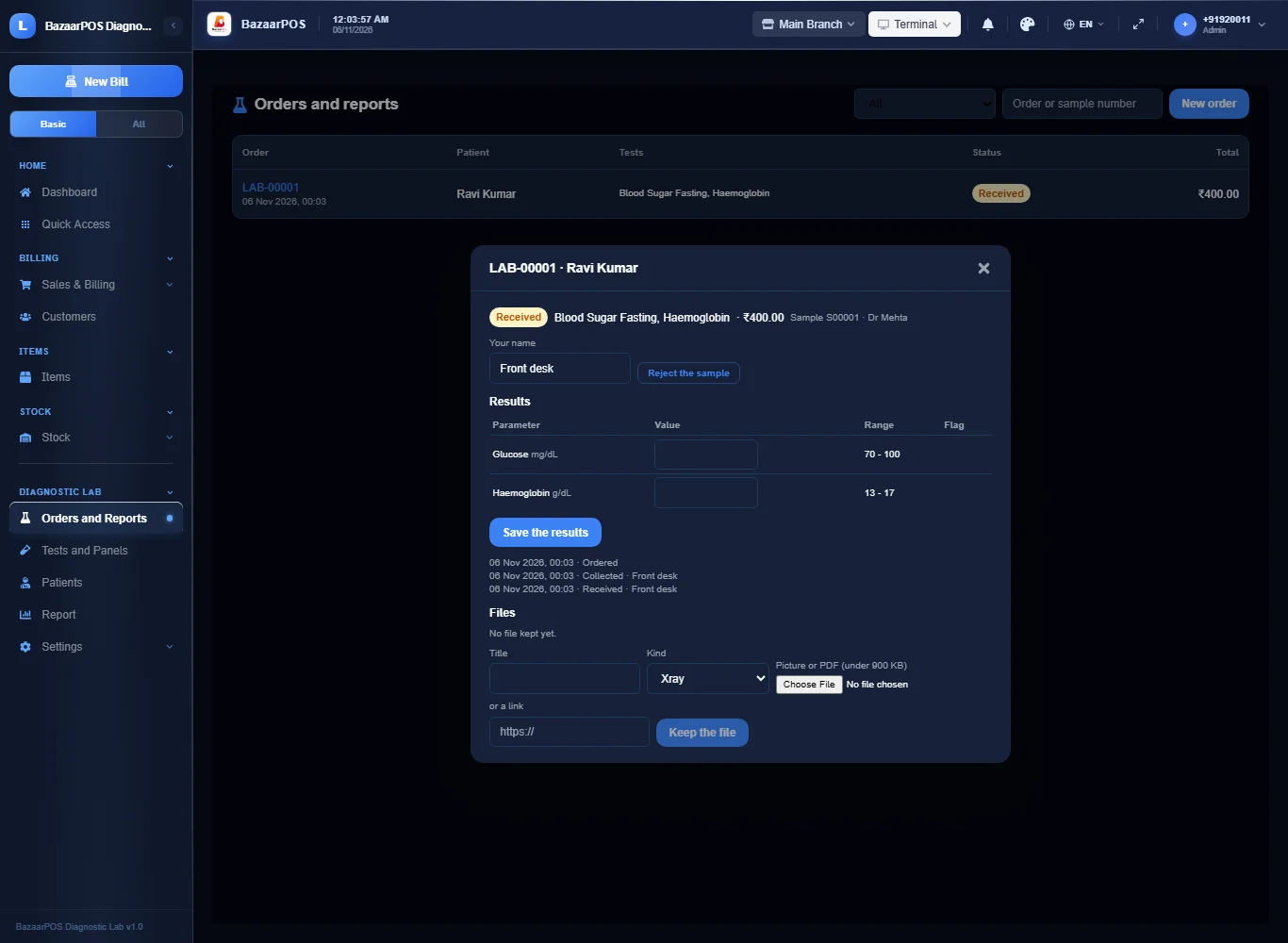
Open the order and press Sample collected, then Received at the lab (a rejected sample needs its reason). The worksheet appears with the range for this patient: type the values and press Save the results. Each value is flagged low, high or critical; when every value is in the order is resulted.
Step 5: Approve and correct
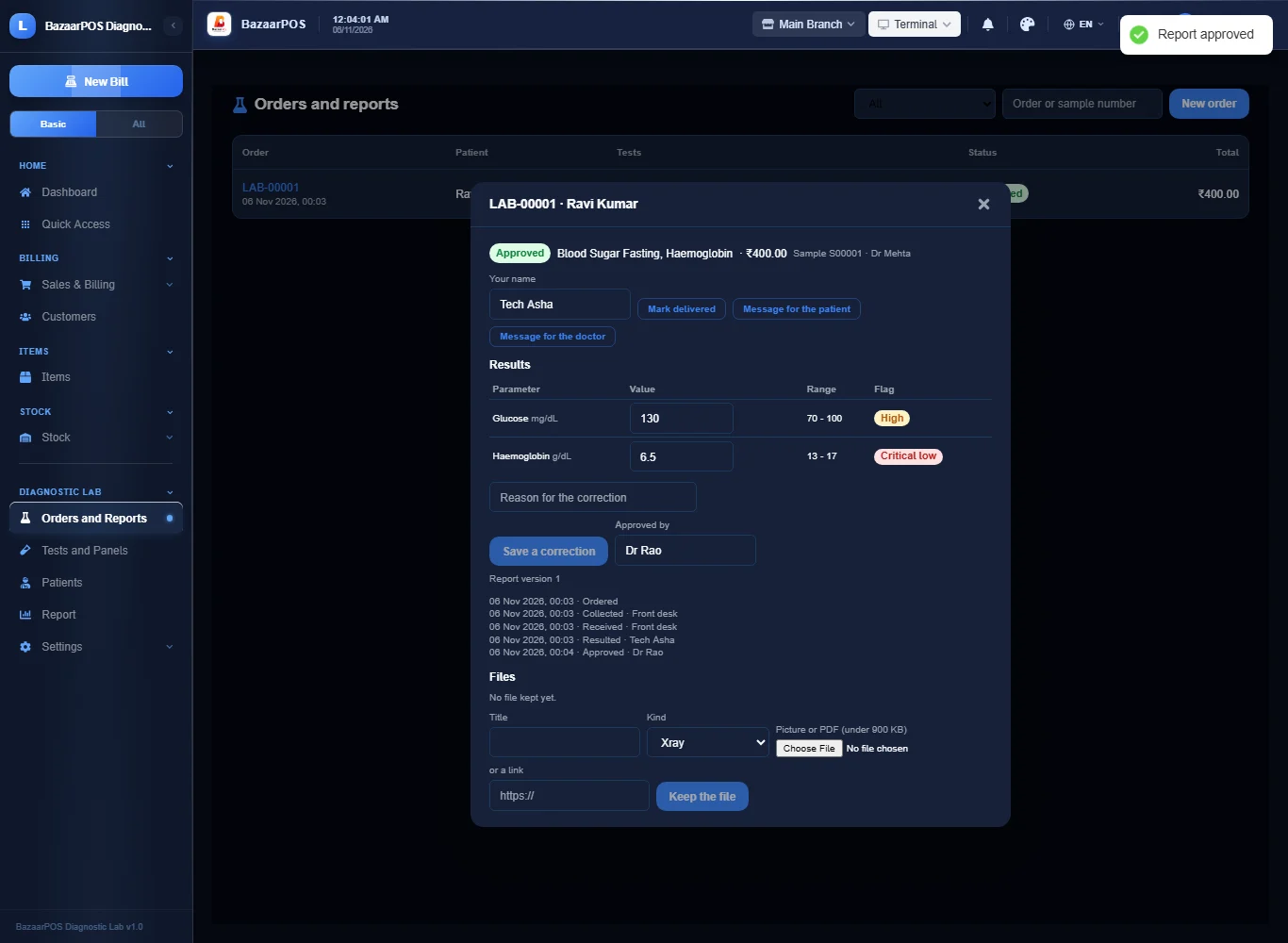
Type the name of the person and press Approve the report: it is locked. To change a value later give the reason and the name of the approver: the correction is a new version and the old value stays in the history.
Step 6: Send and deliver
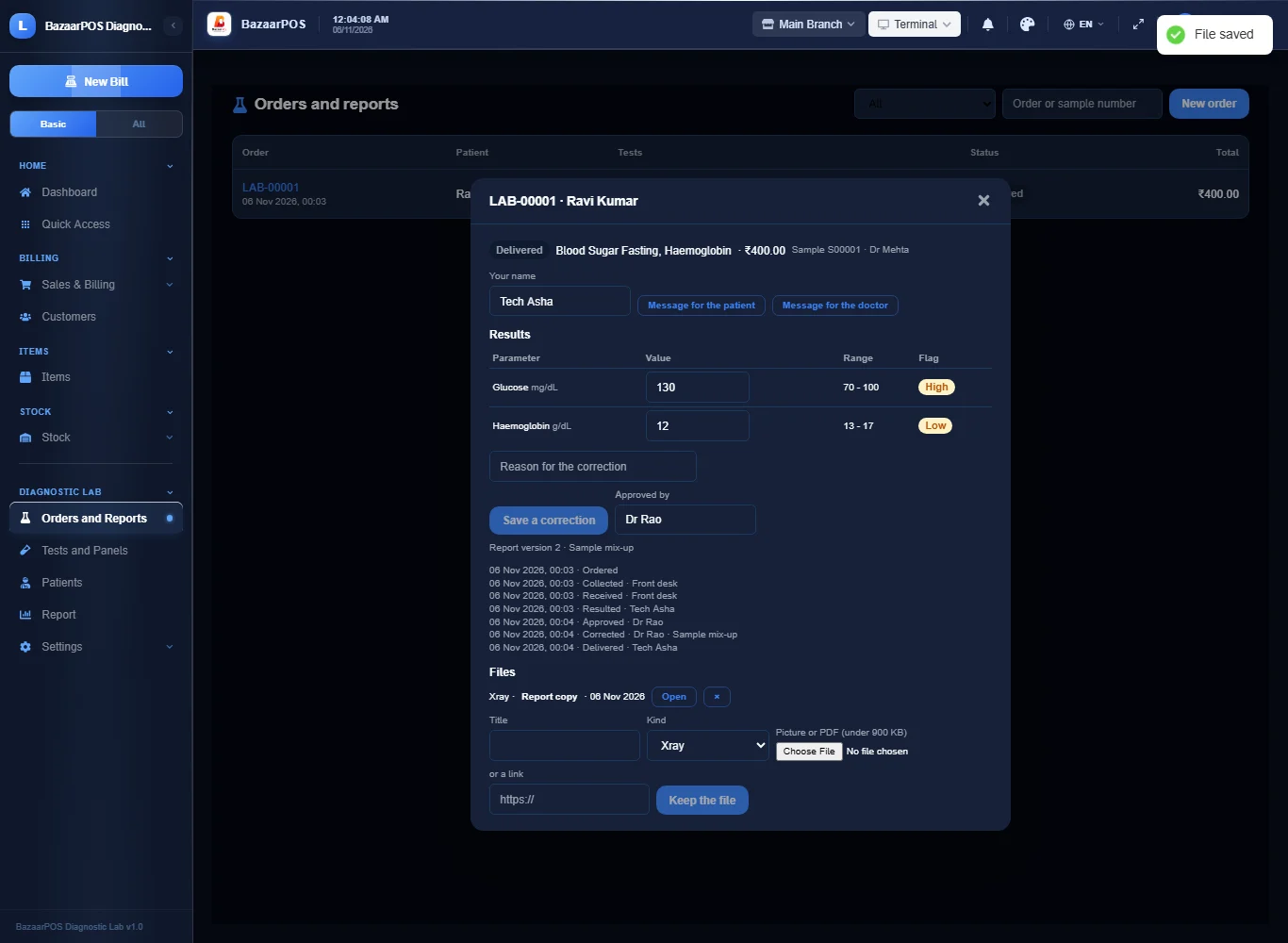
Press Message for the patient (or the doctor) for the ready message, then Mark delivered. Print the report opens the approved report as a page to print, with the values, the ranges, the flags and who approved it. Keep a copy with Files.
Step 7: The report
Open Report for orders, revenue, samples waiting, reports late against what each test promises, the average hours to report, rejected samples, the critical results to call about and the orders by test and by referring doctor.
On the phone
The phone app has Lab Orders, Enter Results, Critical Results and Report.
Also useful here
- Barcode labels: see Barcodes.
- Counting stock: see Stock count.
- Importing items: see Import and export.
- Expiry dates and batches: see Expiry monitor.
Questions
Is this separate from items and billing?
No. A test is a service item, the patient is a customer and an order is a normal sale.
Does it come with reference ranges?
Only a short list of common tests with typical adult ranges, to start from. Check every range against your lab's own method. The app flags a value against them and makes no clinical judgement.
Does it connect to an analyser or sign reports digitally?
No. Values are entered by hand. Analyser interfaces, quality-control charts, accreditation paperwork, digital signatures and links to a health record are not built.
Is this compliant with health-data law?
BazaarPOS does not claim any certification. A locked report keeps who changed what. Check your own legal duties.
Is there a phone version?
Yes. Orders and samples, entering results, approving a report and the critical list are on the phone.
Which plan includes what
Diagnostic Lab comes in Basic, Advanced and Enterprise plans. A screen your plan does not include shows a message with how to upgrade.
- Basic: billing, items, customers, reports, tests, panels, orders and results.
- Advanced: everything in Basic, plus critical results and the report.
- Enterprise: everything in Advanced, plus more than one branch and AI sales forecasting.