Toy Store Setup
Run a toy shop in BazaarPOS: find the right toy by the child’s age and budget, get a warning at the till for small parts and batteries, add gift wrap, keep big toys on lay-by and trace every customer when a toy is recalled.
How it fits together
You keep your normal Items, Customers, billing, purchase orders and special orders. Nothing is entered twice. A toy is an ordinary item. Its age range, brand and safety details sit beside it, and the brand becomes the item’s manufacturer. Lay-by, pre-orders and gift cards are the screens every BazaarPOS shop already has.
- Toys & Gift Finder: age range, type, brand, character, safety mark and batteries on any item, a finder by age, type, brand and price, a gift finder and your gift wrap fee.
- Product Recalls: record a recall by brand, one toy or one batch and see who bought it.
- Toy check and Gift wrap buttons on the billing screen.
Step 1: Add the toy details
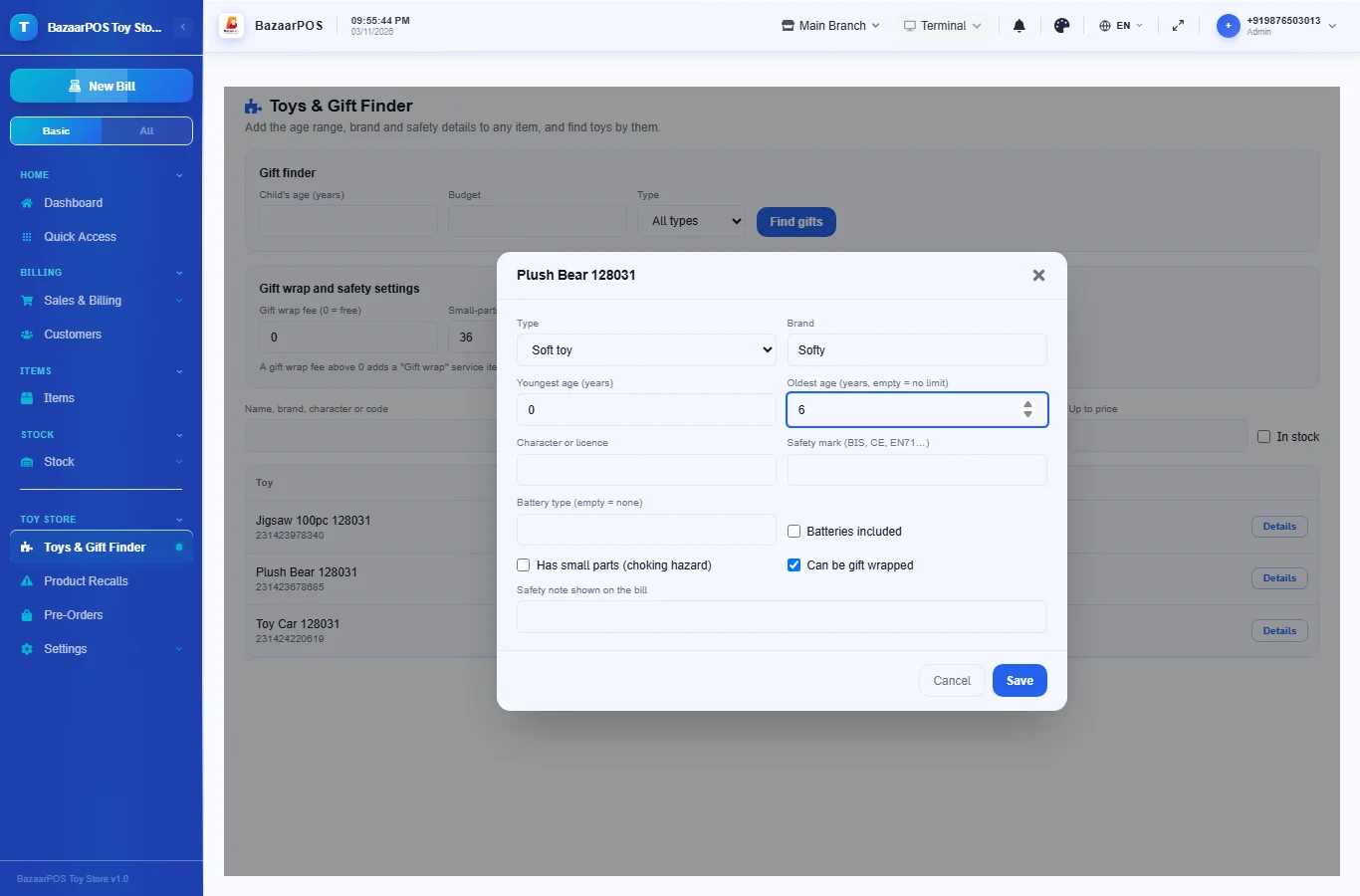
Open Toys & Gift Finder, press Details on a toy and enter the youngest and oldest age in years, the type, the brand, and tick Has small parts if it has any. Name the battery type if batteries are needed; tick Batteries included if they come in the box. A warning appears when a toy with small parts is for children under the age you set (3 years to start).
Step 2: Find toys by age
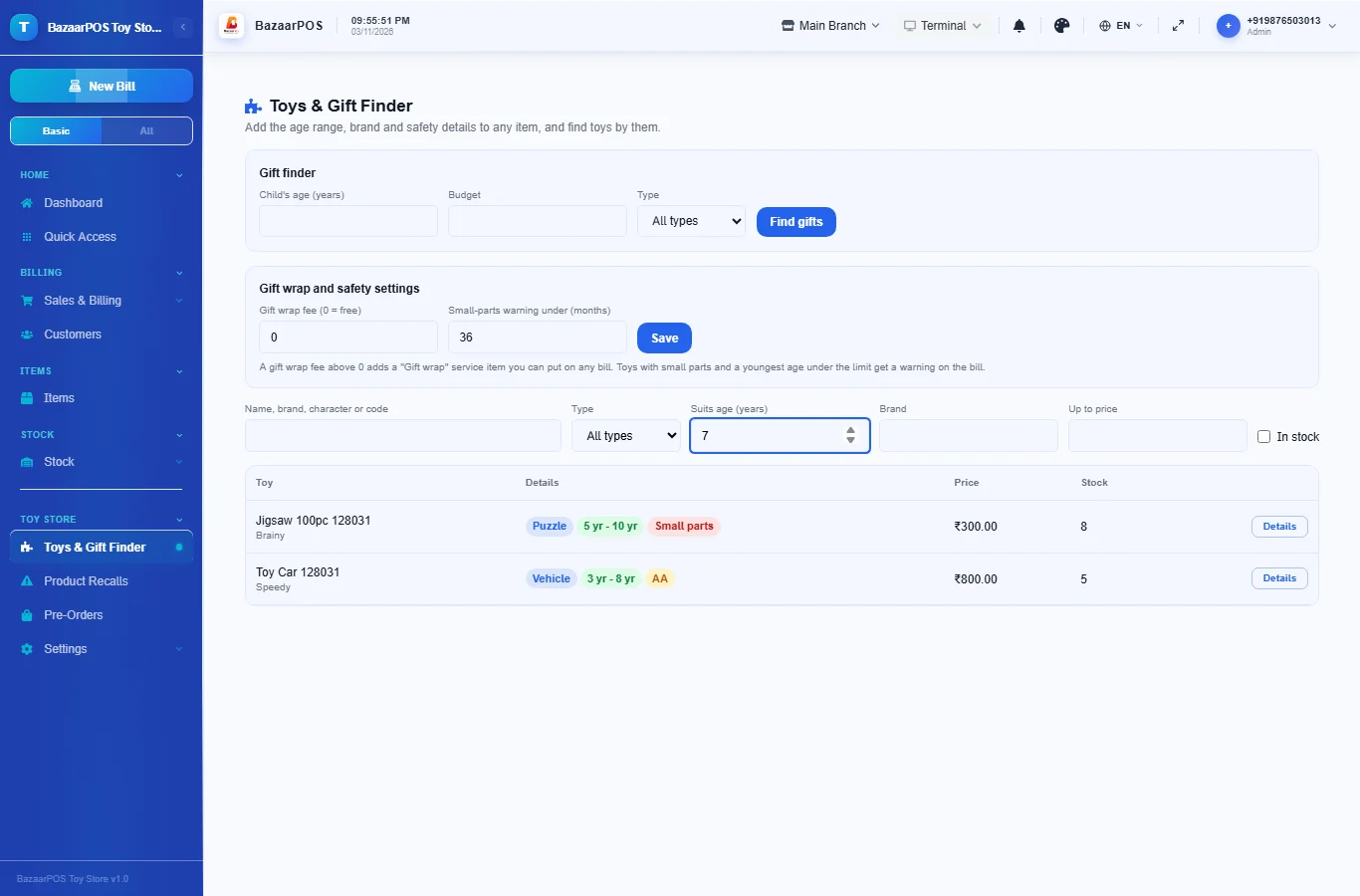
Type the child’s age in Suits age to see only toys that suit a child that old. You can also filter by type, brand and price, and show only what is in stock.
Step 3: Use the gift finder
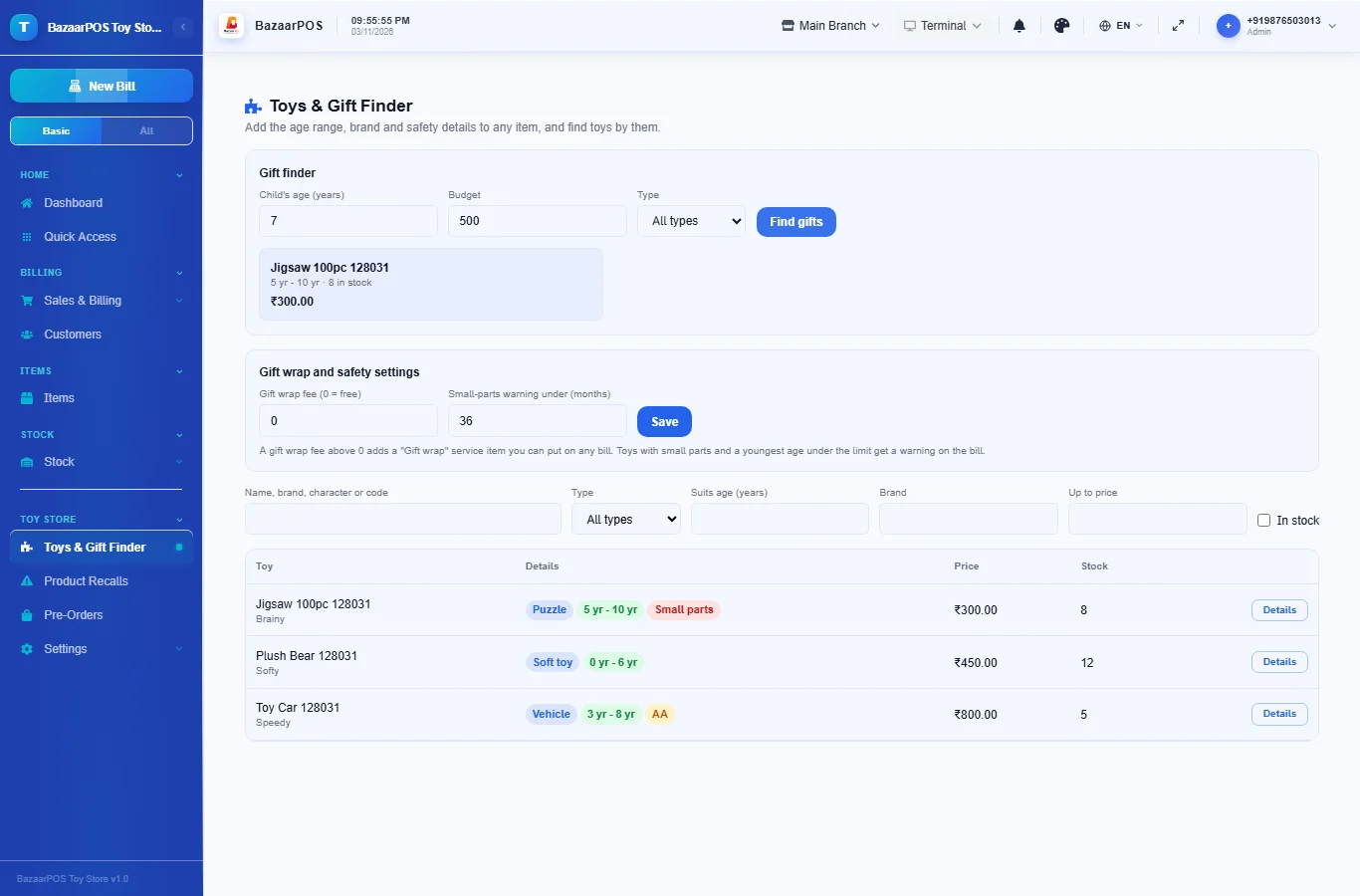
Enter the child’s age and a budget and press Find gifts. You see the toys in stock that fit, the best matches first. A toy with small parts is marked when the child is under 3.
Step 4: Set your gift wrap fee
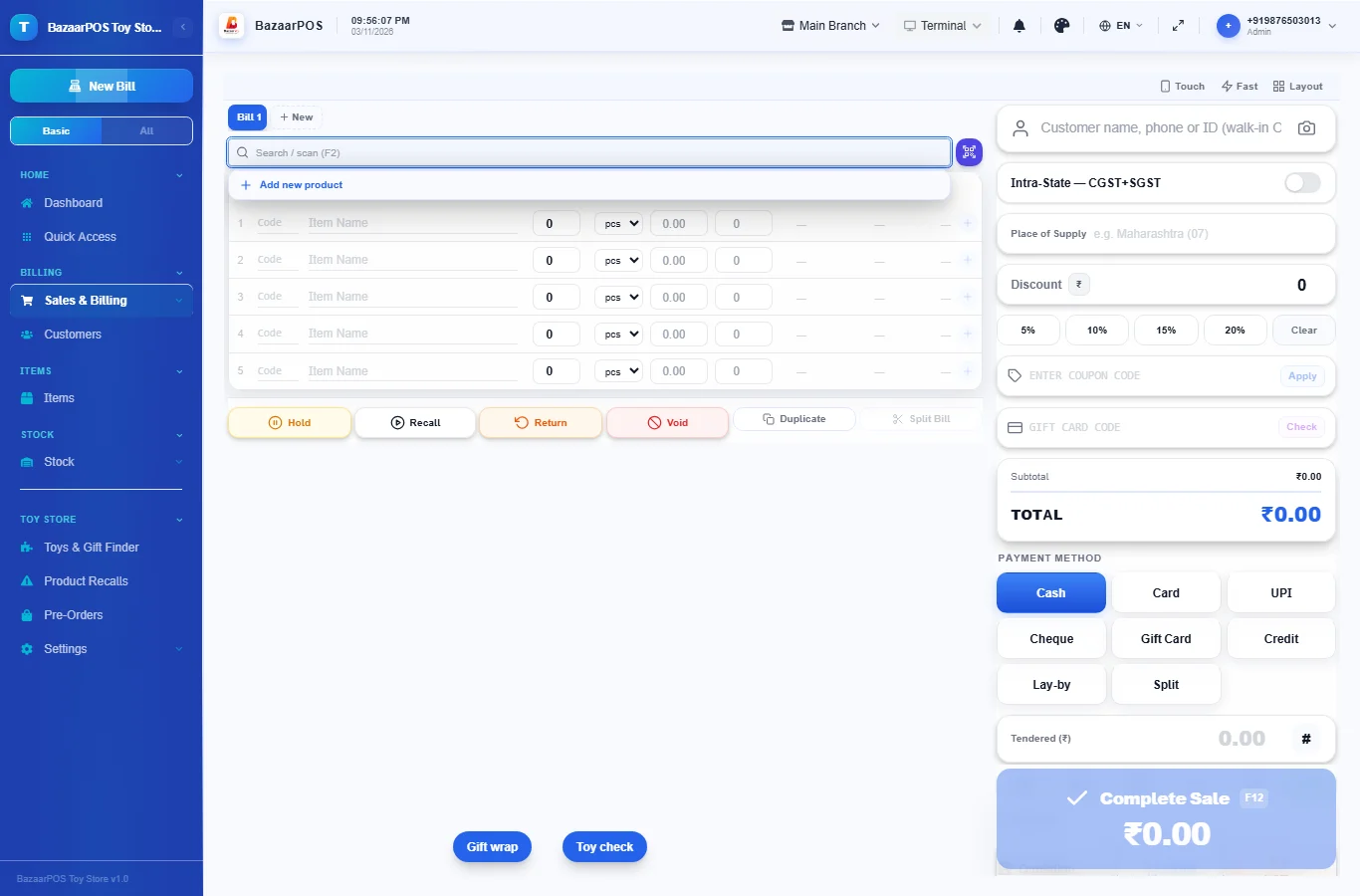
In the settings box on the same page, type your Gift wrap fee and save. A Gift wrap service item is created. Press Gift wrap on the billing screen to add it to a bill. You can also change the age under which small parts are warned about.
Step 5: Check the toys on the bill
On the billing screen press Toy check, enter the child’s age if you know it, and press Check the bill. You see warnings for small parts, toys that need batteries that are not included, toys made for older children, and any safety note you wrote.
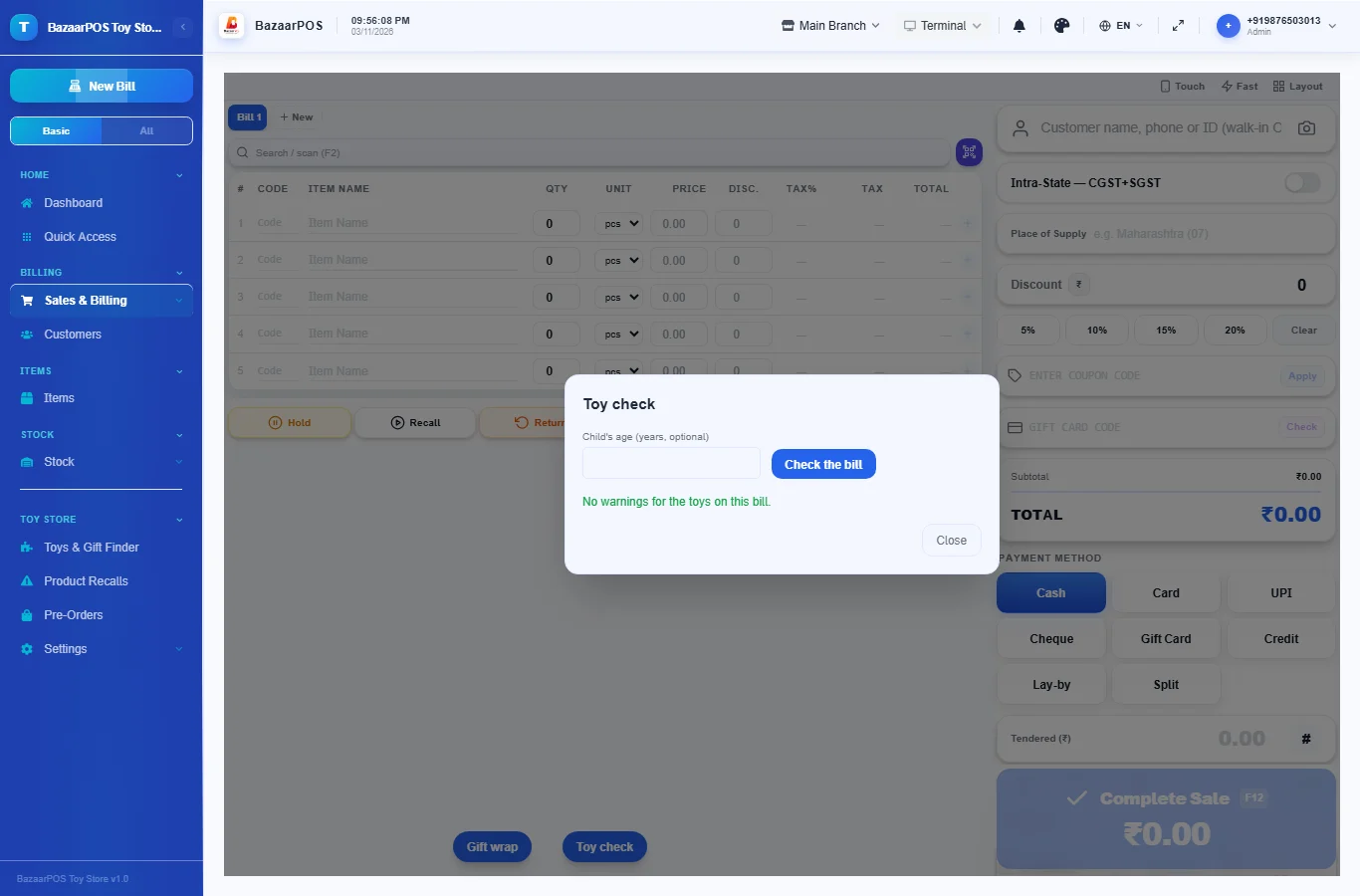
Step 6: Record a recall
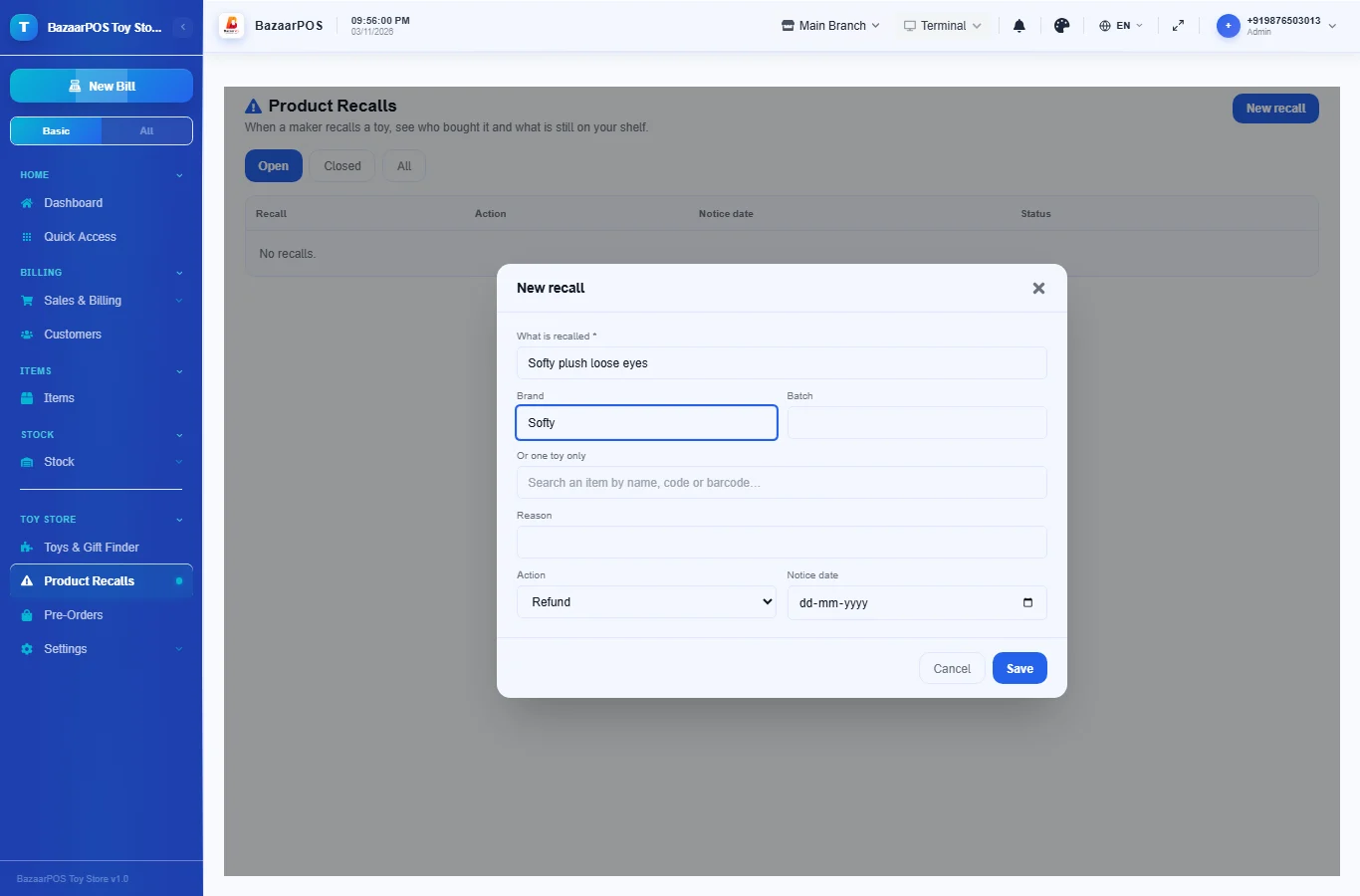
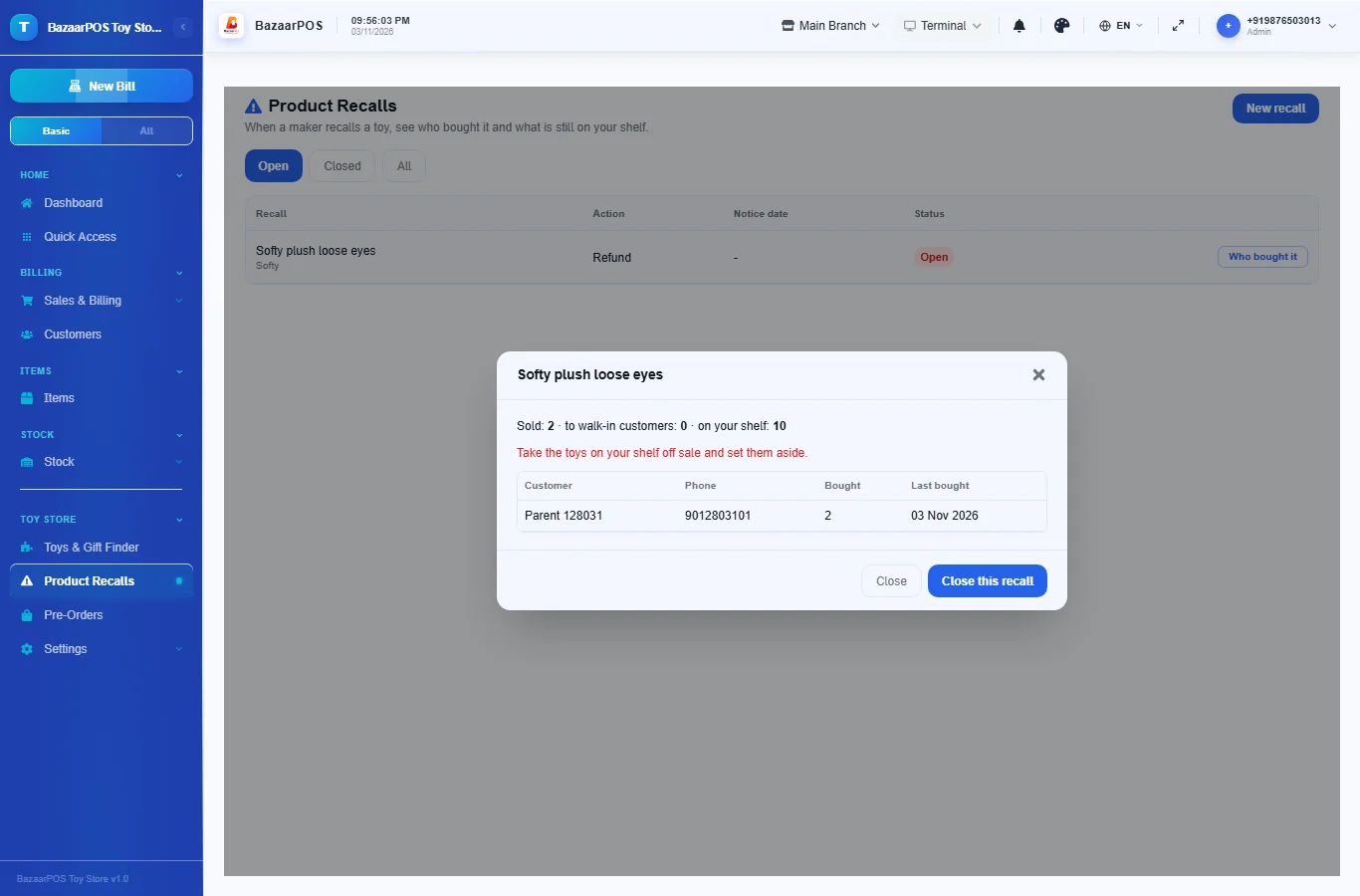
Open Product Recalls and press New recall. Say what is recalled and give the brand, or choose one toy. Add a batch number to limit the recall to that batch. Then press Who bought it to see how many were sold, to which customers (name and phone) and how many are still on your shelf to set aside. If no batch with that number is recorded, every sale of the toy is listed and the screen says so.
On the phone
The phone app has Toys (find by name, brand or age, and set the details), Gift Finder and Product Recalls (tap one to see who bought the toy).
Also useful here
- Barcode labels: see Barcodes.
- Counting stock: see Stock count.
- Importing items: see Import and export.
- Expiry dates and batches: see Expiry monitor.
Questions
Does it decide what is safe for a child?
No. It uses the age range and the small-parts flag that you enter, and warns on the bill. It does not replace the maker’s safety guidance.
How do instalments work?
Use Lay-by (Advance Booking) from the left menu: take a deposit and instalments and release the toy when it is paid.
Can customers book a toy before it arrives?
Yes, with Pre-Orders: a deposit and the expected date.
Which plan includes what
Toy Store comes in Basic, Advanced and Enterprise plans. A screen your plan does not include shows a message with how to upgrade.
- Basic: billing, items, customers, reports, toy details and the finder, the gift finder and gift wrap.
- Advanced: everything in Basic, plus product recalls, lay-by, gift cards, customer advance, loyalty and promotions.
- Enterprise: everything in Advanced, plus more than one branch and AI sales forecasting.