Laundry Setup
Run a laundry in BazaarPOS: a rate list by garment and service, a ticket with a tag for every piece, express service, pickup and delivery, a rack for every ticket, a ready message and billing with your country's tax.
How it fits together
You keep your normal Items, Customers, billing, purchase orders and special orders. Nothing is entered twice. A laundry rate is a normal service item, so its tax comes from your tax setup and it shows in your item reports. The customer is a normal customer, and a ticket handed back is billed as a normal sale by the same code as every other BazaarPOS bill. Added on top are the tickets with a tag for each piece, the express surcharge, pickup and delivery, the rack and the unclaimed list.
- Tickets: garments taken in, a tag for every piece, the next step, ready message, bill and hand back.
- Rate List: a price for each garment and service, the express surcharge, turnaround and ready message.
- Report: tickets handed back, pieces by service, express charges, pickups, deliveries and customer history.
Step 1: Make the rate list
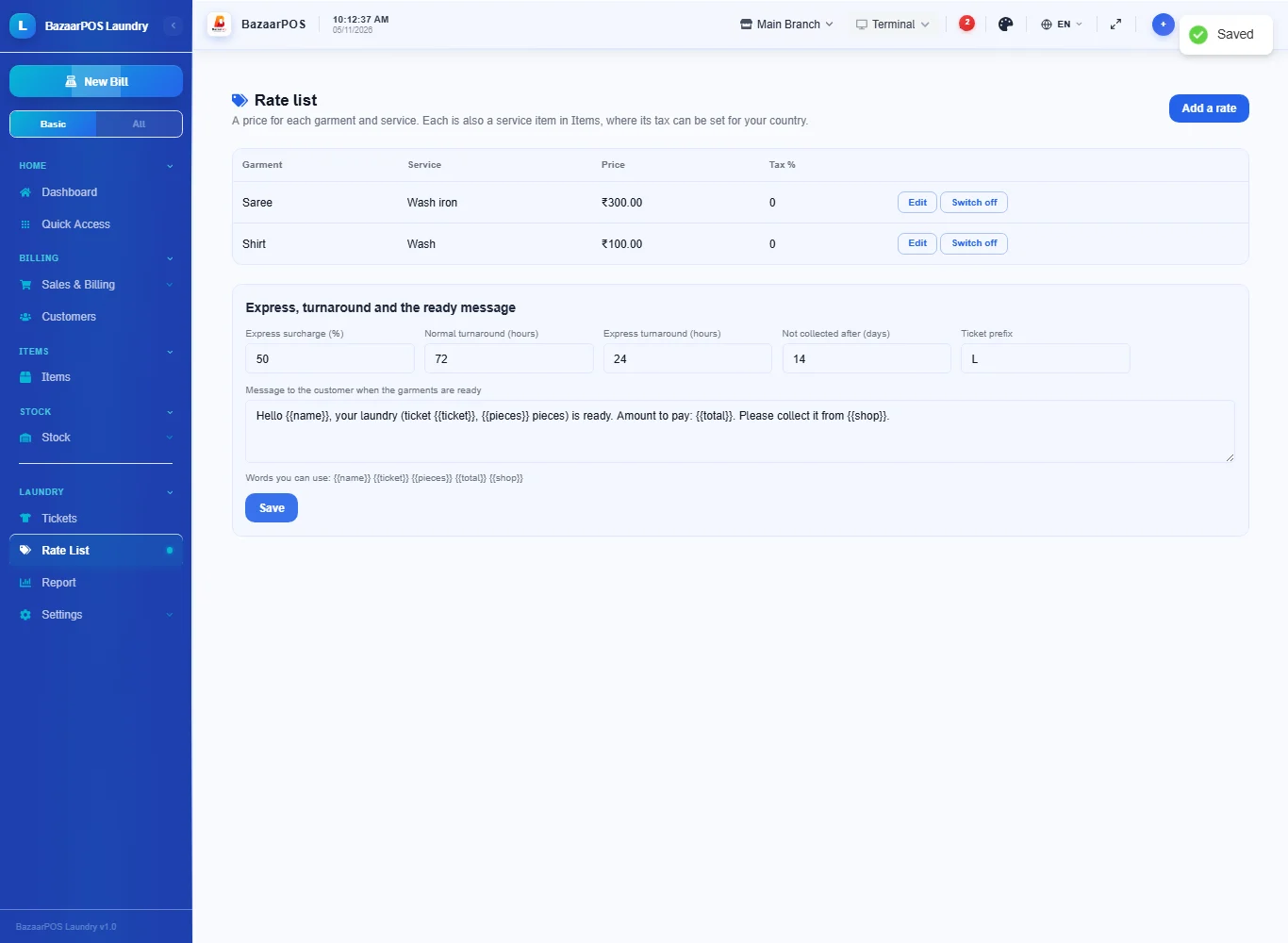
Open Rate List and press Add a rate. Type the garment (shirt, saree, bedsheet), choose the service (wash, wash and iron, dry clean, iron and so on), the price, whether it is charged by the piece, the kilo or the metre, and the tax percentage. Each rate is also a service item in Items.
Step 2: Set express service and the ready message
Under the rate list set the Express surcharge in percent, the normal and express turnaround in hours, the number of days after which a ready ticket counts as not collected, and the message sent to the customer when the garments are ready. Press Save.
Step 3: Take the garments in
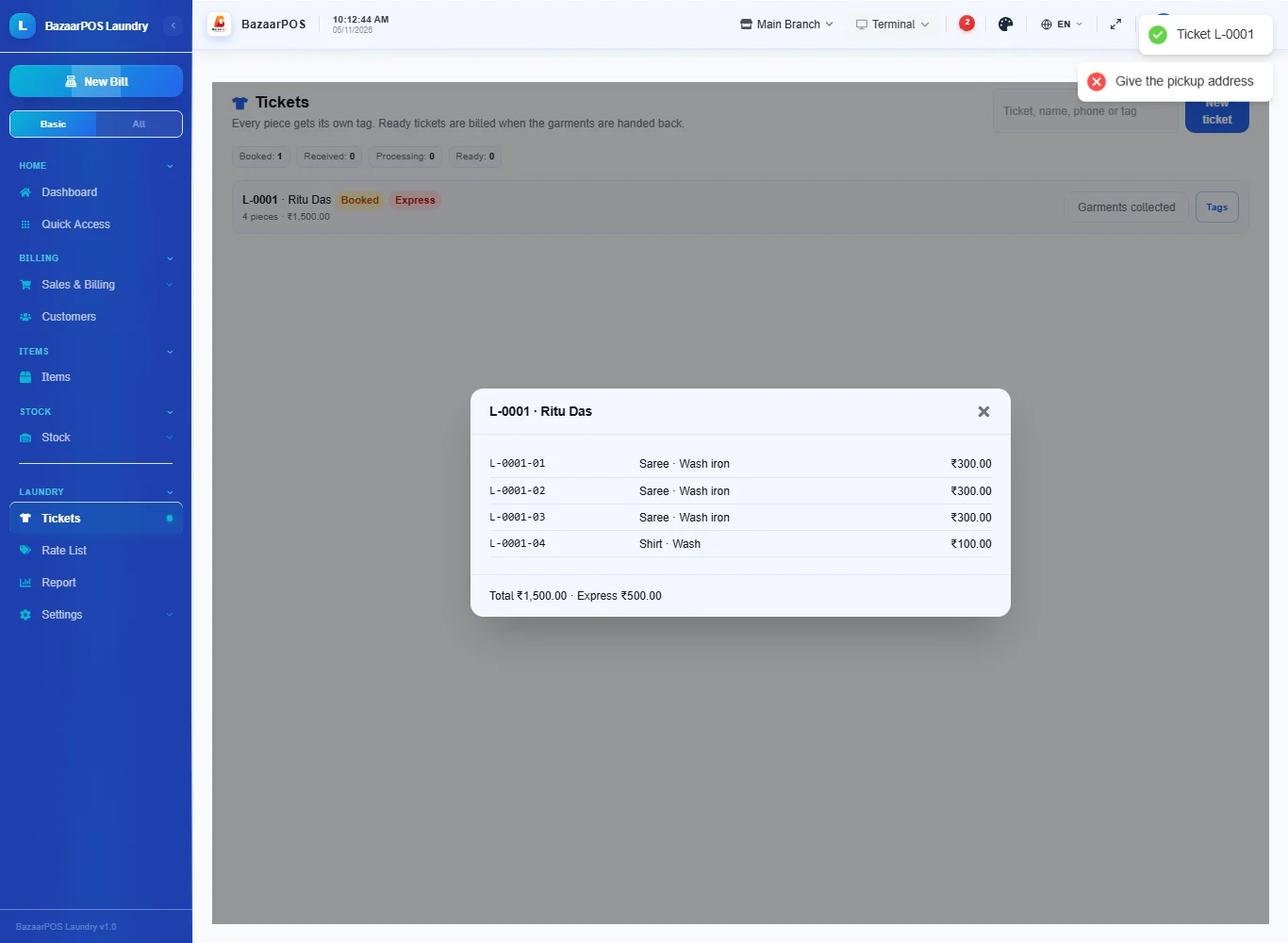
Open Tickets and press New ticket. Type the customer's name and phone, pick a garment and service for each line, and the number of pieces; add the colour and any stain or damage. Tick Express service to add the surcharge, and Pick up or Deliver with the address. The estimate at the bottom follows what you pick. Press Make the ticket.
Step 4: Process the ticket
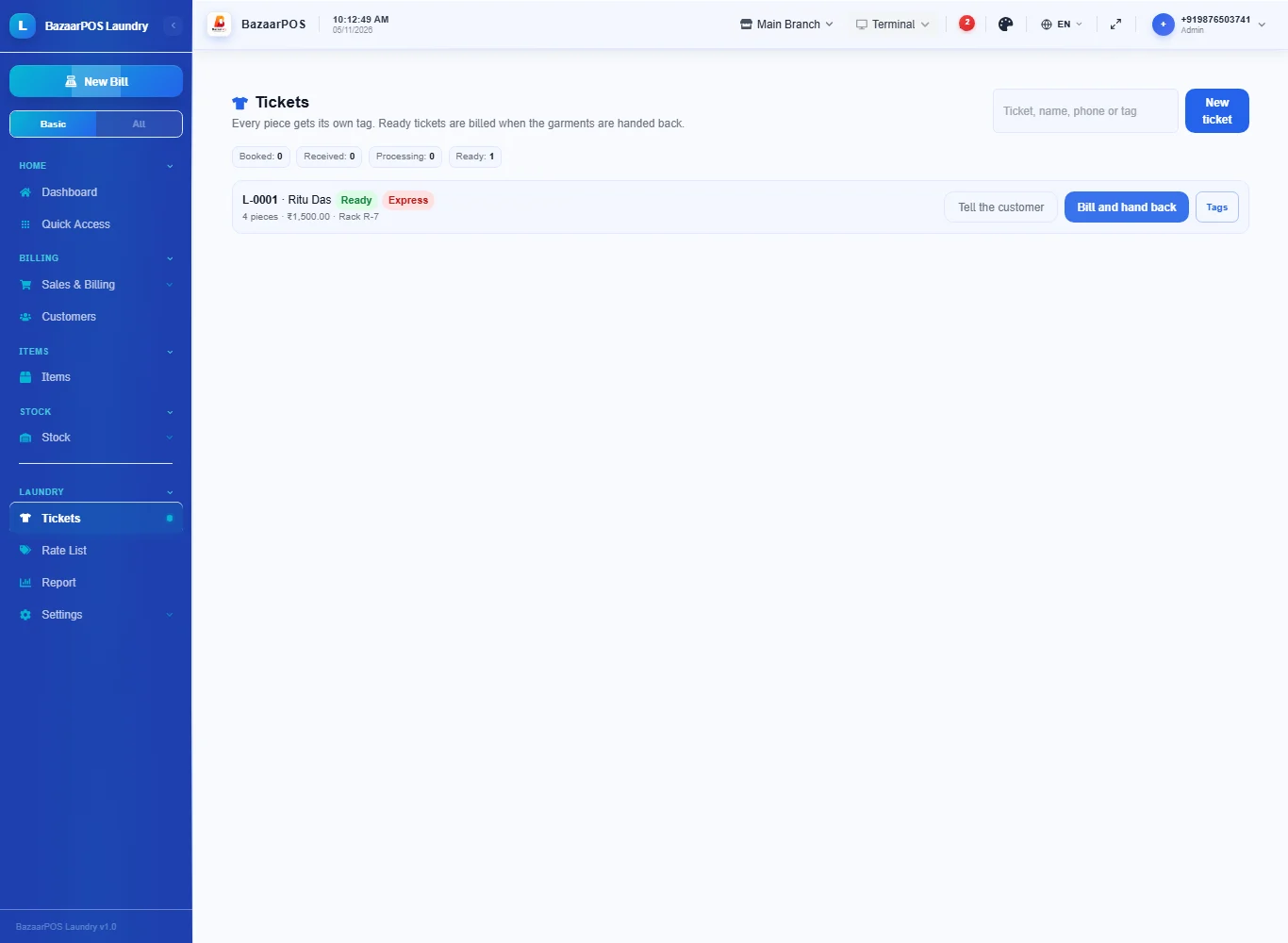
On the ticket press Garments collected, then Start processing, then Ready. To mark a ticket ready the rack or hanger is asked for; it cannot be ready without one.
Step 5: Tell the customer, bill and hand back
A ready ticket has Tell the customer, which opens WhatsApp with your message. When the customer comes, press Bill and hand back: the ticket becomes a normal sale with the tax of each rate, the express surcharge and the advance noted.
Step 6: Read the report
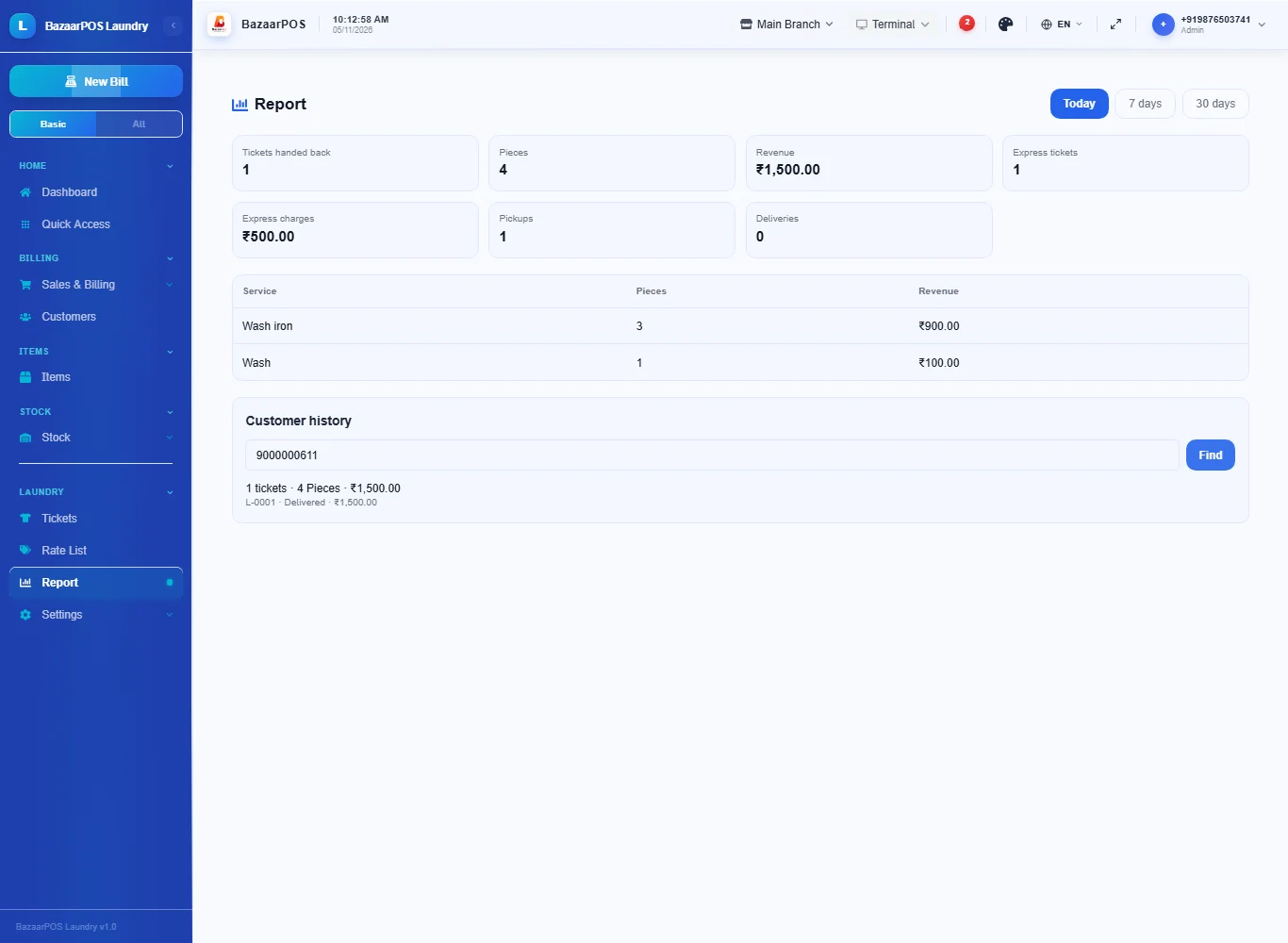
In Report choose today, 7 days or 30 days to see the tickets handed back, the pieces and revenue by service, express charges, pickups and deliveries. Type a customer's phone number to see their tickets. Tickets ready for longer than your limit show on the Tickets page under Ready but not collected.
On the phone
The phone app has Tickets (take garments in, move a ticket to its next step, tell the customer, bill) and Report.
Also useful here
- Barcode labels: see Barcodes.
- Counting stock: see Stock count.
- Importing items: see Import and export.
- Expiry dates and batches: see Expiry monitor.
Questions
Is this separate from items and billing?
No. Each rate is a service item and a handed-back ticket is a normal sale.
Does it use my country's tax?
Yes. The tax of each rate is the item's own, from your tax setup.
Can I charge by the kilo?
Yes. A rate can be by the piece, the kilo or the metre.
Can a ticket be ready without a rack?
No. The rack or hanger is needed to mark it ready.
Is there a phone version?
Yes. Tickets, their next step, the ready message and the report are on the phone.
Which plan includes what
Laundry comes in Basic, Advanced and Enterprise plans. A screen your plan does not include shows a message with how to upgrade.
- Basic: billing, items, customers, reports, the rate list and tickets.
- Advanced: everything in Basic, plus the laundry report and customer history.
- Enterprise: everything in Advanced, plus more than one branch and AI sales forecasting.